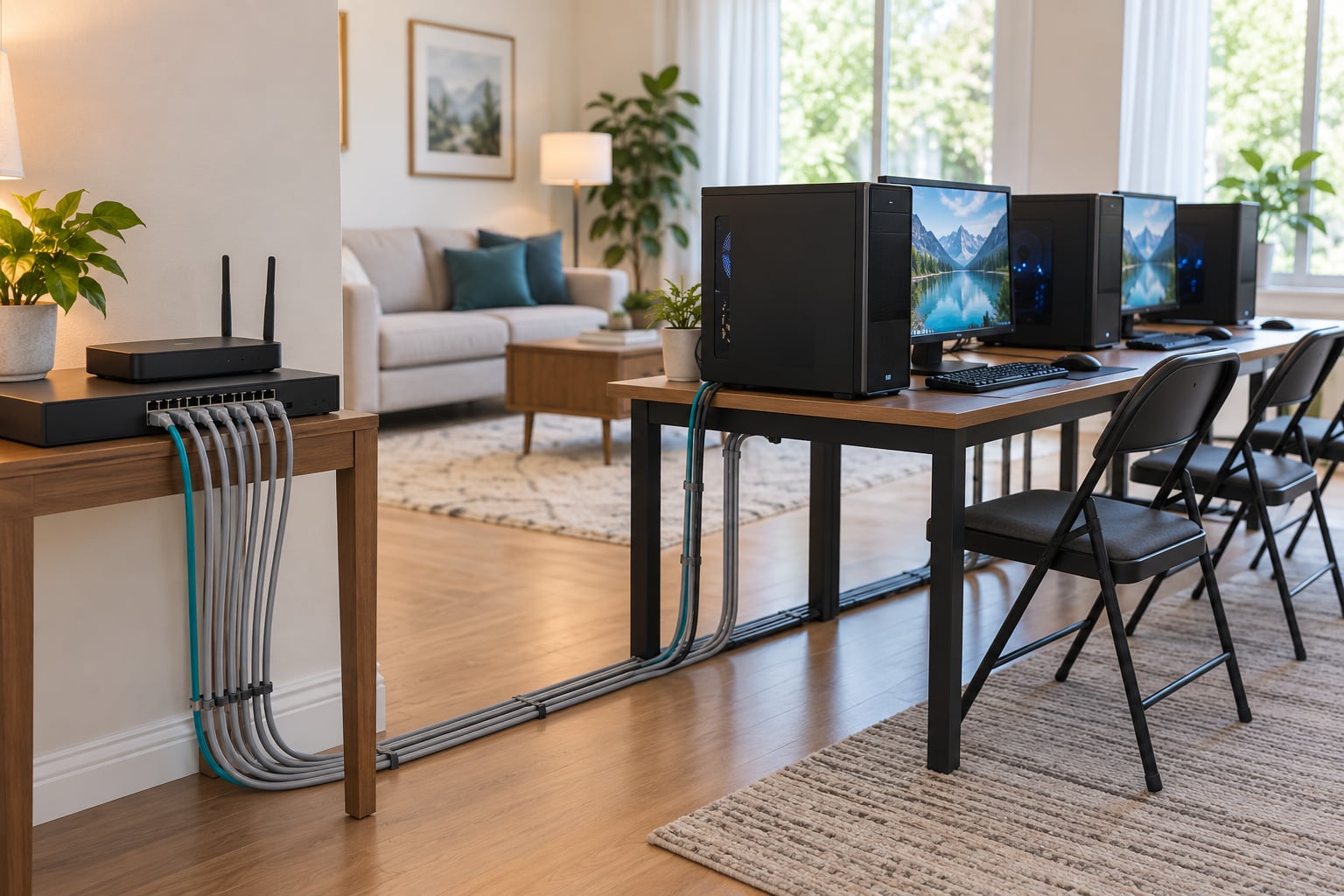
To set up a LAN party at home, you need one Ethernet port and one cable per player, a gigabit network switch big enough to hold them, and a router to hand out local addresses. Plug every PC into the switch, plug the switch into the router, then host the game on one machine or a dedicated server so everyone can find it and join. It takes about two hours to build and test, and the network runs entirely on your own wiring, so internet speed barely matters.
A LAN party is simply people playing multiplayer games over a local area network, a short-range network that links machines inside one building. What people actually do at a LAN party is bring a PC, plug in, sit shoulder to shoulder, and play the same match against each other with no online lag. Some hosts run a tournament bracket, some just play until midnight. The networking part is the easy bit once you know the topology.
The whole setup rests on one idea: star topology, where every PC has its own cable running back to a single central switch. Nothing gets daisy-chained, nothing gets plugged PC-to-PC. Get that right and the rest is just plugging things in, giving each machine an address, and hosting a game.
Table of Contents
- What You Need to Set Up a LAN Party at Home
- Step-by-Step Setup
- 1. Decide How Many Players You Need
- 2. Choose the Right Router or Switch
- 3. Plan Cables, Power, and Room Layout
- 4. Connect Every Computer
- 5. Set Static IP Addresses
- 6. Configure Game Servers and Shared Folders
- 7. Test the Network Before Guests Arrive
- 8. Run the LAN Party
- Common Mistakes That Ruin a Home LAN
- Frequently Asked Questions
- Do I need a router for a LAN party?
- Can you play LAN games without internet?
- Should I use Ethernet or Wi-Fi for a home LAN?
- Why can’t my players see each other on the LAN?
- Can you do a LAN party on a Nintendo Switch?
- How many players can I connect at home?
- Conclusion
What You Need to Set Up a LAN Party at Home
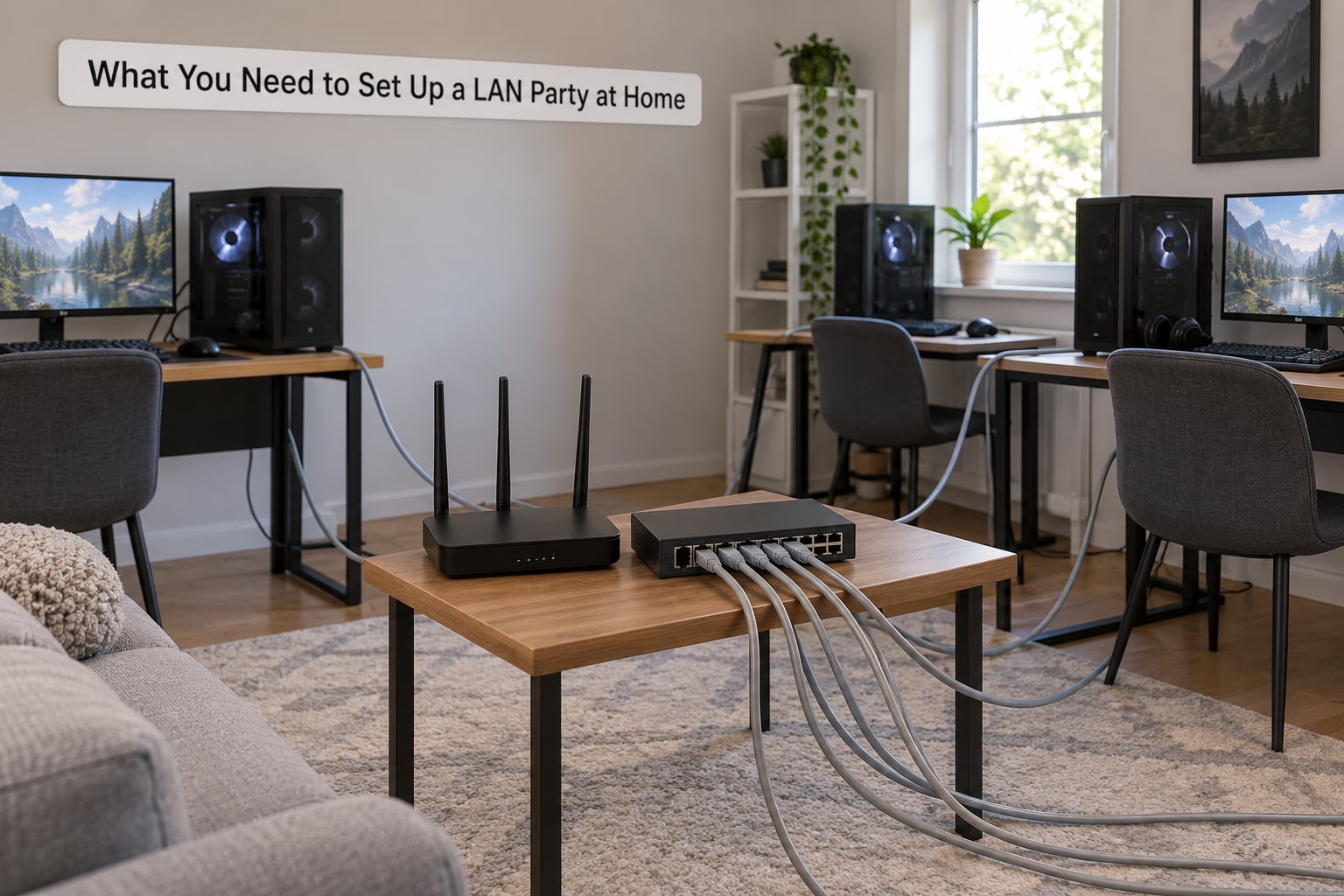
Here is the honest equipment list. Everything on it is either essential or saves you a headache on the day.
- One gaming PC or laptop per player, each with a wired Ethernet port. Built-in Wi-Fi is not a substitute for competitive play, and most laptops from the last several years have a port you can use.
- A gigabit network switch with at least one port per player plus two spare ports. Buy the smallest size that covers your headcount with room to grow: 8, 16 or 24 ports.
- One Ethernet cable per PC, plus one to connect the switch to the router and a couple of spares. Cat5e handles gigabit speeds over 100 metres, and Cat6 costs little more and is easier to find in longer runs.
- A router to run DHCP, the service that hands out local IP addresses. Almost any home router or a cheap travel router will do.
- Power strips with surge protection, one per three to four PCs, plus enough outlets and circuits to go around.
- Tables and chairs. A common rule of thumb is two players per 6-foot table, which leaves room for a monitor, keyboard and water bottle.
- Optional: a second access point or spare router so guests cannot reach your home devices, a game cache box to stop patches from saturating the link, and a spare hotspot for internet access.
Count the ports before you buy anything, and count them again with spares. A 16-port switch handles 14 players comfortably, which leaves room for a host machine and a file share. The table below maps headcount to hardware so you are not guessing.
| Players | Switch size | Cables needed | Power strips | Tables |
|---|---|---|---|---|
| 4 to 6 | 8-port | 7 | 2 | 3 |
| 8 to 14 | 16-port | 16 | 4 | 7 |
| 16 to 22 | 24-port | 24 | 6 | 11 |
| 24 to 38 | 48-port, or two 24-port switches | 40 or more | 8 or more | 15 or more |
Two constraints bite people regularly. First, a single Ethernet run is good to 100 metres, so a basement or detached garage may need a switch in between rather than one long cable. Second, power is the real ceiling in a living room. A gaming PC pulling 400 to 500 watts plus a monitor will trip a shared circuit fast, so spread PCs across multiple strips on different circuits rather than filling one.
Step-by-Step Setup
1. Decide How Many Players You Need
Write the headcount on paper before you touch any hardware. Every other decision follows from that number: switch size, cable count, table space and power. Count the machines you already have, then invite the rest, and add two spare ports no matter what.
Under about five players you can often get away with the four LAN ports on a home router plus a small switch. Past that, the router’s ports run out quickly and home routers are not built for a dozen wired clients, which is where r/networking regulars will tell you to add a switch and stop trying to make the router do switching work. First-time hosts typically run four to eight mixed-spec laptops, and that range is the easiest to plan for.
2. Choose the Right Router or Switch
Use an unmanaged gigabit switch. It has no configuration, no web interface and nothing to go wrong, and it gives every port full gigabit speed. A managed switch adds features like VLAN tagging, port mirroring and quality-of-service prioritisation that you only need if you are running a large event or troubleshooting traffic.
A router is a different box with a different job: it hands out addresses and, usually, shares your internet connection. You want one, but you do not want it doing your switching. A hub, the old way of sharing one cable run between many machines, is obsolete and slow. If you only need two or three machines, you can also skip the router entirely and set static addresses, but the moment you add a fourth machine, DHCP saves an evening of typing.
3. Plan Cables, Power, and Room Layout
Put the switch somewhere central, ideally on a small table or a shelf that is not a walkway, then arrange player desks in a ring or two rows around it. Measure each run with a tape measure before you unroll anything, and add a few feet of slack at each end so the cable is not the thing that yanks a PC off the desk.
Label both ends of every cable with masking tape and a marker as you run it. When one PC cannot see the others an hour before guests arrive, you will be very glad you can follow a label instead of unplugging half the room. Keep every cable out of doorways and off the floor where people walk; cable covers or gaffer tape along the route fixes a trip hazard in a minute.
Map your power before the day. Open the breaker box and find which sockets share a breaker by plugging in a lamp and switching breakers off one at a time. On a 15 amp circuit, four gaming PCs plus monitors is pushing it; two to three is comfortable. Never daisy chain power strips, plug a strip into another strip, or run a strip under a rug. Leave airflow around every PC, and if the room gets warm, a fan pointed at the row matters more than anything else you can buy.
4. Connect Every Computer
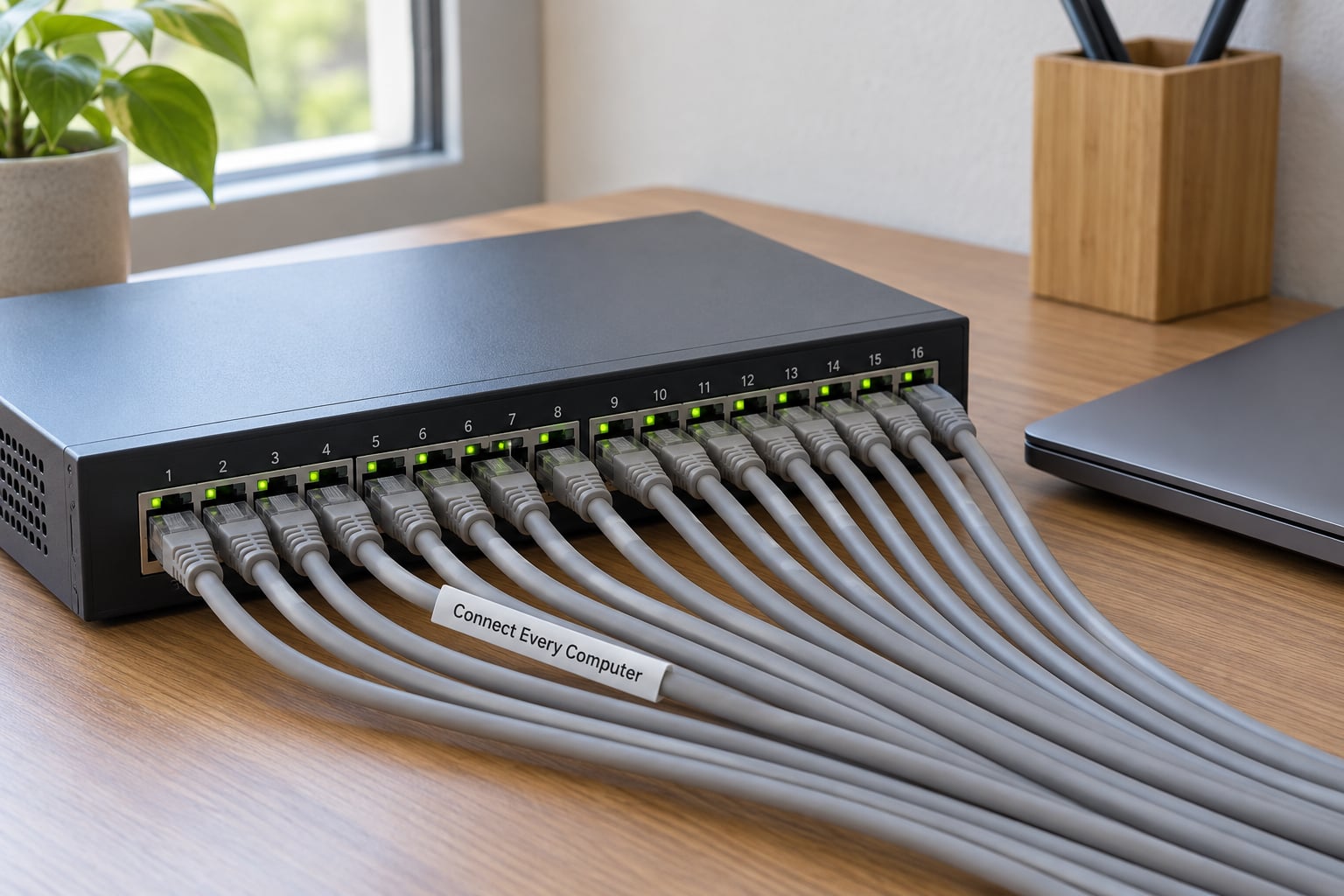
Connect one end of each player’s cable to a port on the switch and the other to the PC’s Ethernet port. Then run a cable from any switch port to a LAN port on the router. Leave the switch plugged in, not the router, for a moment while you check the lights, because a switch with no power is an easy mistake to miss in a dark room.
Every port with a cable in it should show a link light, and most gigabit switches also print the negotiated speed. On the PC side, open your network settings and confirm you have a wired connection with an address assigned, not a Wi-Fi one. A machine showing an address that starts with 169.254 means DHCP failed, which is a different problem and easy to spot early.
5. Set Static IP Addresses
For a small LAN, let the router do it. DHCP hands out an address to each machine automatically, which means you never have to think about conflicts. This is the default and it works for almost every home LAN.
Set static addresses yourself when you want predictable numbers for a dedicated server, when a specific game needs a known address, or when you have run into two machines landing on the same address. Pick a range outside whatever your router hands out, so you do not collide with DHCP later. A common pattern is 192.168.10.50 for the host, then 192.168.10.51 upward for players.
Two mistakes cause most static IP disasters. You change the address on the Wi-Fi adapter instead of the Ethernet one, so the machine looks configured and stays unreachable. Or you pick an address the router has already reserved for itself. Check the router’s own address first, leave it alone, and stay 50 or more numbers clear of the DHCP pool.
6. Configure Game Servers and Shared Folders
Most games work in one of two ways. The simple way: one player hosts the match from their game menu and everyone else finds it in the LAN browser. The scalable way: a dedicated server machine runs the game server, and players connect by typing its address.
Hosting on a player’s PC makes that machine the single point of failure. If they alt-tab to check a message or the game updates mid-match, the lobby collapses. A spare machine, even an older one, avoids that. Community advice leans hard toward a dedicated server, and where a spare PC is not available, a cheap mini PC or an older desktop does the job fine.
Some games also need local discovery to pass through the firewall, which is the number one reason players cannot see each other. On Windows, allow the game through the firewall on private networks, and check that network discovery is switched on. If you share a game folder for maps or mods, share it over the LAN with read access for everyone rather than copying files around by USB.
Two things to sort before the day. Make sure every player runs the same game version, including mods, since mismatched files stop a match from starting. And if the game needs an account login, have players sign in during setup so nobody is locked out mid-round.
7. Test the Network Before Guests Arrive
Run the whole thing a few days ahead. This is the step people skip and the one that saves the evening.
Start with two PCs. Host a private match from one and join from the other. If they see each other, the switch, cables, router and firewall are all working. Then add a third machine and repeat, which tells you whether the problem is a specific PC or the network as a whole.
Check a file transfer between two machines next, and watch the latency. On a properly wired gigabit LAN, ping between machines normally sits around 1 millisecond, and games feel local. If a PC is on Wi-Fi while everyone else is wired, you will see 15 to 40 milliseconds and wonder why that one player has bad aim. Finally, patch the game on every machine while connected, because that is the moment you find out your internet upload cannot feed ten downloads at once.
Write down anything that failed and fix it while you still have time. A test run the night before is far better than troubleshooting with eight people standing behind you.
8. Run the LAN Party
On the day, do a quick pass before anyone arrives: every machine shows a wired connection, the game is installed and updated, the server is running, and power strips are on circuits you have tested. Label the ports on the back of the switch so a swap takes seconds.
Then set up the room so people can live in it. Schedule a break every couple of hours, put food somewhere that does not require a keyboard, keep water within reach of every seat, and agree on a noise level and an end time. Those are home-specific details that turn an evening of gaming into something people remember and want to come back to.
If your own devices share the router, put guests on a separate network. A guest network or a spare travel router keeps their machines away from your media server and smart home devices, and it stops a chatty downloader from slowing down the match. Keep a phone hotspot as a fallback for anything that genuinely needs internet.
Common Mistakes That Ruin a Home LAN
Using Wi-Fi because a cable run is inconvenient. Wireless adds jitter and latency that wired Ethernet does not, and it is the number one reason a single player feels worse than everyone else. Fix: run a cable, even along a wall baseboard.
Underestimating ports and circuits. Four LAN ports on a home router will not carry ten players, and four PCs on one circuit is a trip waiting to happen. Fix: count ports and circuits at the planning stage, with spares on both.
Duplicate IP addresses. Two machines on the same address means one of them is invisible. Fix: use the router’s DHCP for everything unless a game needs a fixed address, and if you set static ones manually, keep them out of the DHCP pool.
Firewall blocking discovery. Players open the game, the LAN browser is empty, and everyone assumes the switch is broken. Fix: allow the game on private networks, and turn on network discovery for the local profile.
Mismatched game versions or mods. One player updates, nine do not, and the match refuses to start. Fix: update everything at the same time during the test run, not on the day.
Ten machines patching at once. This is the top request in gaming forums and the reason r/lanparty regulars run a game cache. A cache machine stores the game files once and serves them to the LAN, so a 60 GB patch transfers from the local disk instead of the internet. Fix: set up a cache box ahead of time, or simply tell players to update before they arrive and bring portable SSDs with the game already installed.
Weak power and overheating. Rooms heat up with eight PCs running, and throttling shows up as stutter. Fix: spread the load across circuits, never chain power strips, and aim a fan at the row.
Cables across walkways. One yanked cable can take down a PC mid-final. Fix: run along walls, tape crossings, and keep the switch out of the traffic lane.
Hosting the server on a player’s machine. Their alt-tab, update or crash ends the match for everyone. Fix: dedicate a machine if you possibly can.
Frequently Asked Questions
Do I need a router for a LAN party?
You need something to hand out IP addresses, and for most people that is the router they already own. Plug the switch into a LAN port on the router and the router handles addressing. With only two or three machines you can skip it and set static addresses by hand, but as soon as a fourth machine joins, DHCP saves an evening of typing.
Can you play LAN games without internet?
Yes, and this is the main appeal. Once every machine is connected to the switch and has a local address, multiplayer traffic never touches the internet. You only need a working connection for account logins, game updates and anything not installed yet. Hosts usually do a patch run beforehand so the event itself can run completely offline.
Should I use Ethernet or Wi-Fi for a home LAN?
Ethernet, every time. A wired gigabit connection between two machines usually shows about 1 millisecond of latency, while the same two machines on Wi-Fi sit anywhere from 15 to 40 milliseconds with far more jitter. That gap shows up as rubber-banding and unfair fights, and no amount of router tuning fully closes it.
Why can’t my players see each other on the LAN?
Check the firewall first, because it causes more lost evenings than bad hardware. Allow the game through the firewall on private networks and turn on network discovery for your local profile. If that passes, confirm every machine is on Ethernet rather than Wi-Fi, that they all sit in the same address range, and that no two machines share an address.
Can you do a LAN party on a Nintendo Switch?
Yes. Consoles connect to the same switch with a standard Ethernet cable, either through the console’s own port or an official adapter. The catch is game support: some Switch titles have no local multiplayer at all, and many simply refuse more than four systems in one room. Check the specific game’s player count before you invite people.
How many players can I connect at home?
The hardware limit is the number of switch ports you buy, so a 16-port switch covers 14 players with spares and a 24-port covers 22. In practice the ceiling comes from power and space, since every extra player needs a spot at a table and somewhere on a circuit that is not already loaded. Plan for four to six players in a living room, more in a garage or spare room.
Conclusion
Start with the headcount. Write it down, add two spare ports, and buy a gigabit unmanaged switch and one cable per machine. Plug the switch into your router, run labelled cables along the walls, spread the PCs across a few circuits, and test the whole thing a few days ahead with two machines. Once that test passes, invite people with confidence. The network stops being the hard part of the evening and becomes the boring part, which is exactly where you want it.