How to lower input lag on a gaming monitor comes down to four things: plug in the right cable, run the display at its highest supported refresh rate, strip out the picture processing that buffers frames, and stop your PC from queueing extra ones. Most of the delay people blame on their monitor is added by settings they never touched.
Here is the honest version. A game engine samples your input, the GPU renders a frame, the signal travels down the cable, the monitor’s picture pipeline processes it, and the panel scans it out. Every stage that holds on to a frame adds milliseconds.
You cannot remove the stages inside your PC, but you can remove most of the ones the monitor adds and stop your PC from building a queue in the first place. Work through the steps below in order and change one thing at a time, because two changes at once tells you nothing about what worked.
Before you touch anything, it helps to know what number you are aiming for.
Table of Contents
- What Counts as Good Input Lag
- Input Lag Is Not Response Time
- The delay stack, in order
- What You Need
- Fix and Typical Saving for Each Change
- Step-by-Step: How to Lower Input Lag on a Gaming Monitor
- Step 1: Use the Right Connection and Enable the Highest Supported Refresh Rate
- Frame window by refresh rate
- Step 2: Turn Off Monitor-Side Processing That Adds Delay
- Step 3: Set the Correct PC Display Mode
- Step 4: Remove Game and Graphics-Software Delay
- Step 5: Test the Setup and Check for System-Level Delay
- Common Mistakes
- Frequently Asked Questions
- Does 240Hz reduce input lag?
- Is 20ms input lag noticeable?
- Is 40ms latency good for gaming?
- Should I turn on the low input lag monitor setting?
- Does adaptive sync add input lag at low frame rates?
- Why does my 240Hz monitor feel choppy?
- Conclusion
What Counts as Good Input Lag
Input lag is the time between you pressing a button and the first pixel on your screen actually changing. Good input lag for gaming is under 15ms. Below 40ms most people stop consciously noticing it, and past 50ms competitive players start whiffing shots they should have landed.
| Measured input lag | What it feels like | Who it suits |
|---|---|---|
| Under 15ms | Invisible in play | Competitive shooters, fighting games, sim racing |
| 15ms to 40ms | Felt only on very fast transitions | Most single-player and co-op sessions |
| 40ms to 50ms | A faint weight to fast flicks | Tolerable, not ideal for ranked play |
| Over 50ms | Noticeable and distracting | A setting problem worth fixing |
| Over 70ms | Plays like a monitor is underwater | Broken configuration, not a panel fault |
That table matters because most of the time you are nowhere near your panel’s floor. A monitor measured at 4ms can easily behave like a 25ms monitor once it is parked at 60Hz with Game Mode off and V-Sync queueing frames. Settings dominate, and the hardware is often innocent.
Input Lag Is Not Response Time
This is the single most repeated mistake on monitor forums and in spec sheets. Response time (G-to-G) is how long a pixel takes to change from one colour or brightness to another. That is a picture quality measurement. Input lag measures the whole path from your finger to light hitting glass, and it has nothing to do with how quickly pixels settle.
So when you see 0.03ms or 1ms advertised, that is not input lag and it never was. Those figures describe the panel’s switching behaviour, and on many fast gaming panels the difference between 0.03ms and 1ms is not something you can perceive in a game. Play the field on r/Monitors and the measured input lag numbers people post are single-digit milliseconds on good panels, which tells you the marketing line and the real experience are different measurements of different things.
Network latency is a third thing entirely. It affects what the server knows about your actions, not how fast your monitor shows you the result. Your monitor cannot fix a bad route to a game server.
The delay stack, in order
Input, then game engine, then GPU and renderer, then the cable and port, then the monitor’s processing pipeline, then the panel scanout. Steps three through five are the ones you can actually influence from your desk. Knowing where a delay lives tells you who to blame before you start changing settings.
What You Need
None of the fixes need special hardware, but you do need access to a few layers before you can verify anything.
- The monitor itself and its on-screen display, usually reached with the joystick or the row of buttons under the panel.
- The PC or console you play on, plus the graphics driver control panel if you are on PC (NVIDIA Control Panel or AMD Software).
- A direct connection cable – DisplayPort or HDMI, running straight from the GPU or console to the monitor. No dock, no adapter, no KVM, no capture card in the path.
- Windows display settings, reachable through Settings, System, Display, Advanced display.
- The game settings menu for the title where the lag shows up most.
- Something to test with – a phone camera capable of high-speed video works, and so does a mouse-to-mouse or web-based latency test.
Ten minutes of setup gets all of that within reach. If you want the fast path, start with the cable and the refresh rate, then work down the list.
Fix and Typical Saving for Each Change
Not every fix is worth your evening. This is roughly what each one is worth, ordered by return on time spent.
| Fix | Typical saving | Effort | Who should bother |
|---|---|---|---|
| Move from 60Hz to the top refresh rate | 10ms to 25ms | Low | Everyone |
| Turn on Game Mode / low latency mode | 3ms to 10ms | Low | Everyone |
| Turn off V-Sync, keep adaptive sync | Up to one frame, 8ms to 17ms | Low | Competitive players |
| Frame cap just under refresh rate | 5ms to 15ms of queue | Low | Anyone near the refresh ceiling |
| Set overdrive to medium instead of off | Removes blur, not milliseconds | Low | Fast-paced shooters |
| Remove docks, adapters and scalers | 1ms to 5ms | Medium | Laptop or dock users |
| Close overlays and background capture | 1ms to 4ms | Low | Anyone with recording software running |
| Switch wireless peripherals to wired | 1ms to 8ms, and stops the spikes | Low | Wireless mouse and keyboard users |
| Close GPU-bound queue by lowering demand | 10ms or more at 99% load | Varies | Anyone whose GPU is pinned |
Effort is Low for anything in a menu that takes one click. One thing no amount of tuning can do: remove your panel’s built-in lag. A slow panel stays slow.
Step-by-Step: How to Lower Input Lag on a Gaming Monitor
Step 1: Use the Right Connection and Enable the Highest Supported Refresh Rate
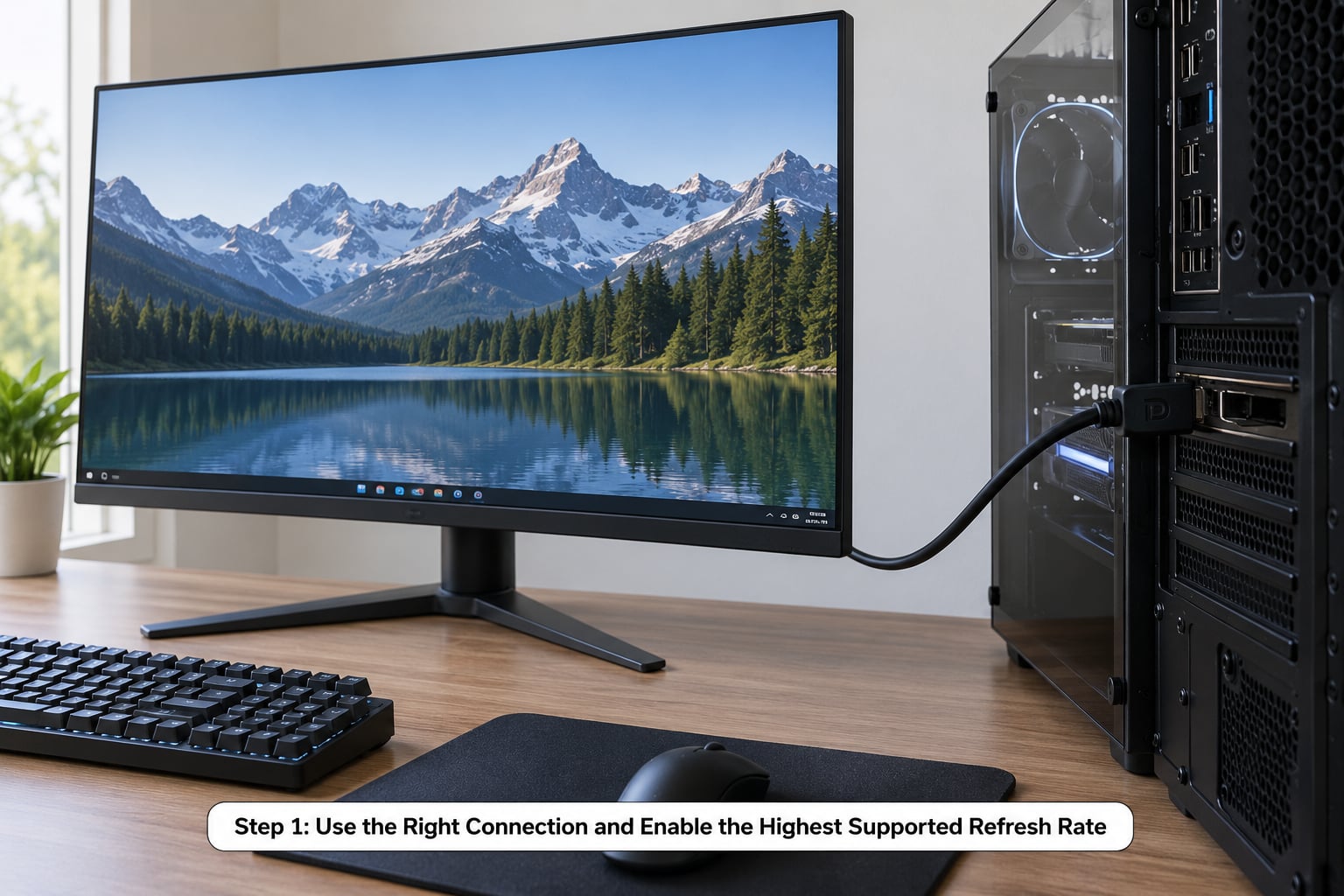
This is where most people lose the biggest chunk of milliseconds without realising it, because a monitor stuck at 60Hz looks perfectly normal. Nobody sees 60Hz as broken.
Start with the port. DisplayPort 1.4 carries 144Hz at 1440p and 240Hz at 1080p without argument, and DisplayPort 1.4 with DSC or HDMI 2.1 handles 4K at 144Hz. Use whichever of those your GPU and monitor share, and run the cable straight into the monitor. Docks, adapters and capture cards all add a conversion step, and some of them re-encode the signal entirely.
Then check the monitor’s own menu. Many panels ship with the top refresh rate available but not enabled, and some lock high rates behind a specific picture mode. In the OSD look under System Settings, Display Settings or Game Settings for a Refresh Rate or DisplayPort Version entry.
On Windows 11, go to Settings, System, Display, Advanced display and read the refresh rate box. It tells you what the monitor is actually running right now, not what it can run.
If it says 60Hz on a 144Hz panel, that is your first bug. A Windows update, a driver change or a swapped cable can drop it silently, and nothing on screen tells you it happened.
Do not run a non-native resolution either. Let the monitor handle its own scaling so you skip a processing stage.
Frame window by refresh rate
The refresh rate sets how long the display waits between showing new frames, and that window is a floor you cannot go below.
| Refresh rate | Frame window |
|---|---|
| 60Hz | 16.7ms |
| 120Hz | 8.3ms |
| 144Hz | 6.9ms |
| 240Hz | 4.2ms |
| 360Hz | 2.8ms |
People on r/Monitors post the same pattern repeatedly: an MSI MAG274QRF-QD owner measured 3.8ms at 165Hz, 4.9ms at 120Hz and 9.0ms at 60Hz on the same unit. Same monitor, double the perceived lag, purely because of the refresh rate setting.
How to know it worked: the Advanced display page shows your new rate, and a mouse flick across the desktop visibly smooths out. If the number will not change, try a different cable, a different port, and confirm you are plugged into the GPU rather than the motherboard.
Step 2: Turn Off Monitor-Side Processing That Adds Delay
Every extra processing block inside the monitor is a stage where a frame can wait. Game Mode exists specifically to bypass those stages, and on most panels it is one toggle in the OSD.
Open the joystick menu and find the mode. Brands all rename it, but they all do the same job: Samsung calls it Game Mode, LG often calls it Low Input Lag, ASUS uses ELMB or ODSC, Dell and Alienware use FPS Mode, and AOC and MSI use something in the same family. On any of them, turn it on.
Then work through the rest of the processing, one at a time:
- Overdrive – leave it off for this step, then set it to medium later. On maximum it drives pixels past their target brightness, which shows up as inverse ghosting or a bright trail behind moving objects. Community advice in PC builder groups converges on medium as the practical setting, and you can always try faster once you know what normal looks like on your panel.
- Motion smoothing or frame interpolation – this manufactures fake intermediate frames. It adds delay and looks wrong at refresh rates that are already fast. Off.
- Motion blur reduction / strobing backlight – blur reduction works by strobing the backlight, which can add several milliseconds. On the Blurtbust forums the consensus was to keep it off unless it genuinely runs at your panel’s native refresh rate. On the 165Hz panel above, strobing measured 7.7ms against 3.8ms without it.
- Dynamic contrast, noise reduction and extra image enhancement – these process every frame and none of them make the game feel more responsive.
- Brightness-companion or auto-dimming features – on some monitors these dim the picture in response to on-screen brightness and add a visible step of delay. Off in a dark room.
Brightness, contrast and gamma are personal preference and have no latency cost. Keep those how you like them.
How to know it worked: turn Game Mode on and off and flick a window across the screen at high speed. The draggy, slightly detached feeling when it is on should tighten noticeably. If nothing changes, check that you enabled the mode for the correct input source – some panels keep separate picture settings per HDMI and DisplayPort.
Step 3: Set the Correct PC Display Mode
Your operating system and graphics software can add delay too, and almost nobody checks. Menu names move between Windows versions and driver releases, so treat these paths as Windows 11 with current drivers and adjust if your build looks different.
Game Mode is the big one. Go to Settings, Gaming, Game Mode and turn it on. This tells Windows to prioritise the foreground game and cut background work, which reduces the frame-time spikes that feel like lag even when the average frame rate looks fine.
Pointer speed is the second. Windows 11 Settings, Bluetooth and devices, Mouse, Additional mouse settings, then Pointer options – turn off Enhance pointer precision. That setting accelerates the cursor in a way that adds hand-feel delay and has no business being on. It is off by default on many builds, so check rather than assume. In the same panel, set Speed to 6 to remove any acceleration variable at all.
In your GPU control panel, NVIDIA Control Panel or AMD Software, set the power management mode to Prefer maximum performance, and look for a Low Latency Mode setting. On NVIDIA it sits in the Program Settings tab per game, where Ultra reduces latency by minimising the render queue but works best when your frame rate comfortably exceeds the refresh rate.
AMD’s equivalent is Anti-Lag, and the advice from r/Monitors is consistent here: if your GPU is pinned at 99% load, driver-side anti-lag features add latency instead of removing it, so turn them off in that situation.
Two more worth a look. Fullscreen Optimizations for games (Settings, Gaming, Captures) sometimes helps and sometimes inserts a stuttery borderless-to-fullscreen path, so toggle it on the specific title that feels laggy.
Hardware-accelerated GPU scheduling is under Display, Graphics, in Advanced display. It reduces latency for some setups and adds stutter for others, and the only way to know which you are is to try it for a week of real play.
Then look at your peripherals. Wireless mice add roughly 1ms to 8ms and much worse spikes on interference or a low battery, and 125Hz polling is 8ms of pure waiting. Wired peripherals with a 1000Hz polling rate are the fastest path, and RTINGS makes the same point about a wired connection cutting total system latency.
How to know it worked: check Enhance pointer precision is off, then compare a flick test on your desktop. Frame-time graphs in MSI Afterburner or the performance overlay tell you more than feel alone – watch the 1% lows, not the average.
Step 4: Remove Game and Graphics-Software Delay
V-Sync is where most people lose a full frame. It waits for the start of the next refresh before showing anything, which buffers your input and adds roughly 16.7ms at 60Hz. Turn V-Sync off in the game’s graphics options and in your GPU control panel, both places, because they are separate switches that routinely disagree.
Turning V-Sync off brings tearing, which is a trade most competitive players accept. Adaptive sync is the middle path: with FreeSync or G-Sync on and V-Sync off, the monitor varies its refresh to match your frame rate, so you keep tear-free images without the buffering penalty. On OLED panels especially, players on r/OLED_Gaming report that adaptive sync is close to the only setting that meaningfully changes input lag.
Adaptive sync has one catch worth knowing before you blame it: below its lower range, VRR itself becomes the lag source. If your frame rate falls under the monitor’s minimum – 48Hz is common – the panel holds its next refresh while waiting, and you get more delay than V-Sync ever gave you. That low-frame-rate VRR complaint is the most common advanced one on monitor forums, and the fix is to keep the frame rate above that floor rather than disabling VRR blindly.
Frame rate strategy depends on what the game is. If you are near the refresh ceiling, cap just under it so frames queue no further than one refresh – say 237fps on a 240Hz panel. If your GPU has headroom, uncapped is faster in absolute terms because you push latency below a single frame, at the cost of tearing and heat. In fighting games where you want a rock-solid 60 or 120, an in-engine frame limiter is steadier than an external cap.
Frame generation is a separate case: it synthesises frames rather than rendering them, which adds a frame of latency and can read a whole frame behind, so it does not help competitive games.
Close what is running behind the game. Overlay software, instant replay, background recording and RGB or fan control tools all take time in the frame path. Disable the ones you are not using from their taskbar icons rather than uninstalling.
Frame pacing is a separate problem from input lag, and mixing them up wastes hours. Constant lag that never changes is input lag. Stutter that comes and goes while the frame rate holds steady is frame pacing, which lives in the game’s own settings, your frame limiter, and VRR. Fix them in different places.
How to know it worked: a game with an in-game latency readout or netgraph should drop by roughly one frame. If it does not, you probably have V-Sync still enabled in one of its two switches.
Step 5: Test the Setup and Check for System-Level Delay
Now measure, because guessing sends people round the menus twice.
The fastest home method needs a camera. Put your phone in high-speed or slow-motion video mode, aim it at the monitor and a second display or a stopwatch-style timer, then film your hand hitting a physical input and the first pixel reacting. Playing the video back frame by frame gives you a rough millisecond figure. It is not laboratory precision, but it is enough to tell a 5ms setup from a 30ms one, which is all you need to confirm a change landed.
Software tests are the alternative. Mouse-to-mouse latency testers compare polling intervals between two connected mice, and web-based tests report round-trip times that include your network – useful for ruling network problems out, useless as a measure of your monitor. If a test says your total is high but your monitor’s own numbers are fine, the delay is upstream in the PC.
Read the result against the threshold table at the top. Under 15ms is competitive. Between 15ms and 40ms is fine for most play. Anything over 50ms means something in the chain is still buffering.
Then check the OSD for anything you changed earlier. A factory reset of the monitor settings is a good way to clear out a picture mode someone else picked.
Watch GPU utilisation in an overlay while playing too. r/Monitors repeatedly identifies a saturated GPU as the largest single source of input lag, because the frame queue behind it grows.
Firmware is the last software lever. Some monitor makers revised scaler firmware after launch to improve latency behaviour, so it is worth checking the manufacturer’s support page for your exact model. There is no way to patch away a panel’s built-in latency, though.
If you have already done everything above and you are still above 40ms, that is the hardware floor, and the fix is a faster monitor rather than another afternoon in the OSD.
How to know you are done: your measured number matches the panel’s published figure at your refresh rate, and it does not move when you change scenes or resolution.
Common Mistakes
Treating input lag, stutter and tearing as one problem. Constant lag is a buffering or processing problem. Tearing is a frame-timing problem solved by V-Sync or adaptive sync. Stutter while the frame rate holds steady is frame pacing, which lives in the game and your limiter. Chasing the wrong one costs hours.
Using a cable or port that cannot carry the refresh rate. A DisplayPort 1.2 cable will not do 144Hz at 1440p, and an HDMI 2.0 cable will not do 4K at 120Hz. The monitor silently falls back to 60Hz or to a lower refresh, and nothing on screen says so. This is the most common cause of “my 240Hz monitor feels choppy”.
Assuming the refresh rate is set because the box said 240Hz. Open the advanced display page and read it. Panels and PCs both need to agree, and a Windows update can reset it without warning.
Editing the wrong menu. Input lag settings live in the OSD picture and game modes, or in the display settings. Tweaking gamma, colour temperature and sharpness changes nothing you can feel in latency terms, no matter how much time you spend on it.
Leaving motion smoothing or blur reduction on. Both manufacture or conceal frames rather than displaying them sooner. Blur reduction is the one worth keeping only when it runs at your panel’s native refresh rate.
Running overdrive at maximum. You trade a blur problem for inverse ghosting, which most players find worse. Medium, then step up if your panel handles it.
Running adaptive sync below its range. Under the lower bound, VRR holds refreshes and adds delay. Keep the frame rate above that floor instead of blaming the feature.
Changing five settings and giving up when it feels worse. Picture adjustments, overdrive and VRR all change how the image looks, and a fresh setting always feels different for a day or two. Fix lag first, then decide what you like. One change per test session is the only way to know which one did what.
Frequently Asked Questions
Does 240Hz reduce input lag?
Yes, and it is the single biggest lever you control. A 240Hz panel refreshes every 4.2ms instead of the 16.7ms of a 60Hz display, so there is far less time between your input and the next frame it can appear on. It also removes the tearing that V-Sync introduces at low frame rates. But speed alone is not enough: if a 240Hz monitor still feels sluggish, the usual causes are frame rate sitting below the refresh rate, V-Sync left on in one of its two switches, or a dock in the signal chain.
Is 20ms input lag noticeable?
For most players, barely. Between 15ms and 40ms is the band where most people stop consciously registering the delay, though sensitive players and very fast aiming routines can still feel it. Measured figures posted by owners on r/Monitors land in the 4ms to 9ms range on good panels at high refresh rates, which is why a well-configured 144Hz or 240Hz monitor feels sharp. Twenty milliseconds matters if you play competitively, and rarely if you play single-player.
Is 40ms latency good for gaming?
It is acceptable for most sessions but not competitive. The widely used bands put competitive play under 15ms, casual play under 40ms, noticeable lag past 50ms and clearly poor past 70ms. Forty milliseconds sits at the top of the casual band, so most players will not consciously register it, though fast flick shots in shooters may feel fractionally late. If your measured total is around 40ms and the panel’s own figure is much lower, the extra delay is in settings or the PC, and it is worth chasing.
Should I turn on the low input lag monitor setting?
Turn it on. Game Mode, Low Input Lag, FPS Mode and similar names all do the same job: bypass buffering stages inside the monitor’s picture pipeline. On most panels it costs you some image processing you were not missing anyway, and the result is usually several milliseconds less delay. If your picture looks worse afterwards, dial the individual extras back one at a time rather than switching the whole mode off, because the mode itself is the part that helps.
Does adaptive sync add input lag at low frame rates?
Yes, and this is the most common advanced complaint about VRR. FreeSync and G-Sync work across a range, commonly from 48Hz upward. Below the lower bound the monitor holds the next refresh while waiting for a slower frame, so you get more delay than V-Sync would. Players on r/OLED_Gaming describe this clearly. Keep the frame rate above that floor, or disable adaptive sync for the one game where you drop below it, and the problem disappears.
Why does my 240Hz monitor feel choppy?
Almost always the refresh rate is not actually 240Hz. Windows, a driver update or a swapped cable can silently drop a panel back to 60Hz, and the image looks fine so nobody notices. Check Settings, System, Display, Advanced display and read the active rate. Other causes: V-Sync and frame rate mismatch, a frame limiter set below your refresh rate, poor frame pacing from uneven frame times, and playing at a non-native resolution. A quick flick test across the desktop shows the difference immediately.
Conclusion
To lower input lag on a gaming monitor, start at the cable and the refresh rate: connect directly with DisplayPort or HDMI 2.1, run the native resolution, and confirm the top refresh rate in the Windows advanced display page rather than trusting the box. Then turn on Game Mode, set overdrive to medium, and switch off motion smoothing, blur reduction, dynamic contrast and anything else processing the picture.
After that, move to the PC and the game: V-Sync off, adaptive sync on, a frame rate capped just under refresh or uncapped if you have headroom, overlays closed, and Enhance pointer precision off. Watch GPU load while you play, because a pinned GPU is the biggest source of delay left. Test after each change and stop when the number stops moving. Whatever lag remains is the panel’s built-in floor, and no setting removes that.
Setup and maintenance notes reflect current guidance as of October 2026.