Uploading gameplay to YouTube without copyright claims comes down to one thing: the audio. The footage you record yourself is almost never what gets claimed — the in-game soundtrack, a cutscene sting, or the music playing in the room behind your mic is. Watch the full export, remove or replace anything you cannot license, then run YouTube Studio’s copyright check before the video goes public. Budget roughly 20 minutes per upload once the routine is habit.
The steps below follow that order, from reviewing the capture to checking the processed video. Rules and interfaces here reflect what YouTube offers in 2026; update this page when the dashboard changes. One thing up front: this is practical guidance for creators, not legal advice.
If you have a claim sitting on a video right now, skip to What to Do If You Receive a Claim below. Otherwise, prevention is far less painful than remediation.
Table of Contents
- What You Need
- Step-by-Step: How to Upload Gameplay to YouTube Without Copyright Claims
- Step 1: Review the Gameplay Recording Before Exporting
- Step 2: Identify Music, Game Assets, and Other Protected Material
- Step 3: Replace or Remove Material You Cannot Use
- Step 4: Check the Final Export for Copyright-Relevant Elements
- Step 5: Upload the Video and Complete YouTube Studio Details
- Step 6: Respond to a Content ID Claim or Copyright Strike
- Step 7: Verify the Video and Its Monetization Status
- Common Mistakes
- Copyright-Free Music Is Not the Only Potential Claim Source
- How Content ID Claims and Copyright Strikes Differ
- What to Do If You Receive a Claim
- Frequently Asked Questions
- Can I upload gameplay footage if I do not own the game?
- Is gameplay automatically protected by copyright?
- Can I use a song from the game’s soundtrack in my YouTube video?
- Does a Content ID claim stop my gameplay video from earning money?
- Does adding commentary guarantee that a copyright claim will disappear?
- Conclusion
What You Need
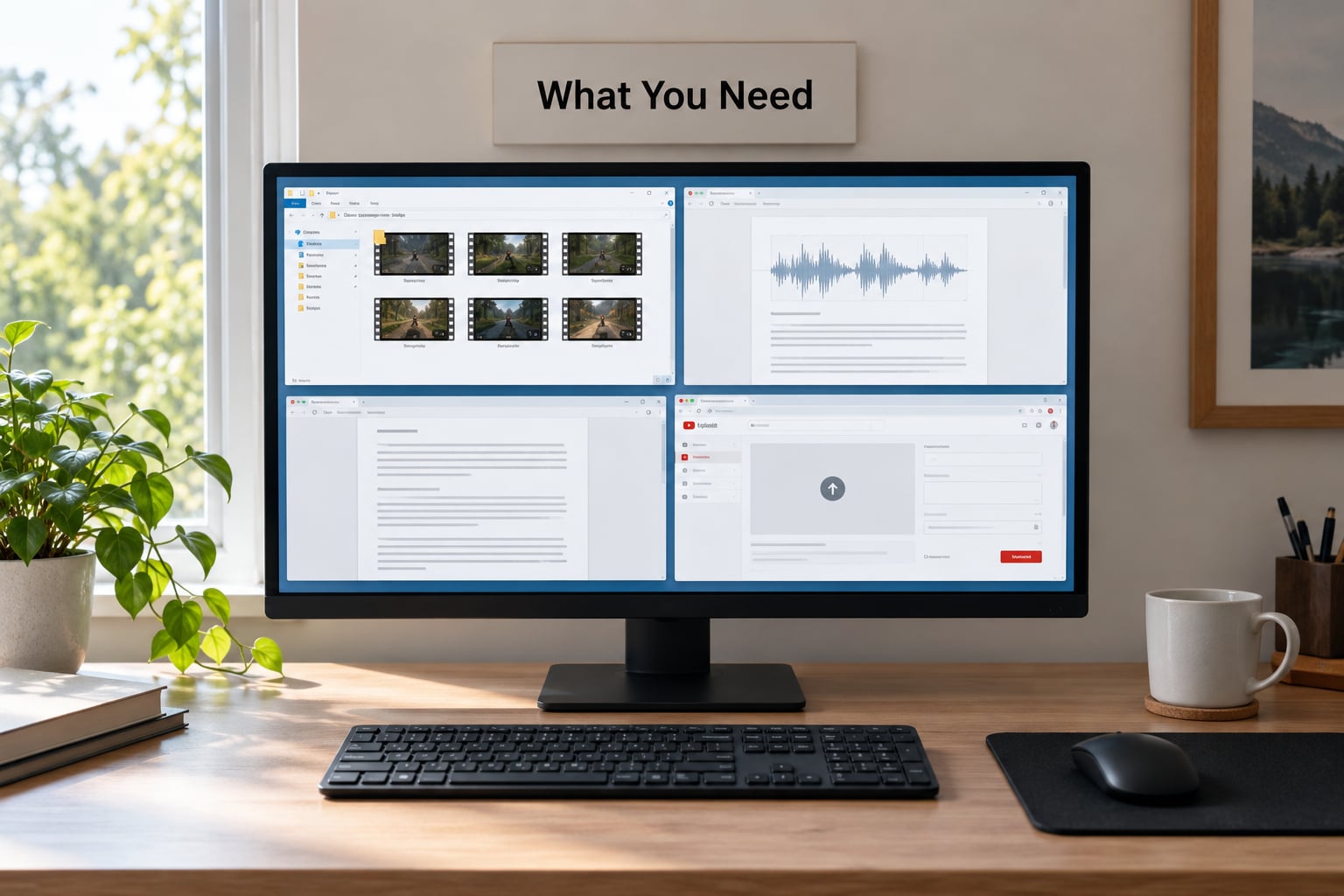
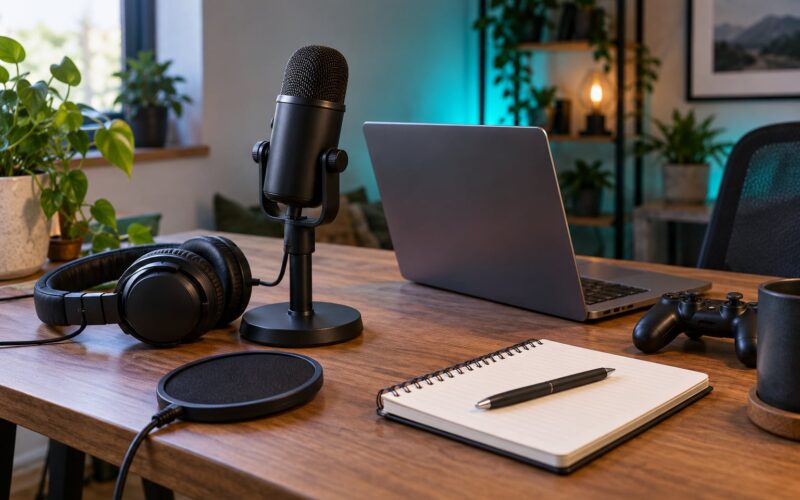
Four things, and none of them expensive or exotic. First, the completed gameplay file, exported and watched through at least once. Second, audio you have the right to use, either the game’s own licensed tracks or replacements you sourced yourself. Third, a written note of where every piece of third-party material in the video came from. Fourth, YouTube Studio access for the channel you are uploading to.
That third item is the one people skip, and it is the one that saves you later. A two-line note per video — “menu music replaced with library track X, publisher intro trimmed at 0:12” — turns a painful claim investigation into a thirty-second lookup.
You also need to accept one limit up front. No upload tool, detector or plugin can guarantee a claim-free video. Content ID matches on audio fingerprints, not on your intentions, so a perfectly edited video can still get flagged and a badly edited one can occasionally slip through. What the workflow below does is remove the material you already know is risky, so fewer claims land and the ones that do are easier to resolve.
Step-by-Step: How to Upload Gameplay to YouTube Without Copyright Claims
Step 1: Review the Gameplay Recording Before Exporting
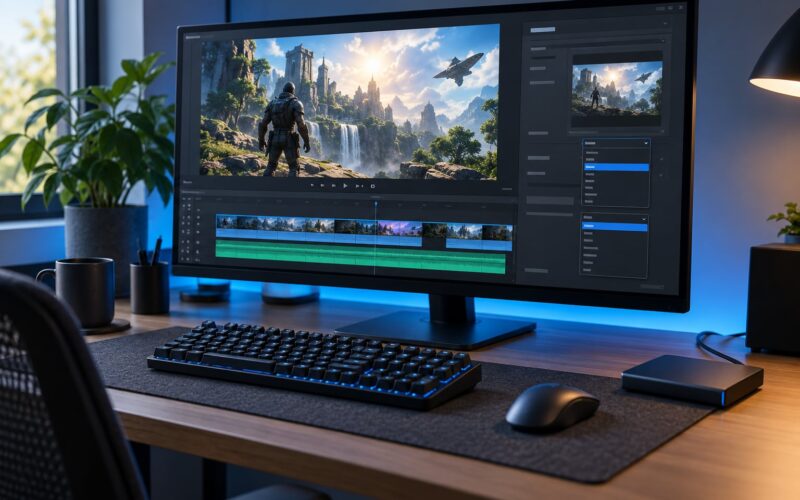
Watch the entire capture with headphones before you export anything. It sounds obvious, but most creators scrub the timeline instead of watching it, and scrubbing hides exactly the problems you are looking for.
Listen for the four categories of risk: the game’s licensed soundtrack, cutscenes and voice lines, audio from outside the game such as your own music or a party chat, and any publisher-owned intro or logo sting. On a capture from OBS or ShadowPlay you will often find a clip of another game, a browser tab or a Discord call bleeding into the desktop audio track.
Mark the timecodes in a text file as you go. Removing a disputed audio section in your editor takes minutes; disputing it through Content ID takes weeks.
Step 2: Identify Music, Game Assets, and Other Protected Material
Decide what each element is, because different elements carry different risk. Your own commentary, your own facecam reactions and your captured gameplay are yours. A pre-rendered cinematic, the main menu performance, character art, the publisher logo animation and any in-game radio track belong to the publisher.
For each one, write down a status: licensed, permitted, credited, or uncertain. “Uncertain” is a perfectly good category and the one worth arguing about hardest, because it is where most claims start.
One distinction carries a lot of weight here. A trailer, publisher intro or press-kit clip is different in kind from your own capture, because someone else edited those pixels and registered them. A Steam discussion thread from a few years ago describes a creator whose showcase video was taken down and struck even though it looked like every other showcase on the platform. The footage was the publisher’s, not the creator’s, and that was the whole issue.
Step 3: Replace or Remove Material You Cannot Use
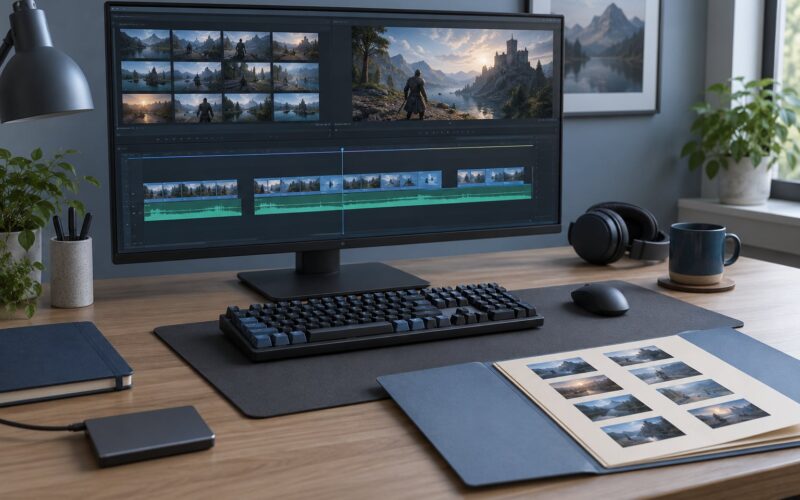
Now act on the list, in this order. Replace first, trim second, mute last — muting is the least satisfying option because the music is usually the point of the clip.
Replace unlicensed music with something you have a clear licence for: the YouTube Audio Library inside Creator Music, a track from a licensed library with a YouTube-safe agreement, or music you commissioned outright. YouTube Audio Library and Creator Music are the two options with the least friction, since the clearance travels with the download rather than sitting in your inbox.
Trim protected sections out entirely. A four-second publisher sting at the top of the video can be cut without touching the footage underneath, and doing so removes a matching problem rather than hiding it.
Mute only as a last resort — dropping a game track to near-silence leaves an audio fingerprint in some cases, so pulling the track out of your mix cleanly works better than turning it down. If the game is a rhythm title where the music is the gameplay, muting destroys the video entirely; leave it in, and handle the claim properly in Step 6.
Step 4: Check the Final Export for Copyright-Relevant Elements
Export a final copy and watch that copy, not the project file. Exports pick up leftovers: an old audio track left enabled, a reference film you never removed from the timeline, an end card template with stock music baked in.
Check four specific things. Audio channels, in case a muted track is still routed to the master. Overlays and facecam audio, including ringtone notifications. Gameplay footage, for any cutscene or broadcast clip that survived the edit. End cards and intro animations, which are template files and often carry their own licensed music.
Worth the habit: upload the finished file once as Unlisted, wait for the full analysis, and only then set it Public. Unlisted videos still get scanned by Content ID, so you get the answer for free before the world sees it.
Step 5: Upload the Video and Complete YouTube Studio Details
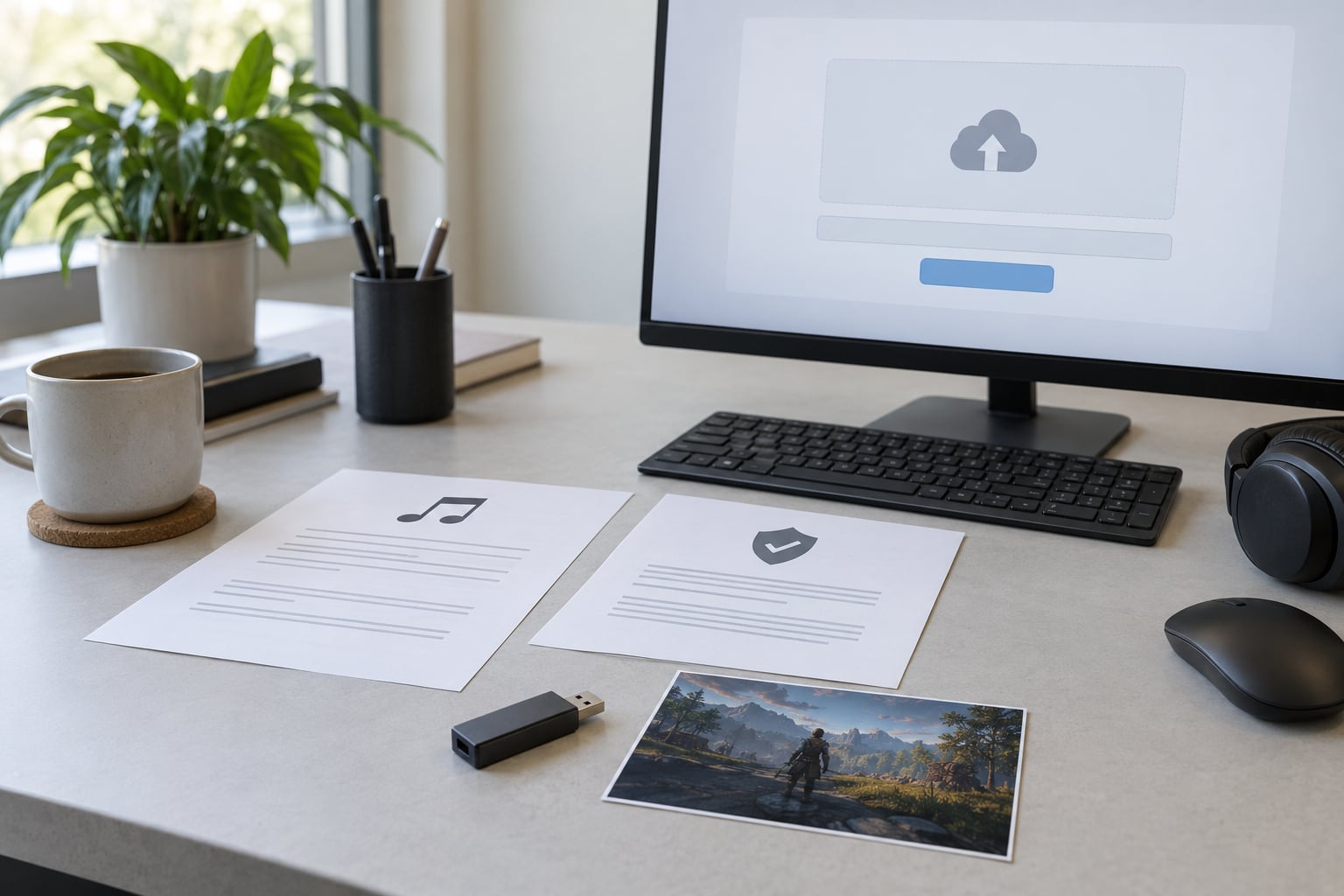
Upload through the YouTube app on mobile or YouTube Studio on desktop. The desktop path gives you more control over details, and the interface changes slowly enough that the labels below are current in 2026: go to the Create button, choose Upload videos, select the file, then work through Details, Monetization, Video elements and Checks.
While the file processes, fill in the details. The description is where you credit assets — name the composer, the publisher, the licence and the source. Thumbnail and title should describe your content rather than quote the game’s marketing language. Select visibility last, and add your audience declaration under Monetization so YouTube can surface the right advertising categories for a gaming channel.
If YouTube presents its copyright and reused-content checks during this flow, complete them. They run automatically, and answering them now is faster than dealing with the consequences later.
Step 6: Respond to a Content ID Claim or Copyright Strike
Know which one you have before you react. A Content ID claim is automated and reversible: the rights holder’s chosen policy applies money to your video, blocks it in some territories, or tracks it, and the video stays up. A copyright strike comes from a formal DMCA takedown complaint and counts against your channel. The full comparison sits in the next section.
Open the claim details in YouTube Studio under the video’s Copyright section. You get the claimant’s name, the specific timecode matched, and in some cases the work being claimed. Compare that timecode against your edit notes.
If the match lands on a section you never cleared, trim it or replace the audio now and the claim resolves with the edit. If you hold a licence or written permission, contact the rights holder directly with the licence details — distributors often release a claim when shown documentation, and many never see a dispute submitted through YouTube at all.
If you dispute through YouTube Studio, you are making a formal declaration that you own the rights or have permission. That includes a fair use or similar legal basis claim where it genuinely applies, signed by you. Do not file one to make a warning disappear. Repeat invalid disputes are treated as bad-faith activity, and that is a bigger problem than the original claim.
If the claimant does nothing, wait. Claims from Content ID expire on their own schedule, and a strike expires after 90 days as long as you complete Copyright School within that window.
Step 7: Verify the Video and Its Monetization Status
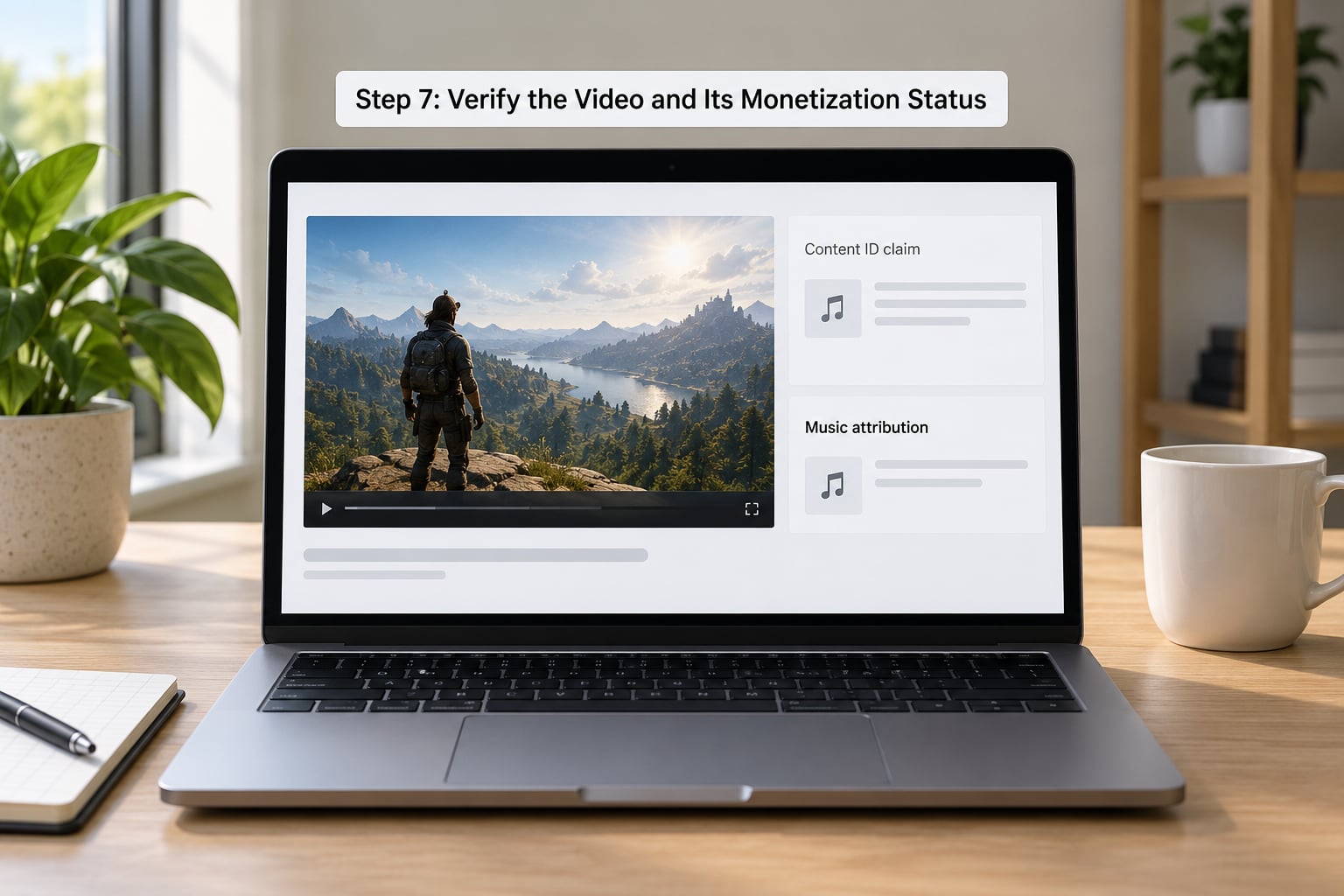
Content ID analysis takes time. For a short upload it is often done within a few hours; for a long one, allow a couple of days before you assume the video is clean. Use the YouTube app’s YouTube Studio section to check processing status, or open the Content ID claims page in the desktop dashboard.
When analysis finishes, check three things: the video under the Copyright tab for any new claim, the Monetization tab for the revenue split the claimant’s policy assigned, and the video itself from an unlisted or incognito view to confirm it plays normally for a real viewer.
Know the difference between the two claim outcomes that are not monetization. “Monetize elsewhere” routes ad revenue to the rights holder instead of you, which is a quiet loss you might not notice in your dashboard for weeks. A block in some countries removes the video in those territories, which usually looks like a drop in views rather than a problem.
If your video includes footage you did not record yourself, complete the altered-content disclosure in YouTube Studio so it can be labelled as reused content. It affects monetization eligibility and sometimes which ads appear, and getting it right keeps a gameplay upload eligible for the advertising categories that actually pay gaming channels.
Common Mistakes
Relying only on in-game music. Plenty of channels assume the game’s own soundtrack is fair because the footage is theirs. The two are separate works, and the soundtrack is the one registered with Content ID.
Forgetting voice chat and room audio. Party chat, Discord calls, a television in the background and your own music all end up in the capture. A Beat Saber community group has creators describing uploads blocked specifically because songs played inside the game kept triggering claims.
Assuming commentary settles everything. Adding your voice makes the video more clearly transformative, which helps in a fair use analysis. It does not stop an automated match, and Content ID does not weigh your commentary when it applies a claim.
Treating fair use as a switch. Fair use is a legal argument assessed case by case, not an upload setting. It may support a dispute; it never prevents the match.
Submitting a dispute without evidence. YouTube takes these declarations seriously, and a pattern of invalid claims is treated as bad-faith behaviour.
Checking only the private draft. Content ID analysis does not complete against a draft nobody else can reach. Run the Unlisted upload in Step 4.
Copyright-Free Music Is Not the Only Potential Claim Source
Creators build a clean music bed and then get claimed anyway, because the match was not on music at all. Content ID works on audio fingerprints of any kind, and video fingerprints too, so the game audio is only the largest category, not the only one.
| Gameplay element | Who usually holds the rights | Safer option |
|---|---|---|
| Licensed soundtrack tracks | Game publisher or its music label | Library or Creator Music replacement |
| Cutscenes and voice lines | Publisher, sometimes a voice talent contract | Trim, or keep only with commentary |
| Menu and logo stingers | Publisher | Cut from the top of the video |
| In-game radio songs | Record labels, via publisher registration | Mute the radio channel or replace the track |
| Sound effects in bursts | Publisher or sound library owner | Short clips rarely match; check dense combat sections |
| Party chat and Discord calls | Whoever is speaking, including friends | Strip the channel from the mix |
| Your own music or a TV in frame | Record labels | Remove before export |
| Trailers and showcase clips | Publisher’s marketing team | Treat as third-party footage and check the terms |
| Mods and emulator rips | Varies, sometimes unclear | Check the mod’s own asset terms before uploading |
The pattern to notice: the risk sits with anything you did not create. Your capture, your voice and your editing are yours. Everything inserted into that capture needs its own check.
How Content ID Claims and Copyright Strikes Differ
A claim and a strike feel identical in the dashboard and behave nothing alike. One is an automated match with a remedy attached; the other is a complaint with a channel-level consequence.
| Content ID claim | Copyright strike (DMCA) | |
|---|---|---|
| What triggers it | An automated fingerprint match | A formal takedown complaint from a rights holder or agent |
| Video status | Stays live, usually monetised one way or another | Removed in the complaining territory until resolved |
| Channel impact | None directly; repeated claims hurt revenue and sponsorship deals | Counts toward the three-strike threshold |
| Monetization effect | Revenue may be redirected to the claimant | Channel’s ad revenue is withheld during the review |
| Your options | Mute, trim, replace, contact the claimant, dispute | Submit a counter-notice, ask for retraction, wait 90 days with Copyright School completed |
| Expiry | Removed when the claimant releases or the match is resolved | 90 days from the date it was issued |
Strike counts work in threes. The first typically triggers a warning and a takedown requirement, the second escalates the channel into Copyright School territory, and the third is where channels get terminated. Each strike expires after 90 days if you finish the course. Two things get repeated here in forums: a claim is not a strike, and a single match will not end a channel.
Old advice deserves a flag. A GameFAQs thread on Far Cry 3 from 2013 discusses a policy where extended gameplay was not accepted for monetisation. YouTube changed that policy years ago; gameplay is monetisable today provided the upload follows the standard rules, so treat that era of guidance as history.
Fair use belongs in the same conversation. It is a legal doctrine, not a toggle, and Content ID does not evaluate it. A commentary-driven review or critique has a stronger basis than raw footage does, but the system still applies the claim, and you resolve it afterwards.
What to Do If You Receive a Claim
Work in this order, and the whole thing usually takes under half an hour. First, open the claim details in YouTube Studio and read the claimant’s name and the matched timecode. That pair tells you whether this is a soundtrack track, a broadcast clip or something else entirely.
Second, compare the timecode with your edit notes. If the match sits on a section you never cleared, trim it out or replace the audio with something licensed. The claim clears when the content changes and YouTube re-scans the video.
Third, if you have a licence, a commission agreement or written permission, send it to the rights holder. A distributor who sees documentation will often release the claim, and a claim they release never becomes a dispute on your record.
Fourth, dispute only when you can back it up. That means you own the material, you hold a licence, or you have a genuine legal basis you are willing to sign your name to. YouTube’s dispute flow asks for that declaration explicitly, and copyright strikes for misrepresentation are a real outcome.
Fifth, if the claimant goes quiet, stop chasing. A Content ID claim tied to a registered track will eventually clear, and a copyright strike expires after 90 days once Copyright School is done. Note the dates in your upload log so you are not re-checking weekly.
One case has no clean fix. Rhythm and music-driven games exist where the claimed audio is the entire video. Mute the song and the upload is pointless; replace the song and the gameplay no longer makes sense. For those channels, the honest path is to keep the footage, accept the likely claim, and build revenue somewhere other than ad share on that upload.
Frequently Asked Questions
Can I upload gameplay footage if I do not own the game?
Ownership of the game and rights to your recording are two different things. The footage you capture while playing is yours, and self-recorded gameplay is routinely published and monetised on YouTube. What you do not own is the game’s art, audio, cinematics and logos, which is why claims land on the audio rather than the picture. Buy the game, record it yourself, and you have a workable upload.
Is gameplay automatically protected by copyright?
No. Your recording is your work, but it does not grant rights over the game content captured inside it, and commentary strengthens your position without making it automatic. Publishers and their labels register soundtracks and footage with Content ID, and the system matches regardless of your intentions. Fair use may support a dispute later, but it is a legal argument, never an upload setting.
Can I use a song from the game’s soundtrack in my YouTube video?
Sometimes, and it depends on who owns what. A publisher may license a track to third-party creators or leave some tracks unclaimed, which is why the same game behaves differently across channels. Anything the publisher registers with Content ID can be matched automatically and monetised elsewhere. If you want predictable results, replace it with a YouTube Audio Library or Creator Music track.
Does a Content ID claim stop my gameplay video from earning money?
Not always, but it often changes who gets paid. Under a monetize outcome the video stays live and ad revenue is redirected to the rights holder, which can quietly replace your earnings with nothing. A block removes the video in some countries and a track does nothing at all. Claims do not count as strikes, so your channel is safe, but repeated claims will cost you real income.
Does adding commentary guarantee that a copyright claim will disappear?
No. Commentary is the strongest argument you have for fair use, and it makes a review or critique far more clearly transformative than raw capture, but Content ID applies matches algorithmically and never weighs your commentary. The claim appears anyway, and you remove it by trimming, replacing the audio or successfully disputing it. Expect commentary to help your legal position, not your dashboard.
Conclusion
Start with the export. Watch the whole thing with headphones, list every piece of audio and third-party footage in it, and remove or replace the entries you cannot account for. Then upload it as Unlisted once so YouTube’s Content ID analysis runs, check the copyright and Monetization tabs, and only then set it Public.
That routine takes about twenty minutes and it is the whole difference between learning to upload gameplay to YouTube without copyright claims and reacting to them a week later. If a claim still lands, open the details, match the timecode against your notes, and dispute only what you can document.