Playing fighting games online with lag is fixable in most cases, and the first three moves take under ten minutes: check your ping, jitter and packet loss, move the console or PC onto a wired Ethernet connection, and shut down whatever else is downloading. After that, the problem is usually a game setting or a local input delay that people mistake for network lag.
Fighting games punish bad connections harder than any other genre because matches are decided by single frames. A 30 millisecond hiccup at the wrong moment turns a confirmed hit into a block. That is why generic advice like “upgrade your internet speed” mostly wastes your afternoon.
Last updated October 2026. Settings paths below are for PS5, PS4, Xbox Series X|S and PC; menu names shift between game updates, so treat them as the neighbourhood rather than the exact address.
Table of Contents
- What You Need
- Step-by-Step: How to Play Fighting Games Online With Lag
- 1. Check Your Ping, Jitter, and Packet Loss
- 2. Use a Wired Connection or Improve Wi-Fi
- 3. Close Downloads, Streaming, and Other Background Traffic
- 4. Adjust Game and Network Settings
- 5. Lower Input and Visual Delay
- 6. Reconnect, Restart, and Report the Problem
- Common Mistakes
- Frequently Asked Questions
- Can I fix fighting game lag without changing my internet plan?
- Is Ethernet always better than Wi-Fi for online fighting games?
- How much ping is acceptable for playing fighting games online?
- Does restarting my router really reduce lag during matches?
- How to Fix Fighting Game Lag for Your Next Match
What You Need
You need four things before you start changing anything, and all four are probably already on your desk.
- A steady internet connection, and a way to test it besides the game
- The game updated to its latest version, with current console or PC drivers
- Your input device: a controller, fight stick or arcade stick
- Access to the game’s network menu and your display settings
Before the fix list, run a 60-second triage. Watch a replay of your last bad match, or just play one offline combo string, and ask three questions. Did your character move late after you pressed the button? Is the opponent’s side of the fight jerky while yours looks smooth? Is the whole match fine until someone starts a video call?
Latency feels like everyone is on ice. Local input delay feels like your own controller is broken. A dropped packet feels like a single violent hitch that repeats at the same point in the round. Those three symptoms point at three different fixes, and mixing them up is how people spend a whole evening toggling V-Sync for a problem that lives in their Wi-Fi.
Step-by-Step: How to Play Fighting Games Online With Lag
1. Check Your Ping, Jitter, and Packet Loss
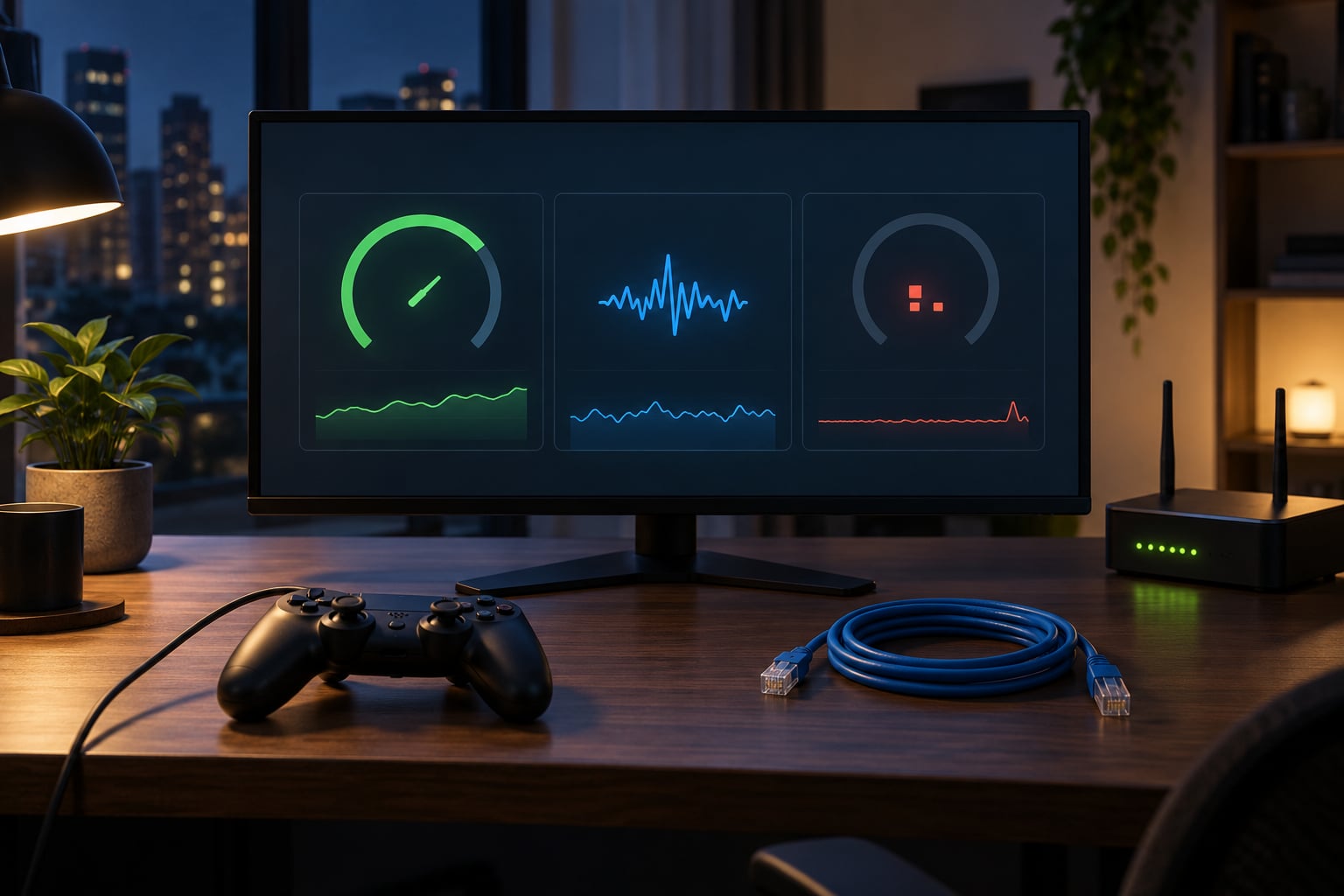
Run a network diagnostic while the game is closed and again while it is open. Most fighting games print their own numbers on the results screen, and any reputable network diagnostic tool will give you the same three readings in milliseconds.
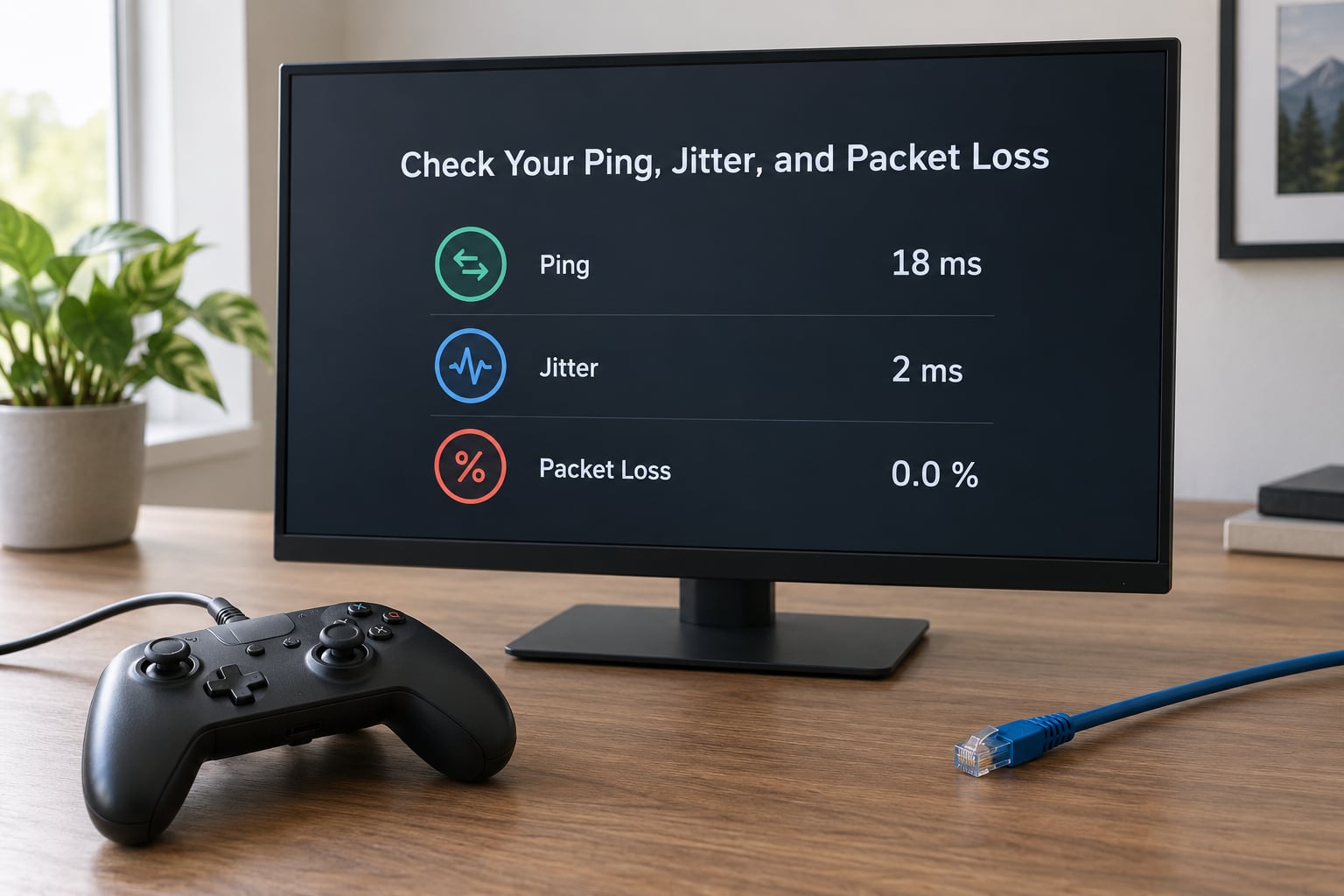
Ping is round-trip latency and it is the least interesting of the three. Jitter is the swing between samples, and it is what actually ruins a fighting game. Packet loss is the percentage of data that never arrives, and rollback handles it better than almost anything else, but a sustained 5 percent is trouble.
| Reading | Comfortable | Playable | Fix before you queue |
|---|---|---|---|
| Ping | Under 40 ms | 40 to 80 ms | Above 80 ms on Wi-Fi |
| Jitter | Under 5 ms variance | 5 to 15 ms | Above 15 ms, or spikes at all |
| Packet loss | 0 percent | Under 1 percent | 2 percent or more |
Read those numbers like this: a steady 60 ms is dull but fair, while a ping that bounces between 20 ms and 190 ms is far worse than the average suggests. Distance decides how high your ping floor is, so West Coast players matching East Coast friends will never close that gap; stability is the only thing you control.
Success signal for this step: your ping line is flat and your jitter number barely moves across a full match.
2. Use a Wired Connection or Improve Wi-Fi
A wired Ethernet cable from the router to your console or PC is the single highest-impact change you can make. It removes radio interference, shared airtime with your neighbours, and half the negotiation overhead that wireless adds. Players in the Steam discussion threads for Guilty Gear and Tekken treat this as non-negotiable even in shared flats.
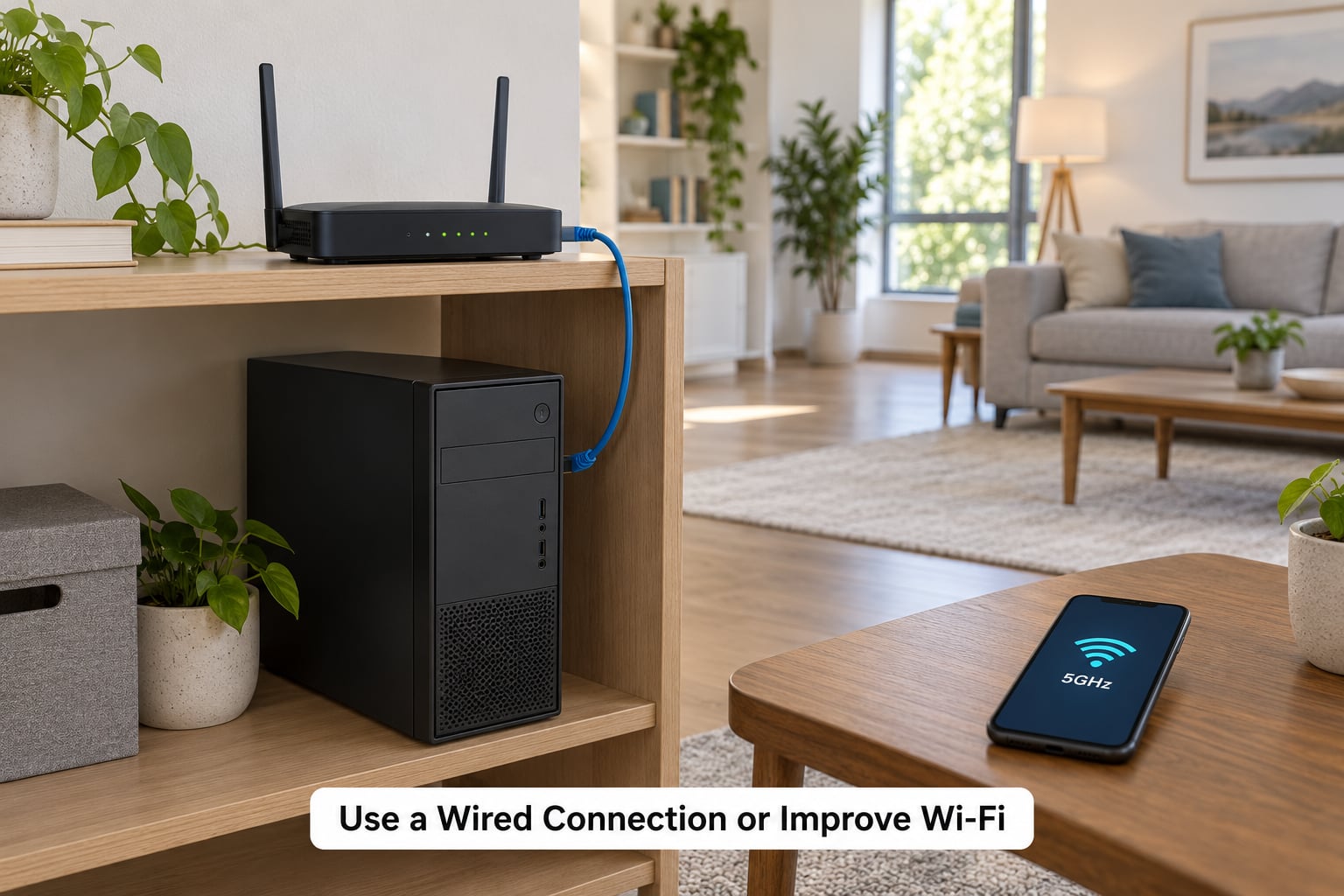
If a cable is genuinely impossible, move the router into the open, keep the console or PC in the same room, connect to the 5 GHz or 6 GHz band rather than 2.4 GHz, and stay off extenders where you can. The 2.4 GHz band travels further but is crowded, noisy and shared with Bluetooth neighbours.
Test the same game, same mode, same time of night before and after the change, and write both numbers down. People are often surprised, and that surprise is the whole argument. One thing ethernet will not fix is server distance; if your wired line is still 90 ms, the route to the match server is the problem, not your hardware.
Success signal: jitter drops and stays dropped across two matches, and your ping number no longer wanders.
3. Close Downloads, Streaming, and Other Background Traffic
Bandwidth is shared, and a 4K stream in the next room is enough to stretch your jitter even on a fast plan. The usual suspects are console game downloads, cloud backup sync, video calls, streaming services, and a laptop pulling a large update while you play.
Pause downloads rather than just closing the window, since most consoles keep downloading with the game closed. On Windows, OneDrive’s “free up space” toggle and your phone’s photo backup both resume without asking. Scheduling them for after your session beats deleting anything.
Watch for the tell-tale pattern: clean for several rounds, then a spike the second a download starts. If that matches, you have found it. Success signal: the jagged graph turns into a straight one during your session.
4. Adjust Game and Network Settings
Update the game first, every time. Fighting games ship netcode patches that change how your connection behaves, and an old client talking to a new server is a genuinely common cause of rough matches.
On PS5, open Settings, then Network, then Network Settings, and set the connection to Wired if the cable is in use. The game side is usually buried under its own options menu, commonly named Network, Matchmaking or Online, where you pick the server region closest to you. Turn off any auto-download or background rest mode feature and pause the game’s own downloads.
On PS4, the same idea applies on the older Settings, then Network, then Network Settings screen, but region selection lives almost entirely inside the game. Expect fewer display options and older netcode, so the practical upgrade for a PS4 player is the hardware, not the menus.
On Xbox Series X|S, go to Settings, then General, then Network settings, and set your network to Wired. Set Console to High Power Standby only if you are happy with higher idle power draw, since it lets the system finish maintenance while you play. Server region is chosen inside the game, so check the online menu before you queue.
On PC and Steam Deck, check that the game is running on the discrete GPU, cap your frame rate at the display refresh rate, and make sure Steam’s download bandwidth doesn’t climb during a match. Setting a frame limit in the driver control panel beats trusting a game’s own slider, because it holds the cap even when the game’s menu is closed.
Regions matter more than players expect. If the nearest region is congested and the next one over is empty, a slightly longer route beats queueing into a worse server. Success signal: region locked, updates finished, and the connection type showing wired.
5. Lower Input and Visual Delay
This is where most troubleshooting goes wrong, because input delay and network lag feel identical and come from different places. A SuperCombo thread on the PC version of Street Fighter V documents the classic fix: turn V-Sync off in the game, then enable Adaptive VSync in the NVIDIA control panel. Players in that thread reported playing matches with screen tearing until they did.
Network lag means your inputs register but arrive late everywhere. Local input delay means your inputs register late on your screen only, and your opponent sees them at the correct time. Test it by playing offline: if the game feels sluggish against a training dummy, your problem is not your router.
Turn off overlays, recording tools, background capture and any streaming software, then update your controller or stick firmware. If your TV has a game mode or low-latency setting, enable it and skip the picture processing. On PC, V-Sync adds up to a frame of delay by design, so cap your frame rate instead of stacking both. Some titles also expose an input-delay or low-latency toggle inside their display options.
One warning: do not drop graphics quality chasing a network problem. Lowering resolution will not reduce ping, and it can make you second-guess your own execution. Change one setting, play two matches, and only keep the change if the numbers improved. Success signal: offline training feels instant again.
6. Reconnect, Restart, and Report the Problem
When a spike hits mid-match, stop queuing. Close the game, reconnect the network, and if the problem keeps recurring, power-cycle the router and the console together. A router that has been up for months holds stale connection tables, and a full restart clears them in about two minutes.
If lag repeats in the same spot every round, at the same moment, write it down before you forget. Note the timestamp, the game mode, your region, and your ping, jitter and loss readings at that moment. That bundle is the difference between a support ticket that gets action and one that gets closed.
Change servers if a region is consistently bad. Contact your provider if a wired line shows packet loss with the router unplugged from anything else, since that points upstream. Support is the right call when loss shows up on a connection that is otherwise stable, not when your ping is simply high because of distance.
Success signal: two clean matches in a row after the reset, and no spike at the same point in the round.
Common Mistakes
Blaming the opponent is the most common mistake and the least useful. Every rollback title shows both players’ numbers after a match, so check the readout before you accuse anyone. If your side is flat and theirs is not, that is a different conversation than a shared spike.
Changing five settings at once destroys your evidence. You will never know which one helped. Change one, play two matches, keep or revert.
Adding a VPN to “reduce lag” usually adds a stop the data never needed. It helps in a handful of regions and hurts almost everywhere else, so leave it off unless you know why you turned it on.
Downloading updates during a ranked session is a self-inflicted wound. Pause first, play second.
Confusing frame rate with ping is the expensive version of the same mistake. Frame rate is local, ping is a network round trip, and a steady 60 fps says nothing useful about your connection.
Ignoring local input delay leads people to lower graphics settings for hours and feel no difference. Test offline first and you will save an evening.
For the next match: go wired if you can, pause every download, close the recording software, and know your three numbers before you queue. Players trust real diagnostics far more than upgrade advice, and the numbers cost nothing to check.
Frequently Asked Questions
Can I fix fighting game lag without changing my internet plan?
Usually yes. Most lag in online fighting games comes from jitter, packet loss, Wi-Fi interference, background downloads or a mis-set V-Sync option rather than from a slow plan. A large bandwidth number tells you very little, because a fast connection with 80 ms of jitter plays worse than a modest wired line. Test your three numbers, go wired, pause downloads and fix local input delay before you pay anyone for anything. Only persistent packet loss on a clean wired connection points at your provider.
Is Ethernet always better than Wi-Fi for online fighting games?
Almost always, but not in every situation. A wired connection removes radio interference and shared airtime, so jitter and packet loss usually drop immediately. Wi-Fi can still win in two cases: when your router is far from the console or PC, or when the closest match server sits close to you but your cable run routes traffic a long way. Compare the same game and mode before and after switching, rather than trusting a general rule.
How much ping is acceptable for playing fighting games online?
Under about 40 ms is comfortable for most rollback titles, since the game hides delay well. Between 40 and 80 ms stays playable, though fast characters lose a little consistency. Above 80 ms, players start reacting to what already happened, and delay-based games become rough. Ping alone is not the whole story, though: a steady 60 ms is fine, while a number bouncing between 20 ms and 190 ms is not.
Does restarting my router really reduce lag during matches?
It often does, and it costs nothing to try. A router left running for weeks accumulates stale connection tables and leaked background processes, and a restart clears them in about two minutes. Restarting also forces a fresh handshake with your provider, which resolves a lot of stuck sessions. It will not lower your baseline ping, since distance to the match server sets that, but it fixes a real share of mid-session stalls.
How to Fix Fighting Game Lag for Your Next Match
Run a network test and write down your ping, jitter and packet loss before you change anything. Then compare the same game and mode on wired versus wireless, pause every download and stream, and work through the platform settings one change at a time.
Fixing the connection beats compensating for it inside the match. Once the numbers are flat, you can learn to play through the lag that distance makes unavoidable: keep your buttons simple, stop pressing into situations with no upside, and use training mode to drill the strings you will actually need. Anyone can adapt to lag. Far fewer people can, and it is worth knowing which one you are.