Eye strain while gaming usually comes down to three things: a screen that is too bright for the room, a viewing distance that keeps bending your eyes forward, and long stretches without a real break. Fix those and most of the dry eyes, headaches and end-of-session blur fade away. Learning how to prevent eye strain while gaming takes about fifteen minutes of setup, then a few habits you keep between sessions.
Most of this is free. You almost certainly own everything you need already, which is why the advice below sticks to monitor settings, room lighting, seating and timing rather than a shopping list.
Table of Contents
- What You Need
- Step-by-Step: How to Prevent Eye Strain While Gaming
- Adjust Your Display Distance and Size
- Match Brightness and Contrast to Your Room
- Control Glare and Ambient Lighting
- Use the 20-20-20 Rule and Take Real Breaks
- Blink More and Keep Your Eyes Comfortable
- Set Up Your Posture and Screen Position
- Common Mistakes
- When to Get Professional Advice
- Frequently Asked Questions
- What is the 20-20-20 rule for gaming?
- Does 240Hz reduce eye strain?
- Do blue light glasses help with eye strain?
- Is playing in a dark room bad for your eyes?
- How long should a gaming session be before a break?
- What helps with blurry vision after gaming?
- Conclusion
What You Need
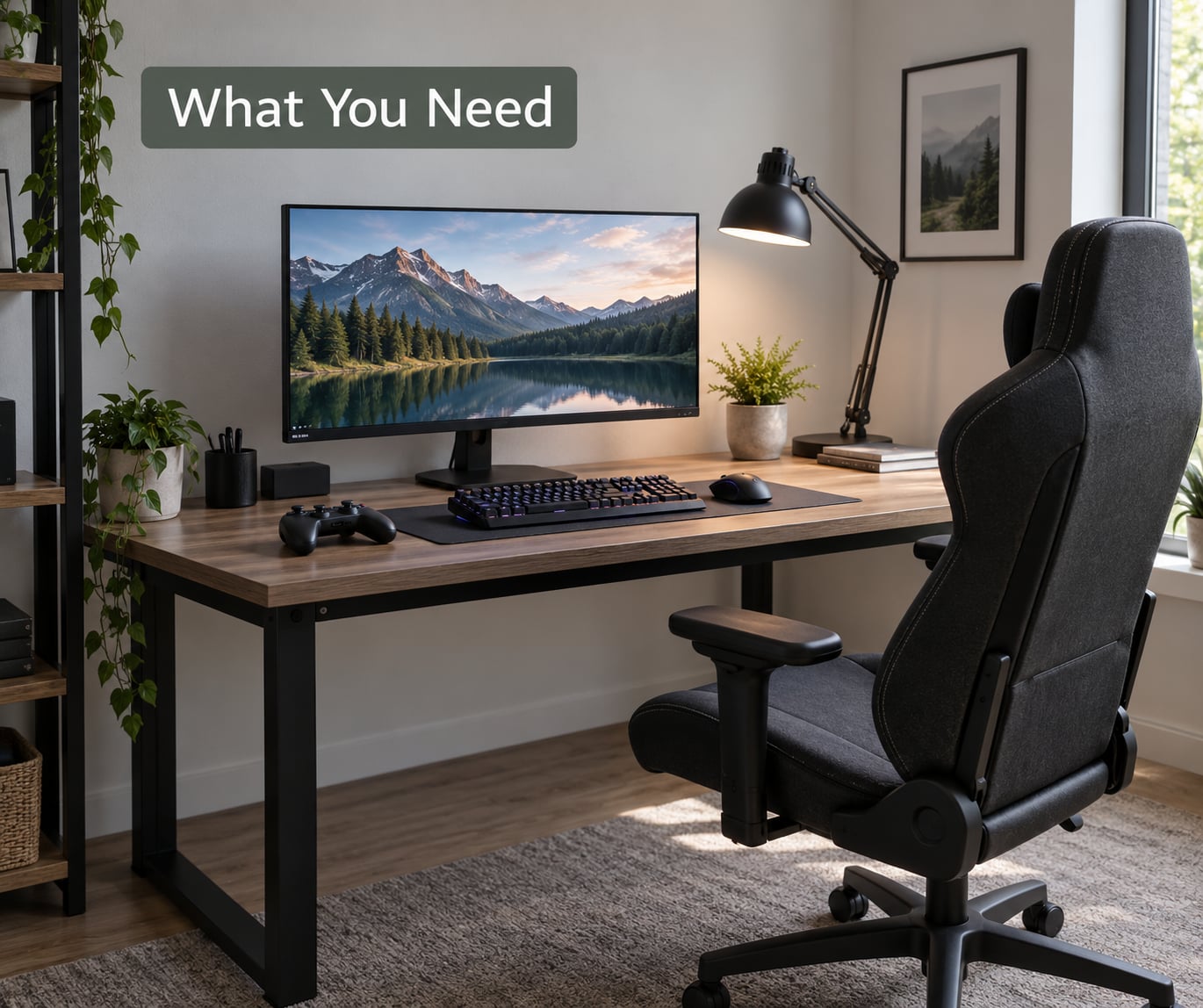
Here is the short version of the kit. If you have the five things below, you can set up a comfortable session tonight.
- A monitor you can move. Any stand that tilts, or a riser under the base, gets the top of the panel where you want it. If your display sits on a fixed foot, a stack of sturdy books does the same job.
- A way to set brightness and contrast. Every monitor and TV has these in its own menu. PC users also have a brightness slider in Windows or macOS and a night light setting, plus driver-level controls.
- One soft light source in the room. A desk lamp behind or beside the screen works. The goal is to remove the contrast between a blazing display and a pitch-black wall, not to light the whole room like an office.
- A timer you can actually hear. A phone alarm, a free countdown app, or the timer buried in your phone’s clock app. The 20-20-20 habit does not survive on memory alone.
- A chair that holds you without slouching. Feet flat, back supported, shoulders relaxed. Nothing here needs to be bought new.
A water bottle counts as equipment too. Dehydration shows up as a headache that gets blamed on the screen, and it makes dry eyes worse.
Step-by-Step: How to Prevent Eye Strain While Gaming
Work through these in order the first time, before you launch anything. Each step takes a minute or two, and together they cover most of what makes a long session comfortable.
Adjust Your Display Distance and Size
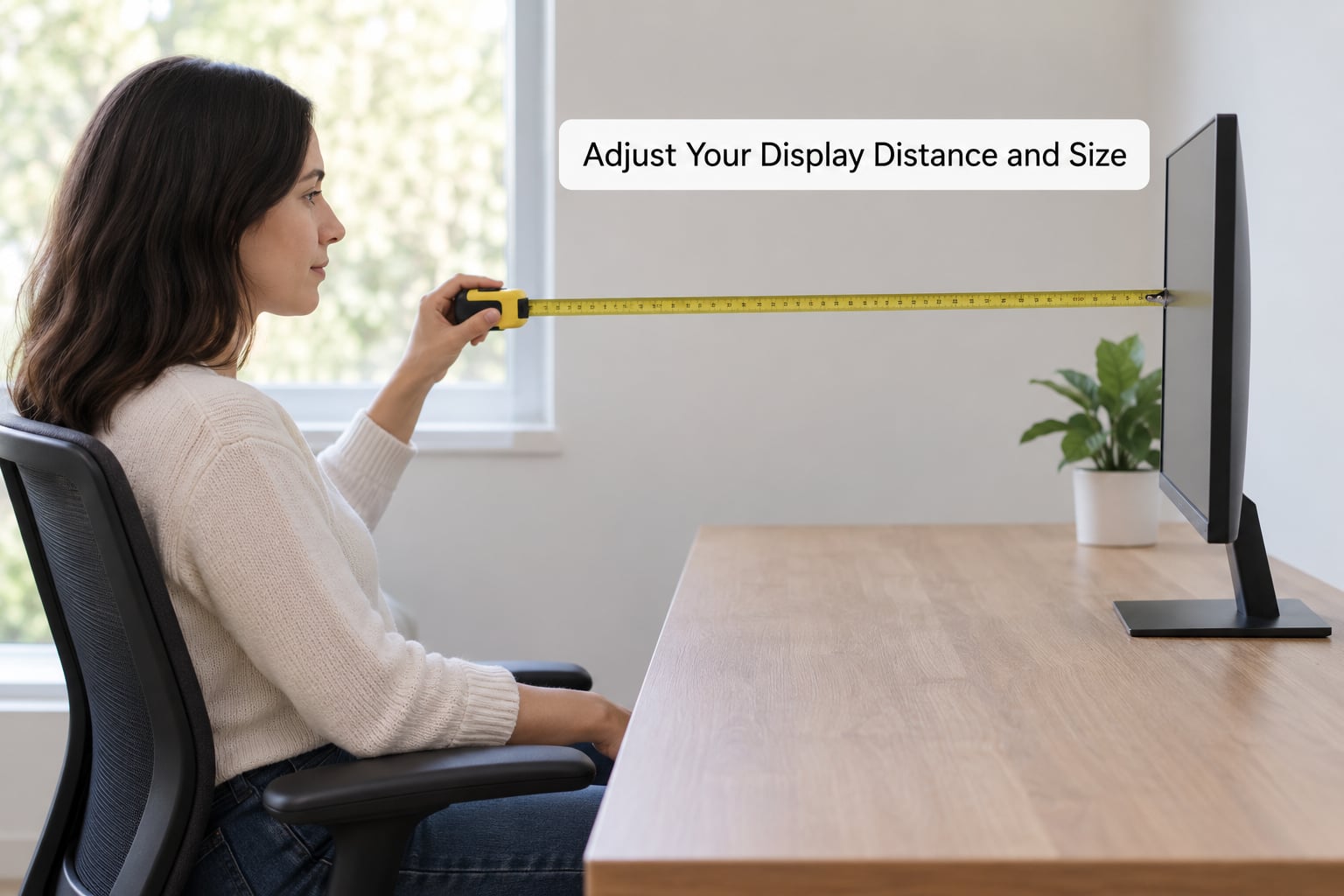
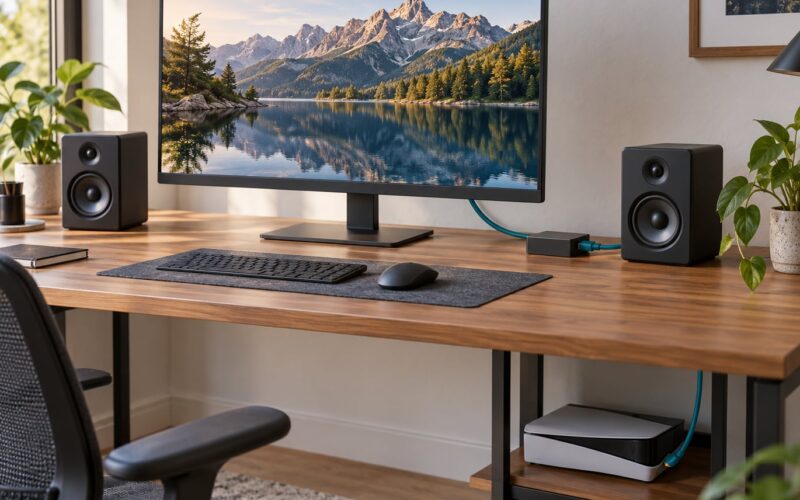
Sit back in your normal gaming position and stretch one arm straight out toward the screen. Your fingertips should land near the edge of the bezel. That arm’s length, roughly 60 to 70 cm on a typical monitor, is a good working distance.
Closers feel better at the moment because you can see small details, and then your eye muscles spend the whole session holding a tight focus. If you notice yourself leaning forward during a fight or a puzzle, that is your body telling you the screen is too far away or too small for the information on it.
When text and menus feel blurry at that distance, fix it inside the game first. Turn the field of view up a notch and drop the sharpness or resolution scaling until edges look clean. Many players who widened their field of view from 75 to 90 reported less strain and less of that tunnel-vision feeling, which makes sense because the screen edges sit further from your gaze centre.
You can tell it worked when you finish a session without rubbing your eyes and without catching yourself craning your neck.
Match Brightness and Contrast to Your Room
Set the screen so it looks roughly as bright as the wall behind it. Not identical, but close enough that you are not squinting at one or getting hit by the other. A phone held next to your face helps you judge it, or just squint: if your eyes want to close halfway to see the screen, it is too bright.
Indoors, that usually lands somewhere around 100 to 120 cd/m2, which on most monitors is a brightness slider sitting noticeably below the factory default. Monitors ship bright because they need to look punchy in a shop.
Outdoor and window-side gaming is the exception. There the room is full of daylight and the screen needs to work harder, so turn brightness up rather than fighting it. The goal is never a specific number, it is removing the jump between the room and the panel.
Contrast is worth a look too. Very high contrast settings, the kind where white text glows hard against black, push your pupils back and forth constantly. Dropping contrast slightly and turning off HDR for night sessions both smooth that out.
Control Glare and Ambient Lighting
Glare is reflections, not brightness. Walk around your desk with the screen on and notice where a window, a lamp or a bright wall lands on the panel. Then angle the monitor a few degrees to move that reflection off, and close a blind if the reflection is coming through a window.
A matte or anti-glare coating scatters reflections across the whole panel instead of letting you see a mirror image of your room in it. Glossy screens look better in a showroom and punish you every evening.
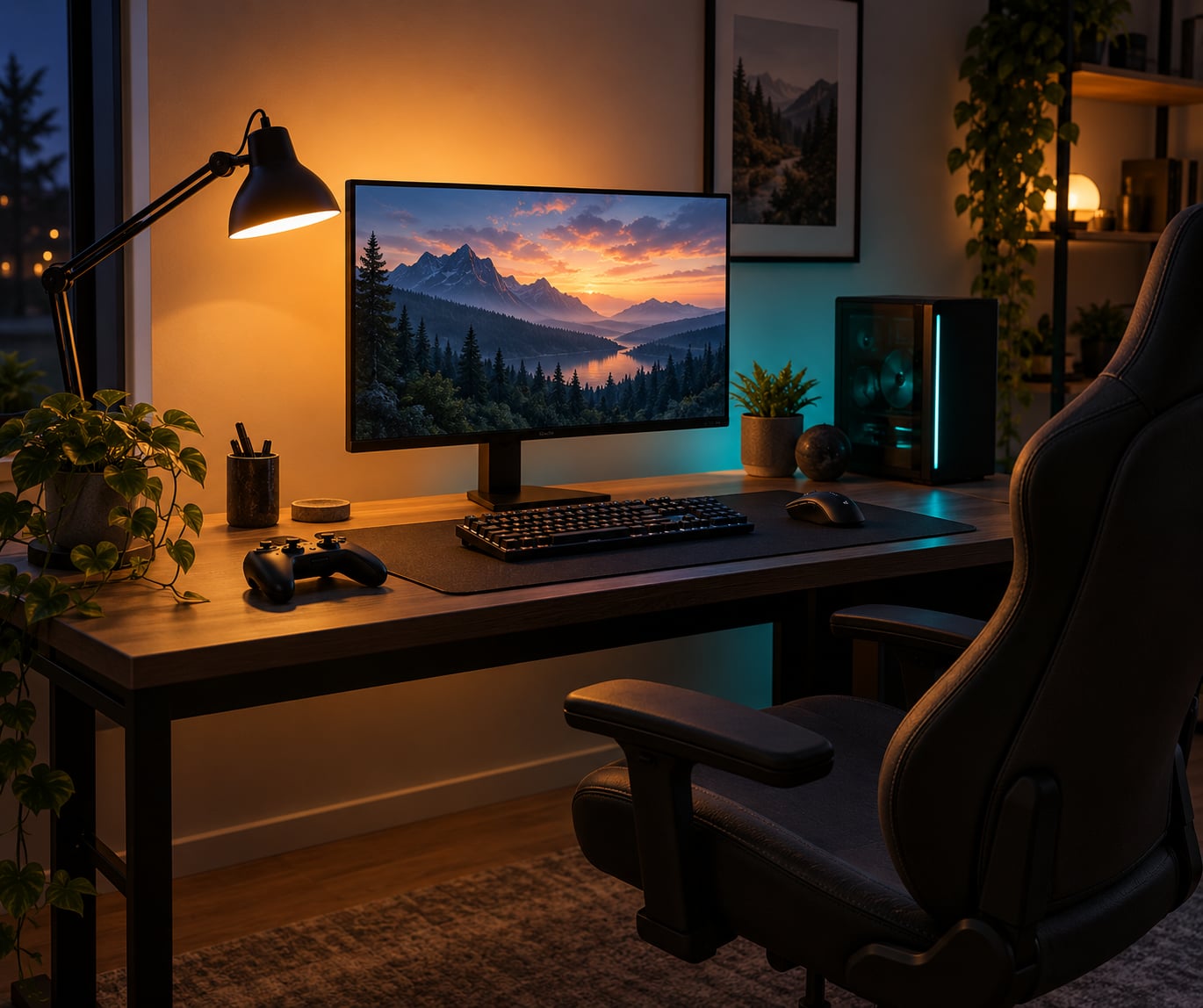
Then add soft ambient light. Bias lighting, a strip behind the monitor throwing light onto the wall, does two jobs at once: it pulls the harsh contrast at the edges of the panel down and it stops the dark surround from making a bright screen feel brighter than it is. Aim it at the wall, never straight at your eyes.
Keep the light steady. Alternating between a blacked-out room and a bright panel is harder on your eyes than either one on its own.
Use the 20-20-20 Rule and Take Real Breaks
Every 20 minutes, look at something about 20 feet away for at least 20 seconds. That rule, from the American Optometric Association’s guidance on computer vision syndrome, is the single highest-value habit in this whole guide because it works with whatever monitor you already own.
Set the timer so you do not have to remember. Twenty seconds is short enough to do between rounds, but a break where you actually stand up and move is worth more to your eyes than four of those.
Here is a routine that survives contact with a real session:
- Every 20 minutes: shift your gaze to the far wall or out a window for 20 seconds.
- Every hour: stand, walk to the kitchen, refill your water, come back. Two minutes.
- Every two to three hours: step away from the setup entirely for ten minutes, and look at something more than 20 feet away the whole time.
Longer sessions need more, not fewer, breaks. Three hours of unbroken focus is where headaches show up in the forums, and the players who report the least trouble are the ones who break on a schedule rather than pushing until something hurts.
Blink More and Keep Your Eyes Comfortable
Blink rate drops sharply during intense focus. That is the part of the problem that surprises people, because your eyes can feel fine right up until they feel gritty and dry an hour in.
Loading screens, menus and death screens are all natural blinking slots. Use them. A deliberate blink during downtime does more for a dry eye than anything else you can do without leaving your chair.
Preservative-free lubricating drops help some people with that gritty feeling, and players do use them during long sessions. Keep in mind that decongestant eye drops marketed for red eyes are a different thing and are not meant for regular use, so check with a pharmacist before making those a habit. Persistent dryness, pain or light sensitivity deserves an eye-care professional rather than another bottle of drops.
Alcohol dries you out too, so a few glasses of water across a session is not optional if you drink.
Set Up Your Posture and Screen Position
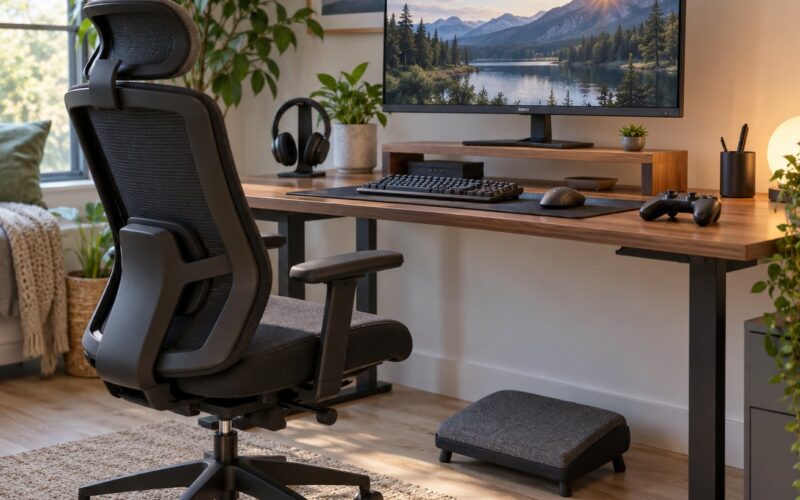
Your eyes track wherever your head points, so a monitor sitting below you means you are looking down all night and your neck is compensating. Put the top of the screen at or slightly below eye level, and centre it, not off to the side where you keep turning your head.
Aim for a slight downward gaze of about 10 to 20 degrees. The natural position of the eye is relaxed and slightly down, so this takes work out of both the eye and the neck.
Then fix the rest of you: back supported, shoulders down, elbows near 90 degrees, feet flat on the floor. If your knees sit higher than your hips, a footrest solves it. Keep your wrists straight and let your forearms rest on the desk rather than the armrests if that lifts your shoulders.
You know the setup is right when you can play a full session without shifting forward, rubbing your neck, or discovering you were clenching your jaw.
Common Mistakes
Nearly every complaint on gaming forums comes down to one of these.
- Gaming in a dark room. A bright panel against black walls forces your pupils to keep adapting. Fix: turn on a lamp, add bias lighting, or dim the display until it sits closer to the room’s light level.
- Monitor mounted too high. You end up with dry eyes and a sore neck. Fix: lower it until the top edge is at or below your eyes.
- Screen pulled in close. Small text feels easier, then your eyes cramp. Fix: push it back to arm’s length and raise the size in-game instead.
- Skipping breaks because a match is running. Fix: put a reminder in the game itself, or set the alarm for the first round and break after it. Waiting until your eyes hurt means you already lost the session.
- Ultra-sharp settings on a high-resolution panel. Hairline edges and heavy sharpening are hard to resolve. Fix: dial sharpness down, soften anti-aliasing, and turn off motion blur reduction if it makes fast movement shimmer.
- Leaving frame pacing alone. Stutter makes the eyes chase a scene that keeps jerking. Fix: lock a frame rate cap or use variable refresh rate if your hardware supports it, and lower the heaviest settings to hold it steady.
- Assuming blue light glasses solve everything. Mixed reports, and the research on comfort improvements is much weaker than the marketing. A pair may help you sleep later at night, but it does not replace distance, breaks or lighting.
One habit worth adding if you play past midnight: warm, low blue light in the last hour. Whether you use a system night light, f.lux on PC, or the built-in night mode on a console, the aim is to cut brightness and blue content as bedtime approaches rather than staring at a bright panel in the dark.
When to Get Professional Advice
Occasional tiredness after a four-hour session is normal and usually clears with a night off. This guide is general comfort information and cannot tell you what is going on with your own eyes, so it is worth seeing an optometrist or ophthalmologist when any of these show up:
- Headaches, blurring or soreness that are still there after a couple of days away from screens.
- Double vision, flashes, floaters or a sudden change in how things look.
- Persistent dry eyes that make contact lenses impossible, or red flags you cannot ignore.
- Headaches that start within an hour of sitting down, which can point at something in your setup or your prescription rather than tired eyes.
- Any change in vision in a child or teenager who games heavily. Get it checked early.
If you wear prescription glasses, bring them to the eye exam and mention how long and how close you game. Single-vision lenses made for a desk are a different prescription from distance glasses, and wearing the wrong one at a monitor keeps your eyes working. Anti-reflective coating on those lenses helps with the glare problems described above.
Frequently Asked Questions
What is the 20-20-20 rule for gaming?
Every 20 minutes, look at something about 20 feet away for at least 20 seconds. It works because holding focus at one distance keeps the focusing muscles of your eye contracted, and shifting distance lets them relax. Set a timer so you do not have to remember, and combine it with a standing break every hour for your neck and back.
Does 240Hz reduce eye strain?
A higher refresh rate does make motion smoother, which many players find easier on the eyes, but the effect is smaller than most marketing suggests. Flicker-free backlighting and a steady frame rate matter more. If you already own a 144Hz panel, getting comfortable with brightness, distance and breaks will help you more than upgrading.
Do blue light glasses help with eye strain?
The evidence that blue light blocking lenses reduce digital eye strain is weak. They may help you wind down before bed because of the effect of light at night, and some players feel a difference, but they do not replace a sensible viewing distance, regular breaks and matched room lighting. Expect little from an expensive pair.
Is playing in a dark room bad for your eyes?
It is one of the most common causes of end-of-session headaches and dry eyes, because your pupils keep adjusting between a bright panel and darkness. Turn on a soft lamp, add bias lighting behind the monitor aimed at the wall, or simply lower the screen brightness until it sits closer to the light level of the room.
How long should a gaming session be before a break?
Short focus breaks every 20 minutes and a real break every hour covers most people well. During longer sessions, step away from the setup for ten minutes every two to three hours and look at something far away. Adjust from there, since session length matters less than whether you break on a schedule or only when something hurts.
What helps with blurry vision after gaming?
Blurring that clears when you look away from the screen usually comes from tired focusing muscles and a temporarily dry eye. Blink deliberately, step back and look into the distance for a few minutes, and give your eyes a break before going back in. If blurring persists, comes with double vision or affects your reading away from the screen, book an eye exam.
Conclusion
Three changes will make the biggest difference this week. Push your monitor back to arm’s length and drop its top edge to eye level. Turn on a light in the room and pull the brightness down until the screen and the wall look close in tone. Then set a 20-minute timer for the 20-20-20 rule and actually stand up once an hour.
None of it costs anything and all of it takes one evening to sort out. If headaches or blurring keep coming back after that, book an eye exam and mention how you game, because a prescription built for a desk is different from one built for a distance.