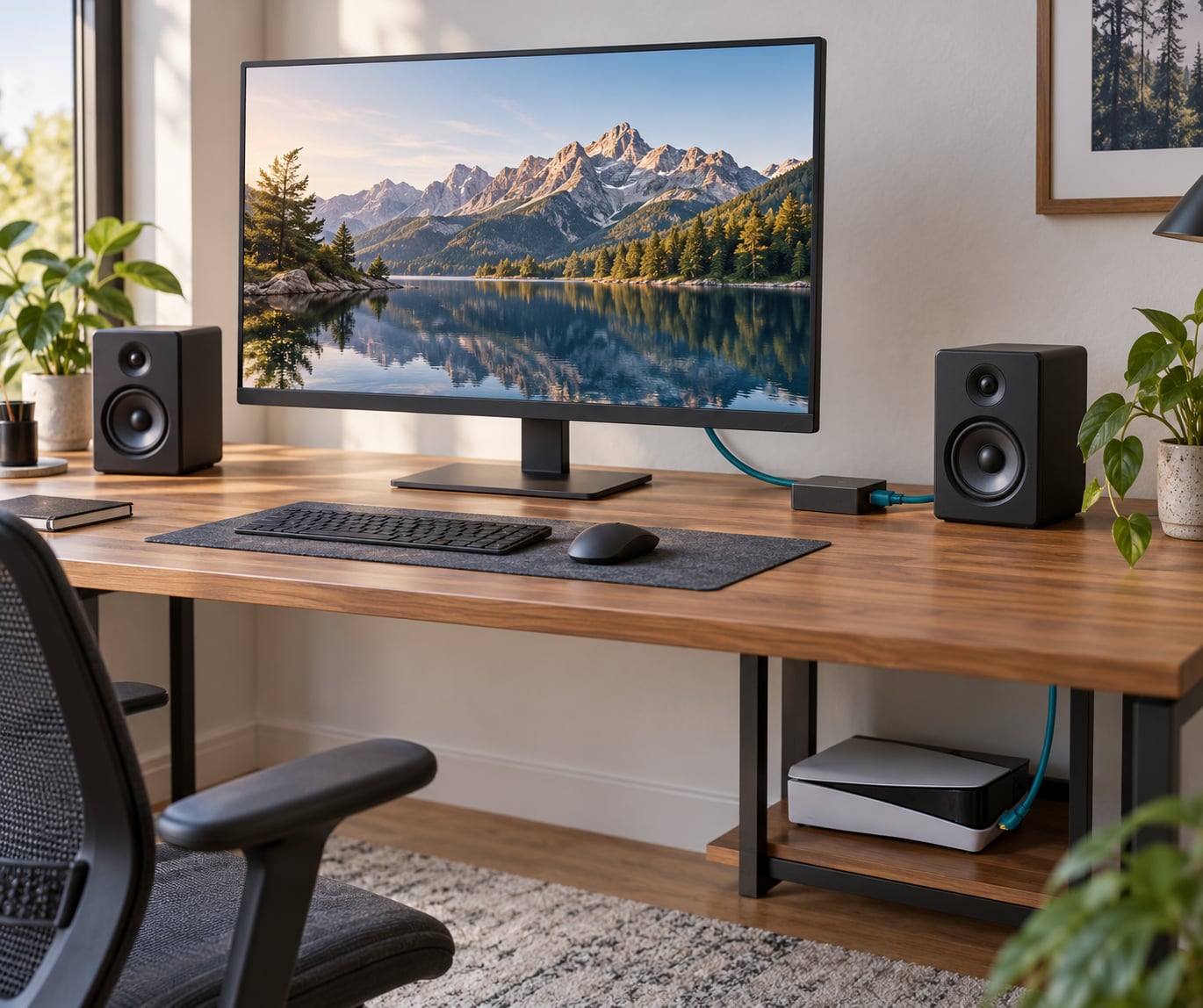
To connect a console to a monitor with speakers, run one HDMI cable from the console to the monitor for video, then send the audio out of the monitor to your speakers. If your monitor has a headphone or line-out jack, plug straight into it. If it has nothing, add an HDMI audio extractor between console and monitor and plug the speakers into the extractor. The whole job is ten minutes with one cable, and most of it is picking the right audio exit.
That last part is where people get stuck, because most gaming monitors ship with no speakers and no audio output at all. A silent picture looks like a broken console, so let us fix the order of operations: video first, then find the audio exit, then choose the speakers. I will walk through the four monitor situations separately because the correct cable path is different in each one.
Table of Contents
- What You Need
- Step-by-Step: Connect Your Console, Monitor, and Speakers
- 1. Plug the console into the right HDMI input
- 2. Turn the monitor volume up and un-mute it first
- 3. Find the audio exit on your monitor
- 4. Connect the speakers to that exit
- 5. Set the monitor input, then test sound
- 6. Fix the console’s own audio settings
- How to connect a console to a monitor with speakers when the monitor has a headphone jack
- Using the optical or HDMI ARC output on your monitor or TV
- Using an HDMI audio extractor when the monitor has no audio output
- Wireless and Bluetooth speakers, and the console caveats
- Soundbar or AV receiver plus an HDMI switch for two devices
- Nintendo Switch, the dock, and Switch Lite
- Set 3D Audio and the output format once the hardware works
- Is it better to play a console on a monitor or a TV?
- Common Mistakes and Quick Fixes
- 1. Wrong input source on the monitor
- 2. The monitor volume is muted, or HDMI audio is switched off in the OSD
- 3. The display has no audio output at all
- 4. The resolution or refresh rate dropped after adding a device
- 5. The speakers are on the wrong input
- 6. Missing audio return path with a soundbar or receiver
- 7. Cable and adapter problems
- 8. The adapter’s headphone jack has nothing on the other end
- Quick setup tips
- Frequently Asked Questions
- Why is there no sound from my console when I connect it to a monitor over HDMI?
- What if my monitor has no speakers and no headphone jack?
- Can you connect a PS5 to a Bluetooth speaker?
- Is optical audio better than a 3.5mm connection for console sound?
- Is it better to play a console on a monitor or a TV?
- How do I get sound out of an Xbox Series X that has no optical output?
- Conclusion
What You Need
You need the console, the display, the speakers, and the smallest number of cables that can carry sound between them. Most people already own the HDMI cable, since it came in the console box.
- Console: PS5, PS4, Xbox Series X or S, Xbox One, Nintendo Switch, or an older retro unit with component, SCART or RF video.
- Display: a monitor or TV with an HDMI input. Some older PC monitors only accept DisplayPort or VGA, which is the one case where you need an adapter.
- Speakers: powered speakers with a 3.5mm input, an optical or TOSLINK input, RCA stereo inputs, or an HDMI input if you are using a soundbar.
- Cables: one HDMI cable, plus a 3.5mm male-to-male cable, a TOSLINK optical cable, or an RCA pair depending on your route.
- Optional hardware: an HDMI audio extractor, an HDMI switch, or a small amplifier with a headphone jack.
Which connection method suits you depends entirely on what your monitor offers. Here is the short version of the four cases.
| What your monitor has | Audio route to use | Cables needed |
|---|---|---|
| 3.5mm headphone or line out | Monitor to speakers directly | HDMI plus 3.5mm |
| Optical (TOSLINK) out or HDMI ARC or eARC out | Monitor to soundbar or receiver | HDMI plus optical |
| No audio output at all | HDMI audio extractor to speakers | 2x HDMI plus 3.5mm, RCA or optical |
| Speakers built in | Console to monitor only | HDMI |
Check the back of the monitor and the manual before you buy anything. Knowing in thirty seconds that your display has no audio out saves you from buying an adapter whose headphone jack has nothing on the other end.
Step-by-Step: Connect Your Console, Monitor, and Speakers
The base path is the same for every console, then you branch for audio.
1. Plug the console into the right HDMI input
Use the console’s main HDMI out, not a capture or second port. On a monitor with several HDMI inputs, pick the one labelled with the console name if there is one, otherwise use HDMI 1 and note which socket you used.
How you know it worked: the monitor shows a console home screen and the input label appears in the corner. If you see a no-signal message, the console is on the wrong input or the cable is seated loosely.
2. Turn the monitor volume up and un-mute it first
Monitor volume at zero is the single most common reason people think a cable is faulty. Open the on-screen display and set volume above 20 before you change anything else. On many gaming monitors you can also disable the HDMI audio output entirely in the OSD, so check that setting too.
3. Find the audio exit on your monitor
Look for a green 3.5mm jack labelled headphone or line out, a square TOSLINK port labelled optical or digital out, or an HDMI port marked ARC or eARC. Green and pink 3.5mm jacks on the back of a PC-style monitor are usually line-in, not line-out, so the headphone symbol matters.
4. Connect the speakers to that exit
Powered desktop speakers with a 3.5mm input take a male-to-male cable from the monitor’s headphone jack. Speakers with an optical input take a TOSLINK cable, and you select optical as the input on the speaker side, not analog.
5. Set the monitor input, then test sound
Play something with music or dialogue and watch the monitor’s volume on-screen move as sound plays. That on-screen volume bar moving is the proof the console’s audio is reaching the display, even when nothing is audible from the speakers yet.
6. Fix the console’s own audio settings
On the console, pick the output device that matches your cable. On PS5 go to Settings, then Sound, then Audio Output, and set the HDMI audio output format to Linear PCM for a simple 3.5mm connection, or Bitstream if your amplifier or soundbar does the decoding.
How to connect a console to a monitor with speakers when the monitor has a headphone jack
This is the cleanest route and it needs no extra hardware. The cable path runs from console to monitor, then monitor to speakers:
Console HDMI out -> Monitor HDMI in
Monitor headphone out (green) -> Speakers 3.5mm in
The catch is volume control. A 3.5mm line output is passive, so your only volume knob is the monitor’s, and the monitor’s own amplifier is what you are listening through. That is fine for most desks. If the monitor’s amp sounds thin, or you want game audio and voice chat on separate levels, that is the situation people solve with a small mixamp or headphone amplifier.
Games on PlayStation also send audio to the controller’s own 3.5mm jack, and that path is completely independent of the monitor, so plugging headphones into the DualSense while the speakers play does not work the way some people expect.
Using the optical or HDMI ARC output on your monitor or TV
Optical and ARC are for soundbars and AV receivers rather than plain speakers, and both carry multi-channel audio, so 5.1 mixes survive the trip. TOSLINK carries digital audio, so the receiving device does the decoding. ARC sends the TV’s own audio back down the same HDMI cable it arrived on, which is how a console to TV to soundbar chain stays on one cable.
Pick optical for a soundbar or receiver that predates eARC, and pick ARC or eARC when your TV and soundbar both support it. Keep the cables straight: console HDMI into a TV input, TV ARC out into the soundbar ARC input. There is no extraction needed anywhere in that chain.
Using an HDMI audio extractor when the monitor has no audio output
This is the answer for most modern gaming monitors, and the one that comes up most often on forums. The extractor sits in the HDMI path, passes video straight through, and splits the audio off to 3.5mm, RCA or optical. Cable path:
Console HDMI out -> Extractor HDMI in
Extractor HDMI out -> Monitor HDMI in
Extractor audio out -> Speakers
An extractor is a real purchase, so shop for the specifications rather than the price. Check that it passes 4K at 60Hz or 120Hz and carries HDR, that it forwards 3D audio bitstreams rather than only decoding them into stereo, and that it handles EDID so the console still sees a normal display. If you own a 120Hz monitor, a 4K60-only extractor will cap your refresh rate.
A few warnings. Old adapters and passive converters tend to drop 4K or HDR entirely, and some will pass video but never pass audio because the display side lacks a return channel. A VGA-to-HDMI adapter with a 3.5mm jack does not solve this problem either: that jack still needs speakers or an amplifier on the far end, and the audio only flows when the monitor or adapter actually accepts it.
Wireless and Bluetooth speakers, and the console caveats
Wireless works, but the consoles differ more here than any manual admits. PlayStation consoles do not send audio to Bluetooth speakers at all, so a Bluetooth speaker plus a PS5 means a Bluetooth receiver plugged into a 3.5mm out, or a transmitter from an extractor. Xbox Series X and S are similar, with Bluetooth reserved for Xbox headsets and controllers. Nintendo Switch does send audio to Bluetooth headphones and speakers, but the handheld mode uses Bluetooth only for audio, not for video.
A 2.4GHz wireless headset works across all current consoles with less fuss than Bluetooth because the wireless link is handled inside the headset rather than by the console’s Bluetooth radio. Wireless also adds delay between what you see and what you hear, and enough of it that it can feel out of sync in fast games.
Soundbar or AV receiver plus an HDMI switch for two devices
If a PC and a console share one monitor and one soundbar, a soundbar with several HDMI inputs solves it on its own: plug both devices into the bar, plug the bar into the monitor, and choose an input with the remote. With only one HDMI input on the bar, put a switch between the two sources and the bar. The switch is cheap and it removes the re-plugging that forum users complain about constantly.
On an AV receiver, the console goes into an HDMI input, the receiver’s HDMI out goes to the monitor, and optical or HDMI from the receiver carries the audio. On a receiver, set the game input’s audio mode to pass through the original stream so the console does the Atmos encoding.
Nintendo Switch, the dock, and Switch Lite
The dock’s HDMI out behaves like any other console HDMI out, so everything above applies. The dock itself has a 3.5mm jack, but that input is for a microphone, not for headphones. Headphones and speakers come from the Switch’s own headphone jack on the top edge, or from the dock’s HDMI to a display with an audio out.
Two limits worth knowing. The Switch Lite cannot send video over its USB-C port, because that port is charge and data only, so a monitor without a free HDMI input is out of reach without an official dock. And the Switch will send Bluetooth audio to a speaker in handheld mode, but video on the small screen still limits the whole experience.
Set 3D Audio and the output format once the hardware works
When sound is moving, decide what the console sends. On PS5, Settings then Sound then Audio Output holds HDMI Audio Output Format, where Linear PCM gives clean stereo or multichannel PCM while Bitstream sends the encoded Atmos stream onward. Enable 3D Audio there for height effects on headphones and supported receivers.
On Xbox Series X and S, Settings then General then Volume and Audio Output has the output device list and the format options. On Switch, System Settings then Sound holds output volume and TV output resolution, and the dock mode setting decides whether the console sends video and audio to the dock.
Is it better to play a console on a monitor or a TV?
A monitor is better for input lag and for a small desk setup, and it suits competitive shooters where response time matters more than size. A TV is better for a living room, for larger groups, and for anything with spatial audio, since TVs and the soundbars attached to them usually have optical or ARC outputs while monitors rarely do.
The audio question tilts the decision more than the picture does. A monitor with no audio out means buying an extractor, so if your TV already has working speakers the cheaper path is just an HDMI cable.
Common Mistakes and Quick Fixes
Work down this list in order. The causes are ordered by how often they turn out to be the problem.
1. Wrong input source on the monitor
The monitor is on HDMI 2 while the console is on HDMI 1. Switch inputs with the monitor’s input button or on-screen menu until the picture appears, then never touch it again. On TVs this also fixes seeing audio without a picture, because the TV’s audio is following a different input than the video.
2. The monitor volume is muted, or HDMI audio is switched off in the OSD
Zero volume or a disabled HDMI audio output setting in the monitor menu hides sound entirely while the picture plays fine. Raise the on-screen volume and re-check the audio output setting after every firmware update, because some updates reset it.
3. The display has no audio output at all
If you finish the cable hunt and find no headphone jack, optical out or ARC port, the audio has nowhere to go. This is the reason an HDMI audio extractor exists. Confirm the monitor model in the manual before ordering one, because a small percentage of monitors hide the headphone jack on the underside or ship without it on the base model.
4. The resolution or refresh rate dropped after adding a device
An extractor or adapter that only handles 4K60 will cap a 120Hz monitor, and some adapters strip HDR so the picture looks washed out. Confirm the device’s maximum supported resolution and refresh rate, then set the console’s video output to match exactly.
5. The speakers are on the wrong input
Digital and analog inputs do not look alike, and a soundbar or amplifier can have several HDMI ports where only the ARC one carries TV audio. Select the input on the speaker that matches the cable you actually plugged in, and turn the volume up on the speaker itself rather than on the source.
6. Missing audio return path with a soundbar or receiver
When a TV is in the middle, the bar cannot send sound back to it, so the audio has to travel one way only: console to TV, TV to bar through the bar’s ARC or optical input. If the bar is silent, its input is probably still set to TV mode instead of HDMI or optical.
7. Cable and adapter problems
Damaged HDMI cables fail intermittently, and long runs combined with an adapter can drop audio entirely. Test with a short known-good cable before you blame the console. Also keep the chain short: console straight to extractor, extractor straight to monitor, with no converter wedged in between.
8. The adapter’s headphone jack has nothing on the other end
A 3.5mm jack on an adapter is an output only if speakers or an amplifier are plugged into it. This is the most common misunderstanding in speakerless-monitor setups, and it is worth saying plainly: the jack alone makes no sound.
Quick setup tips
- Label the HDMI port you used with tape so input switching stops being a mystery.
- Set the console’s video output to your monitor’s native resolution and refresh rate before anything else.
- For voice chat, use the console’s own mic level control or a headset, because a passive 3.5mm line gives you no independent game and mic volume.
- For streaming, route audio through a capture card or interface rather than the monitor, so you can capture the game track cleanly.
- Keep one short spare HDMI cable on hand. Cables fail far more often than consoles.
Frequently Asked Questions
Why is there no sound from my console when I connect it to a monitor over HDMI?
Three causes cover most cases. The monitor is on the wrong input, its volume is at zero, or the HDMI audio output is disabled in the monitor’s on-screen display. If all three check out, the monitor may have no audio output at all, which means you need an HDMI audio extractor to split sound from the video cable.
What if my monitor has no speakers and no headphone jack?
Insert an HDMI audio extractor between the console and the monitor. The extractor passes video straight through to the display and splits the audio out to a 3.5mm jack, RCA pair or optical port, which then feeds your speakers or amplifier. Choose one that passes your monitor’s resolution and refresh rate and forwards surround bitstreams.
Can you connect a PS5 to a Bluetooth speaker?
Not directly. PlayStation consoles do not send audio to generic Bluetooth speakers. Use a Bluetooth receiver plugged into a 3.5mm headphone output, or a transmitter connected to an HDMI audio extractor, then pair the speaker with that device. A 2.4GHz wireless headset is usually simpler and adds less delay.
Is optical audio better than a 3.5mm connection for console sound?
Optical is better when your speakers or amplifier decode surround formats, because TOSLINK carries 5.1 and Atmos as a digital stream with no noise over distance. A 3.5mm line is simpler and needs no decoding, but it is analog and usually limited to stereo unless your speakers handle multichannel input.
Is it better to play a console on a monitor or a TV?
A monitor wins on response time and suits a small desk, while a TV wins for living room play, larger groups and surround audio, since TVs usually offer optical or ARC outputs. For audio specifically, a TV with working speakers needs only one HDMI cable, while a speakerless monitor usually needs an extractor.
How do I get sound out of an Xbox Series X that has no optical output?
Microsoft removed the optical audio port from Series X and Series S. Use the console’s HDMI out into an extractor with a 3.5mm, RCA or optical output for your speakers, or run HDMI into a TV and take the sound from the TV’s ARC or optical out to a soundbar. A 3.5mm jack on the console works for headphones.
Conclusion
Start by looking at the back of your monitor for a green headphone jack or an optical out. If one exists, you can learn how to connect a console to a monitor with speakers with a single extra cable and ten minutes. If neither exists, an HDMI audio extractor is the route, and everything after that is just picking the right output format on the console.