If nobody can hear you on your headset, the mic is almost certainly fine. Windows picked the wrong input device, an app lost permission to use the microphone, or a mute switch on the cable is still engaged. Check the mute control, reseat the plug, then confirm the input choice in Sound Settings and watch the level meter move.
Here is the part that trips people up: hearing your own voice through the headset tells you nothing about the microphone. Playback and capture are two separate signals travelling in opposite directions, so a headset can play game audio perfectly while sending silence the other way.
Knowing how to fix a headset mic that no one can hear takes about fifteen minutes if you work in order. Almost every case resolves in the first three steps, and the later steps are there for the stubborn ones.
Table of Contents
- What You Need
- Step-by-Step: How to Fix a Headset Mic That No One Can Hear
- 1. Check the mute button and physical microphone position
- 2. Reconnect the headset and test every port
- 3. Select the headset microphone as the input
- 4. Turn up and unmute the microphone level
- 5. Remove conflicting or disabled microphone settings
- 6. Test the microphone outside the game
- 7. Update or reinstall the audio driver and headset software
- 8. Fix or replace a faulty microphone
- Common Mistakes
- Frequently Asked Questions
- Why can other people hear me but I cannot hear my headset mic?
- How do I make my microphone louder on Xbox Series X|S?
- Why is my headset microphone not working in Discord but works elsewhere?
- How can I test a wireless gaming headset microphone for interference?
- Should I repair or replace a headset with an unreliable microphone?
- Conclusion
What You Need
You do not need tools for the first half of this. You need access to the settings on whatever device you talk on.
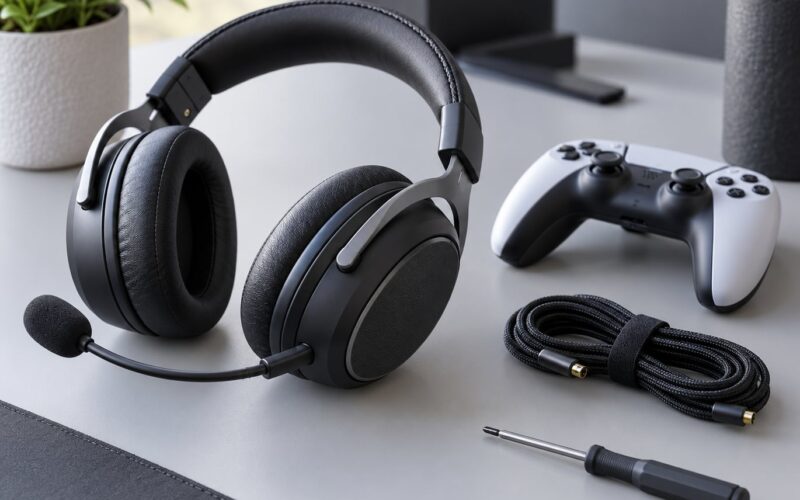
- Your headset, and the cable if it is detachable
- The PC, console or phone you play and chat on
- The voice chat app you are already using: Discord, Zoom, Microsoft Teams or in-game chat
- A second device with a headset jack, such as a phone or a laptop, for the cross-device test in step 6
- A second known-good headset if you have one, to swap in and compare
A paperclip helps for a recessed jack on a laptop. A USB sound card costs less than a takeaway and tells you instantly whether a worn onboard port is the problem. Neither is needed unless steps 1 through 7 come up empty.
Step-by-Step: How to Fix a Headset Mic That No One Can Hear
Run these in order. Each one is reversible, and each one ends with a check so you know whether it worked before moving on.
1. Check the mute button and physical microphone position
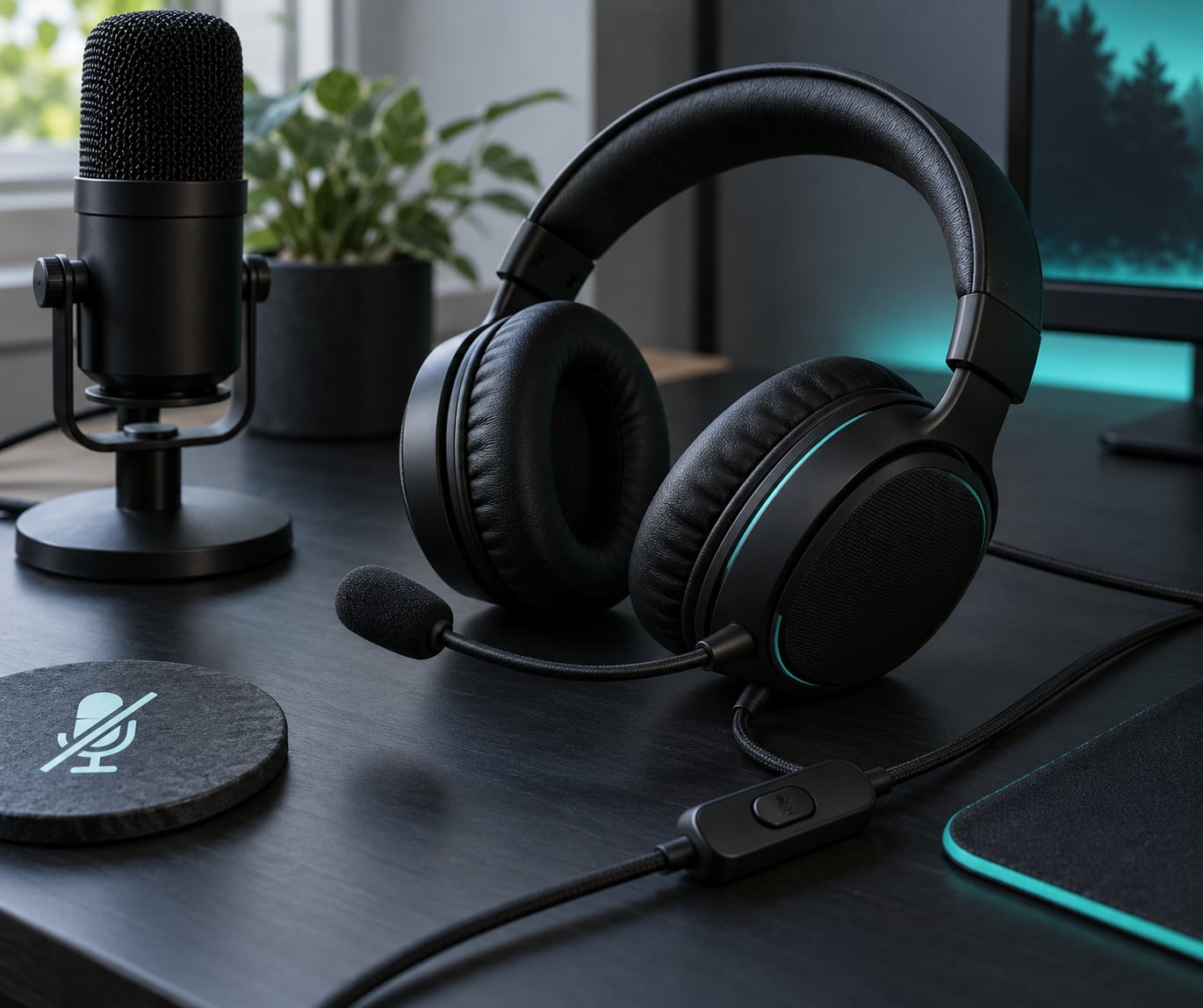
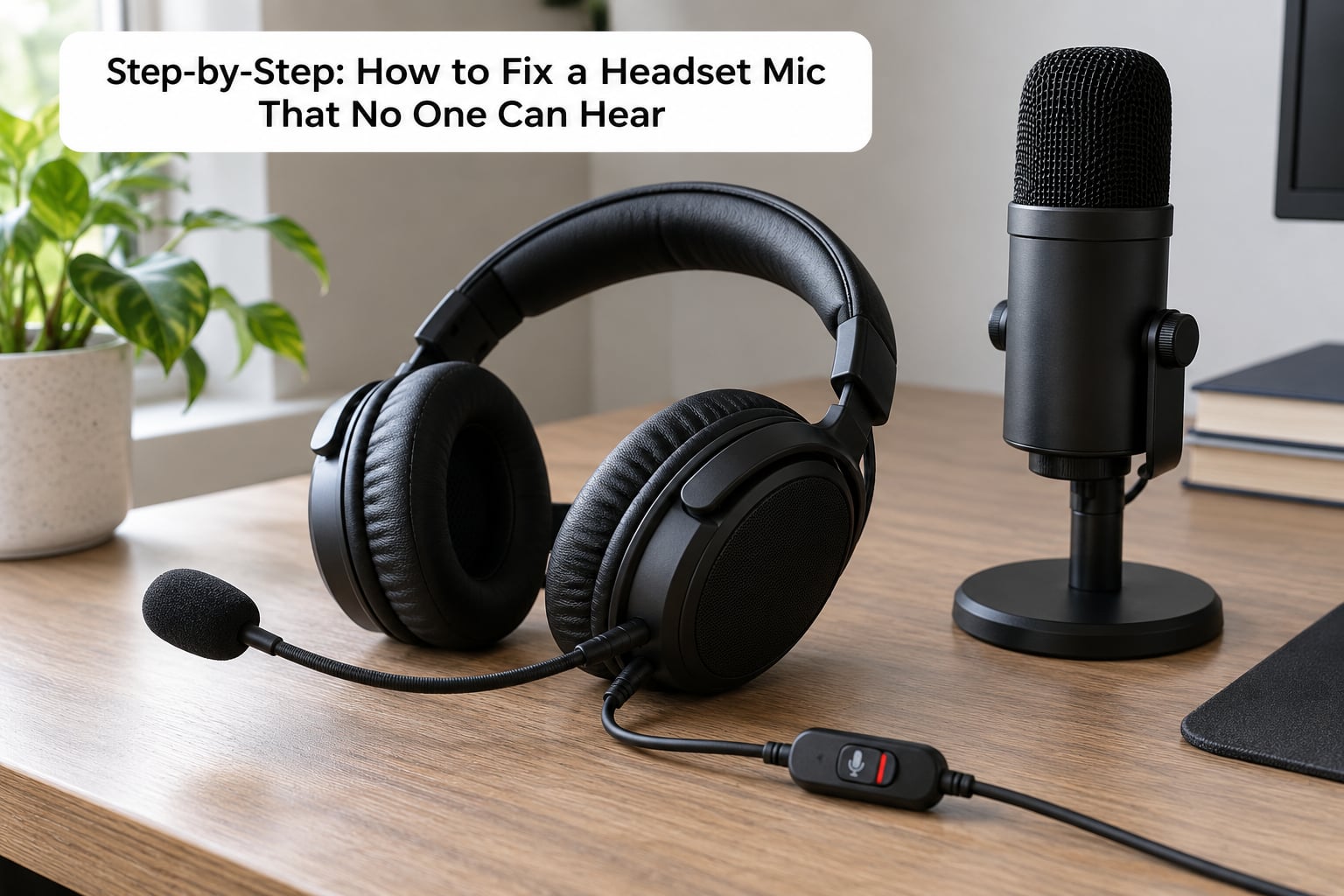
Mute controls are the single most common cause, and they sit in three different places depending on the design. Look along the cable for a small sliding switch or a button on the inline remote, on the earcup for a push-to-mute button, and at the boom arm for flip-to-mute, where rotating the arm upward mutes it.
Flip-to-mute headsets are the sneakiest. Push the boom up toward your forehead and the mic mutes, with no software change and no warning. Many models show a lit LED or a dulled icon when muted. If your boom has slid across your face at some point and stayed there, push it back down.
Test after every physical change: talk while watching the input meter in Windows Sound Settings, or hold the PS or Xbox share button to check the party chat indicator.
2. Reconnect the headset and test every port
Push the connector all the way in until it clicks, then pull it back out and look at it. A four-pole TRRS plug for a single combo jack needs the full depth. If audio plays but the mic never appears, the plug is usually about a millimetre short.
On a desktop with separate ports, the headset cable needs a splitter or adapter. Green is audio out, pink is mic in, and blue is line in. Plugging a mic into green is a very common mistake and it produces exactly this symptom.
Move USB and wireless connections too. Try a different USB port, prefer a rear or motherboard port over a hub, charge a wireless headset fully, and power cycle the 2.4GHz dongle by unplugging it and plugging it into a port nearer the headset. A working connection shows a new input device in Sound Settings and, for wireless, a steady indicator rather than one that blinks.
3. Select the headset microphone as the input
On Windows 11, right-click the taskbar speaker icon and choose Sound settings, then open Input. Pick your headset from the Choose your input device dropdown and set it as default. On Windows 10, go to Settings, then Sound, then the Input section, and do the same.
On macOS, open System Settings, then Sound, then Input, and select the headset from the input device list. On PlayStation 5, go to Settings, Sound, then Microphone Input Device and choose your headset. On Xbox Series X|S, hold the Xbox button, go to System, then Audio and Microphone, and set the input device under Mic.
The verification step matters more than the selection. Click the input volume bar and speak. The meter should jump to roughly half to three-quarters and follow your voice. If it stays flat, the signal never reached the system and the fault is upstream in step 2. If it moves but people still cannot hear you, skip ahead to step 5.
4. Turn up and unmute the microphone level
Windows scales input separately from playback. Drag the input volume slider to around 80 or 90, not to 100, because pushing it higher only raises distortion once the signal is already strong. Confirm the slider is not muted, then open the device’s properties and check the Levels tab for a second fader that is sitting near zero.
In a game, voice chat volume and microphone input are two different controls. Raising your game chat volume does nothing to the mic signal. The same split appears in Discord under Voice and Video, in Zoom under Audio, and in the headset’s own control software, where an input or mic gain slider may be separate from the master volume.
Consoles behave differently from PC. The PS5 microphone input level slider and the Xbox mic input level both act as gain controls for the same signal, and both save per device, so switching headsets can silently reset them.
5. Remove conflicting or disabled microphone settings
Windows keeps microphone access in two layers: a global toggle and a per-app list. Open Settings, Privacy and security, then Microphone on Windows 11, or Settings, Privacy, Microphone on Windows 10. Turn on Microphone access, then scroll down and confirm both Desktop apps and Microsoft Store apps list your voice app with access enabled.
This is the fix after a Windows feature update. Members of r/WindowsHelp describe losing Discord access after an update with nothing visibly wrong in Discord itself. Reinstalling drivers changes nothing until the permission toggle goes back on.
Duplicate inputs cause their own trouble. If a headset and a virtual audio device both claim to be the default, apps can end up listening to the wrong one. Remove any stale voice chat or streaming device in Device Manager under Audio inputs and outputs, then unplug extras like a VR headset or an external interface and see what changes. If removing a device fixes it, you have found the conflict. OBS and its Discord plugin can also hold the microphone, so close streaming software before testing.
6. Test the microphone outside the game
Testing inside one game only tells you about that game. Open Sound Recorder from the Start menu, record ten seconds of normal speech, play it back, and listen for clarity rather than volume. On macOS, QuickTime Audio Recording works the same way. A short phone call to a known-good contact is a second independent test, and Discord’s Let’s Check button is a third.
Now do the isolation test: plug the headset into a different device, such as a phone, a console or another laptop. Works there means the headset is fine and the problem is software, drivers or ports on the machine you were testing. Fails on every device means the cable, connector or microphone capsule has failed. If it works on your phone but not on your PC, you have answered the question that gets asked most on support forums.
7. Update or reinstall the audio driver and headset software
Open Device Manager, expand Audio inputs and outputs, and right-click your input device. Choose Update driver and Search automatically for drivers. If that does not resolve it, use Uninstall device, tick Delete the driver software if the option appears, then reconnect the headset and let Windows reinstall it clean.
Laptops with Realtek audio are the usual offenders, because Windows Update frequently overwrites the vendor driver with a generic one and voice chat stops working until it is reinstalled. Download the driver from the laptop maker or from the headset manufacturer, not from a driver download site. Manufacturer control software and firmware matter on wireless models, since the dongle and headset each carry their own.
If the audio service has stalled, open services.msc, restart Windows Audio, and leave it set to automatic. Windows 11 also ships a Recording Audio troubleshooter under Settings, System, Troubleshoot, Other troubleshooters, which checks permissions and resets in one pass.
8. Fix or replace a faulty microphone
Decide repair versus replace only after the cross-device test in step 6. A failed test everywhere points at the cable, the connector or the boom. Buy the cheapest plausible cable first; a cable failure inside the jacket is far more common than capsule failure and costs a fraction as much. Reseating or replacing a detachable boom arm is also a cheap fix on many models.
Check whether the headset is still covered before buying anything, and note the purchase date and model number. Wired models with a detachable cable are usually easiest to warrantied. Wireless models with a built-in battery often carry shorter coverage, and the battery is frequently the part that fails.
Signs that point to hardware rather than software: static or crackling that follows your head movement, audio that only appears when the cable is bent a certain way, a microphone meter that jumps only when you touch the cable, or a connector that no longer clicks in firmly. Before you discard working hardware, confirm the replacement input works by testing any new mic in the Sound Recorder first.
Common Mistakes
Symptom to cause, in the order I would check them:
- Nobody hears anything anywhere, input meter flat: wrong port, half-seated plug, missing splitter, or a mute switch still on.
- Nobody hears you but the meter moves: the app has no microphone permission, or the app is pointed at a different input than the one you are watching.
- Works in one app, silent in another: noise suppression or a noise gate set too aggressively in the broken app, or a virtual audio device taking exclusive control.
- People hear your game audio but not your voice: a shared-ground headset with no mic isolation. This is a hardware characteristic and no driver fixes it.
- Audio only in one ear: a single-sided failure in the cable or connector, not a Windows setting.
- Fine yesterday, broken after an update: a reset default input device or a revoked app permission.
The mistakes people make while fixing this are predictable. Turning up master volume instead of input volume is the big one, since raising your playback changes nothing that leaves the mic. Enabling push-to-talk and then never touching the key leaves you transmitting silence, so check that the binding matches the key you actually press. Selecting your headset speakers as the input in an app’s dropdown is also common, and it produces a level meter that moves while you speak game audio.
Testing in only one game leads people to replace working hardware. Test in two places. And buy a new headset last, not first: most dead microphones on a gaming headset turned out to be a setting or a driver all along.
Frequently Asked Questions
Why can other people hear me but I cannot hear my headset mic?
Because sidetone is off. Hearing your own voice through the headset is a monitoring feature, and many gaming headsets ship with it disabled. Open the headset companion app or control software and switch on monitoring, mic monitoring or sidetone. On models with a physical switch, flip it on. Once it is active you can check your own levels without recording anything.
How do I make my microphone louder on Xbox Series X|S?
Hold the Xbox button, choose System, then Audio and Microphone, and set your input device under Mic. Drag the input level slider up to 100 and speak while talking to test. Note that the input level saves per device, so it resets when you switch headsets. Check the mute button on the controller too, which mutes independently of the system setting.
Why is my headset microphone not working in Discord but works elsewhere?
Discord keeps its own input device, permission and sensitivity settings, so it can ignore the Windows default entirely. Open User Settings, then Voice and Video, and set Input Device to your headset with Automatic Input Sensitivity turned off. If noise suppression or the noise gate is aggressive, your voice can be cut even when it works in Sound Recorder. Check Windows microphone permissions for desktop apps too.
How can I test a wireless gaming headset microphone for interference?
Move the 2.4GHz dongle to a USB port on the same side of the desk as the headset, away from USB 3 ports and unpowered hubs, since those emit interference. Turn off nearby Bluetooth devices temporarily and move the headset away from routers and USB 3 drives. If dropouts ease up with the dongle in a different port, the wireless link was the problem.
Should I repair or replace a headset with an unreliable microphone?
Test the headset on a second device first. If it fails everywhere, start with a replacement cable, which is cheap and the most common failure point, then a detachable boom arm if your model uses one. Check the warranty before buying anything. If the microphone is built in and the headset is out of coverage, replacement is usually cheaper than repair.
Conclusion
Start with the mute control on the cable or boom, push the connector fully into the correct port, and confirm the headset is the selected input while the level meter moves when you speak. Those three checks resolve the majority of silent headset microphones in 2026.
If the meter is flat, keep going through the numbered steps until speech is coming through. Test on a second device before you spend anything, because a headset that fails everywhere is the only case where new hardware actually solves it.