Random game crashes are almost never random: Windows has already written down what failed and when. To diagnose random game crashes on PC, you read those logs first, then test one layer at a time, starting with drivers and game files before you touch hardware. Most cases resolve in an evening of testing, and the whole job takes about an hour per layer once you know where to look.
The mistake almost everyone makes is changing six things at once, then having no idea which one mattered. This guide is a sequence, not a parts list.
Table of Contents
- What You Need to Diagnose Random Game Crashes on PC
- Step-by-Step
- 1. Reproduce the Crash and Record Its Pattern
- 2. Check Windows Reliability Monitor for the Failing Program
- 3. Read Event Viewer for the Actual Error
- 4. Update or Reinstall the Graphics Driver
- 5. Verify the Game Files and Repair the Installation
- 6. Test Background Software, Overlays, and Windows Settings
- 7. Check Temperatures, Memory, and Storage Health
- 8. Run Windows Integrity Checks and Re-test
- Common Mistakes: How to Diagnose Random Game Crashes Without Guessing
- Frequently Asked Questions
- Why do games randomly crash on my PC?
- Is there a way to see PC crash logs on Windows 11?
- Can bad RAM cause games to crash?
- What does Event ID 41 mean in Event Viewer?
- Does XMP or EXPO cause game crashes?
- Can a faulty GPU or power supply cause a PC to crash?
- Conclusion
What You Need to Diagnose Random Game Crashes on PC
You need administrator access to Windows, a pen, and roughly an hour per testing layer. Write down what you change and what happens next, because the notes are the only thing separating a diagnosis from guesswork.
- The affected game, its exact version, and any recent update or mod you applied before the crashes started.
- Reliability Monitor (perfmon /rel) for a plain-language crash history and Event Viewer (eventvwr.msc) for the underlying error codes.
- A hardware monitoring utility such as HWInfo, MSI Afterburner or the sensor overlay, so you can watch GPU and CPU temperatures and clock behaviour while playing.
- The current driver installer from your GPU vendor, downloaded ahead of time rather than installed through Windows Update.
- A restore point or a fresh backup of your save games, because crashes during an integrity repair can cost you progress.
- Optional but useful: a memory test such as MemTest86 from a bootable USB, and a second known-good component if you plan to isolate hardware.
Step-by-Step
1. Reproduce the Crash and Record Its Pattern
Start by playing the game the way you normally do, long enough for the crash to show up at least once. Note the wall-clock time, what you were doing in the game, and what happened next.
Then look for a pattern: does it always follow the same save, the same mission, the same graphics setting, or the same display mode? Does it happen around the 20-minute mark every session, or truly at random? Crashes that land on one save or one scene point at game data or a specific asset, while a crash at a fixed time interval usually means heat or a leak.
Change one variable at a time. If you switch graphics settings and disable overlays in the same session, you have thrown away the result.
Match what you saw against the symptom you recognise, then run the matching test first:
- Crash to desktop mid-match, sound continues. Usually a game or graphics driver fault. Verify game files, then read Event Viewer.
- Instant restart, no error screen. Usually power delivery or a hardware fault. Read Event ID 41 and any WHEA entries.
- Blue screen with a stop code. Usually driver, memory or storage. Save the minidump and read the named driver.
- Black screen, sound keeps playing. Usually a driver timeout (TDR) or the GPU. Do a clean driver install and watch temperatures.
- Freeze that recovers, GPU usage drops to zero. Usually power spikes, thermals or a clock drop. Log sensors during the freeze.
- Crash shortly after a Windows or driver update. Almost always a regression in that update. Roll it back.
2. Check Windows Reliability Monitor for the Failing Program
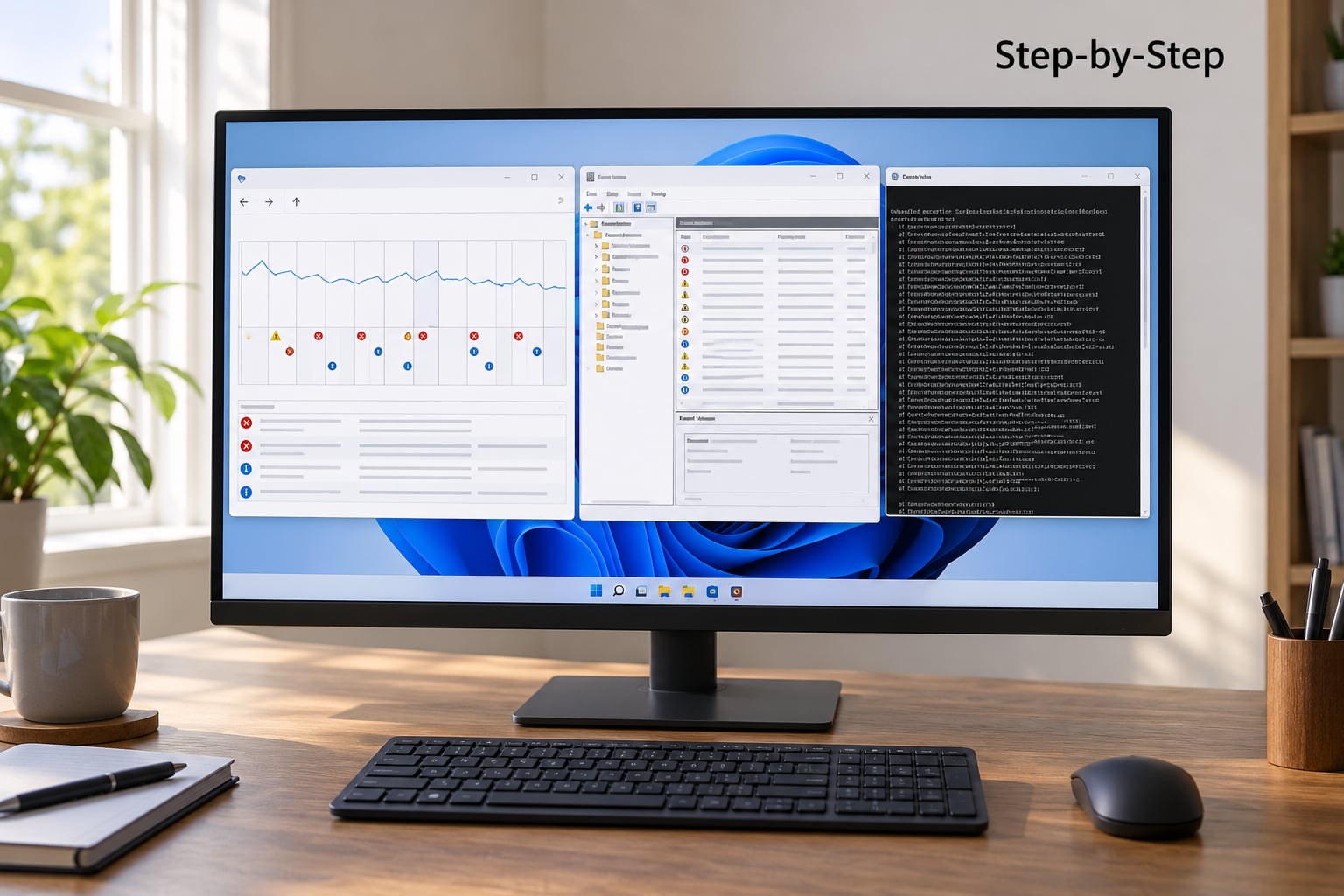
Reliability Monitor gives you a plain timeline of hardware and application failures, which makes it the fastest first read. Open it from the Start search box by typing perfmon /rel, or run perfmon and switch to the Reliability view.
Click the days around a crash and look for the red or yellow entries. A row that says the game stopped working tells you the faulting module, which is usually enough to pick which layer to test. A row that says Windows stopped working, or an unexpected shutdown, points away from the game and toward hardware or power.
You are looking for a pattern across several entries here. One application error is noise; the same hardware error every session is a signal.
3. Read Event Viewer for the Actual Error
Event Viewer gives you the codes Reliability Monitor hides. Open eventvwr.msc from the Start search box and go to Windows Logs, then System and Application.
The codes worth knowing:
- Event ID 41 (Kernel-Power) records an unexpected shutdown. It tells you the machine lost power without warning; it does not tell you why. Pair it with whatever appears just above it.
- Event ID 6008 means Windows was not properly shut down the previous time, and Event ID 1001 in the BugCheck log holds the stop code from a blue screen.
- Event ID 1000 (Application Error) names the faulting module for a game crash, for example a graphics driver file such as nvlddmkm.sys. This is the single most useful entry for a crash to desktop.
- Event ID 51 and 50 are storage warnings: paging errors and failed delayed writes. A user on Microsoft Q&A traced hundreds of these to a failing drive rather than a graphics card, so rule storage in early if you see them.
- WHEA-Logger 18 and 19 are hardware errors reported by the machine itself, usually a CPU, memory or bus problem.
An error code is a clue, not a diagnosis. It tells you which layer to test next, and pairing it with a screenshot from Reliability Monitor usually gives you a shorter path than any list of fixes.
If your crashes involve blue screens and Windows never writes a minidump file, that is usually the volume manager logging event 161. Enable dumps in sysdm.cpl under Startup and Recovery, set the dump type to Small memory dump, and restart, so the next crash leaves something to analyse.
4. Update or Reinstall the Graphics Driver
Drivers cause more random game crashes than any other single layer, so test this before you swap parts. Check what you are running in Device Manager under Display adapters, then download the newest stable driver from your GPU vendor directly rather than accepting a Windows Update driver, which is often months behind.
If the crash started right after a driver update, roll back first: Device Manager, display adapter, Properties, Driver, then the Roll Back Driver button. That is a two-minute test with a clear result.
If no clean result appears, do a clean install. Close everything, boot into Safe Mode with networking, run Display Driver Uninstaller in safe mode, then install the fresh package you downloaded. Repeat for the chipset drivers from your motherboard vendor, since a driver mismatch there can surface as a game crash.
Pick one driver branch and stay on it. Game Ready drivers lead with new game support and occasional regressions; Studio drivers prioritise stability for creative work. If you play more than you edit, note the date of your last crash and check whether a newer branch exists for your card.
5. Verify the Game Files and Repair the Installation
Corrupted or patched game data is quick to check and quick to fix. On Steam, right-click the game, choose Properties, then Installed Files and Verify integrity of game files. On Epic Games, use the Manage then Verify option on the installed title. For Game Pass and Xbox app titles, open the app’s storage options and use Repair, then reinstall only if repair does not settle it.
You want to know whether files were restored. A clean verification is good news; a report of many restored files explains the crash and closes this layer.
6. Test Background Software, Overlays, and Windows Settings
Background software is the layer players forget. Disable your Discord overlay, the Steam overlay, recording tools such as OBS game capture, and any RGB control utility running as a background service, then play the same session again.
RGB software deserves its own mention. Microsoft has confirmed crashes caused by low-level peripheral drivers such as inpoutx64, which shipped with keyboard and lighting software and has taken down games after Windows updates. Fully exiting or uninstalling the lighting software is the safer fix than a registry workaround, which in most cases only disables the lighting.
If one change does not show a clear result, revert it and move on. For a wider test, use msconfig to boot with only Microsoft services enabled and your game, which removes every third-party startup item in one move.
One cheap experiment worth doing: cap your frame rate with the in-game limiter or a driver-level cap. If capped sessions last noticeably longer, that leans toward power or thermals rather than software. Players on r/buildmeapc report this pattern often, and it is a useful hint, not a verdict.
7. Check Temperatures, Memory, and Storage Health
Now watch the sensors. Start HWInfo with sensor logging enabled, launch your game, and read GPU and CPU temperatures plus clock speeds during play. A GPU that throttles its clock, or a card running near its junction temperature limit, can crash without showing a single visual artifact. Fans that have stopped spinning entirely will do the same.
On a laptop, expect throttling, but not sudden crashes from heat alone. A thin chassis that throttles from 100C down to 80C runs fine; a machine that hard-crashes is more likely hitting a power or memory fault. Check your drive free space too, since a nearly full system drive produces storage errors that look like random crashes.
For memory, run the Windows Memory Diagnostic (mdsched.exe) first, then boot MemTest86 from a USB and run at least four passes for an evening workload. Here is the part most guides get wrong: test your actual profile. MemTest86 passing at stock does not clear an XMP or EXPO kit, so load the profile in BIOS and run it again. If it fails only with the profile enabled, drop to the JEDEC default or a lower speed and retest the game.
A 7800X3D and RTX 5070 owner on r/buildmeapc posted a clean MemTest86 and a clean OCCT power test while still seeing freezes under load, which is a reminder that a passing memory test rules memory out, not everything out.
8. Run Windows Integrity Checks and Re-test
Windows repairs come last, because they take the longest and rarely fix a random crash on their own. Open Command Prompt as an administrator and run DISM /Online /Cleanup-Image /RestoreHealth, wait for it to finish, then run sfc /scannow in the same window.
A healthy run reports no integrity violations. SFC tells you it repaired files it found; DISM reporting a repairable error means you have a component store problem worth following up. Restart either way, then replay the exact scenario that crashed before.
Stop here if the crash is gone. If it is not, you now have a tested stack of drivers, game files, and Windows components, and the remaining suspects are memory profiles, thermals, power delivery and the CPU itself.
Common Mistakes: How to Diagnose Random Game Crashes Without Guessing
Reinstalling Windows before reading the logs. You will delete the evidence that identifies the failing module. Read Reliability Monitor and Event Viewer first, every time.
Changing several settings in one session. The result becomes uninterpretable. One change, one test session, one note.
Using drivers from a download button on a random site. Take graphics and chipset drivers from the GPU and motherboard vendors. Driver versions that modify an existing installation are a poor trade for a stability hunt.
Ignoring heat because nothing looks hot from outside. Log sensors under load. A failing fan or a clogged radiator does not announce itself.
Testing only the main menu. Crashes that appear during load, compilation or ray tracing only show up when you reach that content. Test the specific mode that fails.
Declaring hardware dead without a controlled comparison. Swapping a PSU and seeing no change proves nothing, since nothing else changed either. Test one known-good component in place of the suspect, or disable the suspect’s only role, and change nothing else.
Leaving one PCIe cable doing the work. One user on r/AMDHelp resolved their crashes by running two separate PCIe power cables instead of a single daisy-chained run. It is a free test, so do it before buying anything.
Forgetting manual tuning after the first crash. If you ever enabled an undervolt, an overclock, an aggressive curve or a fan curve, load BIOS defaults and retest before blaming a component. A Tom’s Hardware thread traced months of 20-minute crashes on a 14900K to Intel instability amplified by aggressive DDR5 tuning, resolved by loading default settings and dropping memory to 6000MT/s.
Frequently Asked Questions
Why do games randomly crash on my PC?
Most crashes come from four places: a graphics driver regression, unstable memory timings, a power or storage fault, or a game file problem. Heat contributes more than people expect. Because the triggers combine, a crash that looks random usually follows a pattern you can capture, such as a time interval, a specific level, or a specific graphics setting. Recording that pattern before changing anything is what makes the diagnosis fast.
Is there a way to see PC crash logs on Windows 11?
Yes, in two places. Run perfmon and switch to the Reliability view to get a plain timeline of application and hardware failures with the program named. Run eventvwr.msc for the raw codes in Windows Logs, System and Application. If blue screens are involved and no minidump appears, enable Small memory dump in sysdm.cpl under Startup and Recovery, then restart so the next crash leaves a file to analyse.
Can bad RAM cause games to crash?
Yes, and it usually shows up as stuttering, corrupted textures, random crashes in unrelated games, or blue screens under memory load. The important detail is the profile you test at. A kit that passes MemTest86 on JEDEC defaults can still fail with XMP or EXPO enabled, so enable your profile in BIOS and run at least four passes before you clear memory. A clean result at your shipping speed is useful, a clean result at stock speed is not.
What does Event ID 41 mean in Event Viewer?
Event ID 41 from Kernel-Power means Windows restarted without a clean shutdown, which points to a hard power loss, a hardware fault, or a system that froze hard enough that nothing could record a stop code. It never identifies a cause on its own. Scroll up in the System log for entries just before it, especially WHEA-Logger 18 or 19 hardware errors, which are far more specific about what actually failed.
Does XMP or EXPO cause game crashes?
Frequently, yes. XMP and EXPO push memory past the default JEDEC speed, and the resulting timings are not guaranteed to be stable on every CPU memory controller, especially on early DDR5 kits. If your crashes began after enabling the profile, load BIOS defaults and play the same session. If the crashes stop, re-enable the profile and lower the speed or loosen the timings before returning to stock.
Can a faulty GPU or power supply cause a PC to crash?
Both can. A GPU failure often produces artifacts, a black screen with audio still playing, or driver timeouts reported as nvlddmkm.sys in Event ID 1000. A power supply that cannot handle transient spikes usually causes a hard freeze or instant restart, often with GPU usage dropping to zero just before it happens. Watch clocks and temperatures during a freeze, and test with a single dedicated PCIe cable per connector before replacing hardware.
Conclusion
Diagnosing random game crashes on PC is a sequence: reproduce the crash, read Reliability Monitor and Event Viewer, test the most likely layer, and change exactly one thing per session. Write down what you changed and what happened, because that log is what ends the guessing.
Start with the two Windows tools before making any change at all. Ten minutes reading logs will usually tell you which layer to test first, and the rest is just working down the list.