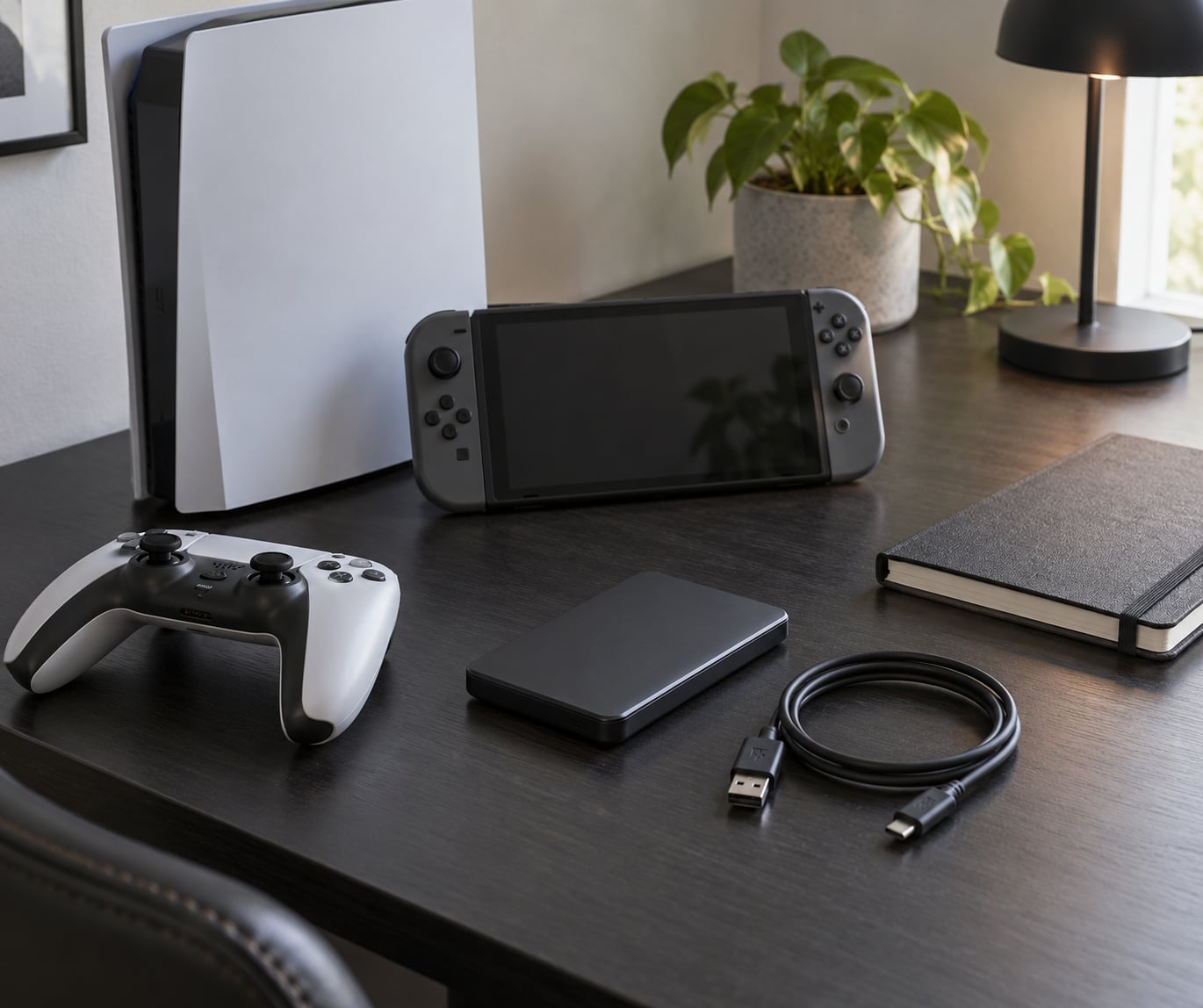
To back up console game saves, use each system’s own tools: on PS5 and PS4, sync saved data to PlayStation Plus cloud storage and write a full system backup to a USB drive; on Xbox, saves sync to the cloud automatically and can be transferred console-to-console; on Nintendo Switch, save data backs up to Nintendo Switch Online while a title is closed. Then confirm the copy exists before you trust it.
That last sentence is where most guides stop short. A sync that shows a green tick is not the same thing as a copy you could restore on a console that died tomorrow, and the gap between those two things is where lost hours go.
Players on r/PS5pro have described losing 90+ hours after trusting cloud backup alone. PS4 owners upgrading to PS5 keep reporting screenshots, videos and playtime as the data that never comes back, not just save files. Community threads titled as reminders to back up before a big update show how routine this worry has become, and how often it is skipped.
Below is what each platform actually does, what it refuses to do, and how to check that you have a real copy.
Table of Contents
- What You Need to Back Up Console Game Saves
- Step-by-Step: How to Back Up Console Game Saves
- How to Back Up PlayStation Game Saves
- How to Back Up Xbox Game Saves
- How to Back Up Nintendo Switch Game Saves
- How to Verify and Restore a Backup
- Common Mistakes
- Frequently Asked Questions
- Can I back up console game saves to a USB drive?
- Are console game saves automatically backed up?
- How often should I back up my game saves?
- Can I transfer game saves to a new console?
- What should I do before selling or replacing my console?
What You Need to Back Up Console Game Saves
Most of the setup is free. You need your account sign-in details, the console’s admin PIN, and an external USB drive with more free space than your console’s internal storage currently uses.
- Account access. Your console password plus the email or phone tied to the account. Backups live under the account, so a console with no sign-in has no cloud history to restore from.
- Console admin PIN. The system settings PIN is required before the console will write or read a USB backup.
- An external USB drive. For PlayStation system backups, size it larger than the data the console reports using, not just larger than the games you have installed.
- Your subscription status. PlayStation Plus is required for cloud storage, and Nintendo Switch Online is required for save-data backup. Xbox cloud saves need no subscription at all, which surprises people.
- A second controller or a local save to compare against. Useful later, when you run the deletion test.
How much of this you actually need depends on the console. An Xbox player with an account and a second controller can be covered without buying anything, while a PlayStation player who wants USB backups needs a drive.
Step-by-Step: How to Back Up Console Game Saves
How to Back Up PlayStation Game Saves
PlayStation is where people get this wrong, because PS5 and PS4 behave differently. PS5 titles sync to the cloud automatically. PS4 titles do not, and sit unprotected until you tell the console to sync them by hand.
- On the PS5, go to Settings > Saved Data and Game/App Settings > Saved Data (PS5). You will see every installed game with its last sync date and a sync toggle.
- Select a game and choose Sync Saved Data, then open View Sync Status to see the upload timestamp. That timestamp is the only proof the copy exists.
- Repeat for every game with meaningful progress. The list is long on a typical console.
- For PS4 games on either machine, open the same menu and choose Saved Data (PS4), then Sync Saved Data. This manual step is the one owners miss.
- To write a local copy, plug an external USB drive into the PS5 and go to Settings > System > Backup and Restore > Back Up to USB. Enter the admin PIN and let it run to completion.
On a PS4, the path is Settings > System > Backup and Restore > Back Up to USB. The console must be online during the backup, which is a detail that catches people out on a flaky connection.
Cloud uploads also need the console awake or in rest mode with a network connection. Quitting to the menu mid-play does not upload; leaving the console in rest mode overnight does.
How to Back Up Xbox Game Saves
Xbox is the simplest of the three, and the most limited at the same time. Saves sync to the cloud automatically as long as you are signed in and online. There is no official way to export save files to a USB drive and re-import them later.
- Sign in to your account on the console and confirm the gamertag in Settings > Account > Xbox Live > Gamertag is the one you expect. Saves attach to the account, not the console.
- Play online once with each important title so the save uploads. Automatic sync is silent and gives no per-game confirmation screen.
- To move to a new console, sign in on the new machine and let the games download. Saves follow the account.
- For a local transfer without the cloud, on both consoles go to Settings > System > Storage > Transfer storage to another console while on the same network.
Titles set up for offline play can behave differently, because the save may sit on the console until it next gets a connection. Anything you are partway through deserves a short online session before you trust it.
How to Back Up Nintendo Switch Game Saves
Nintendo Switch saves live on the console’s internal storage, and the only official copy is the Nintendo Switch Online backup made while the game is closed. There is no user-facing export button and no USB save transfer.
- Sign in to a Nintendo account linked to a Nintendo Switch Online subscription.
- Open System Settings > Users > Nintendo Switch Profile > Data Management > Save Data Cloud Backup.
- Check whether the account has save-data backup enabled. If not, turn it on, then close a game you care about to trigger an upload.
- Confirm the backup date updates after the game closes.
Two limits are worth knowing up front. The number of games you can back up scales with your subscription tier, and a Family Plan shares that allowance across everyone on it. Delete too many games from the console and you can exhaust the allowance without being told which title went.
Switch players lean on the homebrew save manager JKSV, discussed on GBATemp and Switch communities, which can copy save data to the SD card. It needs custom firmware, it is unsupported by Nintendo, and I would not make it the only copy of anything.
How to Verify and Restore a Backup
A backup you have never tested is a hope, not a copy. Verification takes a few minutes and turns an assumption into a fact.
On PlayStation, open View Sync Status for a game and check that the upload date is recent, not blank. Then confirm the USB backup by looking for the backup folder on your drive and checking its date. The safest test is the deletion test: pick a game, rename or delete its local save, let the console restore from cloud, and see whether your progress comes back. Do it on a save you can afford to lose, and never run it before a big update.
On Xbox, sign in on another console or a browser and load a title. If the progress appears there, the sync worked. You cannot inspect the save file itself.
On Switch, open Data Management and check the backup timestamps for your longest-running games.
To restore on PlayStation, delete the local save, then sync again from cloud, or copy the backup folder back across USB. If a game reports no save data, check that you are signed into the account that owns the save, not just the console. If the cloud copy is older than your local one, do not force a sync: finish the local game, upload it deliberately, and keep the USB backup until the timestamps agree.
What cloud saves do not cover is worth stating plainly. On PS5, screenshots, videos and playtime are not part of saved data, which is why PS4 upgraders find those gone even when their save survived. Trophy data is tied to the account rather than the save, and copy-prohibited data cannot move between accounts at all.
Common Mistakes
- Signing into the wrong account. Saves follow the account. Check the email on the console before you panic; a lot of “lost” saves are on a different profile.
- Treating cloud sync as a backup. It can lag behind local progress, fail silently, or vanish if a subscription lapses. Keep the USB copy anyway.
- Forgetting PS4 titles on a PS5. They never sync automatically. Walk the Saved Data (PS4) list once.
- Underestimating drive size. A system backup needs room for all data on the console, not just installed games.
- Interrupting an upload. Closing the game or dropping the console mid-sync can leave a partial upload. Check the timestamp afterwards.
- Assuming every game supports backup. Some titles store progress in their own servers with nothing on the console to copy.
- Doing a manual backup every single night. It rarely survives past a week. Weekly plus before updates works better.
If deleting a game worries you, that worry is mostly unfounded: players report that removing a game generally leaves the save slot intact. Save on an external drive anyway before a console reset or trade-in.
Frequently Asked Questions
Can I back up console game saves to a USB drive?
On PlayStation, yes: Settings System Backup and Restore Back Up to USB writes a full console backup to an external drive, and it includes saved data. Xbox does not offer a save-file export to USB; its official backup is automatic cloud sync plus local console-to-console transfer over your network. Nintendo Switch has no user-facing export at all, so save data stays in console storage unless you use unsupported homebrew. Read the other platform sections before assuming a USB copy exists on your system.
Are console game saves automatically backed up?
Partly, and the differences matter. Xbox syncs save data to the cloud automatically whenever you play online. PS5 titles sync automatically to PlayStation Plus cloud storage, but PS4 titles need a manual sync. Nintendo Switch backs up save data over Nintendo Switch Online when you close a game, provided save-data backup is switched on in Data Management. Automated does not mean unlimited: cloud copies depend on a subscription and on storage allowances that can run out.
How often should I back up my game saves?
Once a week is the practical baseline, plus a full backup the day before any major system update or before you move consoles. Daily manual backups are the approach players abandon fastest, because the friction is what kills the habit. Triggering a PlayStation upload by leaving the console in rest mode handles the routine, and the weekly USB backup covers anything cloud has not yet finished uploading.
Can I transfer game saves to a new console?
Yes, and the usual route is the account rather than a cable. Sign in to the same PlayStation, Xbox or Nintendo account on the new console and download your titles; saves follow the account and resync automatically. PlayStation players can also run a full data transfer between two consoles from the same menu on the same network. If you are moving from PS4 to PS5, sync the PS4 saves to cloud first, and expect screenshots, videos and playtime not to come with them.
What should I do before selling or replacing my console?
Sync every saved data entry to cloud, confirm each one with View Sync Status, then write a USB backup of the whole console. Sign out of the account and delete the console from your account settings so it cannot re-sync to the next owner. On Xbox, sign in on another machine first to confirm the saves follow the account. Factory reset the console before it leaves your house, and keep the USB backup somewhere other than the console.
Start by opening Settings and looking at your cloud sync list. Whatever it shows, the first thing worth doing this week is running one full USB backup on PlayStation, or confirming on another screen that your Xbox saves loaded somewhere else. One verified copy today beats a cloud backup you have never checked.