Stuttering in open world games is almost always a frame-time and resource-streaming problem, and it is fixable in most cases without buying new hardware. Learning how to fix stuttering in open world games comes down to measuring what your PC is doing in the exact spot where it hitches, then fixing whichever resource spikes first: VRAM, system RAM, one CPU thread, storage, or shader compilation. Most people find the cause in 20 to 30 minutes once they know which numbers to watch.
The order matters more than anything else. Change one thing, walk the same route, and watch what changed. That is the whole method behind this guide.
Table of Contents
- What You Need
- Step-by-Step: How to Fix Stuttering in Open World Games
- 1. Confirm That the Problem Is Actual Stuttering
- 2. Check Whether a Frame Rate Cap or VSync Is Causing It
- 3. Lower the Settings That Cause Frame-Time Spikes
- 4. Update or Reinstall the Graphics Driver Cleanly
- 5. Clear Stale Shader and Compilation Caches
- 6. Test Storage, Memory, and CPU Bottlenecks
- 7. Disable Overlays and Unnecessary Background Activity
- 8. Reopen the Same Area and Verify the Improvement
- Common Mistakes
- Quick Tips for Smoother Open World Play
- Frequently Asked Questions
- Does stuttering mean I need a new GPU?
- Why does my game stutter only when I explore new areas?
- Should I disable VSync to fix stuttering in open world games?
- Is shader compilation stuttering normal on a new graphics card?
- Why does my average frame rate look smooth while the game still stutters?
- Can insufficient SSD or RAM space cause gameplay stuttering?
- Conclusion
What You Need
A short list, and almost all of it is free or already on your machine.
- A Windows 10 or 11 PC with the game installed, and the ability to open the game settings menu.
- Administrator rights on Windows, since several fixes touch system-level settings.
- MSI Afterburner with RivaTuner Statistics Server (RTSS), and optionally HWiNFO64 for temperature and clock readings.
- Your current graphics driver, downloaded from the GPU vendor or Windows Update in advance.
- 15 to 30 minutes of uninterrupted testing, plus a route or viewpoint where the stutter reliably happens.
Menu names differ by GPU vendor and by game engine. An Unreal Engine 5 title puts texture pool size and shader options in different places than a proprietary engine does, and AMD software does not have the same panels as NVIDIA Control Panel. I describe the intent of each setting so you can find the equivalent on your build.
Step-by-Step: How to Fix Stuttering in Open World Games
Run these eight steps in order and stop when the hitching stops. Each step tells you what to do and what a result looks like, so you know whether to keep going or start over with the next one.
1. Confirm That the Problem Is Actual Stuttering
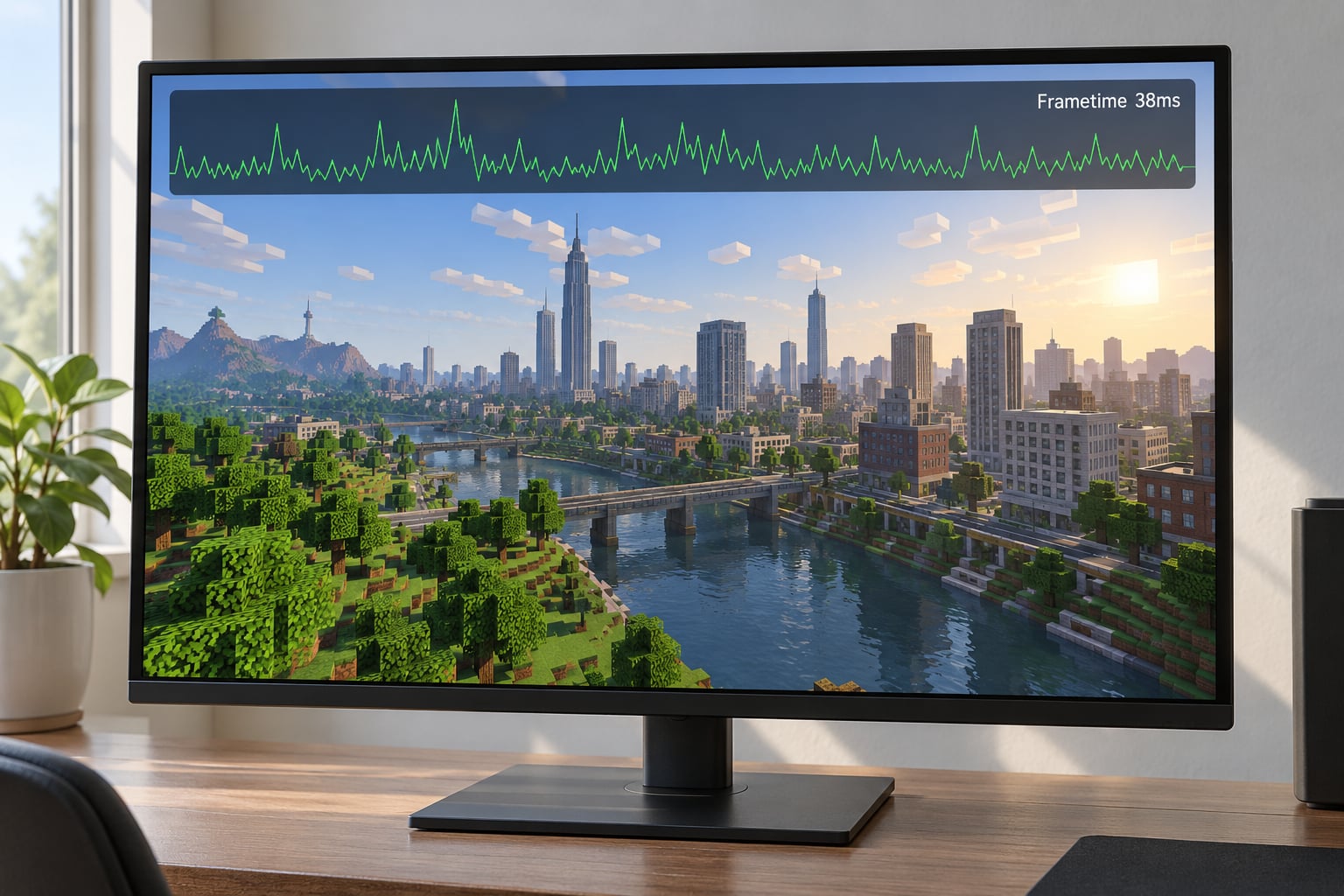
Stuttering is uneven frame delivery, not low frame rate. At 60 frames per second a smooth game delivers a new frame every 16.7 milliseconds; a stuttering game at the same 60 FPS might deliver frames in bursts, so one frame takes 40 ms and the next takes 8 ms. The average still reads 60, but the motion feels like it keeps snagging.
That difference is why lowering settings sometimes changes nothing. Low frame rate is a rendering load problem. Stuttering is a timing problem, and a different set of causes.
To see it, install MSI Afterburner and RTSS, open Afterburner, click the gear icon, go to Monitoring, and tick Framerate, Frametime, GPU usage, VRAM used, RAM usage and GPU temperature. In RTSS, enable Frametime and Frametime graph in the on-screen display settings. Search “Task Manager” in the Windows taskbar search bar to open the same screen for RAM and CPU checks later.
Walk to the exact location that hitches and record four numbers: average frame rate, your 1% low, GPU usage, and VRAM used. A 1% low is the worst frame time the game produced during that run, and it is far more revealing than the average. A game averaging 90 FPS with a 1% low of 45 ms will feel rough; a game averaging 70 with a 1% low of 20 ms feels better.
Success signal: the overlay stays on screen and you can say exactly where the hitch happens and what the GPU was doing at that moment.
2. Check Whether a Frame Rate Cap or VSync Is Causing It
A frame rate limiter is the single most reliable free fix for uneven frame pacing, and it is also the one people most often set up wrong. The rule of thumb that works well: cap below your refresh rate, not at it. On a 144 Hz panel, cap at 141 FPS. On a 120 Hz panel, cap at 117.
You have three places to limit, and using two at once creates the uneven delivery you are trying to remove.
- In-game: most titles have a Frame Rate Limit or FPS Cap field in the graphics or display menu.
- Driver level: NVIDIA Control Panel under Display and Video and Adaptive VSync settings, or AMD Software and drivers.
- RTSS: the Framerate limit field in RTSS on-screen display settings, which overrides the other two.
Test VSync on its own first. Leave VSync off, set a driver-level cap, and walk the route. If it smooths out, you have your answer. If it got worse, turn VSync back on and cap just below refresh instead, which is the normal pairing for G-Sync and FreeSync displays.
One variant worth a single test: a frame rate range where the minimum equals the maximum, for example 120 and 120, rather than a variable cap. Some players find that removing the range entirely clears their stutter, because a cap that changes value under load can introduce pacing problems of its own.
Success signal: the frametime graph tightens into an evenly spaced band instead of visible spikes.
3. Lower the Settings That Cause Frame-Time Spikes
If the overlay showed VRAM near your card’s capacity, or a spike in GPU usage at the moment of the hitch, some settings are worth backing off. Open worlds are unusual because the expensive settings all peak at once in dense areas.
Start with texture quality and drop it exactly one step, not to minimum. Texture resolution is the biggest VRAM consumer, and one step down usually takes several gigabytes off the peak without hurting the look much. Then work down this list, one change per test walk:
- Shadow quality and shadow distance, which scale with view distance
- Ray tracing, which costs both VRAM and a large chunk of frame time in path-traced scenes
- View distance and draw distance
- Foliage and grass density, a surprisingly large frame-time cost in open terrain
- Crowd and NPC density, especially inside cities
- Volumetrics, motion blur and ambient occlusion
The frame rate you are targeting matters more than the preset name. Ultra at a locked 60 FPS with clean frame pacing beats a custom high setting that swings between 90 and 40. Also try the other graphics API: many PC ports let you launch with DirectX 11 or DirectX 12, and the two handle asset streaming differently enough that one can be visibly smoother in the same scene.
Success signal: VRAM peaks drop well below capacity and the hitch in the same spot either shrinks or disappears.
4. Update or Reinstall the Graphics Driver Cleanly
Download the driver from your GPU vendor’s own site or let Windows Update supply it. Either way, choose the clean installation option, then reboot before you test. A clean install rewrites the driver’s profile rather than layering a new one on top of an old one, which is how leftover settings survive and keep causing micro-stutter.
If your stutter started right after a driver update, go the other direction and reinstall the previous stable version instead. That is a real fix, not a defeat, and it costs ten minutes.
For a driver that seems stuck, the cleanest route is DDU: start Windows in Safe Mode, run Display Driver Uninstaller, restart out of Safe Mode, and install the fresh driver cleanly. Never install drivers from third-party download sites, because driver packages are a common malware vector and you gain nothing over the vendor’s own download.
One free adjustment worth testing in NVIDIA Control Panel: older drivers had a Shader Cache Size option that could be set to Unlimited. Setting it to Driver Default is the classic recommendation, and raising it has been reported to fix traversal stutter on large open worlds for some players.
Success signal: the frame-time graph looks the same or slightly tighter after the reinstall, and no new hitch appeared in the test area.
5. Clear Stale Shader and Compilation Caches
Traversal stutter in open worlds is often the game compiling new shaders as you reach territory it has not seen. Every tree, building material and lighting condition can trigger a batch of these. The first run through an area stutters, the second run does not, which is why some players think the problem fixed itself.
There is a game-side fix where the developer provided one. Look for shader pre-compilation, shader cache or pre-caching options in the graphics or storage menus, and run the pre-cache during a break rather than before a session you want to play.
The Windows-side cache lives at Settings, System, Storage, Temporary files, where DirectX Shader Cache can be cleared, and it is also reachable through Disk Cleanup: search “Disk Cleanup” in the taskbar, pick your drive, then tick DirectX Shader Cache under Files to remove. Clearing it means the next launch rebuilds, so treat it as a targeted test rather than a weekly habit. Do it once, play the problem area, and see whether anything changed.
Success signal: first-visit stutter returns to a much shorter compile on the second pass, or disappears entirely.
6. Test Storage, Memory, and CPU Bottlenecks
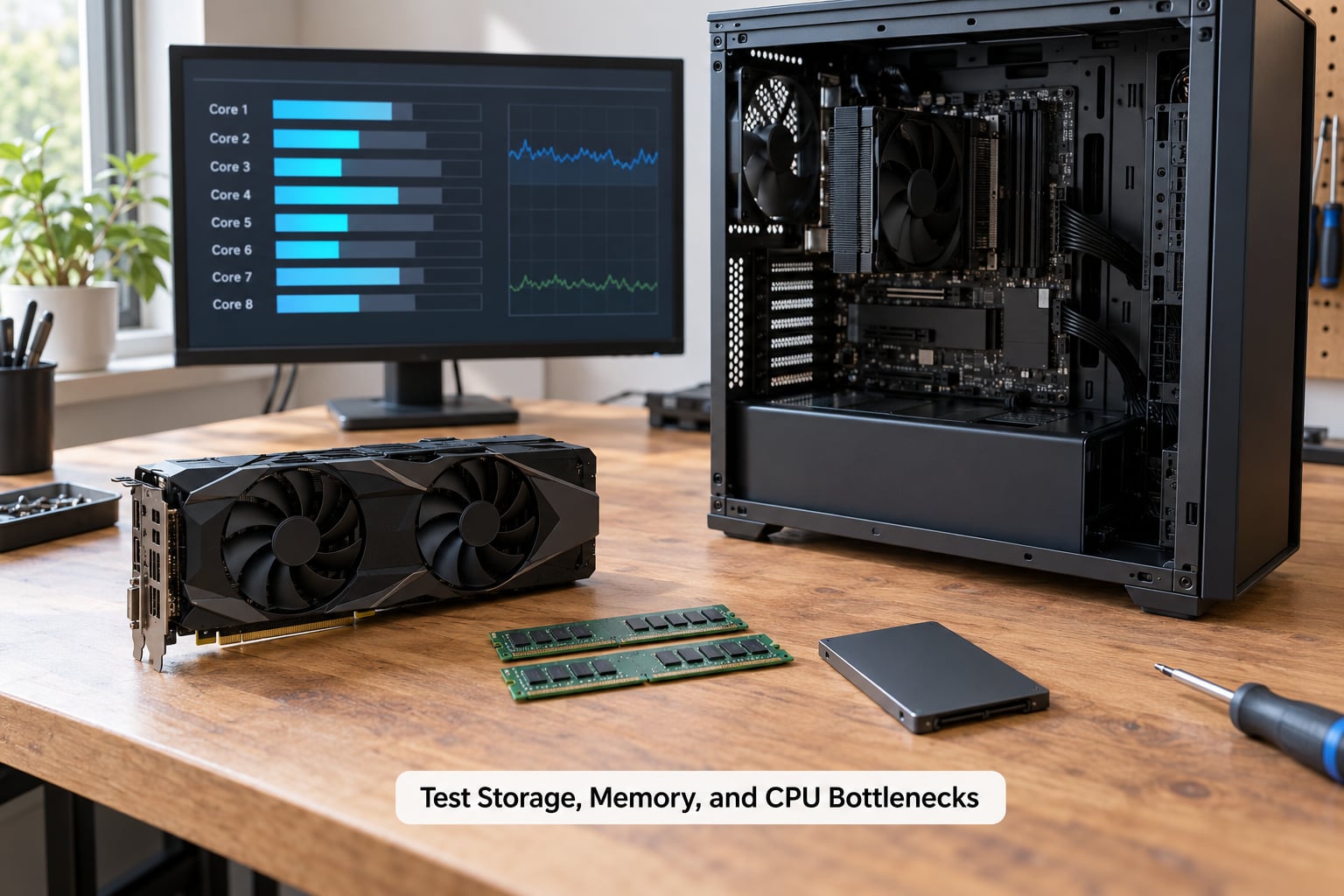
Three separate bottlenecks hide behind the same symptom, and the overlay tells them apart.
Storage: open Settings, System, Storage and check free space on the drive holding the game. A nearly full SSD and a game on an old mechanical hard drive both cause pauses while the system streams files mid-traversal. Moving a large open world to an NVMe drive, or off a hard drive entirely, removes most streaming hitches on machines that were suffering from disk latency.
Memory: in Task Manager, open Performance and Memory. Above roughly 85 to 90 percent used, Windows starts paging to the pagefile, and paging during gameplay produces exactly the pause you are chasing. Keep the pagefile on system-managed rather than fixed size, and close memory-heavy applications such as a browser full of tabs, Discord and video editing software before testing. If usage climbs steadily while you play, that is a leak rather than a shortage.
CPU: this is the check most people get backwards. Watch per-core usage in the overlay and the specific core that spikes right before the hitch. One core pinned near 100 percent while the rest idle is a loading or streaming thread being starved, which points to CPU single-thread performance, faster memory, or a game setting that loads more at once. All cores sitting at 80 to 90 percent means the CPU as a whole is the limit, and a graphics upgrade will not change it.
Low CPU usage with high GPU usage tells you the opposite story: the graphics card is the limit. That reading is the one case where lowering settings is the right move.
Success signal: whichever of the three readings was abnormal at the moment of the hitch is now within range.
7. Disable Overlays and Unnecessary Background Activity
Overlays capture the framebuffer, and several of them do it badly. Test each one off by pressing Win+G for the Xbox Game Bar, opening Steam and disabling the in-game overlay from Settings and General, turning off the Discord overlay in its settings, and disabling recording in your capture software and in the NVIDIA App game filters.
That last one is worth a note. Game filters are not free. They inspect and re-encode frames on the way to the display, so an always-on overlay adds work to the exact moment the game is trying to hit its frame budget.
Then trim startup activity: Task Manager, Startup apps tab, disable what you do not need running in the background. Set the power plan to High Performance or Balanced rather than Power Saver, since power saving throttles clocks under load. And check Windows Security, Device performance and security, Device performance, Core isolation for Memory Integrity: virtualization-based security claims a slice of CPU time and memory, and turning it off is one of the higher-yield fixes on Windows 11.
Test cleanly, not blindly. Change one overlay, walk the route, and only keep the change if it helped. There is no point permanently removing a service you actually use.
Success signal: the frame-time graph shows fewer short spikes during the same traversal.
8. Reopen the Same Area and Verify the Improvement
Verification is the step people skip, and it is the one that tells you whether to stop. Use the same route, the same viewpoint and roughly the same time of day as your baseline run. Record average frame rate, the 1% low, and how many hitches you counted crossing the boundary.
If the hitches are gone but the 1% low is still poor, you traded a spike problem for a load problem. If nothing improved after two or three careful changes, restore each change one at a time so you know what is helping and what is decoration.
At this point the honest next step is sometimes hardware. More VRAM, dual-channel memory at its rated speed, or a faster CPU will fix a genuine hardware limit that no setting can reach. Other times it is the game, and only a patch or a support ticket will move it.
Success signal: the same route, twice in a row, with no hitch where there used to be one.
Common Mistakes
Most wasted troubleshooting time comes from one of these, and each one produces a false negative that sends you chasing the wrong cause.
- Changing five settings at once. You cannot tell which change helped, so you end up keeping the ones that do nothing. Change one thing per test walk instead.
- Trusting the average frame rate. Averages hide bad frames entirely. Read the frametime graph and the 1% low.
- Dropping resolution when it stutters. Streaming hitches are not a pixel count problem. Drop texture quality one step, then watch VRAM.
- Reinstalling the game first. A multi-hour download that usually changes nothing. Check the overlay readings before any reinstall.
- Disabling every background app forever. You break something you use and learn nothing about the cause. A/B test one overlay or startup app at a time.
- Grabbing drivers from a download site. Unverified packages and no clean-install option. Use the vendor site or Windows Update, tick clean install, reboot.
- Leaving frame rate uncapped on a high refresh panel. You outrun your refresh rate and lose frame pacing. Cap three FPS below refresh rate.
One more deserves its own note: some players report that turning graphics all the way up fixed their stutter, which contradicts every guide. That usually means a limiter was fighting a frame rate above the refresh rate. Raising the load dropped the frame rate under the cap and the pacing improved on its own.
Quick Tips for Smoother Open World Play
- Always cap your frame rate below refresh rate, and make the cap the last thing you set.
- Keep the game client and graphics driver on versions you have tested, rather than updating everything the moment new builds land.
- Record a baseline before you change anything, because you cannot measure an improvement you never wrote down.
- Test with overlays closed. Your own capture software costs frame time in the scene you are trying to measure.
- Turn off first-person camera bob and heavy motion effects in games that offer them, since small camera movements exaggerate uneven pacing.
- Enable the rated memory speed in BIOS with XMP, EXPO or DOCP. Dual-channel memory at its rated speed is free frame-time improvement that most builds leave switched off.
- Keep a consistent route for testing, ideally somewhere with a city entrance and open terrain, so you measure the same stress every time.
Frequently Asked Questions
Does stuttering mean I need a new GPU?
Usually not. Open world stutter is a timing and streaming problem, and lowering texture quality one step, capping frame rate below your refresh rate, updating drivers and clearing shader caches resolves most cases on existing hardware. Upgrade only when the overlay shows VRAM pinned at full capacity or all CPU cores saturated at 80 to 90 percent, which are genuine hardware limits.
Why does my game stutter only when I explore new areas?
That pattern points straight at asset streaming. When you cross into unvisited terrain, the game loads meshes, textures, audio and NPCs from storage into RAM and VRAM at once. If any single link in that chain is slow, you feel a hitch at exactly that boundary. Visit the same area twice: if the second pass is smooth, streaming is the cause.
Should I disable VSync to fix stuttering in open world games?
Test it, but do not assume it. VSync off removes a source of uneven delivery but can tear, and on a variable refresh rate display the usual pairing is VSync on with a frame rate cap three FPS below refresh. Set a driver or RTSS cap first, test with VSync off, then re-enable it. Change one limiter at a time or the test means nothing.
Is shader compilation stuttering normal on a new graphics card?
Yes, mostly on the first playthrough. The game compiles shaders the first time it sees a material, lighting setup or region, which causes short hitches that feel like stutter. Once cached, later visits are smooth. Many games also ship a shader pre-compilation option you can run from the graphics or storage menu before playing. If hitches continue after the cache is warm, look elsewhere.
Why does my average frame rate look smooth while the game still stutters?
Because the average hides the bad frames. A game can average 90 FPS while individual frames take 45 ms, and that uneven spacing is what you feel. Switch the overlay to frametime and frametime graph instead of a plain FPS counter, and compare the 1% low against the average. A 1% low well below your target explains the stutter on its own.
Can insufficient SSD or RAM space cause gameplay stuttering?
Both cause the same pause. A hard drive or a nearly full SSD stalls while the game streams files mid-traversal, and RAM above roughly 85 to 90 percent pushes Windows into paging. Check free space under Settings, System, Storage, and watch memory in Task Manager. Keep the pagefile on system-managed, and if usage climbs while you play, that points to a leak.
Conclusion
Start by measuring. Turn on a frametime overlay, walk to the spot that hitches, and write down the average frame rate, the 1% low, GPU usage, VRAM and per-core CPU before touching a single setting. Then work down the list: cap frame rate below refresh, adjust the settings that spike, reinstall the driver cleanly, clear shader caches, check storage and memory, and trim overlays.
How to fix stuttering in open world games is a diagnosis, not a shopping list. The fix that matters is the one aimed at the resource that actually spiked in the place where it actually happens. If you have measured everything and the hitches remain, the limit is the game or the hardware, and no settings combination will pretend otherwise.