Frame generation adds input lag because the frames it invents never read your mouse, so your inputs still respond at the slower base frame rate underneath. To use frame generation without input lag issues, you have to shrink the render queue with the vendor’s low-latency feature, hold your base rate at 60 FPS or more, and stay on the 2x multiplier. That combination takes about 20 minutes to set up, plus another 10 to verify.
Plenty of people install frame generation, watch their FPS counter double, and assume the game just got better. Then they aim at something and it feels like the mouse is moving through water. Nothing is broken. You are just feeling the cost of the feature.
Table of Contents
- What You Need
- Step-by-Step
- How to Check Your Baseline Latency
- How to Enable Frame Generation
- How to Reduce Added Input Lag
- How to Test Responsiveness in Games
- How to Fix Spikes, Stutter, and Delayed Actions
- How to Choose Settings for Competitive Games
- How to Set V-Sync and VRR Without Adding Lag
- Common Mistakes
- Frequently Asked Questions
- Why does frame generation cause input lag even when the average FPS increases?
- Is frame generation bad for competitive shooters?
- What base frame rate should I use to minimize input lag?
- Should I enable V-Sync with frame generation?
- How can I tell whether input lag comes from frame generation or my monitor?
- Does frame generation work with every PC game?
- Conclusion
What You Need
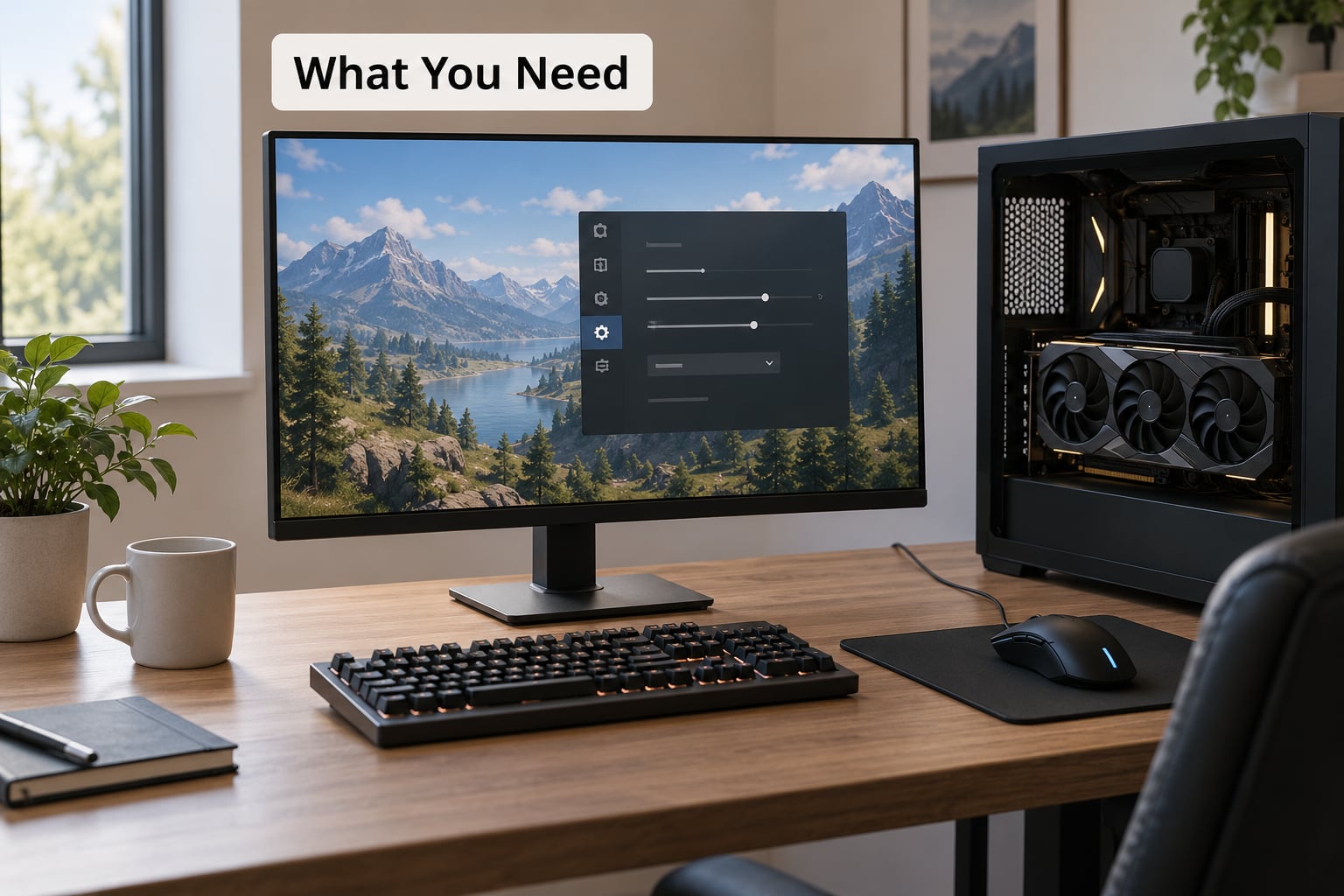
You need a GPU that supports frame generation, a monitor with a refresh rate worth doubling, and about ten minutes. Everything else is optional but improves the result.
- A frame generation capable GPU. On NVIDIA that means an RTX 30-series or newer card with DLSS Frame Generation or the driver’s Smooth Motion. On AMD, a supported Radeon card with FSR Frame Generation or Fluid Motion Frames. On Intel, an Arc card with XeSS Frame Generation. Driver-level options work on cards that cannot run the in-engine version.
- Headroom to reach a base rate. Frame generation multiplies what your GPU already renders, so a card sitting at 35 FPS without it will not reach a comfortable base rate with it. Check your base rate first, every time.
- A low-latency feature. NVIDIA Reflex, AMD Anti-Lag 2, or Intel Xe Low Latency. This is the single biggest lever and it costs nothing.
- A VRR monitor with a refresh rate above 120Hz. A 60Hz panel combined with frame generation is one of the worst combinations you can build. Doubling frames on a panel that cannot show them creates judder and adds nothing.
- A performance overlay. The NVIDIA or AMD overlay reports frame rate, GPU and CPU load, and PC latency, which is enough for most troubleshooting.
- A wired mouse. Wireless adds a variable you cannot see in the overlay, and when you are chasing 10ms it will waste an evening.
Step-by-Step
How to Check Your Baseline Latency
Measure before you change anything, because the fix that works for a 90 FPS base rate will not help a 32 FPS one. Record the numbers in a note so you have something to compare against later.
Open your vendor overlay (Alt+R for NVIDIA, or the Adrenalin overlay for AMD) and watch four things while you play the same scene for two minutes.
- Average frame rate — the number you already know.
- GPU load and CPU load — at 99% GPU you have a GPU bottleneck, which is what frame generation was built for. At 99% CPU with the GPU idling, you have a CPU bottleneck, and frame generation will amplify every stutter it produces.
- 1% lows — the frame rate during the worst moments. This is closer to how the game actually feels than the average.
- PC latency — shown in the overlay when Reflex or Anti-Lag is active. This is the render-queue portion of your total latency.
If you want a deeper reading, NVIDIA’s FrameView gives you a frame-time graph and a PC latency track per frame, and PresentMon can log input-to-photon figures from supported titles. Neither is necessary for most people, but both settle arguments quickly.
How to Enable Frame Generation
Frame generation can be switched on inside the game or at the driver level, and the two behave differently. Engine-integrated versions are more accurate because the engine tells the frame generator what actually moved. Driver-level versions work on any DX12 or Vulkan game but guess more.
On NVIDIA, engine-integrated: open the game’s graphics options and set Frame Generation to On, then choose the quality mode. To override it globally, open NVIDIA Control Panel, go to Manage 3D Settings, Global Settings, and set Frame Generation to On and Multi Frame Generation to Off while you tune. Smooth Motion, the driver’s own implementation, lives under Desktop and is the fallback when a game has no built-in option.
On AMD, engine-integrated: most supported titles expose FSR Frame Generation in their graphics menu. Fluid Motion Frames 2.1 is the driver-level version and switches on from the Adrenalin software under Gaming settings. Anti-Lag 2 is a separate toggle in the same software and in the game if the developer exposed it.
On Intel: Arc Control or the Arc Game On driver applies XeSS Frame Generation per game, and Xe Low Latency is the companion setting to turn on at the same time.
Confirm it is actually running: the overlay should show a doubled frame rate, and most games display the active multiplier in their own menu. If the FPS number has not doubled, nothing is being generated.
How to Reduce Added Input Lag
You cannot make frame generation lag-free, because a generated frame has no input attached to it. You can only cut the latency that gets added on top, and there are five levers, in order of impact.
- Turn on the vendor’s low-latency feature first. Reflex, Anti-Lag 2, or XeLL reduces how long the CPU waits before handing a finished frame to the GPU. This shrinks the render queue, which is where much of the perceived lag comes from. Do this before anything else.
- Hold the base rate at 60 FPS or higher. Below roughly 40 FPS, frame generation feels worse than switching it off, because the real frames your inputs land on are too far apart. Sixty is the floor, not the target. More forum reports describe 60 to 70 FPS as the range where frame generation goes from annoying to pleasant.
- Stay on 2x. A 4x or 6x multiplier queues more generated frames per real frame and the latency penalty grows with it. If you are reaching for a 4x multiplier to inflate the counter while the base rate sits below 80 FPS, you are making the problem.
- Turn V-Sync off in-game and use VRR instead. V-Sync buffers frames to stop tearing, and that buffer is pure added latency. VRR varies the refresh per frame and tears without buffering. Keep the driver-level V-Sync off too when G-Sync or FreeSync handles the job.
- Cap a few frames below your refresh rate. With VRR, capping around three FPS under the panel’s maximum keeps you inside the variable range and outside the judder at its edge. Use an in-engine cap, not an external limiter, because external tools inject a frame-rate limit into the chain and wreck frame pacing.
One warning about Reflex Boost. It can hold a stable frame rate by capping the base rate and generating extra frames on top, which many people like for single-player games. It also reintroduces some of the latency you were trying to remove, and users on r/horizon report it hurting frame pacing in certain titles. Enable it only after plain Reflex is working, then compare.
How to Test Responsiveness in Games
Average FPS is a bad test for this, because frame generation is built to inflate exactly that number. Judge the input instead, and record it before you enable anything.
Turn a practice or training mode with a flyable camera. Sweep the mouse across a large horizontal arc at a fixed speed and notice how long the view takes to stop and start. Then make a fast 180-degree flick and check whether the camera arrives immediately or keeps travelling after your hand has stopped.
Run the same movement twice, once with frame generation off and once on, in the same spot at the same camera speed. Frame generation reads most clearly at high camera velocity, which is exactly the moment competitive play cares about. In slow menu camera pans you may not notice any difference at all, which is why people argue about this feature without agreeing.
Watch the frame-time graph rather than the FPS counter. A frame-time line that flatlines means consistent pacing, and consistent pacing matters more to feel than a high average. A line with tall spikes, even on a game running 120 FPS, will read as sluggish.
How to Fix Spikes, Stutter, and Delayed Actions
Lag and stutter feel different but get confused constantly. Lag is constant delay, the same every time you move. Stutter is irregular hitching that comes and goes, usually tied to a specific scene. Diagnose which one you have before you start changing settings.
For stutter, work through these in order.
- VRR range edges. Microstutter just above your VRR minimum or near the refresh ceiling is a known VRR behavior, not a frame generation fault. Widening the panel’s VRR range in its own OSD usually fixes it.
- Overlays and capture tools. Third-party overlay hooks and background recording inject work into the DXGI chain, and the hitch lands in the frame generation path. Close them for the test.
- VRAM overflow. Frame generation buffers additional frames and costs VRAM. On 8GB cards this pushes some titles into stutter that looks like a frame generation problem but is really memory pressure. Drop the resolution or the upscaler quality mode and see if it clears.
- Thermals and power limits. A laptop that throttles or a card running at a locked power limit produces uneven frame times. Check the overlay for clock and temperature behavior during the same scene.
- Shader compilation. The first visit to an area stalls while shaders compile. Clearing the driver shader cache resets that, and the first run afterwards feels worse than normal. Give it two full sessions before judging it.
- Drivers. A clean install with Display Driver Uninstaller in Safe Mode, followed by a fresh driver, fixes the majority of persistent stutter. Confirm XMP or EXPO memory profiles are actually enabled in your BIOS, since a missed profile leaves the CPU throttling on memory timings.
How to Choose Settings for Competitive Games
For esports shooters and anything with real money on the line, turn frame generation off. Use upscaling alone and let Reflex or Anti-Lag handle latency. A player noticing a delay has already lost the exchange, and no extra counter points change that. Players on r/radeon describe the same experience: smooth pictures, unresponsive aim.
For single-player RPGs, open-world games, and racing sims, frame generation is at its best. You get visual smoothness, the camera rarely moves fast enough to expose the latency, and a 60 FPS base rate gives you a huge buffer.
For fighting games, lock the game to its native frame rate and skip frame generation entirely, since these titles are calibrated frame by frame and interpolation interferes with their timing windows.
For racing and flight sims, use 2x only, keep the low-latency feature on, and set a camera smoothing option to zero if the game offers one. Heavy smoothing hides the latency visually but does not remove it.
On handhelds such as the Steam Deck, the math is tighter because the screen is often 60 to 90Hz. Advice from r/SteamDeck is consistent: frame generation is not a good experience below 60 FPS internal, and you may be able to push down toward 40 in lighter titles. Native rendering at 60 feels better than 120 generated frames that respond slowly.
How to Set V-Sync and VRR Without Adding Lag
This combination trips up more people than the frame generation setting itself. Use VRR as the tear-handling mechanism, and use V-Sync only as a fallback on displays without VRR.
- VRR monitor, frame generation on: V-Sync off in-game, off in the driver, VRR on, in-engine cap three FPS below refresh. This is the standard setup.
- No VRR: V-Sync on in-game at your refresh rate. Expect added latency and consider turning frame generation off entirely, since you are now buffering twice.
- Competitive play: VRR on with a low cap, or V-Sync off with no cap if your base rate stays above your refresh rate. Either way, leave frame generation disabled.
Common Mistakes
Most people who end up unhappy with frame generation make at least one of these.
- Enabling it below 60 FPS base. This is the big one. Frame generation feels worse than doing nothing when the underlying frame rate is low, because your inputs only land on real frames and those are far apart.
- Running V-Sync in-game on top of VRR. The buffering fights the variable refresh and adds latency for no visible benefit.
- Changing five settings in one sitting. If something improves and something else regresses, you cannot tell which did what. Change one variable, play the same scene, note the result.
- Judging by average FPS. The counter will always look better with frame generation. Use 1% lows, the frame-time graph, and the PC latency figure.
- Grabbing a 4x or 6x multiplier to post a number. The latency penalty scales with queue depth, and at a modest base rate the result is the worst of both worlds.
- Leaving an old external limiter running. Third-party frame-rate caps add a render queue of their own and break frame pacing while frame generation is active.
- Switching off the low-latency feature because one game breaks with it. Reflex bugs are real and reported on r/nvidia, but turning it off costs you latency in every other game. Leave it on and skip that one title.
- Pairing a 60Hz panel with frame generation. The extra frames have nowhere to go, so you get judder instead of smoothness.
Frequently Asked Questions
Why does frame generation cause input lag even when the average FPS increases?
Because generated frames never sample your input. Your mouse or controller is only read when a real frame is rendered, so responsiveness stays tied to the base frame rate no matter how high the counter climbs. The added delay comes from how many generated frames sit in the queue ahead of your next real frame.
Is frame generation bad for competitive shooters?
Most of the time, yes. In a game decided by single-digit millisecond reaction differences, the latency penalty outweighs the visual smoothness. Use upscaling on its own with Reflex or Anti-Lag and keep frame generation off for anything where losing a duel costs you something real.
What base frame rate should I use to minimize input lag?
Sixty FPS is the floor, and 60 to 70 is where most players report the feature stops feeling sluggish. Below roughly 40 it is worse than switching frame generation off entirely. Higher base rates always help, so spend your optimization budget there before touching the multiplier.
Should I enable V-Sync with frame generation?
No, if your monitor supports VRR. V-Sync buffers frames to prevent tearing, and that buffer is added latency on top of what frame generation already costs. Turn V-Sync off in-game and in the driver, run G-Sync or FreeSync, and cap a few frames below your refresh rate instead.
How can I tell whether input lag comes from frame generation or my monitor?
Turn frame generation off and keep everything else identical. If the input still feels slow, the delay is upstream of the feature and probably your display chain or a frame cap. Then check the monitor in its own menu for overdrive and response-time settings before blaming your GPU again.
Does frame generation work with every PC game?
No. Older titles and some current ones lack engine support, which is where driver-level options such as Smooth Motion and Fluid Motion Frames 2.1 help, since they can apply broadly to DirectX 12 and Vulkan titles. Engine-integrated versions remain more accurate because the engine reports what actually moved on screen.
Conclusion
Start with the base rate. Set your upscaler to a quality mode that gets the game to 60 FPS or more, note the 1% lows, and fix any CPU bottleneck before you touch frame generation. Once the base rate holds, turn on Reflex, Anti-Lag 2, or XeLL, enable 2x frame generation, turn V-Sync off in favour of VRR, and cap a few frames under your refresh rate.
Then play the same camera test you ran before, with one change at a time. The goal is not a bigger number on the counter. It is a game that responds the instant you move.