If you need to fix audio crackling while gaming, start here: it is almost never a dying GPU or a blown speaker. It is a short dropout where the audio driver misses its schedule, and in most cases it is a software or connection problem you can clear in under half an hour. This guide walks the fixes in order of effort, cheapest first, on both Windows 11 and Windows 10.
The reason music plays fine but games crackle is load. Games spike CPU and GPU usage constantly, and anything competing for the same processing time — a voice chat overlay, a fan utility, a Bluetooth radio — can starve the audio buffer for a millisecond or two. You hear that gap as a pop or a burst of static.
Here is the symptom map most people need first, because guessing at random is how people end up buying hardware that was never the problem.
- Crackling only inside games, music is clean — load-related buffer starvation, usually an overlay or voice app. Start at Step 3.
- Crackling starts 10 to 20 minutes into a session — the driver heats up, or a DPC latency spike builds under load. Start at Step 4.
- Crackling only on a Bluetooth headset — 2.4GHz congestion or a sample rate mismatch. Start at Step 6.
- Only one earcup crackles — the headset, its cable or that side’s channel, not your PC. Start at Step 8.
- Quiet moments sound fine, gunfire crackles — levels pushed too high somewhere in the chain. Start at Step 2.
- Crackling only when other people talk — microphone boost or noise suppression processing. Start at Step 3.
- Crackling and stutter happen at the same moment — shared frame-time drops hitting both subsystems. Start at Step 7.
Table of Contents
- What You Need
- Step-by-Step: How to Fix Audio Crackling While Gaming
- Step 1: Check Every Audio Connection
- Step 2: Lower and Reset Audio Levels
- Step 3: Disable Conflicting Audio Effects and Overlays
- Step 4: Update or Reinstall the Audio Driver
- Step 5: Reset the Game and Audio App
- Step 6: Test for Wireless or USB Interference
- Step 7: Check Windows Sound and Communication Settings
- Step 8: Isolate the Fault and Replace the Weak Link
- Common Mistakes
- Frequently Asked Questions
- Why does my game audio crackle when I use a Bluetooth headset?
- How do I fix crackling audio in Windows 11 and Windows 10?
- Does this mean my GPU or speakers are failing?
- Why does my audio crackle after about ten minutes of gaming?
- Can voice chat or my microphone cause crackling in games?
- Does this apply to handhelds and laptops as well as desktops?
What You Need
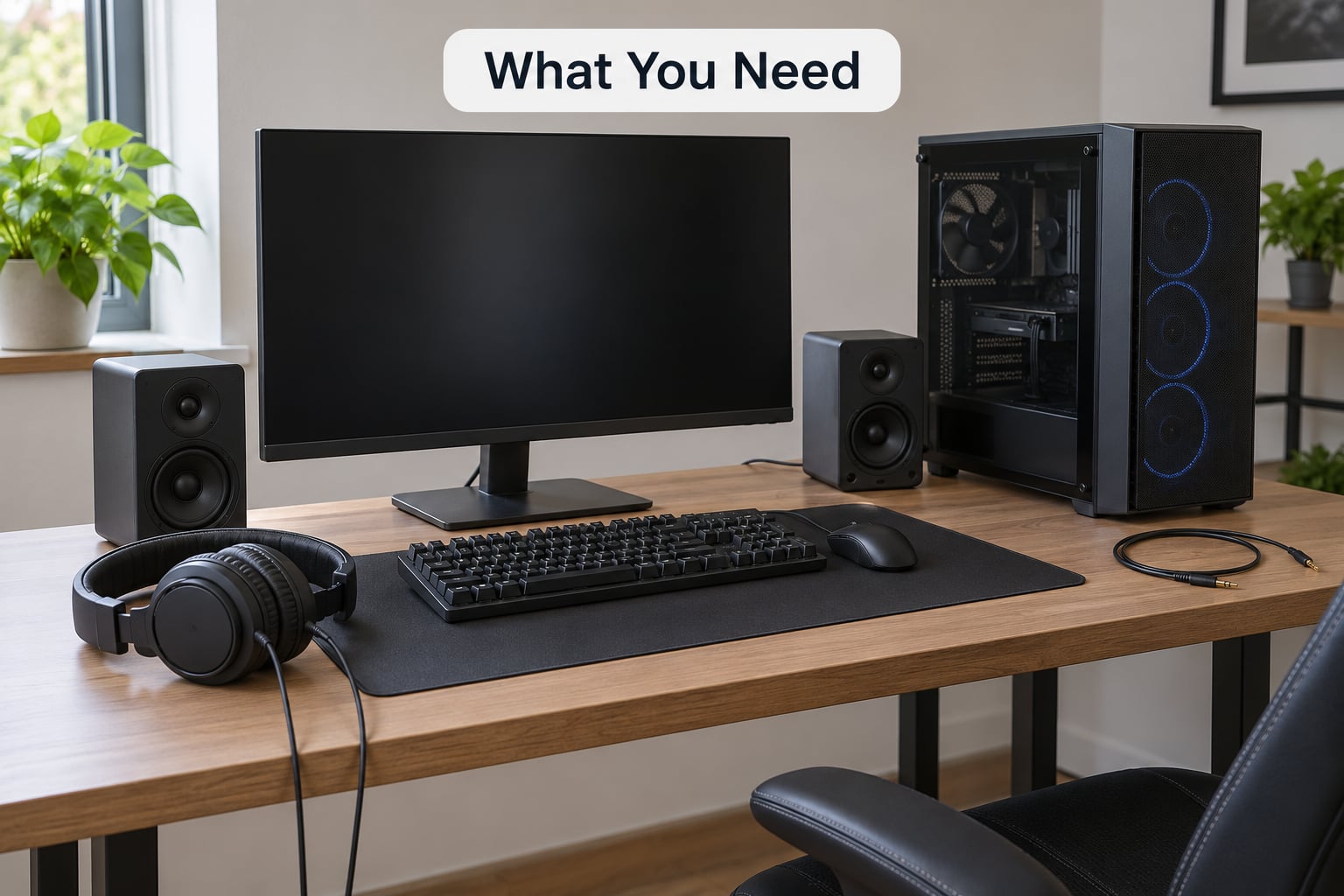
Nothing special. You need access to the machine while gaming, the audio output you actually use, and about thirty minutes where the game can be closed and reopened freely.
Helpful to have on hand:
- The gaming device itself — a Windows 11 or Windows 10 PC, laptop or handheld
- Whatever you normally listen with: wired headset, USB headset, Bluetooth headset, or speakers
- A second output to test with, ideally the other kind of connection than you normally use
- A phone or music player with a headphone jack, to test the headset on its own
- The name of your motherboard or laptop model, for finding the right driver later
A second output is the single most useful item. Testing one device against another is how you find out whether you are chasing software or a dying peripheral, and you cannot do it without something to switch to.
Step-by-Step: How to Fix Audio Crackling While Gaming
Work top to bottom and stop when the crackling stops. Each step lists what to do, how to test it, and when to move on.
Step 1: Check Every Audio Connection
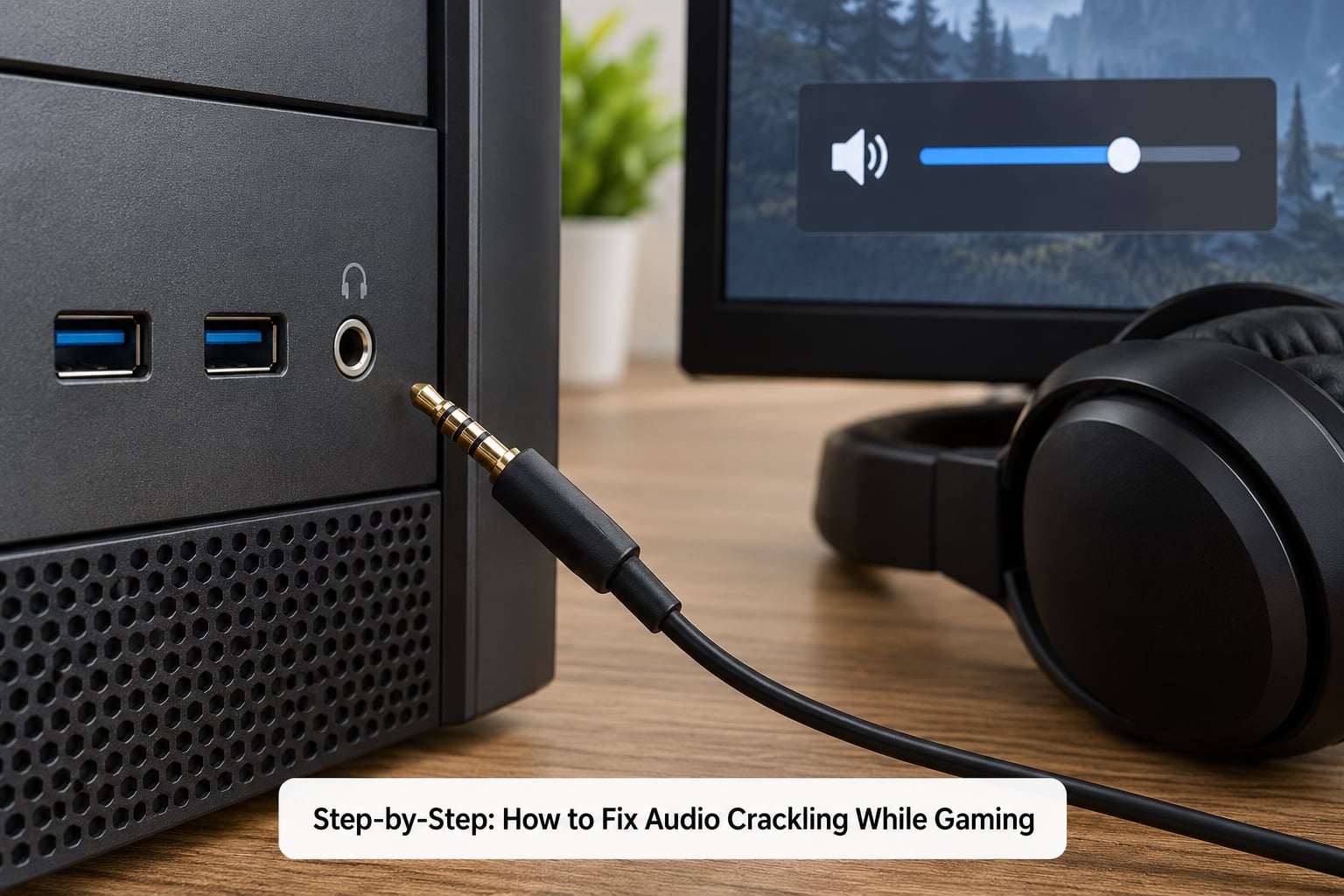
Crackling over a 3.5mm jack often means a connector pushed in halfway or a cable kinked behind the desk. Reseat both ends of every cable, listen for a click as the plug seats fully, and check that nothing is resting on the wire.
Bluetooth needs its own check. Turn the headset off and on, forget the device on your PC and pair it again, and if you use a wireless dongle, move it to a different port or hold it away from the USB cable running alongside it.
Test it by playing the same game scene that crackled before. If the connection was loose, you already know. If it is clean, move to Step 2.
Step 2: Lower and Reset Audio Levels
Any single volume turned all the way up can push the signal past clean and produce distortion that sounds exactly like crackling. Check the game slider, Windows master volume, the headset’s own hardware volume, and the app you use for voice.
The classic offender is a headset at 100% volume with Windows at 100% on top. Bring both to roughly 70% and listen from there.
Windows 11 and 10 both use the same path: click the speaker icon in the taskbar, open Sound settings, then use the mixer under your output device to check the per-app volumes. Test again in a busy combat scene.
Step 3: Disable Conflicting Audio Effects and Overlays
This is where most of the real answers are, and almost no general guide mentions it. Audio processing software sits right on the audio path and will happily crackle under load.
Turn these off one at a time:
- Voice chat apps running in the background — Discord, Riot client, Steam voice, and microphone DSP in apps like NVIDIA Broadcast or SteelSeries Sonar
- Microphone boost and noise suppression on the recording side, which pull the input up and back down in real time
- Windows audio enhancements and spatial sound. In Windows 11: Settings, System, Sound, then Audio enhancements at the bottom of the output panel. In Windows 10: Control Panel, Sound, Playback tab, right-click your device, Properties, Enhancements tab
- Background overlays and tuning utilities — Discord overlay, NVIDIA App, GeForce Experience, Armoury Crate, MSI Afterburner with RivaTuner
- The in-game voice chat toggle and microphone option in the game’s own audio settings
Test by launching the game with none of them running. If the crackling clears, reintroduce them one at a time to find the offender, and turn off microphone boost while you are in there.
Step 4: Update or Reinstall the Audio Driver
Drivers do fail quietly. A generic Windows driver or a half-finished update can mishandle buffer timing without ever showing an error.
First check what you have. Press Windows key, type Device Manager, open it, expand Sound, video and game controllers, right-click your audio device and choose Update driver. Select Search automatically for drivers as a first pass.
Then do the better fix. Note the device name — often Realtek Audio — and download the driver from your motherboard or laptop maker’s support page, not Windows Update. Forum regulars are consistent on this: the manufacturer package handles the chip properly where the generic one sometimes does not. Install it, restart, and test.
If audio got worse after a recent update, right-click the device, choose Properties, open the Driver tab and use Roll Back Driver. Move on if the crackling persists.
Step 5: Reset the Game and Audio App
Games, launchers and voice apps all cache audio configuration. Restart the game fully, including the launcher, and check again before touching any settings.
If it persists, verify the game files. In Steam, right-click the game, Properties, Installed Files, Verify integrity of game files. On Epic, open the Epic Games Launcher, Library, the game’s three-dot menu, Manage, Verify. Also try launching the game as administrator once — a handful of reported cases came down to this.
Clear the audio config only after a normal restart fails. Closing the game, deleting its settings folder inside My Documents resets sound options to defaults, which sometimes pulls a corrupted setting out of the picture.
Step 6: Test for Wireless or USB Interference
Audio crackling while gaming on a wireless headset is usually congestion rather than a broken headset. Bluetooth shares the 2.4GHz band with your Wi-Fi router, older cordless phones and neighbouring networks.
Switch the router to the 5GHz or 6GHz band if you can, move the PC or router away from metal furniture, and test the same game on a wired headset. If the crackling vanishes, you have your answer.
Sample rate mismatch causes a version of this too. If your headset and Windows disagree on format, you get crackle and dropouts. Open Settings, System, Sound, Output, then Advanced and set Default format to 16-bit, 44100Hz or 24-bit, 48000Hz. Pick whichever is closer to what your headset natively supports and leave the hardware acceleration default alone.
USB adds its own angle on laptops. Headset plugged into the same port or adjacent to a controller can pick up interference, and power management can cut in mid-burst. Try a different port, ideally a rear USB port on a desktop.
Step 7: Check Windows Sound and Communication Settings
Open Settings, System, Sound and confirm the chosen output device is the one you think it is. A second display or a docked headset can quietly become the default, which is a different code path with its own driver.
On that panel, look for exclusive mode. Click your output device, Properties, Advanced, and uncheck Allow applications to take exclusive control of this device. Exclusive mode gives an app direct access to the audio hardware, which some games like and some drivers handle badly.
Also check Sound, then Communications. Windows reduces other audio by up to 80% when it detects a call, which can sound like a level fault. Set it to Do nothing while you test.
If crackling arrives alongside stuttering, frame drops and visual lag in the same moment, that points to DPC latency rather than the audio stack. Run LatencyMon while gaming; the message to look for is “Your system appears to be having trouble handling real-time audio”, and the driver listed at the top of the graph is your next suspect. If that driver is an RGB, fan or network utility, update or remove it.
Step 8: Isolate the Fault and Replace the Weak Link
This step tells you whether it is software or hardware, and it takes five minutes. Test in this order:
- Play the game through your speakers instead of the headset
- Play music from your phone through the same headset
- Play a video through headphones on a phone, no PC involved at all
- Play the game on another computer or another output port
Crackling on the PC but clean on the phone means the headset is fine and the PC is the problem. Clean on the PC but crackling on the phone means the headset or its cable is finished, and no driver on your machine will change that. One ear only means the headset, its cable or that channel.
If every PC output is affected, the driver is the last thing left. Reinstall from the maker cleanly, and if that fails, check whether it started after a Windows update — Settings, Windows Update, Update history, Uninstall updates removes the most recent one cleanly. Running DISM and SFC from an elevated command prompt repairs system files if Windows audio services have been damaged.
Common Mistakes
Most failed troubleshooting comes from a handful of predictable habits.
Turning every volume all the way up to “test” it. This makes the problem worse and convinces you the hardware is failing. Balanced levels are the only valid test.
Ignoring the microphone path. Boost, noise suppression and voice DSP run on the capture side and can crackle the whole stream. Check the input device settings too, not just output.
Changing six things at once. Then when the crackling stops, nothing has been learned. One change, one test, then the next.
Buying a sound card before isolating. A USB DAC is a fine fix for genuinely bad onboard audio, but it will not touch a driver conflict or a crowded Bluetooth band. Isolate first and you might solve it for free.
Resetting or reinstalling Windows early. It takes hours, you lose your setup, and the cause is almost always something a twenty-minute isolation test would have found.
Testing for two minutes and declaring victory. The most reported pattern is crackling that only appears after ten or twenty minutes of load. If your fix seems to work, play a demanding scene for a full session before you call it done.
Frequently Asked Questions
Why does my game audio crackle when I use a Bluetooth headset?
Bluetooth shares the 2.4GHz band with your Wi-Fi router and neighbouring networks, so a congested band drops packets and you hear gaps as crackling. Test the same game on a wired 3.5mm or USB headset. If it goes clean, move the router to 5GHz or 6GHz and keep using wireless only when you have to.
How do I fix crackling audio in Windows 11 and Windows 10?
Work in order: reseat cables, bring volume levels down, turn off enhancements and spatial sound, then update or reinstall the audio driver from your motherboard or laptop maker rather than Windows Update. After that, disable exclusive mode under Sound, Output device Properties, Advanced. Most people stop somewhere in the first four steps.
Does this mean my GPU or speakers are failing?
Usually not. Crackling that appears during games but not while music plays points to load and driver timing, not a dead component. Test with a second output device and a phone to confirm. Hardware failure is worth suspecting only when crackling follows one device everywhere you plug it in, or when you hear it on every output at once.
Why does my audio crackle after about ten minutes of gaming?
Crackling that builds during a session points to a driver that degrades under sustained load or to DPC latency spikes that accumulate. Run LatencyMon while playing; if it reports trouble handling real-time audio, the driver named at the top of the graph is your target. An RGB, fan or network utility is the usual culprit.
Can voice chat or my microphone cause crackling in games?
Yes. Microphone boost, noise suppression and voice chat apps process audio in real time, and that processing runs in the same pipeline as your game audio. Close Discord, Riot client, NVIDIA Broadcast or SteelSeries Sonar, turn off mic boost in your Windows sound settings, and test the game again with in-game voice disabled.
Does this apply to handhelds and laptops as well as desktops?
The Windows-side steps are identical, but two extras matter. Laptops on battery saver mode throttle CPU and make buffer starvation far more likely, so plug in and set the power plan to performance. On handhelds, Bluetooth congestion is the first thing to rule out, and USB port placement on the chassis matters more than on a tower.
Start at the top of the symptom list and follow the number it points to. Connections, then levels, then effects and overlays, then the driver, and only then hardware. Most audio crackling while gaming comes out somewhere in the first four, and you will know which one because you tested it.