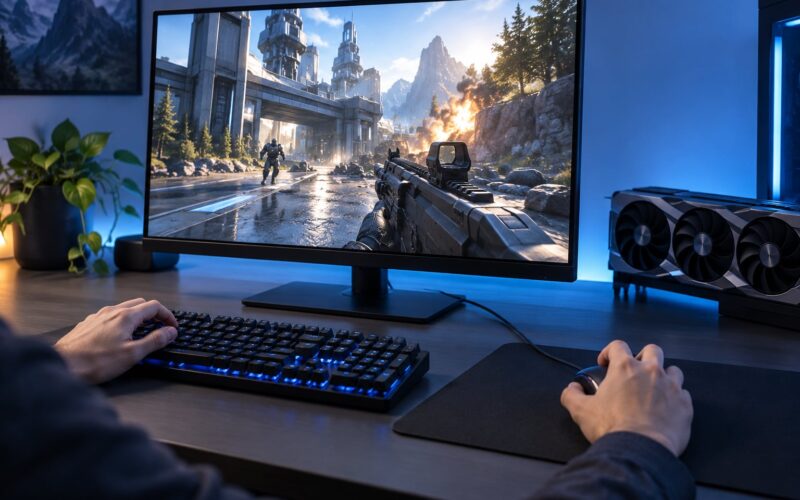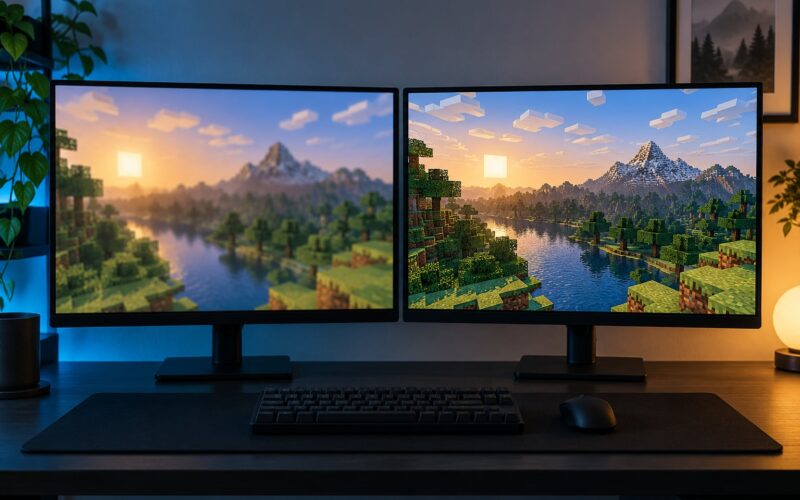
How refresh rate affects competitive gaming comes down to how much new information reaches your eyes every second. A 144Hz panel redraws 144 times per second, so each frame stays on screen about 6.9 milliseconds instead of the 16.7 milliseconds a 60Hz panel gives you. That shorter window smooths out strafing, makes flick shots land on a stable target and lets you read an opponent’s movement earlier.
It does not add skill, and it does not raise your frame rate by itself. A faster display removes a ceiling that was quietly holding your game back. If your PC cannot feed that many frames, the extra hertz does very little.
Table of Contents
- What Is Refresh Rate in Competitive Gaming?
- How Refresh Rate Affects Competitive Gaming
- Motion clarity, tracking and flicks
- The frame-time numbers behind the feeling
- Does a Higher Refresh Rate Reduce Input Lag?
- Four different delays people call input lag
- How Many Hz Do You Need for Competitive Gaming?
- What different competitive titles can actually feed
- Refresh rate and competitive gaming at 1080p, 1440p and 4K
- What Matters More: Refresh Rate or Frame Rate?
- The two mismatch failures
- How to Test Refresh Rate in Your Games
- Confirm the rate in Windows
- Confirm the rate inside the game
- How to Choose the Right Gaming Monitor for Your Setup
- Workable combinations at each resolution
- Panel type and adaptive sync still matter
- Frequently Asked Questions
- Is 144Hz good for competitive gaming?
- Does 240Hz make a noticeable difference over 144Hz?
- Is a higher refresh rate always better for gaming?
- What refresh rate do I need at 1080p, 1440p and 4K?
- Does refresh rate reduce input lag or ping?
- Should I enable adaptive sync with a high-refresh-rate monitor?
- Conclusion
What Is Refresh Rate in Competitive Gaming?
Refresh rate is how many times per second a display redraws its image, measured in hertz (Hz). A 60Hz monitor redraws 60 times per second, a 144Hz monitor redraws 144 times. That is the monitor’s side of the equation, and it is a fixed hardware number set by the panel and the cable you plug in.
Frame rate is the other side: how many images your PC actually produces each second, in frames per second. Response time describes how quickly a single pixel changes colour once the signal arrives. Competitive players get the clearest picture when all three line up instead of chasing one of them.
Why does it matter more in shooters and fighting games than in a slow strategy title? Because the things that decide a round happen in a fraction of a second. Every extra redraw gives you another sample of where a moving enemy is, and enemy movement at 300 km/h leaves the screen every few frames.
How Refresh Rate Affects Competitive Gaming
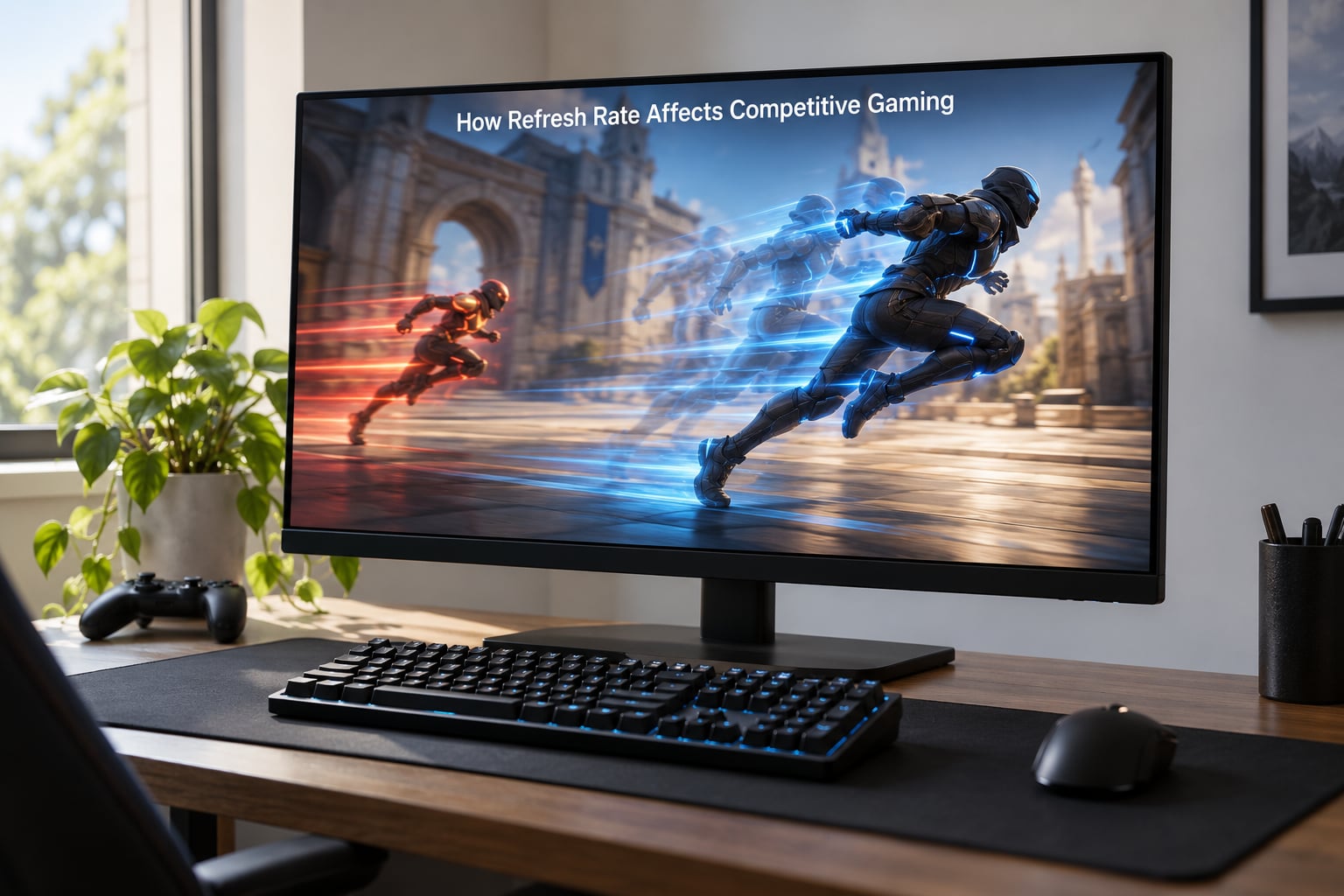
Competitive gaming feels the difference through three things: fewer skipped visual samples, less blur between samples, and a shorter wait before your own movement appears. None of them change your reaction time in a lab. They change how much of the game you can actually see while reacting.
Motion clarity, tracking and flicks
When you strafe across a wall, your crosshair sweeps the screen. At 60Hz the display can only show you 60 positions of that sweep per second, so gaps appear between them. Raise the rate and the gaps shrink. Tracking a strafing target feels steadier because your eye receives a more continuous path to follow.
Flick shots behave differently. You are not tracking, you are snapping the crosshair from one point to another and stopping on target. More samples per second means the final approach of the flick is shorter and the overshoot is easier to correct, which is why players who train their flicks often notice the 60Hz-to-144Hz step first.
The frame-time numbers behind the feeling
Frame time is the useful way to compare refresh rates because it converts a marketing number into milliseconds. Divide 1000 by the refresh rate and you get how long each frame remains visible. The last column shows how much of that time you recover compared with a 60Hz display.
| Refresh rate | Frame time | Milliseconds saved vs 60Hz | Typical competitive use |
|---|---|---|---|
| 60Hz | 16.7 ms | 0 ms | Console-style play, older competitive titles |
| 75Hz | 13.3 ms | 3.4 ms | Entry step up, rarely sold as a gaming panel |
| 120Hz | 8.3 ms | 8.4 ms | Console mode, casual competitive |
| 144Hz | 6.9 ms | 9.8 ms | The competitive default |
| 165Hz | 6.1 ms | 10.6 ms | Popular 1080p esports panel option |
| 240Hz | 4.2 ms | 12.5 ms | Tournament play and high-end 1080p |
| 360Hz | 2.8 ms | 13.9 ms | Enthusiast and pro-tier setups |
Read the last two columns together and the pattern is obvious. Going from 60Hz to 144Hz buys you 9.8 milliseconds of additional visual sampling. Going from 144Hz to 240Hz buys 2.7 more. That gap is the entire source of the “144Hz is the sweet spot” claim you hear everywhere.
Does a Higher Refresh Rate Reduce Input Lag?
Partly. A higher refresh rate shortens the display’s own contribution to delay, because the time between sending a frame and showing it shrinks with the frame time. It does nothing for the other delays in your chain, and those often dominate.
Four different delays people call input lag
Display latency is the gap between a frame being produced and appearing on screen, measured as roughly half a frame time on most panels. At 60Hz that is about 8.3 ms of waiting on average; at 240Hz it is about 2.1 ms.
Pixel response is how fast the panel physically changes colour, usually quoted as GTG response time or MPRT. Fast pixel response cuts the smear that follows a moving object. A 1 ms GTG figure says nothing about network delay or about how quickly the game accepts your click.
System latency covers the game engine, the frame cap you set and whether V-Sync is adding a forced wait for a full frame to render. Network latency is ping, the round trip to the server, and it regularly measures 20 to 60 ms in a ranked match.
Put real numbers next to each other. Moving from 60Hz to 144Hz removes roughly 6 ms of display latency. Sitting on a 40 ms ping removes nothing at all. The same mismatch shows up in reverse too: on a 144Hz panel with adaptive sync off, you want 144 frames per second as often as possible, or the experience partially feels like half your refresh rate.
How Many Hz Do You Need for Competitive Gaming?
For most competitive players, 144Hz is the point where the upgrade pays for itself, and 240Hz only makes sense if your hardware already holds 200 frames per second or more. Anything above that is a comfort purchase rather than a performance one.
What different competitive titles can actually feed
The right number depends on what you play and what your PC can render, because your monitor cannot display frames the GPU never produces.
| Game type | Realistic frame rate on mid-range hardware | Refresh rate that fits |
|---|---|---|
| Tactical shooters (Valorant, Counter-Strike 2) | 250-500 fps | 240Hz or 360Hz |
| Hero and battle royales (Overwatch 2, Apex Legends) | 120-220 fps | 144Hz to 240Hz |
| Fast arena and sports (Rocket League, fighting games) | 200-400 fps | 240Hz |
| Modern military shooters (Call of Duty) | 110-200 fps | 165Hz to 240Hz |
| Single-player action and RPGs | 60-140 fps | 120Hz to 165Hz |
If your average is 130 frames per second, a 144Hz panel is the honest match. A 360Hz monitor would show you 130 of its 360 possible updates per second, so half its potential goes unused.
Refresh rate and competitive gaming at 1080p, 1440p and 4K
At 1080p a mid-range GPU can feed 240Hz in most competitive shooters, so high refresh is cheap there. At 1440p you usually hold a solid 144 to 240 frames per second on a good card, which suits 165Hz and 240Hz panels well. At 4K the frame rate often falls below 120 in demanding scenes, so a 4K 144Hz panel is the sensible ceiling and anything above it needs a stronger GPU.
What Matters More: Refresh Rate or Frame Rate?
Stable frame rate matters more than either number alone. A 144Hz monitor running a locked, perfectly paced 144 frames per second beats a 240Hz panel swinging between 120 and 180, because inconsistent pacing is what players actually perceive as stutter.
The two mismatch failures
High frame rate on a low-refresh display is the classic case. Your PC renders 240 frames per second and the 60Hz panel shows 60 of them, so four out of every five images never reach your eyes, and you get tearing where the frame boundary falls mid-scan.
Low frame rate on a high-refresh display wastes the hardware. A 360Hz panel driven at 70 frames per second has long empty stretches between updates, which is why some players with expensive monitors report that nothing feels different. Turn adaptive sync off at 100 frames per second on a 165Hz panel and that mismatch stutter is visible and irritating within a minute of play.
Adaptive sync handles both directions, since the panel varies its refresh to match your frame rate instead of the other way around. The widely used rule is to cap your frame rate three below the maximum refresh rate, so 141 for a 144Hz panel and 237 for a 240Hz one, which keeps frame pacing steady while variable refresh handles the top end. Leave V-Sync off in competitive titles unless the tearing bothers you more than the added delay.
How to Test Refresh Rate in Your Games
Testing takes about five minutes, and it matters because plenty of upgraded monitors sit at 60Hz until someone changes a setting. Check the operating system, then the game, then the cable.
Confirm the rate in Windows
Open Settings, go to System, then Display, then Advanced display. The display information panel shows the active refresh rate next to the resolution. If it reads 60Hz on a 144Hz monitor, the signal is being limited, usually by the cable or by a port that cannot carry the required bandwidth.
Next check the on-screen display menu on the monitor itself. Most panels ship with the highest supported rate hidden as an Extended or PC setting above the Default mode, so scroll up past the default refresh entry and set the full rated value.
Confirm the rate inside the game
Most competitive titles have their own display menu with a refresh rate selector that overrides the default. In Valorant it sits under Video, Graphical, Video Settings, Display Mode, then Refresh Rate. Counter-Strike 2 and Overwatch 2 use comparable options in their video settings. If the game is left on a default, it may silently ignore a rate your monitor supports.
For a visual check, open any browser and play a high-frame-rate video of fast motion, or use a built-in monitor test pattern showing a sliding bar. A 144Hz panel renders the movement in visibly shorter steps than a 60Hz one. That confirms the hardware is delivering its rated rate, though it tells you nothing about your skill.
How to Choose the Right Gaming Monitor for Your Setup
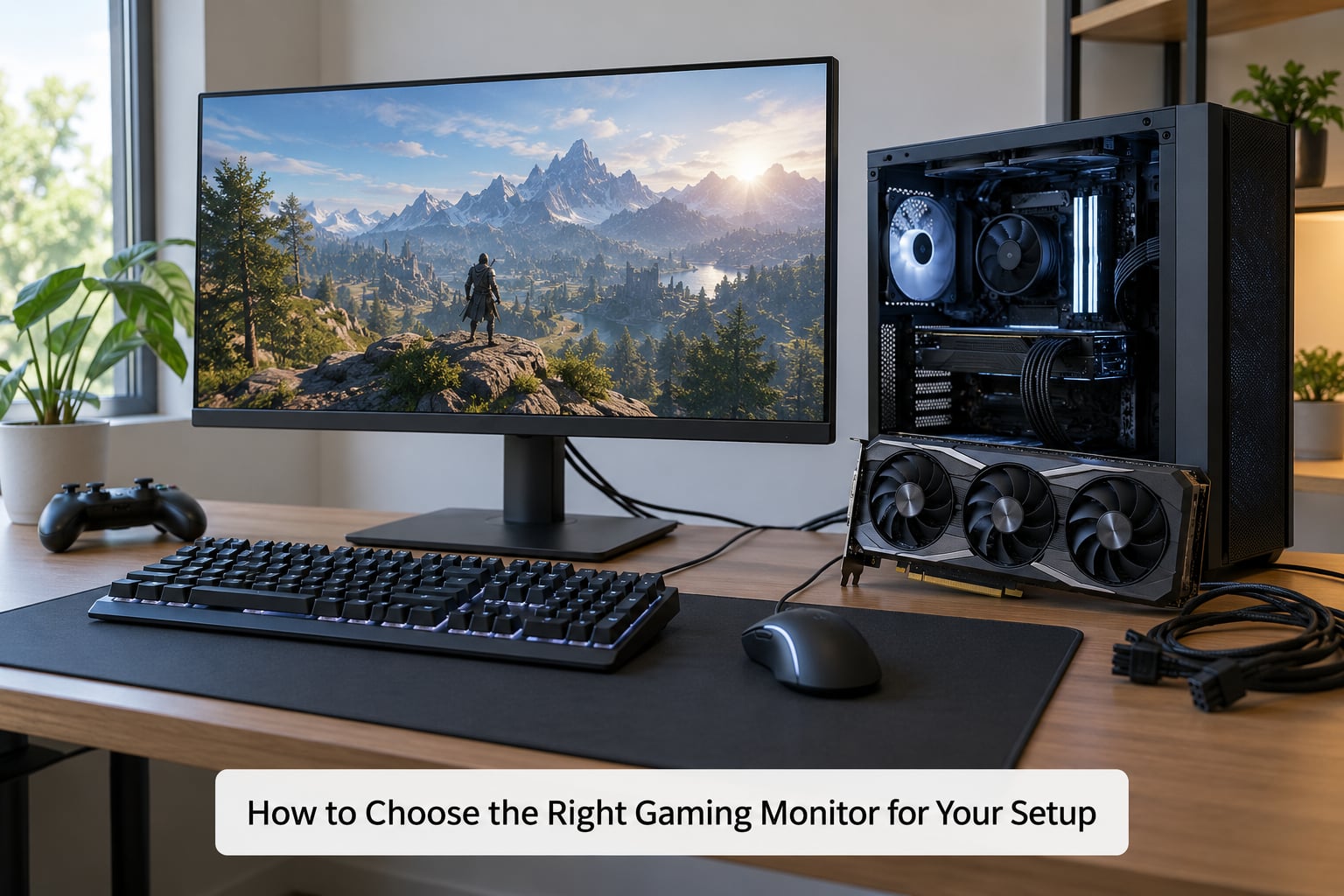
Choose the refresh rate your hardware can feed, then check that the panel keeps those frames evenly spaced. A monitor that drops to a lower rate under load is worse than a modest panel that holds its number. Response time, adaptive sync support and panel type then decide how the frames look once they land.
Workable combinations at each resolution
At 1080p, a 24-inch 240Hz panel with a mid-range graphics card suits tournament shooters and fighting games where frame rate matters more than detail. At 1440p, a 27-inch 165Hz or 240Hz panel balances a sharper image with frames per second high enough for competitive shooters and enough pixels for strategy and survival titles. At 4K, a 27-inch or 32-inch 144Hz panel with adaptive sync keeps image quality high while frame rate stays in a comfortable range for most genres.
Panel type and adaptive sync still matter
TN panels reach the highest refresh rates and the lowest response times, which is why esports monitors use them, and they show overshoot and weaker contrast as the trade-off. IPS and VA panels look better but usually top out at lower refresh rates, and some VA panels have noticeable motion blur in dark scenes.
Adaptive sync is worth turning on in almost every competitive case, because it removes the tearing-versus-delay choice and keeps frame pacing clean when your frame rate dips. Check that the monitor supports the sync standard your graphics card uses, and make sure the game has V-Sync disabled so the two systems do not fight each other.
Frequently Asked Questions
Is 144Hz good for competitive gaming?
Yes, 144Hz is the standard competitive target because it cuts frame time to about 6.9 ms and recovers roughly 9.8 ms of visual sampling compared with 60Hz. It also matches the frame rate most mid-range PCs hold in tactical shooters, so a 144Hz panel rarely wastes potential updates.
Does 240Hz make a noticeable difference over 144Hz?
It is noticeable if your PC holds 200 frames per second or more, but the gain is small: frame time drops from 6.9 ms to 4.2 ms, about 2.7 ms. Many players report smoother motion without any change in accuracy. On lower-end hardware the difference is harder to see because the extra refresh cannot be fed.
Is a higher refresh rate always better for gaming?
No. A higher refresh rate only helps when your PC produces enough frames to fill it, and when the panel holds that rate under load. A 360Hz monitor running at 70 frames per second wastes most of its advantage, and a fast panel with poor frame pacing can feel worse than a steady 144Hz one.
What refresh rate do I need at 1080p, 1440p and 4K?
At 1080p, 240Hz is realistic on a mid-range GPU in competitive shooters. At 1440p, 165Hz to 240Hz fits most cards while keeping a sharper image. At 4K, 144Hz is usually the ceiling, since demanding scenes often drop below 120 frames per second on the hardware that drives that resolution.
Does refresh rate reduce input lag or ping?
Refresh rate reduces the display’s share of input lag by shortening frame time, so a move from 60Hz to 144Hz removes roughly 6 ms of waiting. It has no effect on ping, which is the round trip to the game server and often measures 20 to 60 ms. On a high-ping connection, a faster panel changes little.
Should I enable adaptive sync with a high-refresh-rate monitor?
In most competitive setups, yes. Adaptive sync varies the panel’s refresh rate to match your frame rate, which removes screen tearing without the delay V-Sync adds. Turn V-Sync off in the game, keep adaptive sync enabled in the driver, and cap your frame rate three below the maximum refresh rate for clean pacing.
Conclusion
Start by checking what your monitor is actually running. Open Windows advanced display, look at the active refresh rate, and compare it with the panel’s rating. If the two do not match, fix that before buying anything.
After that, target the refresh rate your PC can feed: 144Hz for most competitive setups, 240Hz when you already hold 200 frames per second or more. Then spend what is left on practice, because refresh rate removes a ceiling and nothing more.