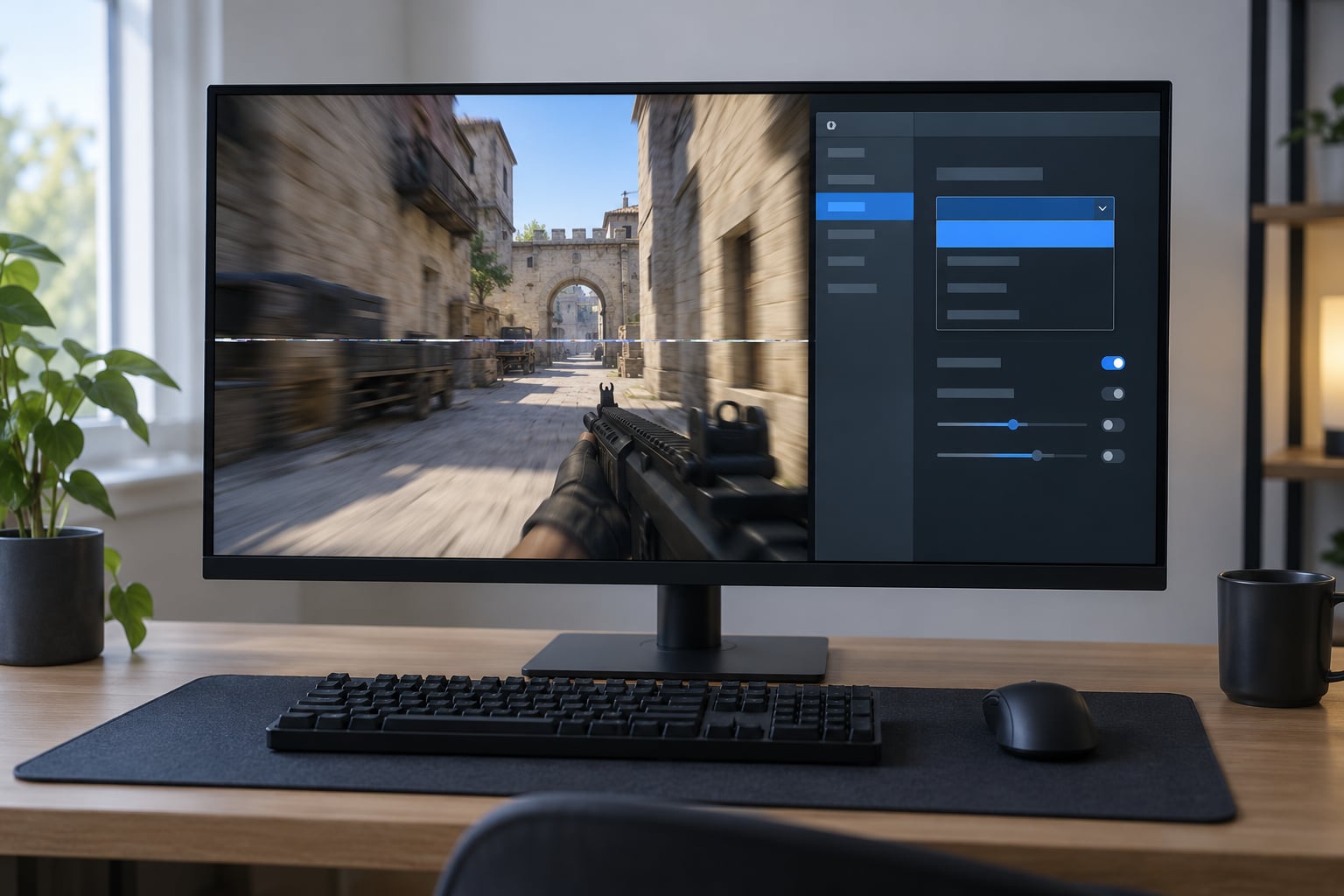
Screen tearing happens because your GPU draws frames faster than your monitor can scan them out, so the display catches a frame swap mid-line. To fix screen tearing without VSync, turn on your driver’s tear-only sync mode (NVIDIA Fast Sync or AMD Enhanced Sync), cap your frame rate a few FPS below the monitor’s refresh rate, and if your display supports variable refresh rate, turn that on in the monitor menu first, then in your GPU software.
None of that costs money and none of it forces you back into VSync’s added input lag. The whole process takes about ten minutes once you know which menu holds the setting.
One honest caveat first: Fast Sync, Enhanced Sync and frame caps reduce tearing dramatically, and a good combination removes nearly all of it. The only technology that truly eliminates tearing is hardware variable refresh rate, because the panel itself stops drawing a frame it cannot finish. If you have no VRR monitor, you are working with “almost gone”, not “mathematically gone”.
Below is the order I would work through, from cheapest and quickest to most involved. Everything here works on Windows 10 and Windows 11 with any modern NVIDIA GTX/RTX or AMD RX/RDNA card.
Table of Contents
- What You Need
- How to Fix Screen Tearing Without VSync Step by Step
- How to Fix Screen Tearing Without VSync in Windows and Graphics Settings
- How to Fix Screen Tearing Without VSync Inside a PC Game
- Common Mistakes
- Stacking three sync options at once
- Capping at the refresh rate instead of below it
- Capping far too low
- Leaving VSync on inside the game
- Forgetting the monitor’s own menu
- KVM switches, capture cards and TVs
- Tearing in Chrome, Discord and the desktop
- Frequently Asked Questions
- Why is my screen tearing even though I have VSync on?
- Does VSync fix screen tearing?
- Is Fast Sync or Enhanced Sync better than VSync for input lag?
- Why do I still see tearing with Fast Sync or Enhanced Sync enabled?
- Can I stop screen tearing on a 60Hz office monitor or a laptop?
What You Need
A few things to have in hand before you change anything. Most people already have all of it, which is why this is a free fix.
- A PC with a discrete or integrated GPU that has a current graphics driver installed. Integrated Intel and AMD APUs go through the same Windows display path, though some driver sync modes differ by vendor.
- Your monitor’s refresh rate, in Hz. Press Win + I, go to System, then Display, and read the number next to Display resolution. This one value drives your whole cap.
- Whether your monitor has adaptive sync. Almost every monitor made in the last few years ships with FreeSync or G-Sync Compatible. Confirm in the on-screen display menu before you bother enabling it in software.
- The right cable and port. DisplayPort 1.4 or better is the safest route for high refresh rates and VRR. HDMI works too, but an older HDMI port can cap out below the refresh rate you paid for.
- RivaTuner Statistics Server if you plan to use Scanline Sync or a global frame cap. It is a small free utility that ships alongside MSI Afterburner.
The refresh rate is the piece people skip, and it is the piece that decides your cap. If Windows is running your 144Hz display at 60Hz, you have a different problem than the one you came here with.
How to Fix Screen Tearing Without VSync Step by Step
The fastest way to fix screen tearing without VSync is to switch your graphics driver’s vertical sync option from Off to the tear-only mode, then cap the frame rate just under your refresh rate. That combination removes almost every visible tear line and adds under a millisecond or two of delay compared with full VSync.
Four methods do the job, and they stack well. Pick the first two and most players never need the rest.
| Method | Typical input lag | Cost | Best for | Difficulty |
|---|---|---|---|---|
| VSync | 1 to 2 frames of added delay | Free | Single-player, cinematic games | One toggle |
| NVIDIA Fast Sync | Roughly 1ms | Free | NVIDIA cards, competitive shooters | Two clicks |
| AMD Enhanced Sync | Roughly 1ms | Free | AMD cards, competitive shooters | Two clicks |
| Frame cap just below refresh | None added | Free | Everyone, pairs with the above | One number to type |
| Scanline Sync (RTSS) | Under 1ms | Free | Single-digit tearing in games with no VRR | Eye adjustment |
| FreeSync or G-Sync Compatible | Near zero in range | New monitor | Permanent hardware-level fix | Monitor OSD plus driver |
Read the table for the trade-off, not the marketing. Every free row adds less delay than VSync does. The bottom row is the only one that removes tearing permanently, and it is the only one that costs hardware.
How to Fix Screen Tearing Without VSync in Windows and Graphics Settings
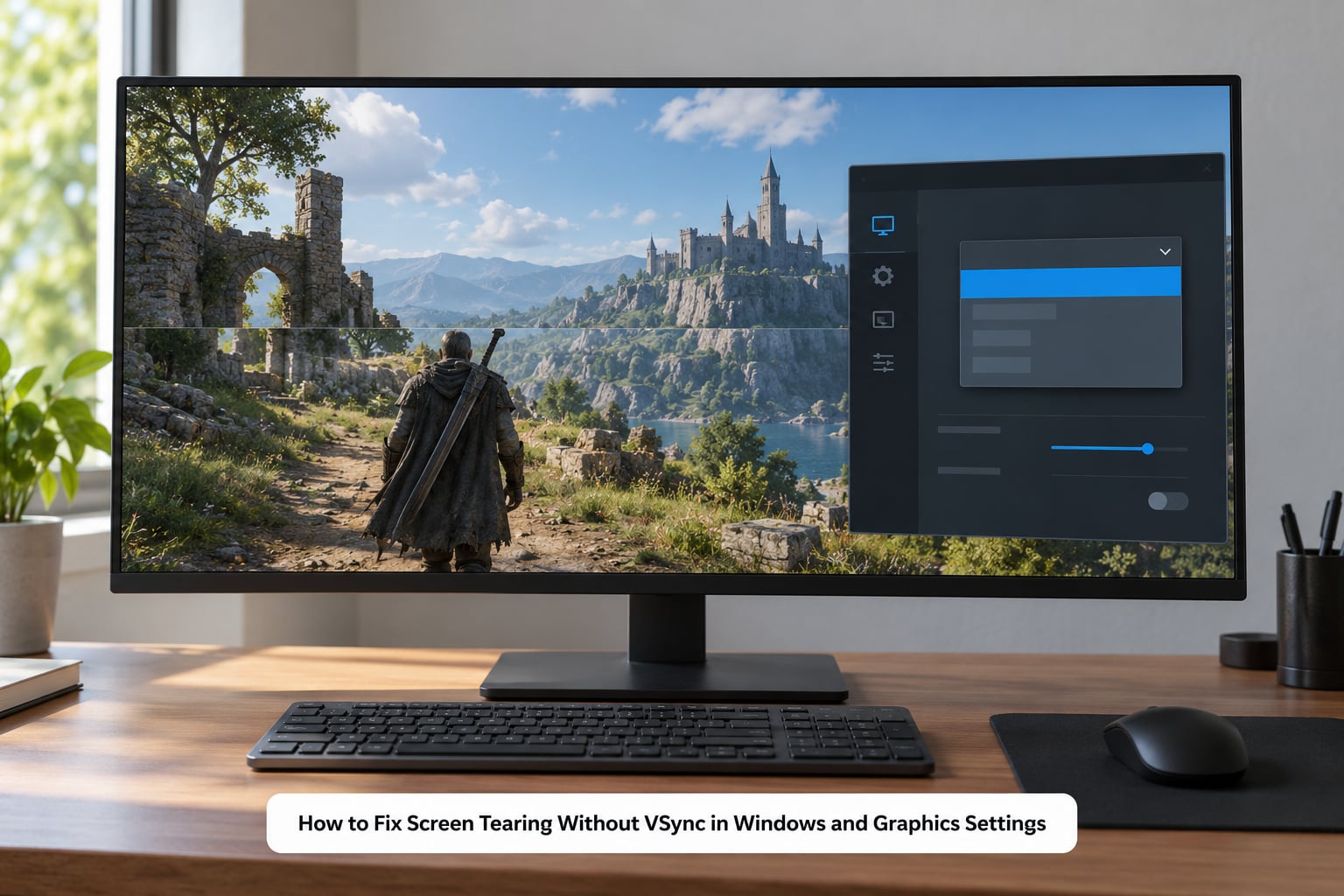
Step 1: confirm Windows is not capping your refresh rate. Press Win + I, choose System, then Display, and open Advanced display. If the refresh rate dropdown shows a lower value than your monitor’s label, change it here first. This setting can revert after a driver update or a cable swap.
Step 2: NVIDIA, set Fast Sync. Right-click the desktop and pick NVIDIA Control Panel. Open Manage 3D Settings, find Vertical Sync, and set it to Fast instead of Off or On. Fast presents the newest frame the moment the GPU has it, tearing included, but without the frame-waiting that VSync forces on you.
Step 3: AMD, set Enhanced Sync. Open AMD Software: Adrenalin Edition, go to the Gaming tab, then Graphics, and look for AMD Enhanced Sync. Set it to Enabled. That is the direct equivalent of Fast Sync, available on the same generation of cards.
Step 4: turn on variable refresh rate, monitor first. Open your monitor’s physical menu with the buttons on the bezel and enable FreeSync, Adaptive Sync or G-SYNC Compatible. The setting usually hides under a gaming or picture menu and may be labelled Adaptive-Sync. Then enable it in software: NVIDIA Control Panel, Set up SLI area, tick Enable G-Sync, G-Sync Compatible; AMD Software, Gaming tab, toggle AMD Radeon FreeSync on.
The order matters. Software alone will not light up a monitor whose OSD setting is off, and that mismatch is the usual reason people say adaptive sync “did nothing” for them.
Step 5, optional: Scanline Sync for stubborn cases. Install RivaTuner Statistics Server. In RTSS, find Scanline Sync under the frame limiter settings, set Trigger to After, and type your target frame rate into Framerate limit. Scanline Sync holds the tear line above a single scanline instead of letting it wander, which removes tearing in games that ignore driver caps entirely.
To adjust it, nudge the Lines value up or down while watching a fast camera pan. If motion looks clean but stutters, raise it one line. If you see a horizontal band near the bottom, drop it. It takes a minute of trial and error the first time and takes seconds afterwards.
How to Fix Screen Tearing Without VSync Inside a PC Game
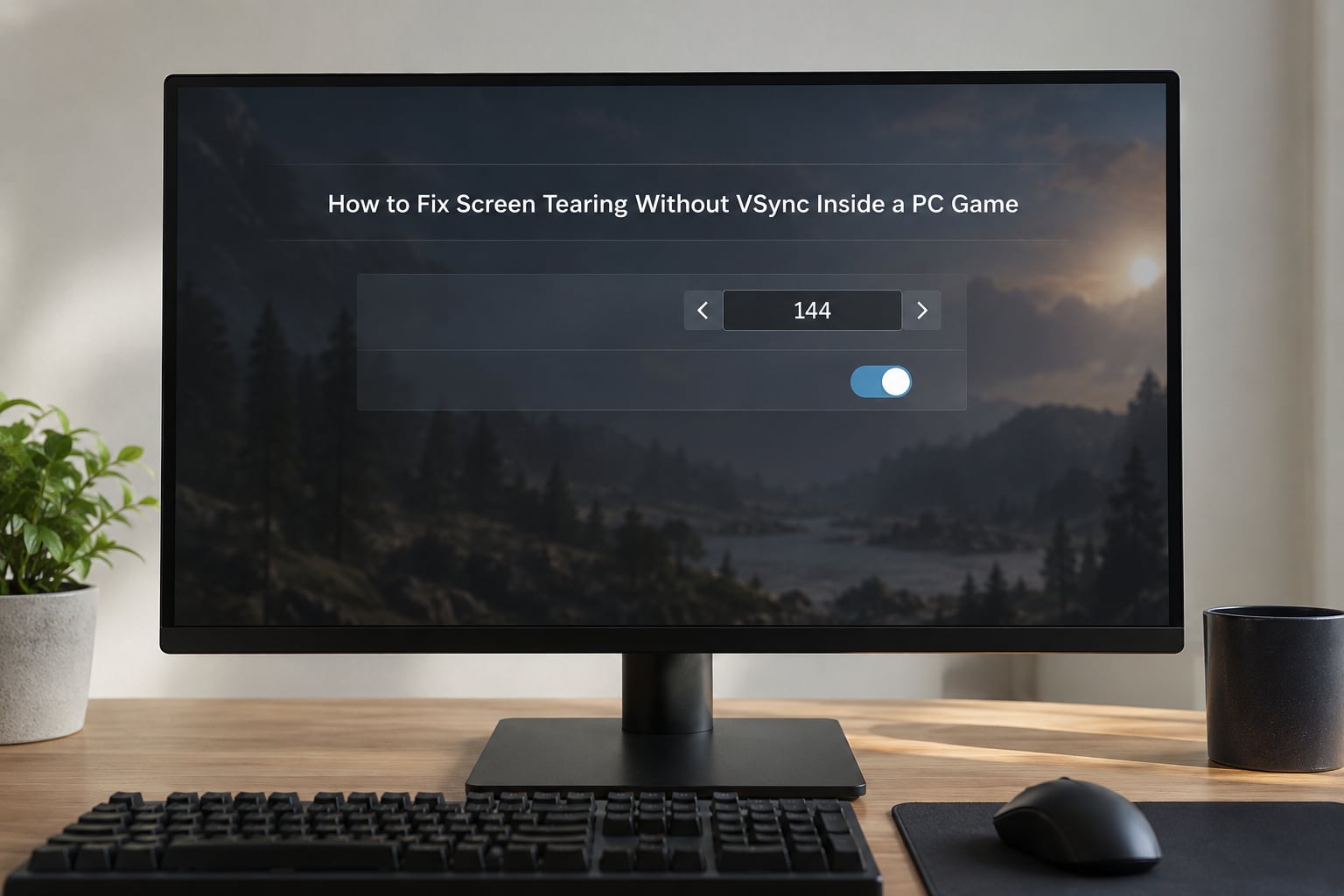
Driver settings do not override the game. Whatever VSync and frame cap options sit in the game’s own graphics menu still apply, and leaving one of them on can undo your careful driver work.
- Set VSync to Off in game. In most titles this is in the graphics, display or video section. It must be off for the driver-level sync mode to take effect.
- Set your frame rate limit to just below refresh. Most games expose a simple max FPS field. Use the table below for the number.
- Add a latency tool if the game has one. NVIDIA Reflex on GeForce cards, AMD Anti-Lag+ on recent Radeon cards. Both shave delay and neither reintroduces tearing.
- Try exclusive fullscreen. Many competitive titles handle sync differently in borderless windowed mode, and borderless is where a surprising share of “VSync is on and it still tears” reports come from.
| Monitor refresh rate | Set your cap to | Why not exactly the refresh rate |
|---|---|---|
| 60Hz | 57 FPS | Exactly 60 lands on the same beat as the panel and tears half the time |
| 75Hz | 72 FPS | Same reason, 3 below keeps a stable margin |
| 120Hz | 117 FPS | Frame-time spikes above the cap reopen the tear window |
| 144Hz | 141 FPS | The most common competitive setup, 141 is the safe pick |
| 165Hz | 162 FPS | 3 below is the standard margin |
| 240Hz | 237 FPS | Needs headroom for the small spikes a cap alone cannot catch |
The rule behind that table is simple: your frames need to arrive just under the panel’s beat rather than exactly on it or above it. Cap at exactly 144 on a 144Hz monitor and any frame-time spike puts you back over the line, which is why players on 144Hz panels often see a stray tear line until they drop to 141 or lower.
A cap alone is still not a sync solution. It stops the frame rate from outrunning the display, but nothing is telling the monitor when to start scanning. Pair the cap with Fast Sync or Enhanced Sync and the tear line stops moving.
One more thing worth doing for a game you play every day: set the option per game rather than globally. In NVIDIA Control Panel, click Program Settings, add the game’s executable, then set Vertical Sync to Fast for that title only. AMD Software does the same under Gaming, then per-game profiles.
Common Mistakes
Most failed fixes come down to one of these, and each one has a straight correction.
Stacking three sync options at once
VSync in game plus Fast Sync in the driver plus an RTSS cap is three limiters fighting over the same frame. Frame pacing collapses and tearing sometimes gets worse. Pick one limiter and one sync mode, and test with the others off.
Capping at the refresh rate instead of below it
Capping at 144 on a 144Hz monitor looks correct and behaves badly, because the two clocks run on the same rhythm. Drop to 141 and the tearing usually disappears.
Capping far too low
Going from an uncapped 300 FPS to a locked 60 on a 60Hz panel feels like a fix and often reads as one, but the divisor mismatch means the frame beat and the scan beat drift in and out of phase. On a 60Hz display the reliable range is roughly the high 50s; if 57 still tears, try 58 or 60 with adaptive sync on instead of going down to 40.
Leaving VSync on inside the game
This is why people report tearing while VSync is visibly enabled in the game’s menu. The game’s setting and the driver’s setting are different systems, and the game’s usually wins. Turn it off there and let the driver handle sync.
Forgetting the monitor’s own menu
Adaptive sync disabled in the monitor’s OSD means disabled everywhere, no matter what the GPU software says. If G-Sync or FreeSync shows as off in Windows, check the bezel menu before you touch drivers.
KVM switches, capture cards and TVs
A hardware KVM switch or an HDMI capture card in the middle of the chain frequently strips VRR signalling, and the picture degrades to tearing you cannot fix in software. If tearing appeared the day you added a switch, remove it from the equation and test directly.
On a TV, the picture processing often runs the panel at a lower refresh than the input. Check the TV’s game mode and its “motion smoothing” setting, which adds frame interpolation delay on top of everything else.
Tearing in Chrome, Discord and the desktop
If tearing shows up in a browser window and not only in games, you have a different problem. Windows display scaling at a non-native resolution, or a browser’s hardware acceleration toggled on or off mid-session, will both produce it. Toggle hardware acceleration in the browser settings and restart it, then confirm Windows scaling is at 100% or the monitor’s native resolution.
On a two-monitor setup with different refresh rates, the slower panel can drag tearing into the faster one. Set each display to its own native rate in Windows, and if VRR misbehaves, disable it there and rely on the driver sync mode.
A useful habit: change one setting, play the same fast pan for two minutes, and look. Backtracking three settings at once is the reason most people give up on this.
Frequently Asked Questions
Why is my screen tearing even though I have VSync on?
Three things usually cause this. The game’s own VSync setting and the driver setting are separate systems, so a game locked to a frame rate can override driver behaviour. Borderless windowed mode often bypasses the game’s VSync path entirely. And if your frame rate is unlocked above the refresh rate, the monitor still tears between frames. Check the in-game option first, switch to exclusive fullscreen, and cap the frame rate about 3 FPS below refresh.
Does VSync fix screen tearing?
Yes, VSync is the original fix and it removes tearing almost completely. The cost is input lag, because your GPU waits for the monitor to finish scanning before it presents the next frame, adding one to two frames of delay. That delay is why competitive players turn it off. Fast Sync and Enhanced Sync exist to give you a clean-enough image without the waiting.
Is Fast Sync or Enhanced Sync better than VSync for input lag?
Yes, and it is the main reason to use them. VSync holds frames back until the display is ready, so your input arrives late. Fast Sync on NVIDIA and Enhanced Sync on AMD present the most recent finished frame as soon as it exists, adding roughly a millisecond rather than two full frames. You trade total tear removal for noticeably tighter response.
Why do I still see tearing with Fast Sync or Enhanced Sync enabled?
That mode reduces tearing, it does not synchronise presentation, so a stray tear line under fast movement is normal. Combine it with a frame cap about 3 FPS below your refresh rate and most traces disappear. If tearing remains heavy, turn on your monitor’s adaptive sync, or add RTSS Scanline Sync, which holds the tear line at a single scanline instead of letting it move.
Can I stop screen tearing on a 60Hz office monitor or a laptop?
Yes, with driver sync and a frame cap. Set Fast Sync or Enhanced Sync in your graphics driver, then cap the frame rate in the 57 to 60 range for a 60Hz panel. Laptops with switchable graphics sometimes apply two different refresh rates depending on whether the game runs on the integrated or discrete GPU, so check Windows display settings with the game running.
Start with the two free settings and you will be most of the way there: turn VSync off in the game, set your driver’s vertical sync option to Fast or Enhanced Sync, then cap the frame rate three below your refresh rate. If a tear line still shows up during fast pans, enable adaptive sync in the monitor menu before anything else, since that is the only fix that changes what the display itself does.