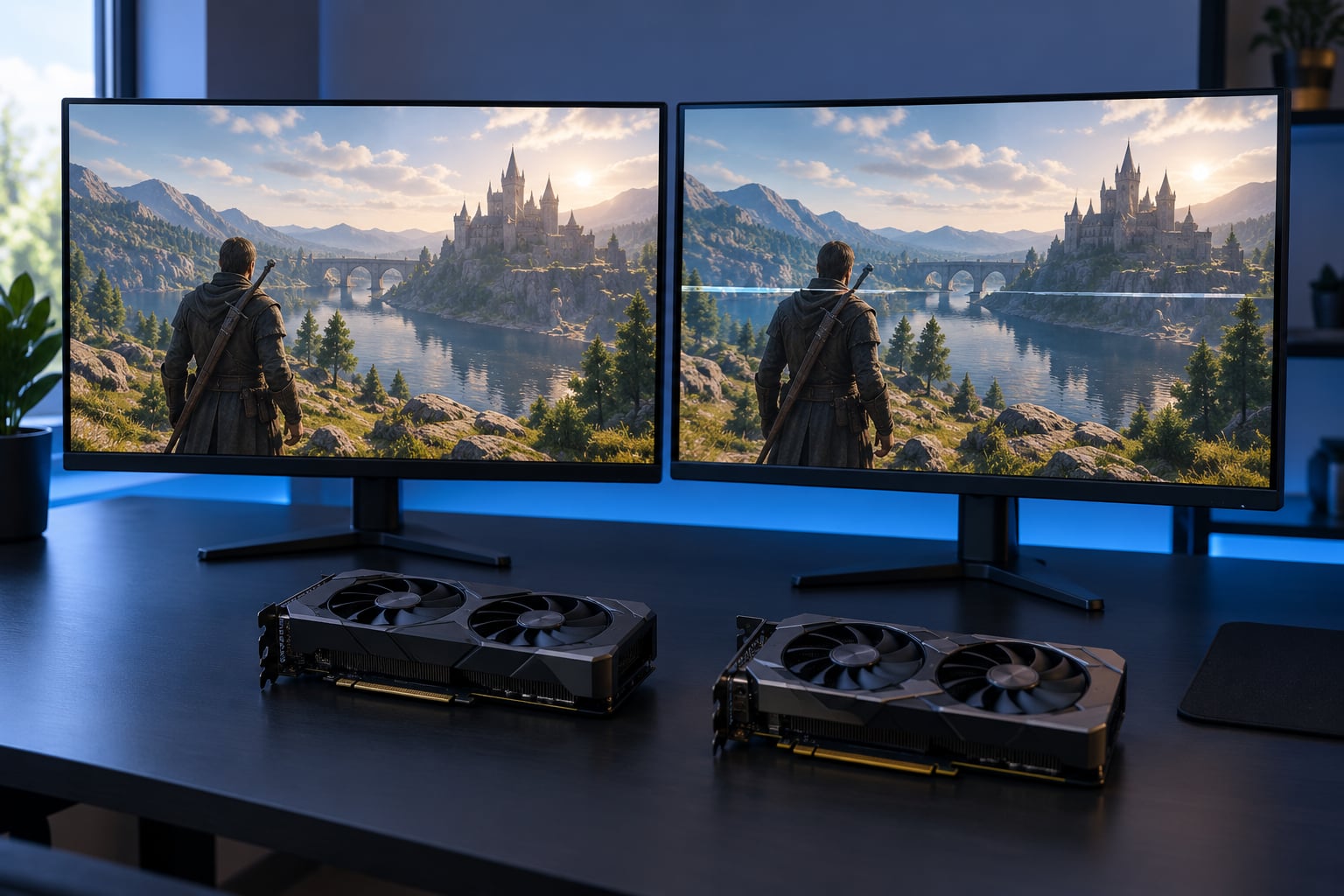
G-Sync and FreeSync are variable refresh rate (VRR) technologies. They let your monitor change its refresh rate in real time to match the frame rate your graphics card is delivering, so every frame is displayed whole, at the speed it was actually rendered, with no screen tearing and none of the extra input lag that V-Sync adds.
The short version for most people: the two do the same job. NVIDIA builds it into G-Sync monitors and also runs it, through G-Sync Compatible, on most adaptive sync displays. AMD’s FreeSync is built on the open VESA Adaptive-Sync standard. Since 2019 the old rule that FreeSync is AMD-only and G-Sync is NVIDIA-only no longer holds.
Below is a plain-language breakdown of how each one works, what they actually change about your picture, and what they leave alone. Updated for October 2026.
Table of Contents
- What G-Sync and FreeSync Actually Do at a Glance
- What Variable Refresh Rate Technology Does
- How G-Sync Works
- Native G-Sync
- G-Sync Compatible
- G-Sync Ultimate
- How FreeSync Works
- G-Sync vs. FreeSync: The Real Differences
- Monitor selection and cost
- Which GPU you have
- Validation and range
- Windows integration
- Implementation quality, not the badge
- What Each Standard Does for Tearing, Stutter, and Input Lag
- Below the refresh rate
- At the refresh rate ceiling
- Below the refresh floor
- What G-Sync and FreeSync do not do
- Should you turn it off for competitive shooters?
- How to Choose for Your Monitor, GPU, and Games
- Enable it on an NVIDIA card
- Enable it on an AMD card
- Check the range your panel actually offers
- Gaming laptops and consoles
- When it flickers or blacks out
- Which Should You Choose?
- Frequently Asked Questions
- Can I use a FreeSync monitor with an NVIDIA graphics card?
- Can I use both G-Sync and FreeSync at the same time?
- Does G-Sync or FreeSync reduce input lag?
- Is variable refresh rate useful with HDR?
- Will G-Sync or FreeSync fix stuttering in my games?
- Can I use adaptive sync with a gaming laptop?
- Conclusion
What G-Sync and FreeSync Actually Do at a Glance
| Criterion | NVIDIA G-Sync | AMD FreeSync | G-Sync Compatible |
|---|---|---|---|
| What it is | Proprietary NVIDIA VRR | Open VESA Adaptive-Sync | NVIDIA VRR running on a FreeSync-class display |
| Monitor needs | A display with the G-Sync module, or a Compatible model | Any adaptive sync display | A display NVIDIA has validated as Compatible |
| GPU support | NVIDIA GeForce and selected workstation cards | AMD Radeon cards, plus consoles | NVIDIA GPUs, since January 2019 driver support |
| Connection | DisplayPort, HDMI on supported models | DisplayPort 1.2a or HDMI 2.1 on newer models | DisplayPort normally, HDMI on some models |
| Variable refresh range | Model dependent, often 48Hz up to the panel maximum | Model dependent, frequently 48Hz to the maximum | Whatever the display supports, sometimes reduced |
| Low framerate compensation | Built in below the range on most modules | Built in, with some panels stopping higher | Whatever the panel allows |
| Where you enable it | NVIDIA Control Panel | AMD Software: Adrenalin Edition | NVIDIA Control Panel |
| Best for | NVIDIA owners wanting validated behaviour | AMD owners and the widest monitor choice | NVIDIA owners who want display choice |
Both standards are VRR, and the mechanism underneath is identical. The monitor, not the game, decides how fast to scan out. The GPU tells it the current frame rate, and the panel adjusts its timing to match.
- Tearing goes away. Frames are shown whole instead of split across two refreshes.
- Frame rate stops lying. A game running at 90fps on a 165Hz screen looks like 90fps, not a jerky 82.5.
- Latency no longer jumps. Below the panel’s refresh rate, VRR behaves like V-Sync off rather than V-Sync on.
- Nothing speeds your GPU up. A frame rate of 60fps stays 60fps with VRR on or off.
What Variable Refresh Rate Technology Does
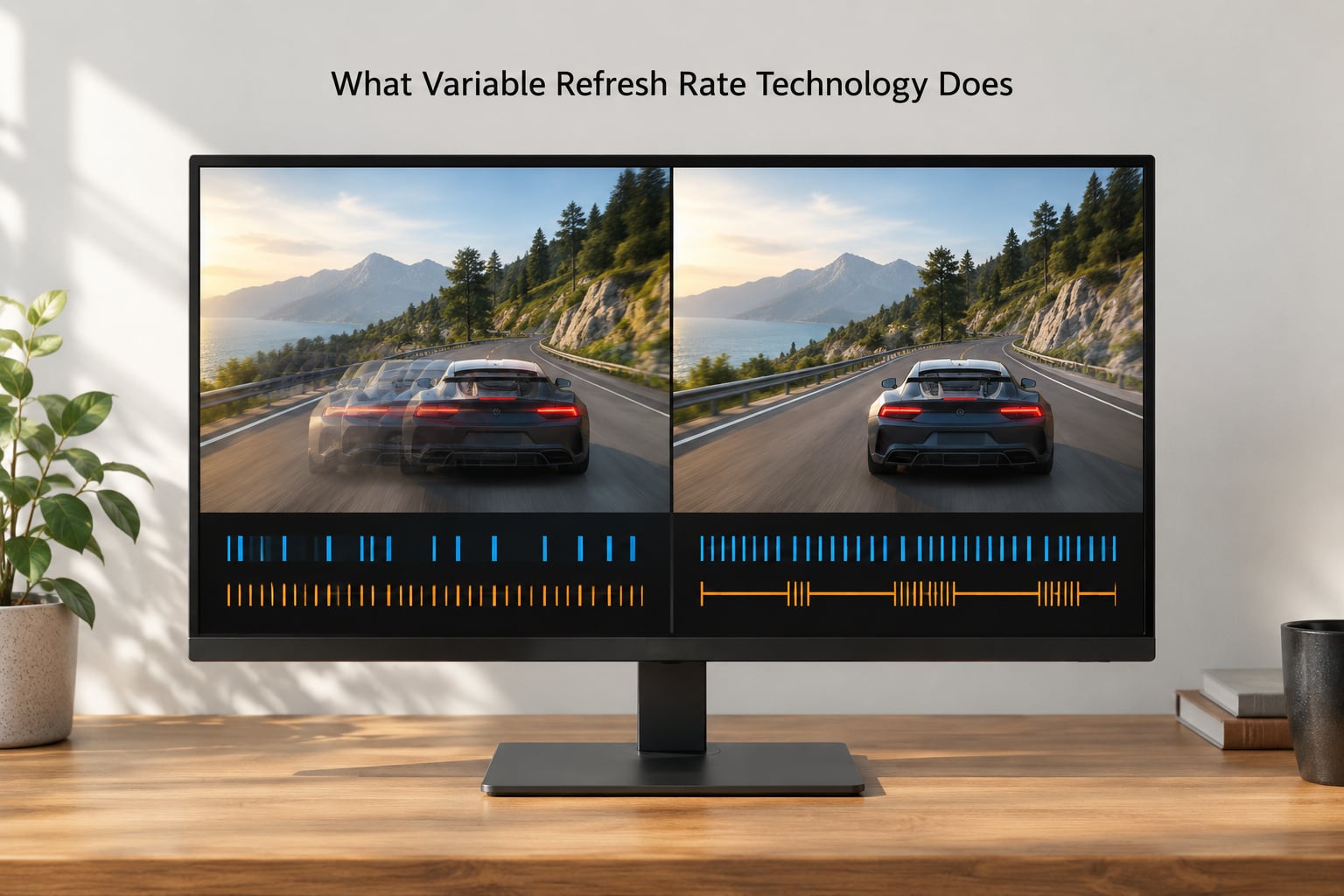
A monitor at a fixed 165Hz redraws itself 165 times a second whether or not your PC has anything new to show. Your GPU, meanwhile, might be rendering 200fps in one moment and 70fps the next. That mismatch is where the artifacts come from.
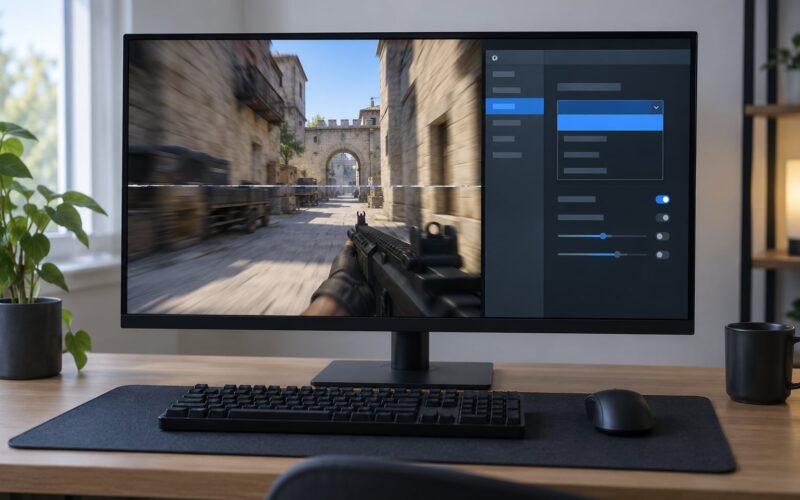
Screen tearing is what you see when a new frame lands partway through the monitor’s refresh. The top of the screen shows the old frame, the bottom shows the new one, and the seam moves as your mouse moves. Think of a 60Hz monitor refreshing 60 times a second while your GPU pushes frames 83 times a second: about 83% of a new frame is ready when each refresh begins, and the remainder arrives mid-scan.
V-Sync fixes tearing by refusing to show a partial frame, and pays for it with delay. With double buffering the game waits a full refresh, so a 70fps game on a 60Hz panel runs at 60fps with up to 16.7ms added. With triple buffering the frame cost drops but the delay stays. That is the trade every pre-2019 solution forced on you: tearing, or lag, or frame drops to a divisor of your refresh rate.
Variable refresh rate removes the third option from the table. Instead of the frame waiting for the monitor, the monitor adapts its refresh timing to the frames arriving. A 70fps stream gets scanned at roughly 70Hz, a 40fps stream at 40Hz. Because the display never has to hold a frame for a full refresh cycle before scanning it out, the latency profile resembles V-Sync off while the tearing profile resembles V-Sync on.
One thing VRR is not: frame generation. Frame generation synthesises brand new intermediate frames from existing ones, which raises the number on the counter but adds latency and can distort motion. VRR changes how existing frames are timed on screen. They are independent features, and a card can offer both.
How G-Sync Works
G-Sync is NVIDIA’s implementation of VRR, and it has three levels you will run into in shops and spec sheets.
Native G-Sync
These monitors carry a dedicated G-Sync module, a small chip built into the display that handles the variable timing. It lets the panel scan out at any rate inside a range NVIDIA validated, commonly from 48Hz to the panel’s maximum. That wider range is the reason a native module handles low frame rates better than most adaptive sync panels, which often stop around 40Hz or 48Hz.
G-Sync Compatible
This is the one that changed everything. From January 2019, NVIDIA drivers can drive VRR on displays that were never built with the module, as long as the model appears on NVIDIA’s compatibility list. Under the hood those panels are running the same VESA Adaptive-Sync hardware FreeSync uses. The trade is range: the floor may be higher than the panel’s native capability, so behaviour at 40fps might not match a native module.
G-Sync Ultimate
Ultimate is a certification tier covering HDR support, low input latency, and a validated refresh range that goes down to at least 48Hz. Treat it as a quality label rather than a different technology.
Low framerate compensation is the piece most people miss. Below a panel’s variable refresh floor, VRR has nothing to synchronise to, and the display either freezes or flickers. LFC holds a steady image in that gap, so a game sliding to 30fps looks stable instead of strobing.
How FreeSync Works
FreeSync is AMD’s name for VESA Adaptive-Sync, a standard added to DisplayPort 1.2a in 2012 and extended to HDMI later. No proprietary chip is required, which is the root of the practical difference between the two: any panel maker can implement it, so the range of available monitors is far wider and models tend to cost less than a G-Sync module.
Requirements are straightforward. You need an adaptive sync display connected over DisplayPort or, on newer models, HDMI 2.1, plus a supported AMD Radeon card or a current console. AMD Software: Adrenalin Edition holds the setting.
AMD splits its badge into tiers. FreeSync covers the basic standard, Premium adds a lower floor and support for higher refresh rates, and Premium Pro adds HDR and wide colour plus low framerate compensation across a wider range. The tier tells you how the panel behaves near the bottom of its range, not whether VRR works at all.
The practical limit with FreeSync is rarely the standard itself. It is that refresh floor baked into the panel. Plenty of otherwise good monitors bottom out at 48Hz, which means a 30fps game sits below the range and relies on whatever compensation the panel offers.
G-Sync vs. FreeSync: The Real Differences
If the mechanism is the same, what actually differs? Five things, and only one of them matters much day to day.
Monitor selection and cost
This is the real gap. Because G-Sync Compatible opened NVIDIA drivers to adaptive sync panels, an NVIDIA buyer in 2026 has access to essentially the same monitor catalogue as an AMD buyer. That was not true before 2019, and plenty of guides older than that still describe FreeSync as AMD-only.
Which GPU you have
An AMD card drives adaptive sync panels. An NVIDIA card drives native G-Sync modules and validated Compatible models. A native G-Sync module is not usable on an AMD card, since AMD has no equivalent mode for it. The reverse, a FreeSync panel on an NVIDIA card, has worked normally since 2019.
Validation and range
Native G-Sync modules tend to offer a lower refresh floor and tighter tuning than a comparable panel. This shows up in games that dip into the 40s, where a native module holds a steady picture and a panel with a 48Hz floor may flicker before its own compensation kicks in.
Windows integration
Windows 10 and 11 know about adaptive sync at the system level, and both vendor drivers expose it. The noticeable difference is in behaviour outside games: full-screen exclusive handling has changed several times, and some titles apply their own frame caps that override what you set. This affects both standards equally.
Implementation quality, not the badge
Forums have long argued about which standard looks better. The pattern that keeps coming out of threads on r/buildapc and r/AMDHelp is that the perceived difference usually comes down to frame pacing in the game rather than the sync technology itself. Panel quality, overdrive tuning and firmware matter more than the logo. Stutter that survives with VRR enabled is usually caused by something else entirely.
What Each Standard Does for Tearing, Stutter, and Input Lag
Below the refresh rate
This is where VRR earns its keep. Inside the variable range, frames arrive whole, motion tracks the real frame rate, and latency stays close to the V-Sync off baseline. Nothing here is G-Sync specific; a good FreeSync panel behaves the same way.
At the refresh rate ceiling
When your frame rate reaches or exceeds the panel maximum, VRR hands control back to V-Sync behaviour. Frames queue, and the extra latency returns. Many G-Sync users cap their frame rate a few frames below the maximum, and FreeSync users do the same, to keep latency flat.
Below the refresh floor
Outside the validated range the display can hold a steady image through low framerate compensation, or it can flicker and black out. If you see flicker, a floor of 48Hz with a game sitting at 35fps is the first thing to check.
What G-Sync and FreeSync do not do
- They do not raise your frame rate. VRR changes how frames are displayed, not how many your GPU produces.
- They do not fix CPU-side stutter. Uneven frame delivery from the processor shows up as uneven motion with VRR on. Turn off frame rate caps and check CPU utilisation before blaming the monitor.
- They do not cut latency below your refresh rate. VRR stays near V-Sync off levels rather than reaching them.
- They do not remove blur or ghosting. That is overdrive and pixel response, a different problem.
- They do not combine with V-Sync cleanly. Running both together reintroduces the hard cap and the delay you were avoiding.
Should you turn it off for competitive shooters?
Here the community splits. One claim that comes up constantly in competitive shooters is that any adaptive sync adds latency in competitive play, and plenty of esports players disable it for that reason. The counter-argument is that with a frame cap at or below your refresh rate, VRR is largely dormant, so the difference in a capped scenario is small. Test it in the game you actually play and decide for yourself; the setting is one toggle away.
How to Choose for Your Monitor, GPU, and Games
Start by confirming the cable and the port. VRR needs DisplayPort 1.2a at minimum, or HDMI 2.1 on newer models. An HDMI 2.0 cable will not carry the full range, and a cable that is technically fine can still fail VRR at the top end.
Enable it on an NVIDIA card
- Open the NVIDIA Control Panel from the desktop right-click menu.
- Go to Display and set the resolution to your monitor’s native panel resolution.
- Open Change resolution, refresh rate, select the highest rate your panel supports, then apply.
- In the G-Sync tab, enable G-Sync, Fullscreen, and Windowed and Fullscreen modes as needed.
- In NVIDIA App, open Settings, Display, and turn G-Sync on.
- Restart your game and check the in-game frame rate readout against your frame counter.
Enable it on an AMD card
- Right-click the desktop and open AMD Software: Adrenalin Edition.
- Open Settings, Display, then the AMD Adaptive-Sync tab.
- Set the mode to Enabled. Older versions called this Gaming, Adaptive-Sync.
- Return to Display and set the refresh rate to the panel maximum.
- Check your game’s own V-Sync setting and turn it off, unless you are deliberately capping.
Check the range your panel actually offers
The monitor’s on-screen display usually states the variable range, something like 48Hz to 165Hz. That single line tells you where VRR is active and where compensation takes over. Knowing the floor also tells you whether a frame cap makes sense.
Gaming laptops and consoles
Laptops vary because the panel and GPU are fixed together. Modern thin models with an NVIDIA RTX card generally support G-Sync Compatible; AMD-based systems run adaptive sync. Check the manufacturer’s specification for the exact panel before assuming either. Consoles are simpler: a PS5 or Xbox Series X|S with an HDMI 2.1 display and the matching VRR toggle enabled uses the same adaptive sync mechanism, and the console handles it rather than a driver.
When it flickers or blacks out
| Symptom | What to try |
|---|---|
| Screen goes dark or fails to wake when enabling VRR | Update the GPU driver, reseat the cable, and re-select the native resolution |
| Display shows a not validated or unsupported warning | The panel works but is not on the compatibility list; test at a lower refresh rate |
| Flicker on dark scenes or menus | Try a different cable or port, and disable any competing sync feature such as DyAc |
| Stutter that persists with VRR on | Check CPU frame pacing and any in-game frame cap before changing sync settings |
| Frame rate drops after enabling G-Sync | V-Sync is probably still on in the game; turn it off or lower the in-game cap |
Which Should You Choose?
Match the standard to the hardware you already own, not the badge you prefer.
- You have an NVIDIA card and are buying a monitor today. Choose a G-Sync Compatible display. You get variable refresh rate across the full range of adaptive sync panels, and you are not paying extra for a module that adds very little.
- You have an NVIDIA card and want the widest low-refresh range. A native G-Sync module holds a steadier image below 48Hz. It matters in games that fall into the 40s or below.
- You have an AMD card. FreeSync is the native path, and the panel choice is unrestricted.
- You want the cheapest way into tear-free gaming. An adaptive sync panel is that route on either GPU brand.
- You are buying the fastest option. Prioritise refresh rate and panel response. The sync standard is close to irrelevant once a panel is validated by both drivers.
One honest exception to the idea that these are interchangeable: DyAc, the latency-reduction feature on certain BenQ and Zowie panels, cannot run at the same time as FreeSync Premium on the same panel. If that feature is the reason you own the monitor, check its compatibility notes first.
Frequently Asked Questions
Can I use a FreeSync monitor with an NVIDIA graphics card?
Yes. Since the January 2019 driver release, NVIDIA GPUs can drive VRR on adaptive sync displays listed as G-Sync Compatible, which covers most current FreeSync monitors. Enable it in the NVIDIA Control Panel under the G-Sync tab, connected over DisplayPort or HDMI 2.1. Behaviour near the bottom of the range can differ from a native G-Sync module if the panel has a higher refresh floor.
Can I use both G-Sync and FreeSync at the same time?
No, and you will rarely want to. They are two names for the same variable refresh process, and a display runs one VRR mode at a time. A native G-Sync module is driven by G-Sync; a compatible adaptive sync panel can be driven by either vendor. Trying to stack V-Sync on top of either is a different mistake, and it reintroduces the hard frame cap and the added input lag.
Does G-Sync or FreeSync reduce input lag?
Compared with V-Sync on, yes, noticeably. Below your monitor’s refresh rate, VRR behaves more like V-Sync off because the display does not hold a frame for a full refresh cycle before scanning it out. It does not take you below the V-Sync off baseline though. Above the refresh rate it offers no advantage at all, which is why many players cap a few frames under the maximum.
Is variable refresh rate useful with HDR?
Yes, and the two work well together because HDR games are heavier and their frame rates swing more. Two panel caveats are worth knowing. On LCD televisions, VRR mode can disable local dimming and raise black levels, and on OLED panels VRR can change the way blacks are handled. G-Sync Ultimate and FreeSync Premium Pro are the tiers that validate HDR alongside VRR.
Will G-Sync or FreeSync fix stuttering in my games?
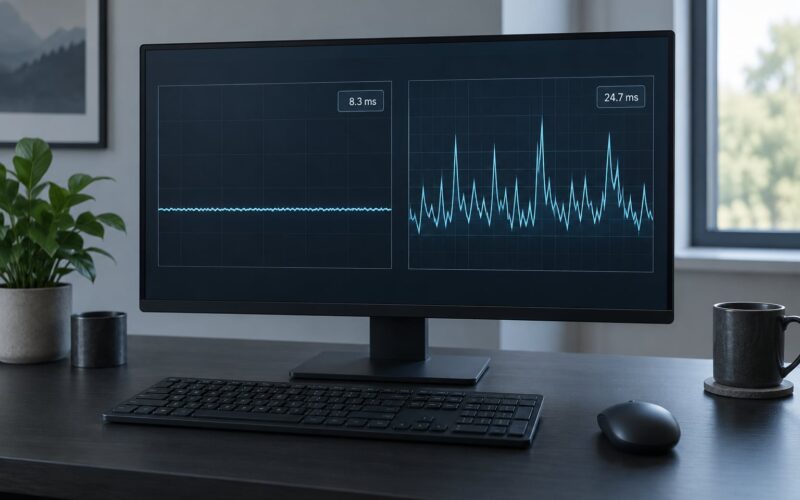
Usually not, and that mismatch is the source of most complaints about the technology. VRR smooths how finished frames reach the panel; it cannot repair inconsistent frame delivery from the CPU. If stutter persists with VRR enabled, check CPU utilisation in a frame-time overlay, look for an in-game frame cap, and confirm your game is running at native resolution before changing sync settings.
Can I use adaptive sync with a gaming laptop?
Yes, when the laptop’s panel and GPU support it. Models with an NVIDIA RTX GPU generally run G-Sync Compatible, and AMD-based systems run adaptive sync through Adrenalin. The panel is fixed in most laptops, so the refresh range is whatever that screen offers, often 60Hz on a 1080p display. Check the manufacturer specification for the exact panel before assuming any VRR mode is available.
Conclusion
G-Sync and FreeSync do one job: they let the monitor follow your frame rate instead of the other way around. Which name you use matters far less than the hardware you already own.
Start by checking which GPU is in your PC and what your current monitor supports, then confirm the panel on NVIDIA’s compatibility list or in the AMD display tab. Set the refresh rate to the panel maximum, enable variable refresh rate, turn V-Sync off in the game, and see how the motion feels. That takes about five minutes and settles the question faster than any guide.