Slow loading screens are almost never a network problem. A game reads and decompresses asset files from storage, pulls them into system memory, uploads what it needs to VRAM, then compiles shaders, and your internet connection sits idle through almost all of it. To reduce game load times, work through storage first, then background activity, then software and settings, and only then think about new hardware. Most players fix this in an evening without spending anything.
This guide covers Windows PCs, PS5 and Xbox Series X|S. The order matters, because moving a game off a slow drive while eight browser tabs re-index the folder in the background will not move the needle. Updated for 2026.
Table of Contents
- What You Need
- Step-by-Step
- 1. Check Whether the Game Is Stalled or Simply Slow
- 2. Free Up or Move the Game to Faster Storage
- 3. Close Background Apps and Suspend Downloads
- 4. Update the Game and System Software
- 5. Repair the Game’s Files or Installed Data
- 6. Clear the Relevant Cache and Temporary Files
- 7. Rebuild Shader or Pre-rendering Files When Needed
- 8. Confirm Your Storage and Hardware Health
- Common Mistakes
- Tips for Preventing Load Times From Getting Worse
- Frequently Asked Questions
- Why does a game sometimes load faster the second time?
- Will installing the game on an SSD always make it load faster?
- Does clearing a console or PC cache delete my game saves?
- Why is my first load slower after clearing shader or temporary files?
- When is reinstalling a game the best fix for slow load times?
- Conclusion: Start With Storage and Background Activity
What You Need
Nothing exotic. Before you start, gather five things so the steps below go smoothly.
- The game and console up to date. On PC that means the launcher client and the game itself; on console it means the system software.
- Free drive space. Aim for at least 20 percent of the drive free, and 100 GB or more for a modern open-world game.
- Administrator access on Windows. Steps 4 and 5 touch services and driver policy that need it.
- Access to built-in storage menus. Windows: Settings, This PC, Task Manager. PS5: Settings, Storage. Xbox: Settings, System, Storage.
- A way to measure the change. Your phone’s stopwatch is fine. Record the same load, such as fast travel to the same point, before and after each fix.
One thing worth separating from load time early on: frame rate and load time are different bottlenecks. A game can hold a steady frame rate on a slow drive while taking forever to launch, and a game on a fast drive can stutter badly once it is running. Tracking the two separately saves a lot of misdirected troubleshooting.
Step-by-Step
1. Check Whether the Game Is Stalled or Simply Slow
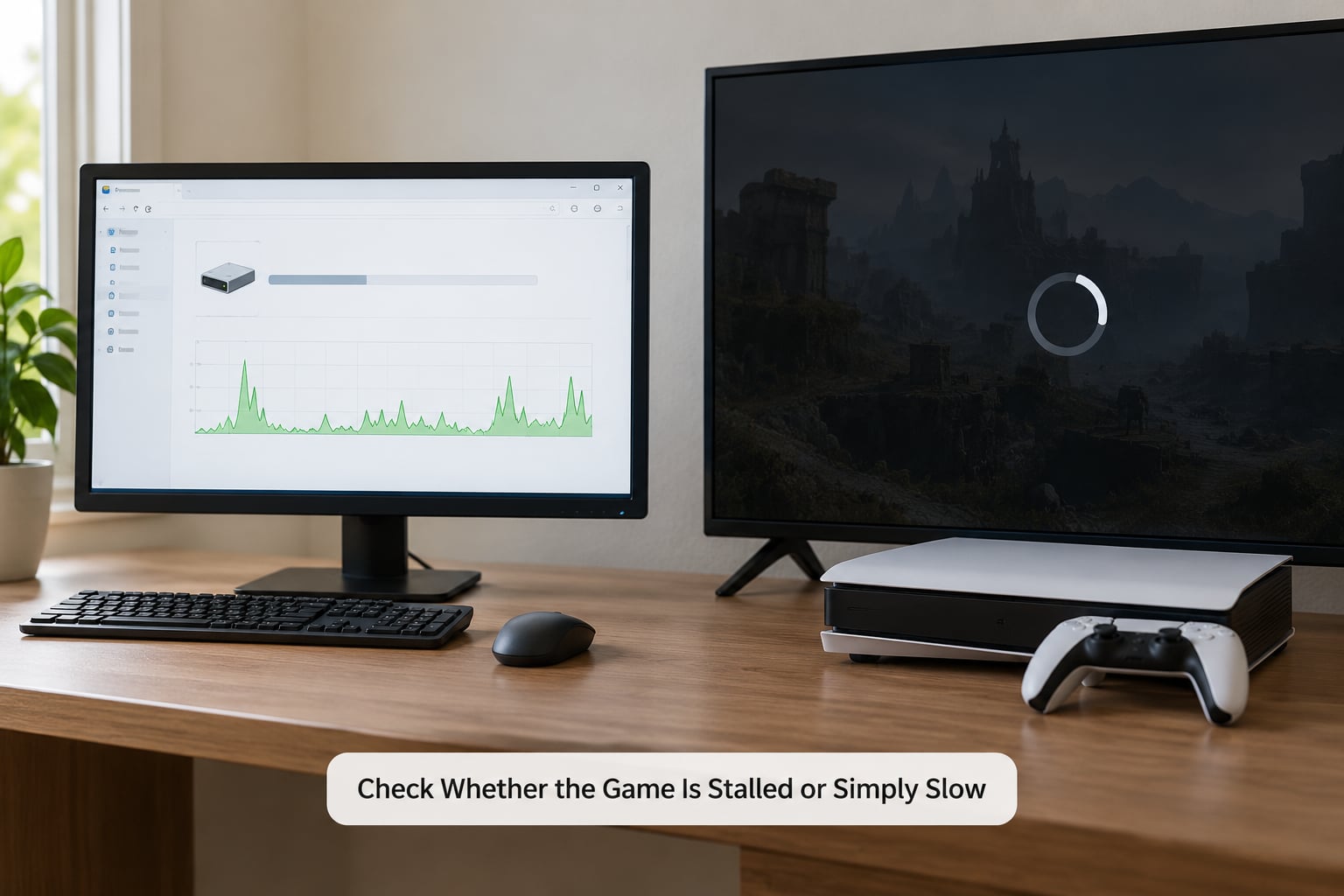
Before changing anything, confirm the game is actually working. A large open-world title decompressing a 60 GB asset set can sit on a spinner for two minutes and then drop you straight into a playable world, which feels broken but is not.
On Windows, open Task Manager (Ctrl+Shift+Esc) and watch the Disk column. If the game process is reading heavily, it is loading. If disk activity sits at zero and memory usage is flat for several minutes, the process is genuinely stuck. On PS5 and Xbox, if the console’s storage light or activity indicator keeps blinking, work is happening; a solid dark screen with no change for a long stretch usually means a freeze.
Network downloads are a separate thing entirely. A red or spinning download icon, or a progress bar tied to an update, means you are waiting on bandwidth, not on the drive. Pause those updates and test again before drawing conclusions.
There is one more case worth naming. The spinner sometimes keeps going, or the screen stays black, for several seconds after the world has visibly finished drawing behind it. That trailing tail is usually the game’s own script hand-off between the streaming thread and the main thread. Our step 6 and step 7 cover the two fixes that touch it.
How to verify: note the seconds from double-click to first controllable frame. Write the number down. Every later fix gets compared against it.
2. Free Up or Move the Game to Faster Storage
This is where most of the real time lives. Game load times are dominated by storage latency, so moving a title off a mechanical hard drive onto any SSD is the single largest change most players can make.
On a PC, check what the game is sitting on: Settings, System, Storage, or just look at the drive letter in your launcher. An HDD will typically add 30 to 90 seconds to a cold boot load compared with an SSD. Moving from a SATA SSD to a PCIe NVMe drive is a much smaller gain, usually only a few seconds, because the drive stops being the bottleneck once it is solid state. That ceiling is real and it surprises people who spend good money on a fast NVMe drive and see nothing change.
Free space matters too. A drive that is 95 percent full has almost no spare blocks for the controller to write into, and both read and write performance fall off a cliff. Keep at least 20 percent empty; forum advice on the Steam Hardware and Troubleshooting boards goes higher than that in some cases, and the extra headroom never hurts.
On PS5, games on the M.2 expansion slot and games on the internal SSD do not load identically, so move nothing until you have checked which one the game is on: Settings, Storage, Saved Data and Storage, then the game list. On Xbox Series X|S, the storage is tied to the console’s internal drive, so the equivalent fix is running the built-in Optimize: My Xbox and Xbox Network, then confirming the game is on the internal drive rather than an external one.
On Windows, running Optimize Drives (right-click the drive, Properties, Tools, Optimize) issues the TRIM command to SSDs. It is not a defrag. What you want to avoid is a full traditional defrag on an SSD, which vendors love to recommend and which does nothing useful for random-read-driven game loading.
How to verify: run the identical cold load. On a console, closing and reopening the game forces a cold load; on PC, quitting to desktop does the same.
3. Close Background Apps and Suspend Downloads
A loading screen is a burst of thousands of small random reads. Anything else competing for that disk, that CPU, or that bandwidth takes a slice of it.
On Windows, quit game launchers you are not using, pause OneDrive syncing, stop Steam downloads, and close large browser sessions. In Task Manager, sort by Disk and check whether something unrelated is pegged at 100 percent while the game loads. Overlays from Discord, the Xbox Game Bar, NVIDIA GeForce Experience and MSI Afterburner inject code into the game process and are a well-documented source of hitching; disable them one at a time and note the difference.
Antivirus deserves its own mention. Real-time scanners frequently walk a game folder while the game is streaming assets from it. On the Flightsimulator.org forums, users reported significant improvements in Microsoft Flight Simulator load times after adding the game folders to the antivirus exclusion list. Excluding a folder trades a small amount of scanning for a large amount of random-read throughput.
On PS5, pause active downloads from the control centre and let them finish before playing. On Xbox, check for pending system or game updates under Settings, System, Storage, and let those complete too, because a console will often defer launch work while a large install is running.
Power plan matters more than most guides admit. On Windows, Control Panel, Hardware and Sound, Power Options, change the plan from Balanced to High Performance or Ultimate Performance. On a laptop, this also stops the CPU dropping to a low power state during the load.
How to verify: load again with everything else closed and nothing downloading. This is the baseline you want before touching settings.
4. Update the Game and System Software
Patches routinely fix loading. Studios rewrite streaming logic, correct decompression bugs and add file format changes, all of which land in updates you may be auto-installing at 2am without reading the notes.
On PC, check the launcher client itself as well as the game: Steam, Epic, Ubisoft Connect and GOG all update their own client separately from the game. Update your graphics driver too, ideally from the card vendor rather than a third-party updater.
On PS5, the system software updates through Settings, System, System Software Update. On Xbox, Settings, System, Console Update, and set it to get updates when the console is off and plugged in.
Install updates before you launch a game, not during. A pending patch forces the launcher to verify and rewrite files on first run, which makes that launch slower than normal and confuses any measurement you take.
One BIOS setting belongs in this step because it is the most-missed free fix on PC. If your RAM runs at its default JEDEC speed rather than its rated speed, you are losing a chunk of memory throughput for free. Restart into BIOS and enable XMP on Intel boards or EXPO/DOCP on AMD boards, then let the machine retrain memory on first boot. Games that stream large asset sets off storage into RAM feel this immediately.
How to verify: confirm the memory speed reported in Task Manager, Performance, Memory matches the rated speed on your stick.
5. Repair the Game’s Files or Installed Data
Corrupted files make the game re-read blocks it could have cached, and a partially failed shader or asset block can stall a load indefinitely.
On Steam: right-click the game, Properties, Installed Files, Verify Integrity of Game Files. On Epic: Library, the three dots, Manage, Verify. On Ubisoft Connect and GOG there are equivalent verify commands. None of these touch your saves.
On PS5 and Xbox, the honest answer is that current consoles do not expose a full verify option the way PC launchers do. The supported equivalent is to delete and reinstall the game, or, on PS5, move the game to the internal SSD or to the expansion slot and move it back, which forces a full re-read and re-verify of the installed content.
Where saves live matters. On console they are stored separately from the game install, so reinstalling the title does not delete your progress. On PC, cloud sync aside, save files usually sit in a user data folder rather than the install folder, so verify and reinstall both leave them alone. Check before you start if you are unsure, and back up anything you cannot recreate.
How to verify: if a load that used to hang now completes, a file was the problem. If verify reports repairs and load times are unchanged, storage was the bottleneck all along.
6. Clear the Relevant Cache and Temporary Files
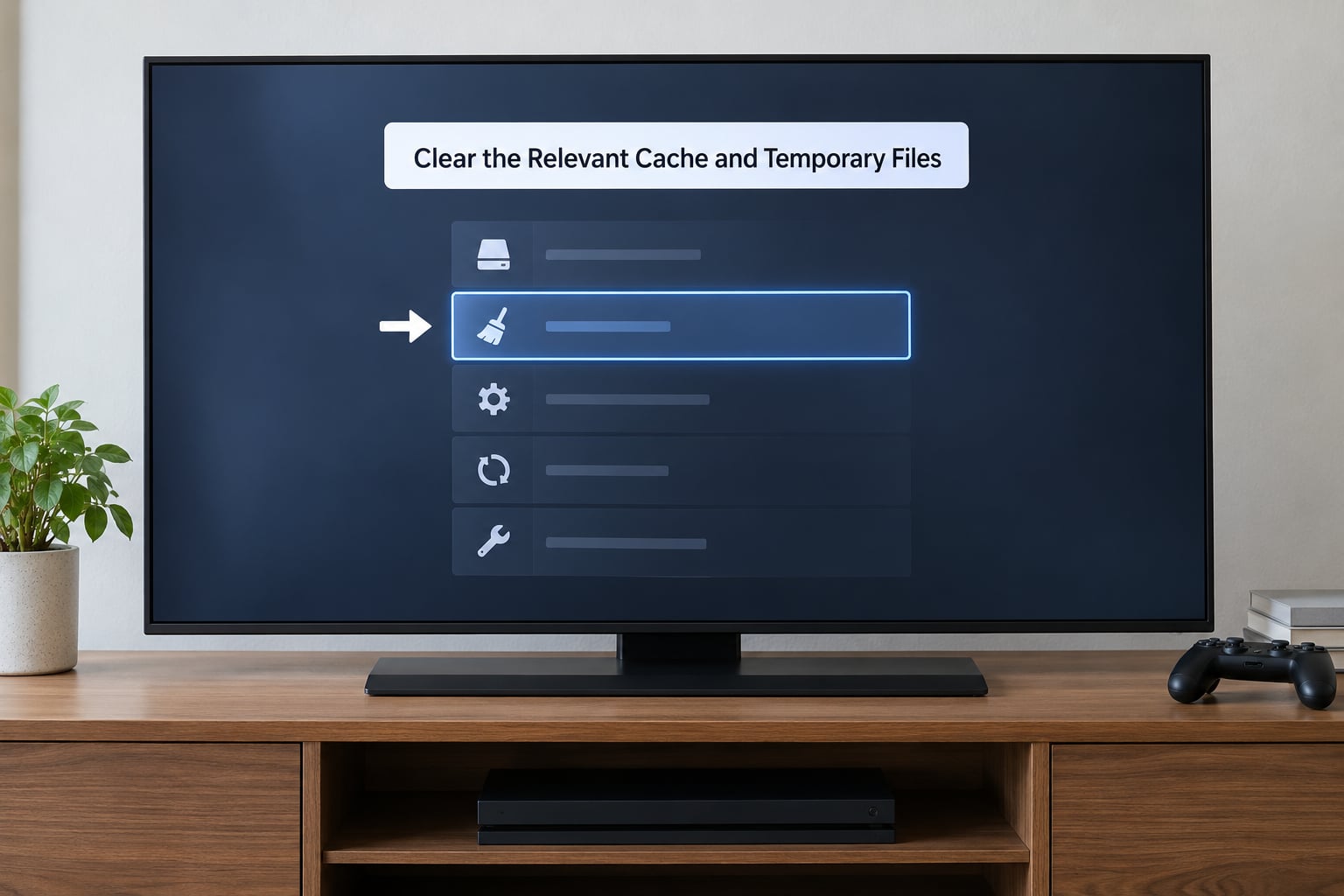
Caches are speed, not content. Clearing them is safe in almost every case, but there is a real trade-off: the first load after clearing will be slower while the cache rebuilds.
On Windows, clear temporary files through Settings, System, Storage, Temporary files. Leave Downloads alone. Do not use Disk Cleanup’s aggressive file options to strip out shader caches by accident; target only categories you recognise.
Most games keep a shader cache in a per-user folder. NVIDIA drivers cache compiled shaders under the NVIDIA Corporation folder in your AppData directory, and AMD drivers keep an equivalent cache. Deleting them forces a full recompile on the next launch, which is exactly what you want when the cache has gone corrupt, and exactly what you do not want on an ordinary evening.
On PS5 and Xbox, consoles clear their own temporary files as part of system maintenance, and the storage screens show how much space is reclaimable. On Xbox, Manage Storage and Cleanup on the internal drive clears temporary data for installed apps and games. Use the console’s own tool rather than reaching for a PC-side cleaner.
How to verify: your first load after this step will be slower. Measure the second one.
7. Rebuild Shader or Pre-rendering Files When Needed
Shaders are small programs the GPU compiles before drawing a surface. When you see stutter, flickering lighting or a first-run pause after installing a new driver, that is compilation happening live. Caching the compiled result to disk turns a repeated cost into a one-time cost.
Rebuild the cache when stutter appears right after a driver change, when lighting looks wrong, or when a load hangs at a consistent point every single time. On PC, clearing the vendor shader cache from step 6 forces the rebuild, and so does launching with the cache disabled in the driver control panel for one session as a test. Some titles expose the same thing in their own graphics options, usually labelled shader pre-caching or pre-rendering, and letting a full pre-render complete overnight fixes more stutter than most people expect.
Set the expectation first: the launch after a rebuild is the slowest one you will have for a while. If you clear caches every time you play, you will make your load times permanently worse.
Consoles pre-render as part of installation, so this is rarely a lever there. On PS5, games that ship with incomplete pre-rendering show up in the console’s activity card notifications with a rebuild option; on Xbox, letting a full install finish rather than day-one play catches up most of it.
Lowering texture and shadow quality also cuts what has to be streamed. On an 8 GB card, high textures force the engine to thrash; on PC, turning off unlimited video memory is the specific fix Steam forum users recommend for titles that stall while loading huge asset sets.
How to verify: compare the launch after the rebuild with the launch a few sessions later. The gap is the cost you paid.
8. Confirm Your Storage and Hardware Health
If nothing above changed anything, stop tweaking settings and find out whether the hardware itself has degraded.
On Windows, run a built-in speed check by copying a large file to and from the drive in Explorer and timing it, or use a free health tool such as CrystalDiskInfo to read SMART wear and temperature values. A drive that has dropped to a fraction of its rated throughput, or one sitting near its thermal throttle point with no airflow over the M.2 slot, is a real problem rather than a settings problem.
Slow-drive warnings on Windows, a red light on a console, and sudden load times that degrade over weeks rather than overnight all point the same direction. If a drive reports bad sectors, errors, or a health percentage in decline, replace it. Data recovery on a failing SSD is a gamble and not a plan.
Be honest about which part is limiting you. If your game runs at a locked frame rate and your loads are fast, storage is not the problem. If loads are slow and the game has plenty of VRAM and system RAM free, storage almost certainly is. On a r/pcmasterrace thread about Starfield, a user measured fast-travel loads ranging from 5 to 60 seconds on one machine and asked which component mattered most, with no settled answer. In practice, storage first, then memory speed, then VRAM capacity, then CPU, in that order.
On laptops and handhelds, sustained thermal throttling can hold the CPU below its boost clocks during a load, which slows decompression. Clean vents, use a flat surface, and check that the profile software is not set to a quiet mode.
How to verify: run the same timed file transfer or the same game load on the suspect drive and on a known-good drive. If the suspect drive is three times slower, you have your answer.
Common Mistakes
Most wasted evenings on this problem come from fixes that feel technical and accomplish nothing, or worse.
Running a registry cleaner. These do nothing for load times and have been known to break game installs by removing entries they misread. Skip them entirely.
Leaving background optimizer utilities installed. Tools that continuously defragment, prioritise processes and poll drive health add the very background activity you are trying to eliminate. Turn them off after the one run you actually needed.
Deleting save files to “fix” a load. Saves are not in the install folder on PC or on console. If a game wipes saves during a repair, that is a broken launcher, not a cache problem.
Filling the drive completely. A nearly full drive hurts more than a slow one. Free space is the fix.
Running a traditional defrag on an SSD. It does not improve random read latency, it burns write cycles, and it can add wear for zero gain.
Reinstalling without measuring. Reinstalling takes hours and tells you nothing about which component was the bottleneck. Time the load first, change one thing, time it again.
Buying a faster drive while the game sits on the slow one. Check which physical disk the game is actually installed on before spending anything. On multi-drive PCs and consoles with expansion storage this mistake is common.
Blaming the internet. If your frame rate is steady and the console is not downloading, bandwidth is not the bottleneck.
Tips for Preventing Load Times From Getting Worse
A short monthly routine catches almost every regression before it becomes an evening.
- Keep 20 percent of the game drive free. Delete or archive finished titles rather than letting the drive creep toward full.
- Install system and game updates during idle time, and launch after they finish rather than mid-download.
- Update SSD firmware and your graphics driver a couple of times a year, from the vendor’s own tool.
- Run Optimize Drives on Windows monthly to keep TRIM current on SSDs.
- Check console storage levels and let the system reclaim space before the drive fills.
- Keep your library on your fastest internal drive and treat external drives as archives rather than active libraries.
- Record load times. A note on your phone with today’s cold load time for your three most-played games makes regressions obvious in a way that memory never does.
One last thing worth separating out. Some load times are simply the game’s fault. Engine streaming limits, day-one bugs and unpatched performance issues have nothing to do with your setup. If loads are slow on a fast NVMe drive with plenty of free space, nothing else running and verified files, check whether the developer has acknowledged the issue before you spend another hour on your own machine.
Frequently Asked Questions
Why does a game sometimes load faster the second time?
Because the first load streams assets from storage into RAM and VRAM and compiles shaders, and the game caches that work for the session. The second load skips most of it. This is why cold loads, meaning a fresh launch or console restart, are always slower than the loads you see in a normal session. If the difference is dramatic, the game was doing heavy shader compilation or had to page a lot of data out of system memory.
Will installing the game on an SSD always make it load faster?
Almost always against a mechanical hard drive, where the gain can be 30 to 90 seconds on a cold load. Against a SATA SSD, an NVMe drive usually saves only a few seconds, because the drive stops being the bottleneck once it is solid state. If your loads are already short and your game runs smoothly, a faster drive will not change much and the money is better spent elsewhere.
Does clearing a console or PC cache delete my game saves?
No. Saves are stored separately from the install folder on both PC and current consoles, so clearing temporary files, shader caches or a console’s storage cleanup will not touch your progress. Reinstalling a game is also generally safe for saves on console, where progress is tied to your account. On PC, verify and reinstall leave user data alone, but back up anything you cannot recreate before you start.
Why is my first load slower after clearing shader or temporary files?
Because you deleted the work the machine had already done. Clearing a shader cache forces the driver to recompile every shader the next time, and clearing temporary files removes cached data the game would otherwise read straight from disk. The launch after clearing is the slowest one you will have for a while, so measure the second or third load before deciding whether the change helped or hurt.
When is reinstalling a game the best fix for slow load times?
Reinstall when verifying files reports corruption, when a load hangs at the same point every time, or when the game was moved between internal and external storage and something went wrong. Skip it when your storage is slow or nearly full, because reinstalling onto the same drive reproduces the problem exactly. Measure first, change one variable at a time, and reinstall last.
Conclusion: Start With Storage and Background Activity
To reduce game load times, work in order: confirm the game is loading and not stalled, check which drive it sits on, free up space, then clear the background activity competing with it for disk and bandwidth. Software, drivers, file verification and targeted cache work come after that, and new hardware comes last, if at all.
Most people never need the last step. A few free settings changes and an honest look at where the game is installed handles the large majority of long loads.