How to transfer game saves to a new PC? Use cloud sync when your game supports it, otherwise copy the save folder out of Documents, AppData, Saved Games or the Steam userdata folder and paste it into the same path on the new machine. Allow 20 minutes for a couple of titles, closer to an hour if you are moving a whole library.
The order matters more than the method. Sign in to the same launcher account on the new PC, install the game, run it once so it writes its own save files, then close it and drop your old files on top. Copy first and install later and you will spend an evening hunting for folders the game never created yet.
One warning before anything else: a backup is not a backup until you have opened it. Keep the old PC, the old save folder and a copy on an external drive until you have loaded your progress on the new machine and checked the details.
Table of Contents
- What You Need
- Step-by-Step: How to Transfer Game Saves to a New PC
- 1. Check whether the game has cloud saves
- 2. Back up the existing save before moving PCs
- 3. Install or sign in to the game on the new PC
- 4. Copy save files into the correct location
- 5. Launch the game and verify your progress
- Common Mistakes: Save Transfer Failures and Fixes
- Cloud sync downloaded a blank save and wiped your progress
- You copied the folder before the game was installed
- You could not find the save folder at all
- You moved one slot out of several
- Nothing loads after the copy
- You forgot everything that is not a save
- Frequently Asked Questions
- Can I transfer game saves from an old PC to a new PC?
- Where are game saves stored on Windows 11?
- Are Steam saves local or cloud?
- Can I move saves from a PlayStation or Xbox to a PC?
- Why did my transferred save disappear after launching the game?
- How do I recover game saves if the old drive failed?
- Conclusion
What You Need
Most transfers need five things, and only one of them is the new PC. Here is the list I work from every time.
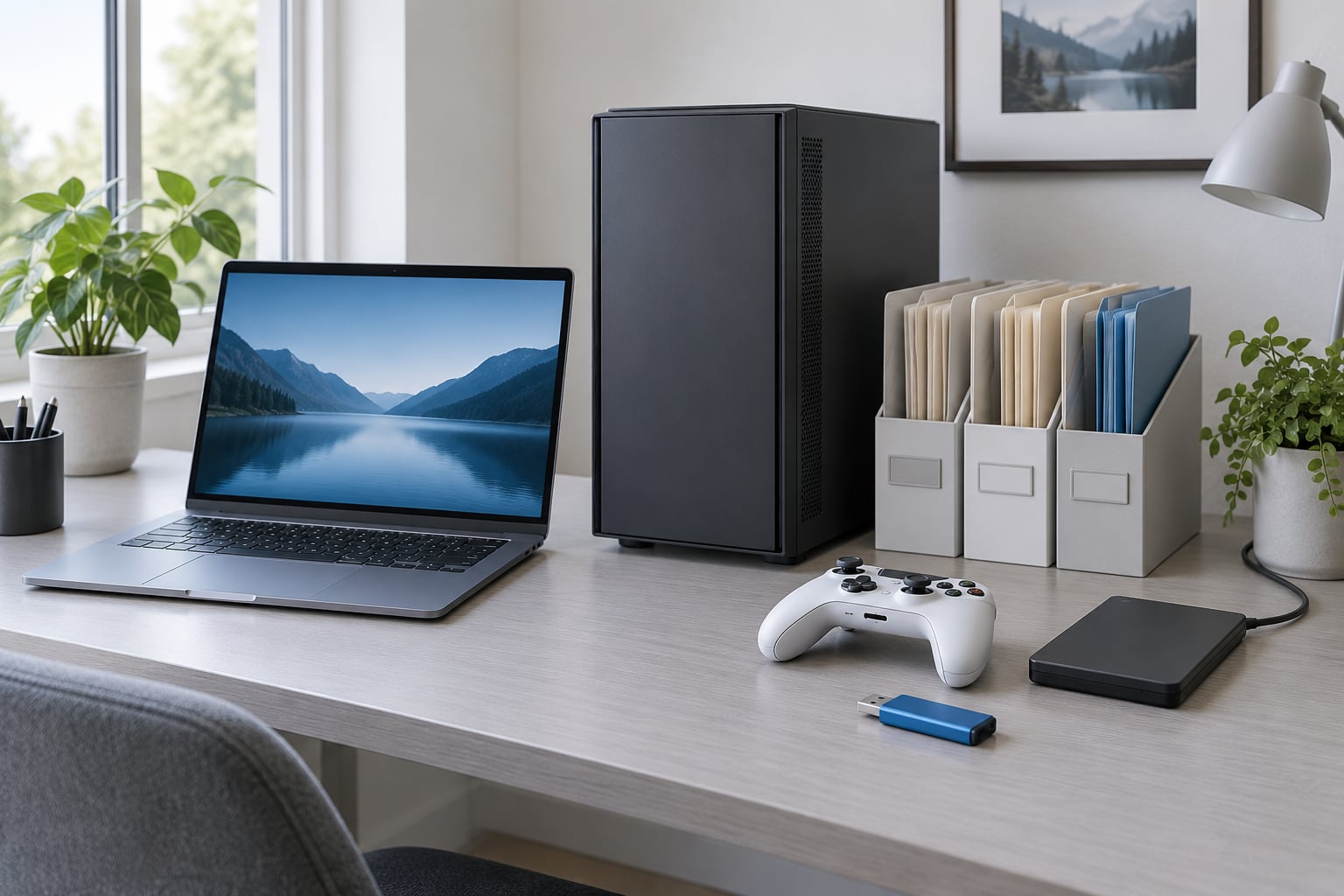
- Access to the old PC — or, if it is dead, the old drive and a USB enclosure or another machine to read it.
- The new PC, ideally with Windows updates finished and the same launcher installed.
- A USB drive or external SSD with a few gigabytes free. Save files are tiny; the game itself is not.
- Your launcher account details — Steam, Epic, GOG, Ubisoft Connect, EA app or the Xbox app. Saves often sync to an account rather than a machine.
- The exact game version and DLC you had installed. A save from an older build can fail to load after a big patch, and missing DLC changes some checks.
Also decide right now whether the game supports cloud saves, because that determines everything after this point. On Steam, open the game in your library, right-click it, choose Properties, General, and look at the Cloud section. If the store page or the properties window shows a cloud icon, the game has Steam Cloud. On Epic, GOG Galaxy and Ubisoft Connect the same information lives in the game’s menu under Manage or Cloud Saves. Xbox and Game Pass titles sync automatically through your Microsoft account.
What if your old PC is already gone? That is a common situation, not an unusual one, and there are still options. See step two below.
Step-by-Step: How to Transfer Game Saves to a New PC
1. Check whether the game has cloud saves
Cloud sync is the easy route, so check it first. It takes a minute and it gives you a second copy of your progress stored somewhere other than the machine you are about to retire.
On Steam, open Steam and go to Settings, then Cloud. The panel lists every game that supports Steam Cloud with a per-game toggle. Open the library, right-click a title, choose Properties, General, and read the Cloud section: Steam shows your sync status, the last sync time and how much space the cloud copy uses. If Steam Cloud is enabled for that game, launch it on the old PC and play for a minute so a fresh save reaches the cloud.
Steam keeps its cloud copies on its own servers, not in a folder you can browse on your PC, which is why people ask where Steam cloud saves are kept. There is no local mirror of them. The local file stays in userdata, and the cloud copy stays with Valve.
On Epic Games Store, open Epic, Manage, then the game, and check Cloud Saves. GOG Galaxy shows per-game cloud status next to the install button. Ubisoft Connect displays a cloud indicator on the game tile. For Xbox and Game Pass, your saves follow the Microsoft account automatically with no toggle to flip.
How you tell it worked: close the launcher, reopen it, and confirm the sync timestamp or cloud icon has updated. Write down the play time and level you are at, because that is what you will check on the new machine.
2. Back up the existing save before moving PCs
Even with cloud sync on, make a local copy. Cloud is a convenience, not a migration plan.
Open File Explorer and paste %APPDATA% into the address bar. That shortcut drops you straight into C:UsersYourNameAppDataRoaming, which is where a large share of Windows game saves live. %LOCALAPPDATA% and %USERPROFILE%Documents work the same way and are worth checking too. AppData starts with a dot in some paths and looks empty until you turn on hidden items in View, Show, Hidden items.
Save folders by location:
| Where it lives | Typical path | Who puts it there |
|---|---|---|
| Documents | C:UsersYourNameDocumentsGameFolder | Single-player titles that write a folder named after the game |
| Saved Games | C:UsersYourNameSaved Games | Games that register a save location with Windows |
| AppDataRoaming | %APPDATA%PublisherGameFolder | Most modern PC games, including many Steam titles |
| AppDataLocal | %LOCALAPPDATA%GameFolder | Unity and Unreal games, launcher data, some config and screenshots |
| Steam userdata | C:Program Files (x86)SteamuserdataYourSteamID1234567remote | Steam games with cloud support or native cloud integration |
| Steam install folder | SteamsteamappscommonGameFolderSaveData | Older and mod-heavy titles that save beside the game files |
| Game Pass / Microsoft Store | MicrosoftGameSaveCache and the app’s local container folder | Xbox and Game Pass titles, sometimes encrypted |
| Proton prefix (Linux or Windows) | steamappscompatdataAPPID | PlayStation and Xbox titles run through Proton on Linux |
No obvious folder? Use your search. Sort the search results by date modified in File Explorer and look for files with extensions such as .sav, .dat, .slot or .es3 modified in the last day you played. PCGamingWiki is also the lookup most people in gaming forums recommend, because save paths change between releases and no single rule covers every title.
Now copy the entire game folder, not loose files from inside it, to a folder on your external drive named after the game. Keeping the folder intact means you can drop it straight into place later. Do this for every game you care about, and check the file sizes on the drive before you unplug anything.
If the old PC will not boot, take the drive out and connect it through a USB enclosure, or attach it as a secondary drive on the new machine. The save folders are still readable as long as Windows can mount it. If the drive itself has failed, stop writing to it and try recovery software before you reformat or replace it; copying the whole drive to a healthy one first is safer than scanning the original.
3. Install or sign in to the game on the new PC
Install the same game on the new PC through the same launcher, and sign in to the same account. Sign in as the wrong user and cloud sync will happily hand you the wrong progress or start from nothing.
Let the install and any patching finish. The build number matters more than people expect: a save written by an older version can be refused by a newer one, and some titles only convert saves when the game sees a version change.
Launch the game once, then exit cleanly. That first run creates the save folder structure and any profile, config and log files, which tells you the exact path on this machine. If Steam Cloud downloaded something, this is the moment it writes that copy to disk — and the moment it can overwrite what you were about to paste, so do it before you copy anything in.
How you tell it worked: in File Explorer, check that the save folder now exists where you expected it. If it does not appear after the first run, the game may only write saves after you reach a menu or save manually.
4. Copy save files into the correct location
Open the folder you copied on the old machine, select everything inside it, and copy. Then open the matching folder on the new PC and paste, replacing the contents. Do not delete the new machine’s folder and replace the parent directory, because some games look for that folder by a specific name and others keep settings alongside saves.
This is the point where a local-versus-cloud conflict can bite. If the game pops up a dialog offering to upload the local file to the cloud or download the cloud version, compare file timestamps and details you actually remember. Trust the version with the higher level and the more play time, not simply the newer date. A fresh install can produce a file with a newer timestamp and almost nothing in it.
If cloud sync is fighting the manual copy, turn the per-game sync off in the launcher before you paste, then switch it back on once the restored save loads correctly. That stops the launcher from replacing your files mid-transfer.
Moving saves between launchers, such as GOG to Steam or Game Pass to Steam, is a different job. The folder structures and sometimes the file formats differ, and a straight copy often fails. Check the publisher’s forum or the game’s support page first, and expect to start fresh in some cases. Game Pass and Microsoft Store titles are the hardest: those saves can sit in an encrypted container, and the manual route may simply not be available. Some browser-based and cloud-only games tie progress to one host account and offer no file at all.
How you tell it worked: the file sizes on the new PC should match the sizes on your external drive. If they do not, the paste did not finish.
5. Launch the game and verify your progress
Start the game and load the profile that matches your old one. Check the level, unlocked items, statistics, open quests and play time against the numbers you wrote down in step one. A single mismatch means you loaded the wrong slot or the wrong file, so go back rather than saving over it.
Before you wipe, sell or repurpose the old PC, work through this list:
- The restored profile opens with the right level, play time and unlocks.
- Every game you care about has been tested, not just one.
- Your external drive still holds a full copy of every save folder, with file sizes that look right.
- A second copy sits in cloud storage or another folder, so one bad copy is not your only copy.
- Settings, control layouts, screenshots and any mods are backed up too, since they usually live in the same folders or in the launcher config.
- Achievements are unlocked on the new account, or you know they will not follow the save files.
If the game loads a new empty profile, exit without saving and start again. Then check the profile selection screen for a slot list, confirm you are signed into the intended launcher account, and confirm cloud sync is not restoring an older version over your pasted files.
Common Mistakes: Save Transfer Failures and Fixes
Cloud sync downloaded a blank save and wiped your progress
This is the most reported failure in gaming forums, and it happens when a launcher’s cloud copy is an empty placeholder left by an earlier uninstall. Turn off cloud sync for that game in the launcher, paste your backed-up files into the save location, launch the game once, then re-enable sync. Keep both copies until you have seen your progress load twice.
You copied the folder before the game was installed
Pasting into a folder that does not exist yet does nothing, because the game recreates its save structure on first launch and overwrites whatever it finds. Always install, launch once, exit, then paste. This install-first, run-once, overwrite sequence is the most repeated piece of advice across Steam community and Reddit threads for good reason.
You could not find the save folder at all
AppData is hidden by default. In File Explorer, tick View, Show, Hidden items, or paste %APPDATA% into the address bar. If the game keeps its data beside the install folder instead, sort your search results by date modified and look for recently written .sav or .dat files.
You moved one slot out of several
Games with numbered slots usually store each one as a separate file or subfolder. Move the whole game folder across, not a single save file, otherwise the other slots stay behind.
Nothing loads after the copy
Almost always a version mismatch. Check that both machines ran the same build and that you have the same DLC installed. Close the game properly before copying too, since a half-written file that was in use during the copy can leave you with a corrupt save.
You forgot everything that is not a save
Graphics presets, keybinds, controller layouts, screenshots, mod lists and overlay settings often live in the same folders as saves or inside the launcher config directory. If you are moving a modded library, back up the mod folder separately, because installing the game again on the new machine gives you a clean, unmodded copy that will refuse an old modded save.
One more habit worth setting up: run a scheduled backup so you never do this manually again. Windows File History on a Control Panel drive, or a backup tool such as GameSave Manager, which is free, or Ludusavi, which scans your drives for known save locations, can all do it on a timer.
Frequently Asked Questions
Can I transfer game saves from an old PC to a new PC?
Yes. Use the game’s cloud sync if it supports one, and sign in to the same launcher account on the new PC. Otherwise, copy the save folder from the old machine to a USB drive, install and launch the game once on the new PC, then paste those files over the folder the game creates. Verify your level and play time before wiping the old PC.
Where are game saves stored on Windows 11?
Most commonly under Documents, Saved Games, AppDatau005cRoaming or AppDatau005cLocal, plus the Steam userdata folder for cloud-supported titles. Paste %APPDATA% or %LOCALAPPDATA% into the File Explorer address bar to jump there directly. Each game picks its own folder, so check PCGamingWiki or sort a search by date modified when the path is not obvious.
Are Steam saves local or cloud?
Both. The local copy lives in the userdata folder inside your Steam installation, and Steam Cloud keeps a separate copy on Valve’s servers that syncs when you launch the game. You can check the status and last sync time in the game’s Properties, General tab, or turn sync off per game in Settings, Cloud. Steam removes a cloud copy when you uninstall, so keep your own backup.
Can I move saves from a PlayStation or Xbox to a PC?
Only for games that support cross-platform or cross-progression saves, and those usually sync through your PlayStation Network or Microsoft account rather than as a file. Check the game’s platform requirements first. Many console titles have no PC equivalent, and some PC ports start fresh, so plan for replaying the opening hours.
Why did my transferred save disappear after launching the game?
Usually the game created a fresh profile, loaded an older cloud version, or rejected files from a different build. Exit the game without saving, turn off cloud sync for that title, paste your backup back into the correct folder, and confirm you are signed into the intended launcher account. If the build numbers differ, patch both machines to the same version and try again.
How do I recover game saves if the old drive failed?
Connect the drive read-only through a USB enclosure or as a secondary drive and copy the save folders off before writing anything to it. If the drive will not mount, stop formatting it and try a recovery tool to image or scan it. Files are often intact even when the drive is unreadable to Windows, and image it first so further attempts do not damage what is left.
Conclusion
If you have not done this before, the question of how to transfer game saves to a new PC comes down to one habit: start with cloud sync when the game supports it, then copy the save folder to an external drive before you touch the old PC. Install and launch the game once on the new machine, paste the files over the top, and confirm your level and play time before you wipe anything.
After that, set up an automatic backup so you never run through this again.