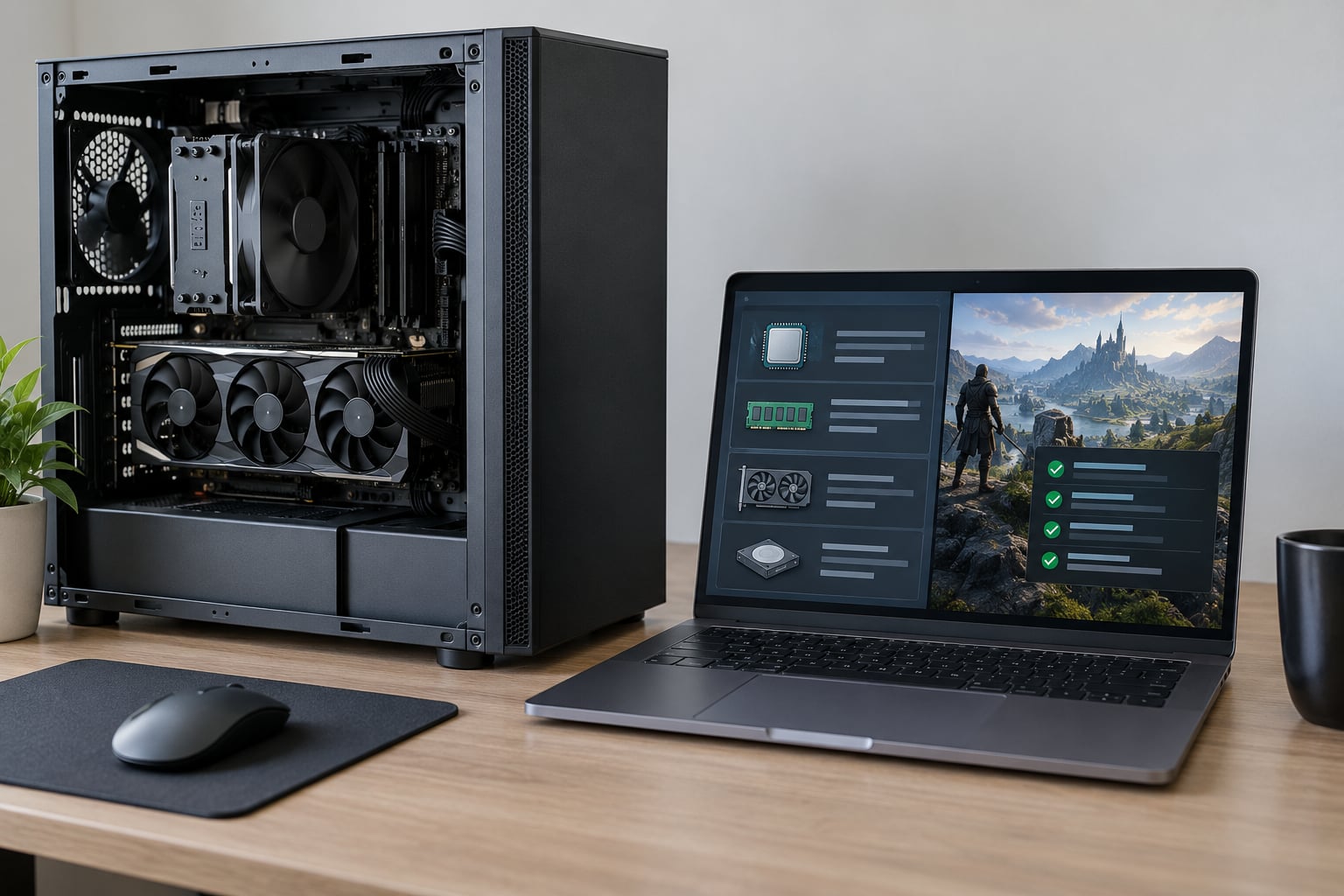
To find out how to tell if your PC can run a new game, compare three things: the game’s minimum and recommended requirements, your own CPU, graphics card, RAM, storage and Windows version, and the resolution you actually want to play at. Meet the minimum spec and the game launches. Meet the recommended spec and it runs well on the settings a developer had in mind.
That is the whole method, and it takes about five minutes once you know where to look. The confusing part is that requirement pages are written by hand, tested on one reference machine at launch, and deliberately pessimistic. Lots of PCs below the recommended spec run these games perfectly. One builder put it plainly on r/buildapc: requirements are guidelines for hardware tested at the time of launch, more of a worst case.
Table of Contents
- What You Need
- How to Tell If Your PC Can Run a New Game
- Step 1: Find the Game’s Minimum and Recommended Requirements
- Step 2: Check Your Windows Version and System Requirements
- Step 3: Identify Your Graphics Card, CPU, RAM, and Storage
- Step 4: Compare Your PC With the Game’s Requirements
- Step 5: Run a Practical Performance Test
- Common Mistakes
- Frequently Asked Questions
- Can my PC run a game if it meets only the minimum requirements?
- Do I need a dedicated graphics card to play new games?
- How do I check what graphics card and processor my PC has?
- Is 8 GB of RAM enough to play modern games?
- What frame rate should I aim for in a PC game?
- Should I upgrade my PC or lower the game’s graphics settings?
- Conclusion
What You Need
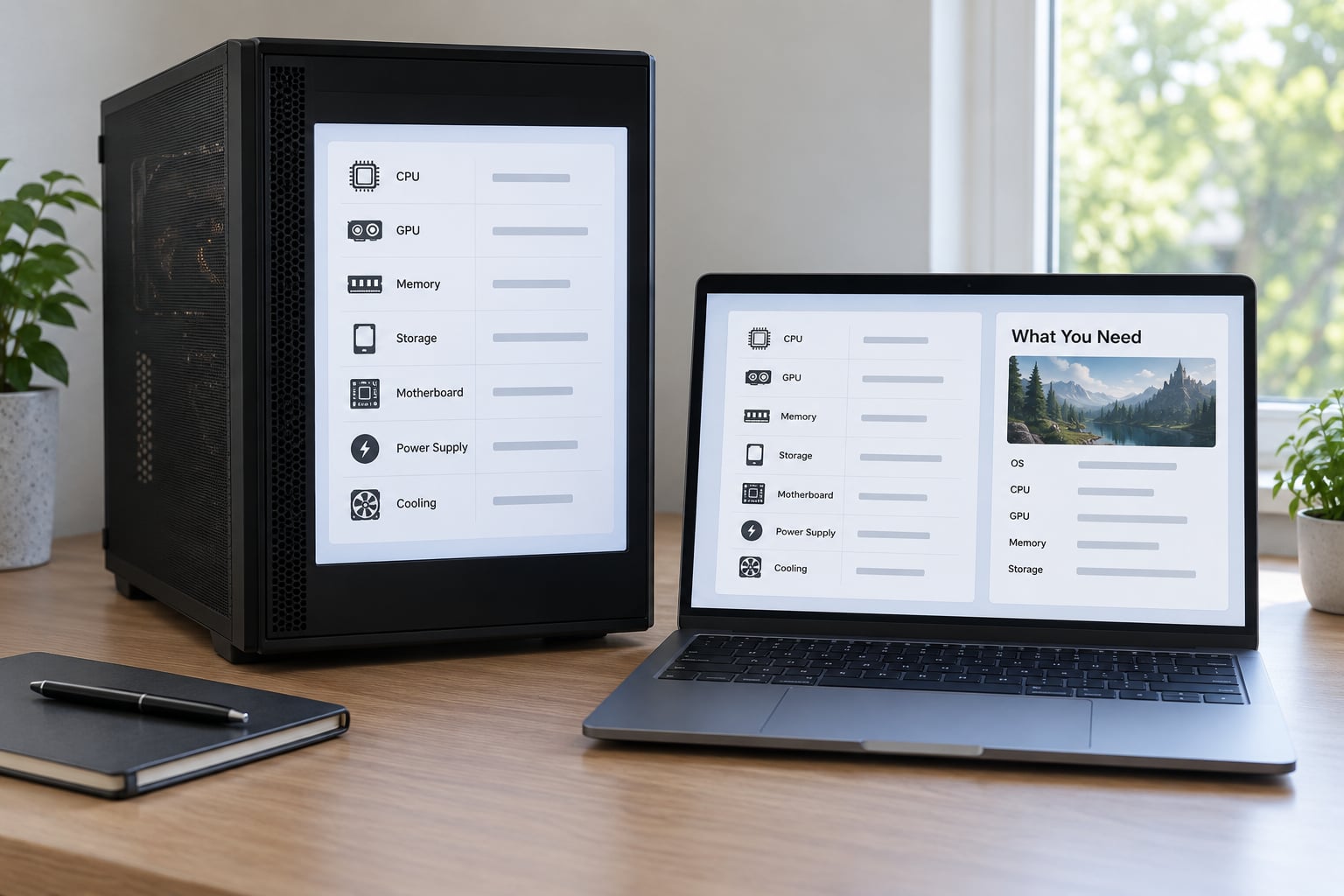
You need very little, and none of it costs anything. First, access to the game’s official requirements page before you buy or download anything.
Second, about two minutes on the PC itself. Windows already knows your processor, graphics card and installed memory, and it will tell you for free. No download, no installer, no benchmark software needed for the basic check.
Third, enough free disk space to answer honestly. Games list a free disk space figure, and it is routinely the requirement people miss. Checking it takes five seconds and saves a failed 90GB download.
Optionally, a free compatibility checker that detects your hardware from the browser. Those are useful for a quick verdict, but you should still read your own numbers, because the tools only ever compare component lists. They cannot tell you the resolution or settings you will settle for.
How to Tell If Your PC Can Run a New Game
The check runs in five steps: read the requirements, read your own system, compare them component by component, then prove it by running the game at the settings you care about. The first three tell you what to expect. The fifth tells you what you will actually get.
Step 1: Find the Game’s Minimum and Recommended Requirements
Requirements live on the store page where you buy the game. On Steam, open the game’s page and scroll down the right-hand column until you see minimum and recommended requirements, which usually sit underneath the screenshots and reviews. On Epic Games Store, GOG and the Xbox store, the same block appears on the product page. If you bought direct from a publisher, check the FAQ or support page on their site.
You will see rows for processor, graphics card, memory, directx, operating system and free disk space. Under the graphics card row there is often a second line, video memory, which is the dedicated memory on the graphics card rather than your system RAM. Those two numbers are different things and people mix them up constantly.
Read the recommended line, not the minimum line. The minimum spec is the floor a studio accepts liability for, not a good experience. Someone on the Larian forums gave the pattern most experienced players follow: the CPU is fine, RAM is probably fine, most games target 8GB of system RAM, and you can always tune down textures anyway.
Some store pages also print placeholder text such as “Video Card: Info” or “CPU SPEED: Info” instead of a real model. That usually means the publisher never filled the field in. When you see it, fall back on the studio’s own hardware blog post or the system requirements listed on the physical box, which is more detailed than the store page on the same game.
Step 2: Check Your Windows Version and System Requirements
On Windows 11, press the Windows key, type “About”, and open About. The window shows your device name, processor, installed RAM, system type (64-bit or 32-bit), and the Windows edition and version at the bottom under Windows specifications. On Windows 10 the path is the same: Start, type “About”, open About this PC.
Check two things there that matter more than people expect. The first is the Windows edition and build number, because plenty of new releases list Windows 10 or Windows 11 as the minimum and nothing older. The second is system type: modern games are 64-bit, so a 32-bit Windows install is a hard no regardless of how fast the processor is.
Windows 7 and 8.1 are the other common failure. Most current releases and their anti-cheat systems simply will not run on them, so if About shows Windows 7, upgrade the operating system before you spend anything on hardware.
Step 3: Identify Your Graphics Card, CPU, RAM, and Storage
The fastest way to get exact component names is Task Manager. Press Ctrl and Shift and Esc to open it, click the Performance tab, and read CPU on the left. You get the exact processor model, core count, and current clock speed in GHz. Click Memory for total installed RAM and how much is in use. Click the GPU entry, usually GPU 0, for the graphics card model plus its dedicated memory in gigabytes and how much of that memory the game is allowed to use.
Device Manager is the backup route. Search for Device Manager in the Start menu, expand Display adapters, and the graphics card model appears there. Expand Processors for the CPU threads. It is less pretty than Task Manager but it is the same source of truth.
For free storage, open File Explorer, right-click the drive holding your games, and choose Properties. The pie chart view sorts by size and tells you exactly how much room is unused. Compare that number to the free disk space figure on the requirements page.
One distinction worth making here, because it decides most results: system RAM and video memory are not interchangeable. A PC with 16GB of RAM and an integrated graphics chip with no dedicated video memory can fail a game’s graphics requirement while passing everything else. That is why the graphics card line decides the answer more often than the processor line.
Step 4: Compare Your PC With the Game’s Requirements
Fill this in component by component rather than eyeballing it. Anything at or above the recommended column is comfortable. Anything between the two columns means the game runs, on lower settings. Anything under the minimum column is where problems start.
| Component | Where to check it | How to compare it |
|---|---|---|
| Processor | Task Manager, Performance, CPU | Match the model name. If yours is a generation or two newer than the recommended chip, you are fine. |
| Graphics card | Task Manager, Performance, GPU | Match the exact model. A weaker model means lower settings or a lower resolution. |
| Video memory | Task Manager, GPU, dedicated GPU memory | Add roughly 1GB for 1080p, 2GB for 1440p, 4GB or more for 4K. |
| System RAM | Settings, About, or Task Manager Memory | 8GB is the old floor. 16GB is a comfortable target. |
| Storage | File Explorer, drive Properties | Compare free space against the listed figure. |
| Operating system | Settings, About, Windows specifications | Match edition and version. 64-bit only. |
Two things make this comparison inaccurate if you ignore them. The first is whether your graphics card is integrated or dedicated. Integrated graphics share system RAM and typically deliver a fraction of the frame rate of a dedicated card with the same family name, so treat an integrated chip as well below an equivalent dedicated entry.
The second is the resolution. Requirements are usually written for 1080p. A requirements list does not scale, but your hardware does: the same card can be comfortable at 1080p, tight at 1440p and unusable at 4K, because higher resolutions need more graphics memory and more raw fill rate.
Step 5: Run a Practical Performance Test
A spec sheet is a prediction. A test is evidence. Install the game, launch it at the resolution and settings you intend to use, and play for ten minutes in a normal scene rather than the opening menu.
Watch for two different things. A steady frame rate in the 55 to 65 range feels smooth. A frame rate that averages 60 but swings between 20 and 90 feels terrible, and that swing is called stuttering. Stuttering with a healthy average usually points to a processor bottleneck or to background software competing for resources, not to a graphics card that is too slow.
Windows can confirm what is happening while you play. Open Task Manager, Performance, GPU, and read the percentage utilisation. A graphics card pinned near 100% is the limit in your setup, so a faster card would help. Low graphics utilisation alongside high processor usage means the processor is the limit. The free to run overlay from your graphics card’s control software shows the same numbers on screen.
Comparing a ten-minute test at your chosen settings against the requirements list is the only check worth trusting. It accounts for your exact machine, your exact resolution and your tolerance for settings, none of which a comparison tool can do for you.
Common Mistakes
Checking only the minimum spec. It tells you the game launches, not that it is fun. Compare against recommended, then decide whether medium settings and upscaling are an acceptable trade for saving money.
Confusing system RAM with graphics memory. 16GB of system RAM does not give an integrated graphics chip 16GB of video memory. Requirements list video memory separately, and that row is where integrated machines fail.
Matching a GPU name approximately. “RTX 3060-class” is not a real spec. Compare exact model numbers, and remember that a laptop version of the same GPU runs slower than the desktop card of that name. One forum answer put the frustration plainly: you are mostly held back by the graphics card, and if it is a laptop card there is no easy upgrade path.
Ignoring free disk space. This is a surprisingly common launch failure. Windows needs room for shader compilation and page file growth on top of the game’s own footprint.
Testing at the wrong resolution. A game that struggles at 1440p often runs fine at 1080p, and 1080p remains a perfectly sensible target in 2026. Testing at 4K on a mid-range card tells you nothing useful about 1080p performance.
Updating drivers halfway through. Install the latest stable graphics driver before you test, not after, so you benchmark a realistic setup. If the latest driver causes stuttering, roll back to the previous release rather than blaming the hardware.
Treating a successful launch as proof. If the game starts, you have learned almost nothing about performance. People report meeting every requirement and still stuttering, and the cause is usually thermal throttling on a laptop, a background application such as a browser with many tabs open, or a processor bottleneck that shows up as frame-time spikes.
Some launches fail for reasons that have nothing to do with your hardware at all: anti-cheat software that refuses to run on your operating system, games with Steam Deck Verification that only support specific configurations, or background processes eating the memory the game expects. These produce the same message, “this game will not run”, and no amount of upgrading fixes them.
If you land between minimum and recommended, work down this order: ray tracing off, volumetrics and screen-space effects off, shadows low or off, anti-aliasing moved to a performance option, texture quality reduced one step, then resolution scale dropped slightly. This order costs the least image quality for the most frame rate.
If you are still short and want to upgrade, the graphics card is usually the component that decides frame rate. The second most valuable upgrade is moving from a hard drive to an SSD, because it removes loading stutter and asset pop-in that no settings change can fix. Check the power supply before buying a card, since a PSU that cannot supply the connectors is a genuine upgrade blocker.
Frequently Asked Questions
Can my PC run a game if it meets only the minimum requirements?
Yes. The minimum spec is the level a studio guarantees will launch, not the level that runs well. Machines that clear minimum and miss recommended usually play at medium or low settings with upscaling turned on. The exception is video memory: a card that misses the required dedicated memory will struggle with textures and may stutter even at low settings. Check the dedicated GPU memory figure before you assume a pass.
Do I need a dedicated graphics card to play new games?
For most current titles, yes. Integrated graphics share system RAM with the processor, so they lose frame rate as soon as a game loads textures, and they often fall short of the listed video memory requirement. Older, 2D and indie games run fine on integrated chips. If your requirement list names a discrete card, treat the integrated option as a fallback rather than an answer.
How do I check what graphics card and processor my PC has?
Press Ctrl, Shift and Esc to open Task Manager, then click the Performance tab. The left column lists CPU with the exact processor model, plus Memory for installed RAM and GPU entries with the graphics card model and its dedicated memory. On Windows 10 or 11, Settings, About gives you the processor, installed RAM, system type and Windows edition in one screen. No downloads needed.
Is 8 GB of RAM enough to play modern games?
8GB still launches most games, but it leaves little headroom once Windows, a browser and voice chat are running alongside. A background browser with many tabs open is a common cause of the stuttering that gets blamed on the graphics card. 16GB is a much more comfortable target, and it is usually a straightforward, low-risk upgrade on a desktop.
What frame rate should I aim for in a PC game?
For most players, a locked 60 frames per second at 1080p feels better than an unstable 90. Competitive shooters and some sports titles benefit from higher rates, and a high refresh monitor only helps if the card can consistently feed it. Judge performance by how steady the frame rate is, not by the peak number a calculator predicts, because stuttering frames are what you actually feel.
Should I upgrade my PC or lower the game’s graphics settings?
Lower the settings first. Turning off ray tracing, dropping shadows and enabling upscaling usually recovers enough frame rate to make a below-recommended machine perfectly playable, and it costs nothing. Upgrade only when the settings ladder has run out and the component you would replace is the one actually pinned at full load. Laptops are usually not worth upgrading at all, since most parts are soldered.
Conclusion
Start with the store page, read both the minimum and recommended rows, and write your own CPU, graphics card, RAM, free storage and Windows version next to them. Where you land between the two columns, play for ten minutes at the settings you actually want before deciding anything.
If the test disappoints, work down the settings ladder before you spend anything. When you do upgrade, replace the part that showed full utilisation in Task Manager rather than the whole machine.