Press Ctrl+Shift+Esc to open Task Manager, click Performance on the left, then click GPU 0 or GPU 1. The adapter name in the top-right corner of that panel is your graphics card. If you need the exact model string for a driver download, use dxdiag or Device Manager instead.
A graphics card is the board that plugs into a PC, also called a video card or display adapter. The GPU is the chip on that board doing the actual rendering. Windows treats the whole card as a display device, which is why every built-in tool that lists display hardware will show its model name.
Knowing the model matters for two reasons: it tells you whether a game will run at the settings you want, and it tells you which driver to install. Five seconds in Task Manager is enough for most people, but it shows only the adapter currently driving your display, so laptop users with two GPUs need a second method.
Table of Contents
- What You Need
- How to Check What Graphics Card You Have on Windows
- Use Task Manager for a Quick Check
- Check Device Manager for the Installed Graphics Adapter
- Confirm the Model and Driver With dxdiag
- Check Advanced Graphics and DirectX Settings
- Use Command-Line and System Information Tools
- Identify the GPU on a Laptop or Desktop With Two Graphics Cards
- Confirm the Result Before Installing Drivers or Games
- Common Mistakes
- Frequently Asked Questions
- How do I find my graphics card on a Windows 11 laptop?
- Why does my computer show integrated graphics instead of my dedicated GPU?
- Is the graphics card name in dxdiag the right model to download drivers for?
- Why is my graphics card missing from Device Manager?
- How can I check which graphics card a game is using?
- Conclusion
What You Need
Almost nothing. If you are on Windows 10 or Windows 11, all the methods in this guide use software already on the machine.
You do need an administrator account to open Device Manager, change a device state or install a driver. A standard Windows account can still read Task Manager and run dxdiag, just not the deeper checks.
Two optional extras help later, not now. An NVIDIA or AMD control panel, if one is installed, opens a system information page with a similar model list. A third-party utility such as GPU-Z or HWiNFO64 goes beyond Windows and reports live temperature, memory amount and sensor data, but nothing here depends on one.
Last updated for 2026. The menu names below are current on Windows 11, and I noted where Windows 10 differs.
How to Check What Graphics Card You Have on Windows
Work down this list in order. Start with the fastest built-in method and only go further when you need confirmation, a driver version or the full memory picture.
Use Task Manager for a Quick Check
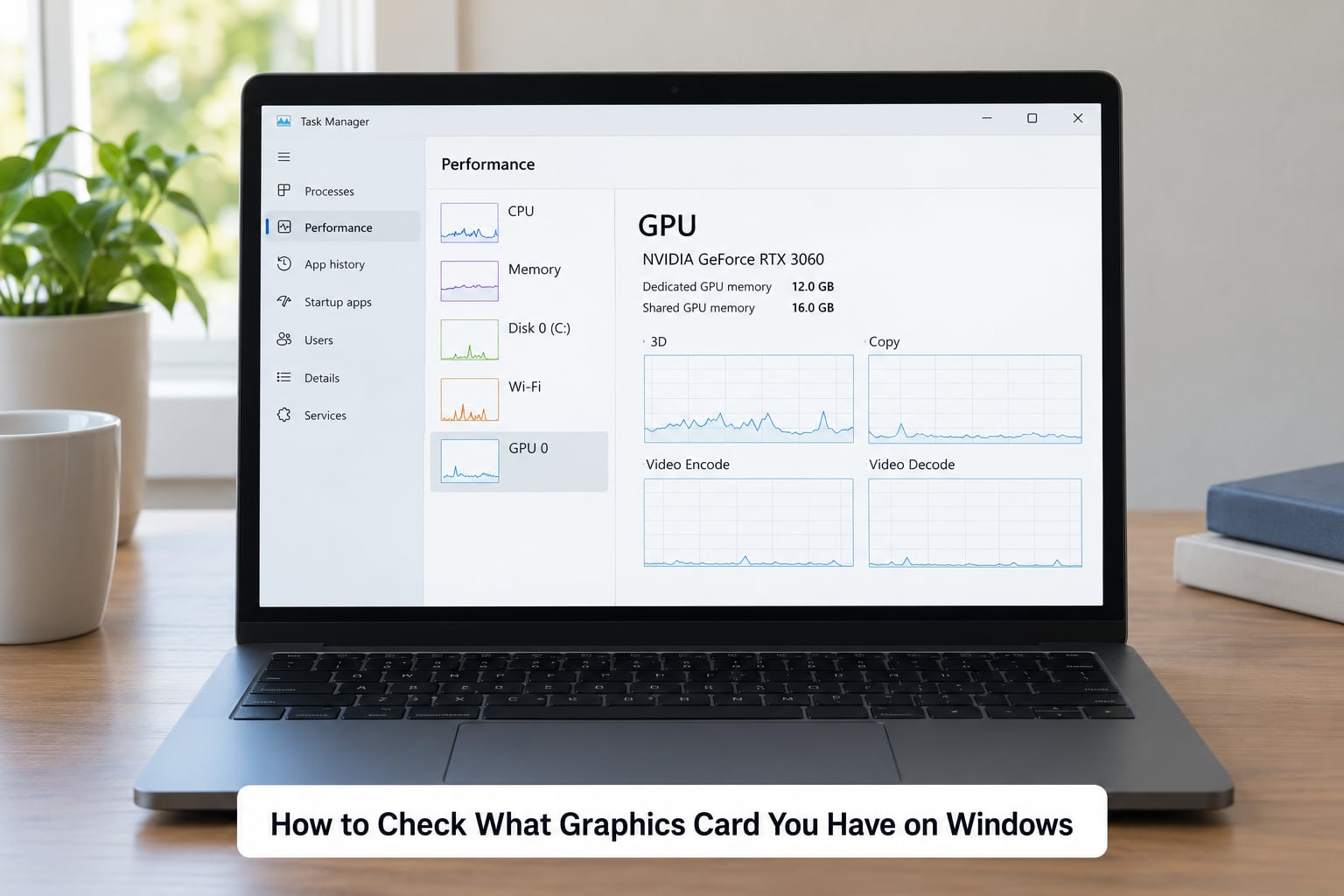
On Windows 11, press Ctrl+Shift+Esc, click Performance in the sidebar, then click GPU 0. On Windows 10, right-click the Taskbar and pick Task Manager, then take the same two clicks. The shortcut works on both.
The upper-right of the panel shows the adapter name in larger text, usually something like NVIDIA GeForce RTX 4060 or AMD Radeon RX 7600. That name is your model. Below it, Windows breaks memory into dedicated GPU memory and shared GPU memory, which is worth understanding before you compare it to a game’s requirements.
Dedicated GPU memory is VRAM soldered onto the card. Shared GPU memory is system RAM the card borrows when it runs out, and games that read the shared figure report a number far larger than what the card really has. Compare requirements against the dedicated number only.
You have the right answer if a full hardware name appears rather than “Microsoft Basic Display Adapter”, which is what Windows shows when no real driver is installed. Note that Task Manager lists only the adapter currently driving your display or game. On a laptop with switchable graphics, the dedicated card can sit idle and never appear here, which is why the two-adapter section below matters.
If there is no GPU entry in the sidebar at all, your card is not being detected. Jump to the troubleshooting section rather than re-reading this one.
Check Device Manager for the Installed Graphics Adapter
Press Win+X and choose Device Manager from the menu that appears. On Windows 11 you can also type Device Manager into Start. Expand Display adapters by clicking the arrow beside it, and read the entries listed underneath.
Each entry is one display adapter Windows knows about. This is the best single view for a machine with two graphics cards, because both are listed side by side even when one is idle.
Right-click an adapter and choose Properties, then open the General tab to confirm the device name, the device type and the driver provider. The same menu has Disable device, which is handy for isolating a fault: if disabling the integrated adapter fixes a flickering screen, you have found the culprit. Re-enable it straight away, because leaving a display adapter disabled will break video output once the next display wakes.
Turn on View and then Show hidden devices if you suspect a second card that is present but disconnected. Greyed-out entries marked “currently disconnected” are ghosts of a card you removed, not the card you have now. This is common on laptops where the user has swapped the module out.
Confirm the Model and Driver With dxdiag
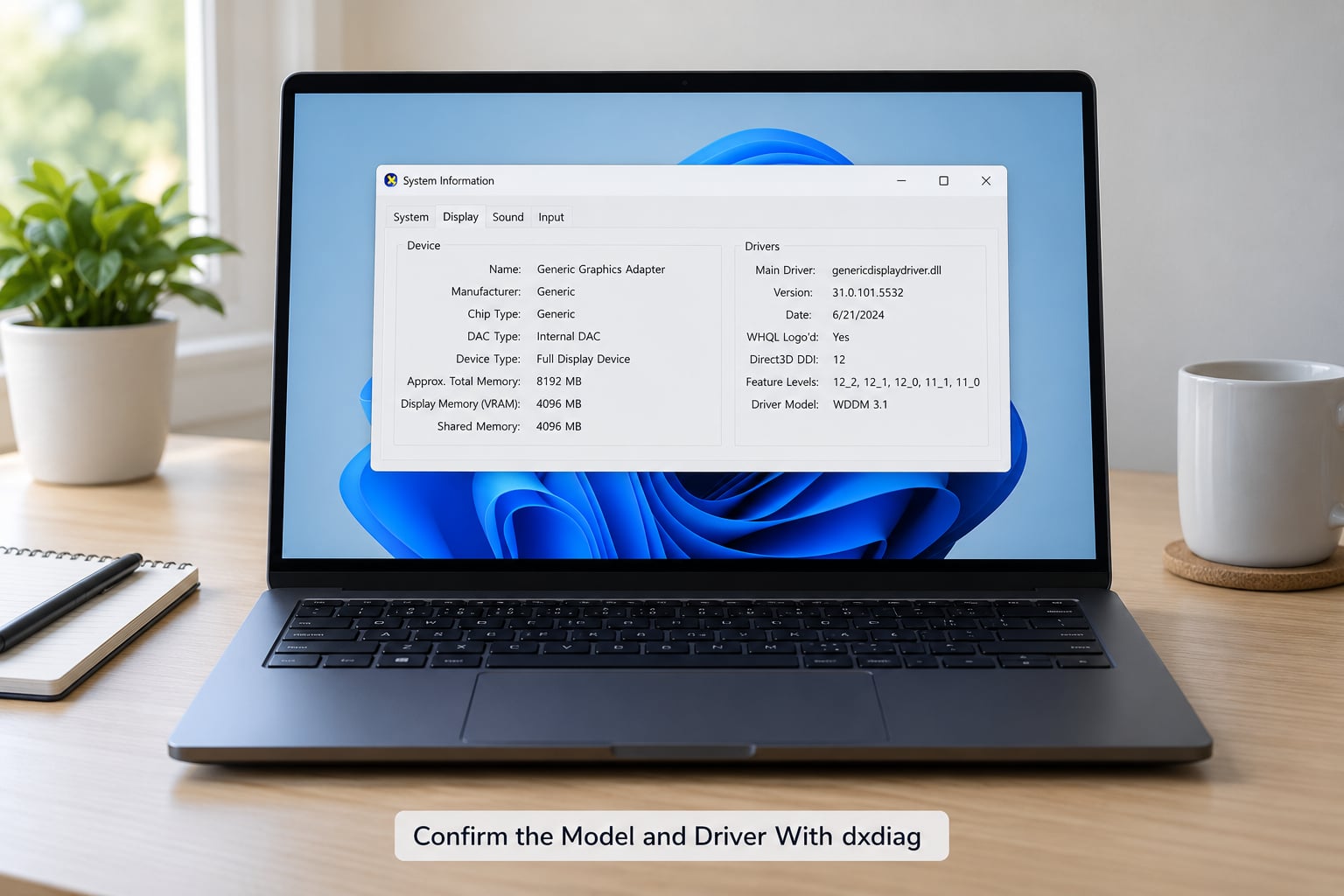
Press Win+R, type dxdiag, and press Enter. The DirectX Diagnostic Tool opens after a few seconds. Click the Display tab, and read the fields in the Drivers and Display Device sections.
The field called Device Name is the model you want. Manufacturer confirms the brand, Chip type tells you whether the entry is the display device or the driver wrapper, and Driver Version gives you the exact driver build currently installed. Display Memory is the dedicated amount, and Current Mode shows the resolution and refresh rate your desktop is running.
One warning: a machine with two graphics cards gets a Display entry for each. Scroll through all of them before writing the model down. The same caution applies to the Notes field, which sometimes carries a manufacturer string that does not match the Device Name above it.
Also read the Display 1, Display 2 and possibly Display 3 tabs. They show which adapter is connected to which monitor, and when you are troubleshooting a black screen that is the tab that tells you which one dropped out.
Check Advanced Graphics and DirectX Settings
Open Settings, then go to System and Display, then choose Advanced display. The top of that page names the display connected to your current graphics adapter, with its resolution and refresh rate. Further down, Display device properties and Graphics properties open a classic Windows dialog with more detail on the adapter.
This screen is fast, and on a desktop with one card it is usually enough. Its limitation is that it describes the adapter driving that display, not every adapter installed. On a laptop with an integrated chip driving the panel, this page will happily tell you about the integrated adapter while the card you care about is idle.
DirectX settings are different, and less commonly needed. On Windows 10 and 11, Settings and then Gaming and Captures holds the graphics preference list where you set which GPU an app should use. It does not name your card, but it tells you which one a given game or app is pointed at, which answers a different question.
If this page only ever shows integrated graphics and you expect a dedicated card, skip ahead to the two-GPU section.
Use Command-Line and System Information Tools
For a text answer you can paste into a forum post, open PowerShell or Command Prompt as administrator and run:
Get-CimInstance Win32_VideoController | Select-Object Name, DriverVersion, AdapterRAM
The result lists every adapter Windows knows about, with its name, driver version and reported memory. AdapterRAM is a 32-bit value and can read oddly high on large-memory cards, so treat the name and driver version as the reliable parts and get the true VRAM figure from dxdiag or a third-party utility.
Run the same command in Command Prompt by typing powershell first, then pasting the command. It works identically on Windows 10 and Windows 11.
The System Information tool is the friendlier cross-check. Press Win+R, type msinfo32, and press Enter. In the summary on the right, expand Components and click Display. The lower pane lists each adapter with its name, driver provider, driver version, date and status. Status reading “OK” means the card is working as Windows expects.
Identify the GPU on a Laptop or Desktop With Two Graphics Cards
Integrated graphics sit inside the processor and share system memory; they are names like Intel UHD Graphics, Intel Iris Xe or AMD Radeon Graphics. Dedicated cards are separate chips with their own memory, named like NVIDIA GeForce RTX 4060, AMD Radeon RX 7600 or Intel Arc A770. That naming is the fastest way to tell which is which.
On a laptop, Device Manager is the right tool because it lists both adapters at once. Open Display adapters, read both names, and you know the machine has a dedicated card even when Task Manager only ever showed the integrated one. Cross-check with dxdiag, which gives each adapter its own Display tab.
If the dedicated adapter is not listed anywhere, check the manufacturer’s specification page for the exact model number of your laptop before assuming the card is missing. Some thin laptops never shipped with a discrete GPU, and some ship with a low-power variant of the same model name that has less memory and a lower clock speed than the desktop card.
On the desktop, dual-GPU machines behave differently. Two cards in Device Manager usually means two physical cards, and you can confirm by opening each Properties window and looking at the location information, which points at a different bus slot for each. Integrated-plus-dedicated pairing is a laptop design; two dedicated cards is an add-in board arrangement.
Confirm the Result Before Installing Drivers or Games
Now that you have the model string, check it properly. Search the full name on the manufacturer’s site rather than a general one, and you will land on a specification page listing memory, clock speed and recommended power supply. That page is the source of truth for game requirements and for driver downloads.
Match the exact model, not the family. RTX 4070, RTX 4070 Ti and RTX 4070 Ti SUPER are different cards with different memory and different power draw, and a driver downloaded for one is wrong for the others. The same applies to AMD’s XT and XTX suffixes.
When you install the driver, note the version number before and after so you can confirm the change took effect. You can verify at a glance by opening a hardware-accelerated application and watching the adapter name, or by running a game and checking the graphics settings, which usually list the renderer in use.
If you want the raw numbers rather than the name, a third-party utility such as GPU-Z or HWiNFO64 will show live temperature, load, memory usage and the exact memory capacity. That is the step beyond what Windows tells you, and it is only needed when the built-in answers are not specific enough.
Common Mistakes
You read the memory label as the model. Dedicated GPU memory and shared GPU memory are numbers, not names. Your card is the text in the Device Name field, or the header on the Task Manager panel.
Only integrated graphics shows up. On a laptop this is normal when the dedicated card is idle. Use Device Manager, which lists installed hardware rather than active hardware.
You opened the wrong dxdiag tab. The model sits under the top-level Display tab. The numbered Display tabs below it cover per-monitor settings and rarely repeat the name you need.
Display adapters is still collapsed. A triangle beside the category means the list is hidden. Click the triangle itself, not the label text, and the entries appear beneath it.
An adapter is greyed out. Enable View and then Show hidden devices to see disconnected cards. Those are leftovers from hardware you removed, not the card currently installed.
You left an adapter disabled after testing. Disabling a display adapter in Device Manager is a diagnostic step with a real cost: if it is the adapter your monitor is connected to, the screen goes black on the next display change. Re-enable it as soon as you have the answer.
Two habits make a screenshot useful next time you ask for help. Take one with the window title bar visible so people know which tool you are in, and include the full model string rather than cropping it off. If you are stuck on a missing card, the manufacturer’s support line can read your serial number and tell you what shipped with the machine.
Frequently Asked Questions
How do I find my graphics card on a Windows 11 laptop?
Open Device Manager with Win+X, expand Display adapters, and read the entries. Laptops with a dedicated GPU show two: an Intel UHD or AMD Radeon Graphics entry for the integrated chip and an NVIDIA GeForce or Radeon RX entry for the dedicated card. Task Manager only shows the adapter driving your display, which is why Device Manager gives the fuller answer.
Why does my computer show integrated graphics instead of my dedicated GPU?
Most laptop systems run on integrated graphics by default and switch to the dedicated card only when an app needs it. Windows 11 and 10 also manage this automatically to save power. If you need the dedicated card active, set the app under Settings, Gaming, Captures so it uses the high-performance GPU. For identification purposes, Device Manager lists both regardless of which one is running.
Is the graphics card name in dxdiag the right model to download drivers for?
Yes. The Device Name field on the Display tab is the exact model string Windows uses, which is what driver pages expect. Check the Display tab for each numbered display entry if you have two adapters, and confirm the Manufacturer field matches the brand. A machine with a mobile variant of a card needs the laptop driver, not the desktop one with the same model name.
Why is my graphics card missing from Device Manager?
Common causes are a missing or corrupted driver, a disabled device from earlier troubleshooting, or a card the firmware no longer detects. Enable View and Show hidden devices to reveal greyed-out entries. If it is still absent, restart and check whether the machine sees a card at all, then reinstall the chipset and graphics drivers from the manufacturer. On a desktop, reseating the card is often needed.
How can I check which graphics card a game is using?
Launch the game with Task Manager open, switch to the Performance tab and click GPU 0. The header names the adapter that is actually rendering, and the graphs show its load and frame rate. In the game’s own graphics options there is usually a renderer or display adapter line. Windows 11 and 10 also let you force the choice under Settings, Gaming, Captures.
Conclusion
Start with Task Manager: Ctrl+Shift+Esc, Performance, GPU 0. It takes five seconds and gives you the adapter name, and it is the fastest way to see which card a game is actually using right now.
When the model has to be exact, use dxdiag for the driver version and Device Manager for a complete list of installed adapters, especially on a laptop with switchable graphics. Write the full model string down before you go looking for drivers, and compare game requirements against the dedicated memory figure rather than the shared one.