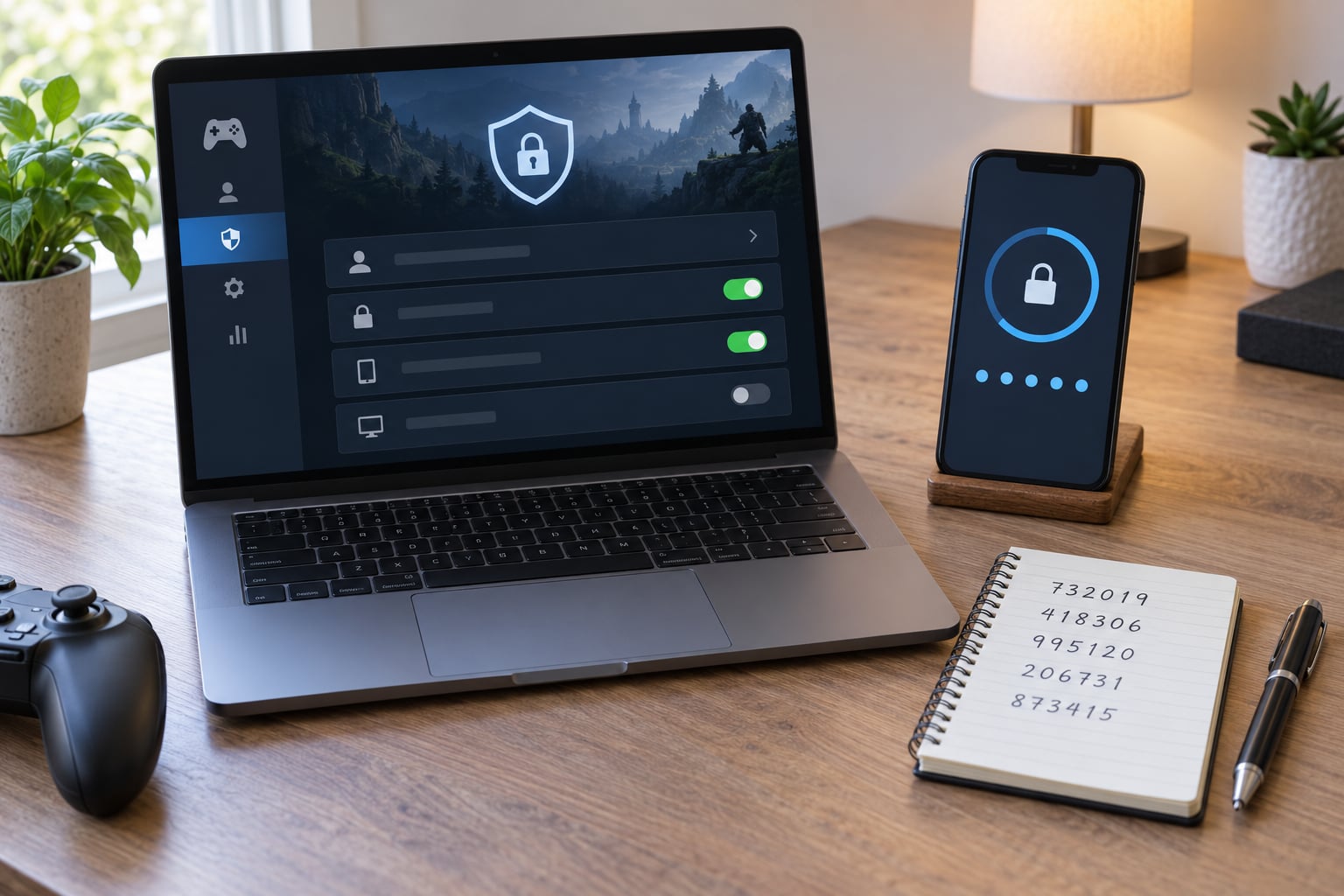
Securing a gaming account with two factor authentication takes about ten minutes: you turn on a second login step, save your backup codes somewhere safe, and test it once before you close the session. The short version of how to secure a gaming account with two factor authentication is simple — use an authenticator app rather than text messages, protect your recovery email first, and never skip the backup codes. Players lose inventories, ranked progress and linked payment methods to automated attacks, and a rotating six-digit code means a stolen password alone is no longer enough.
Two-factor authentication (2FA) asks for two things at login instead of one: your password, plus proof that you hold your phone, your security key, or access to a code sent to your inbox. A player trading rare skins or buying premium currency has the most to lose, and attackers automate this with credential stuffing lists built from earlier breaches.
What follows is platform-agnostic on purpose. Menu labels differ between Steam, Epic Games, PlayStation, Xbox, Nintendo, Battle.net, Riot, Ubisoft Connect and mobile accounts, so work through the official site or app and match the closest label rather than expecting identical wording.
Table of Contents
- What You Need
- Step-by-Step
- 1. Sign in from a trusted device and verify your account
- 2. Open the account security settings
- 3. Choose an authenticator method
- 4. Set up the verification method
- 5. Save backup codes and recovery options
- 6. Test the setup and sign out safely
- Common Mistakes
- Frequently Asked Questions
- How do I enable two-factor authentication on Epic Games?
- How do I request account recovery for my Epic Games account?
- What if I lose my phone with the authenticator app?
- Do I still get a reward for enabling 2FA?
- Can I use the same authenticator app for multiple games?
- My account was hacked even with 2FA on — how?
- Conclusion
What You Need
Gather these before you touch any security setting. Turning on 2FA in a hurry is the single most common way players end up locked out of their own accounts.
- Direct access to your account. Sign in through the official website or app, typed in yourself rather than through a link in a message.
- A trusted device you still have. A laptop or desktop on your home network, not a shared or public machine.
- A working recovery email address. Check that you can open it right now, since email compromise defeats game-level 2FA.
- A current phone number. Only needed for SMS, but useful as a fallback recovery route.
- An authenticator app with backup or sync turned on. Google Authenticator, Microsoft Authenticator, Authy, or a hardware security key if the platform supports one.
- A password manager. The account password should be unique to that account, not reused from your email.
- Paper or a secure note. Somewhere physical and private to store backup codes, away from the device itself.
If your recovery email address is out of date, fix that first and save the verification codes for that email somewhere safe. Every step after this one depends on it.
Step-by-Step
Six steps, in this order, on the account you actually want to protect. Do the whole sequence before closing the browser tab.
1. Sign in from a trusted device and verify your account
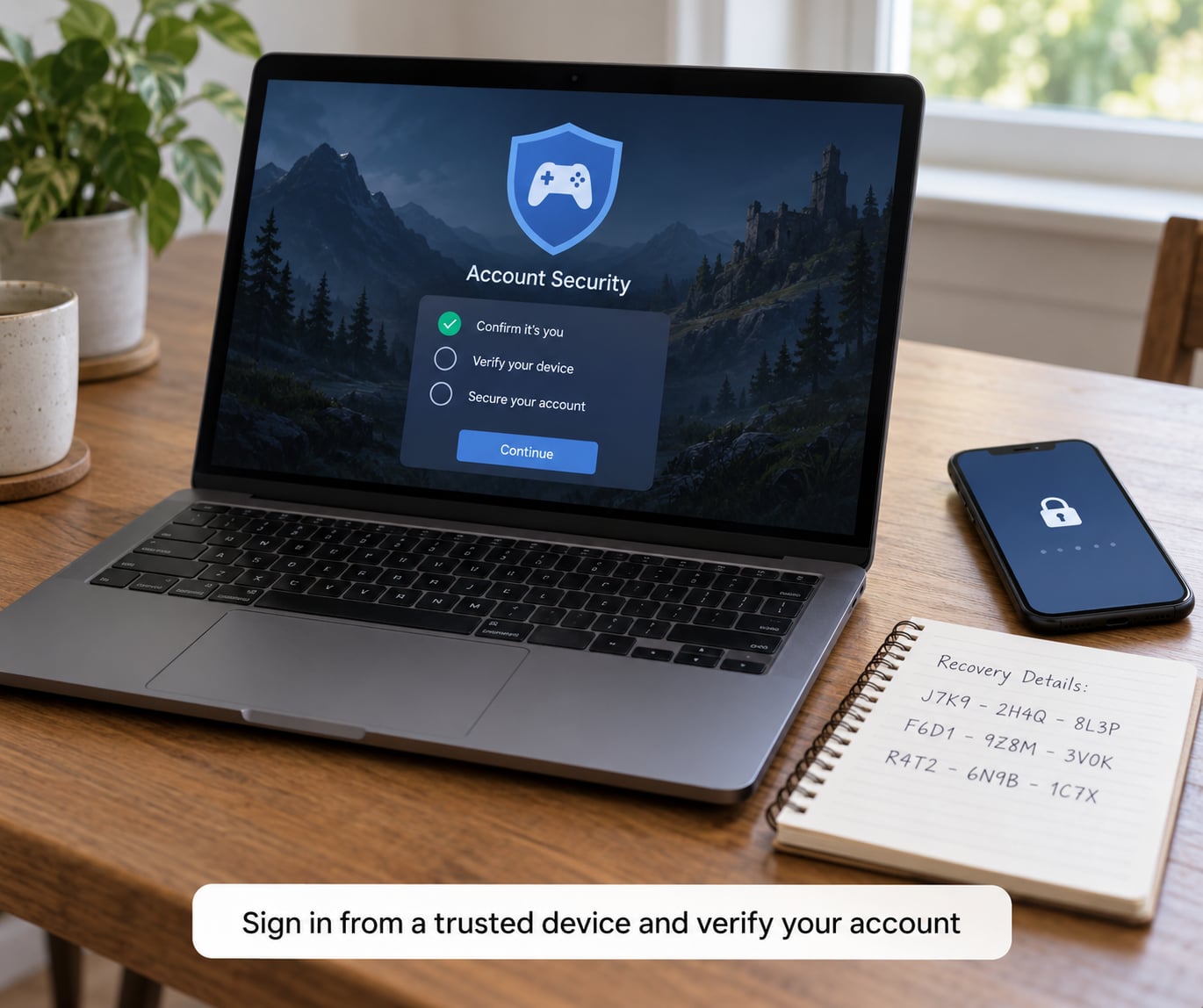
Sign in through the official site and check the email address and phone number listed on the account. If either one is an address you stopped using years ago, update it now and confirm the new one by clicking the link the platform sends.
While you are there, read the recent sign-in or login activity list if the platform offers one. Anything from a location you do not recognise means you should change the password and sign out every session before going further.
2. Open the account security settings
Look for a section labelled account, security, login, privacy, password, or account protection. Console and store accounts usually nest it under profile settings; phone-only games often bury it inside the app’s settings menu.
Change security settings only through the official site or app. Support pages that ask you to “verify” a login by entering your password and a code into a chat window are the classic phishing pattern.
3. Choose an authenticator method
Pick the strongest option your platform actually offers, and treat SMS as the fallback rather than the plan. Here is the honest comparison:
| Method | How it works | Security | Watch out for |
|---|---|---|---|
| Authenticator app | App generates a rotating six-digit code every 30 seconds | Strong | Losing the phone without backup access locks you out |
| Push approval | Approve a request from another device, with a number-matching check | Strong | Prompts can be spammed; only approve ones you started |
| Hardware security key | Physical FIDO2 key touches the device or USB port | Strongest | Not every game platform supports it |
| SMS text code | Code arrives by text message on your phone number | Weakest | SIM swap attacks move your number to another card |
| Email code | Code sent to your inbox | Weak | Only as strong as the email account itself |
My rule of thumb: authenticator app first, hardware key if the game supports it, SMS only when it is the only option available.
4. Set up the verification method
The platform shows a QR code and a short setup key underneath it. Scan the QR code with your authenticator app, or type the setup key in manually if the camera will not focus.
Name the entry in your app so you recognise it later — something like “Steam” or “Epic” rather than the default. Generate a code in the app and confirm the six digits match what the platform asks for.
That setup key is the account itself as far as an attacker is concerned. Nobody legitimate ever asks you to read it out, type it into a chat, or send a photo of it. If a page asked for it, close the tab and start again from the official site.
5. Save backup codes and recovery options
Most platforms generate a set of single-use recovery codes when 2FA is enabled. Print them or write them out, label them with the platform name and the date, and store them somewhere other than your phone.
Do not screenshot them, do not email them to yourself, and do not save them as a file on the computer that holds the authenticator. The whole point is that a thief with one device cannot get both the codes and the app.
Re-check that the recovery email and phone on the account are ones you still control. This is also the moment to add a secondary recovery address if the platform supports more than one.
6. Test the setup and sign out safely
Sign out of the account on that device and sign back in using the code or key from your app. If the prompt appears and your code works, the setup is real rather than cosmetic.
Check the activity list again to confirm the second login registered as you. If you get an error or a lockout message, do not keep guessing — use a backup code, and if that fails, go to the platform’s official recovery form.
Only close the original session once the test login succeeds. Changing your phone, restoring a backup, or reinstalling the authenticator before this test is how most lockouts happen.
Common Mistakes
These are the failure patterns that show up again and again, with the fix for each.
- Clicking a security link in a DM or email. Phishing pages capture the password and the 2FA code in one window. Type the official address yourself instead of following the link.
- Reusing a password from another account. If that other site leaks, the attacker walks straight in. Generate a unique password in your password manager first.
- Switching phones without transferring first. Before you wipe the old phone, enable your authenticator’s backup or sync, or move the account to the new device, then test a login.
- Sharing one authenticator entry with friends. Two people on one entry means one lost phone exposes both accounts. Each person needs their own entry.
- Scanning a QR code from an untrusted page. Only ever scan the code shown inside your own official account settings.
- Saving backup codes to the cloud or a photo. Store them offline, physically separate from the device.
- Rushing recovery changes. If you suspect someone is in your account, revoke sessions and rotate credentials before you fiddle with 2FA settings, or you may lock yourself out mid-change.
One more thing worth knowing: 2FA does not protect an account whose credentials were already exposed in an old breach. Change the password as part of the same job.
Frequently Asked Questions
How do I enable two-factor authentication on Epic Games?
Open the Epic Games launcher or the account portal on the official site, sign in, then go to the Password and Security area of your account settings. Choose to enable two-factor authentication, pick an authenticator app, and scan the QR code shown on screen with your phone. Confirm a six-digit code from the app, then generate your backup codes and save them offline before closing the browser.
How do I request account recovery for my Epic Games account?
Use the account recovery form on the official Epic Games support site rather than a forum post or third-party form. Sign the request from the same device and network you normally use, and include the account display name, the email on file, and purchase receipts for the games you own. Straightforward cases have been reported at roughly 48 hours; identity-verification cases take considerably longer.
What if I lose my phone with the authenticator app?
Try a backup code first; each one works once and gets you back in immediately. If you saved the codes, sign in, remove the lost device from the account, and rescan a fresh QR code on the new phone. If you saved nothing, go through the platform’s official recovery flow with purchase receipts and be prepared to prove ownership. This is why the codes come before anything else.
Do I still get a reward for enabling 2FA?
Some titles have paid this out as a one-off unlockable cosmetic. Fortnite offered the Boogie Down emote when 2FA was first enabled on an eligible account. These promotions change often and are not permanent, so check the current in-game or news page for your game rather than assuming the reward is still available.
Can I use the same authenticator app for multiple games?
Yes, and most people do. One app holds a separate entry for every platform, each generating its own six-digit code. Name each entry after the service so you do not enter the wrong code at the wrong login screen, and keep the app’s own backup or cloud sync switched on so a lost phone does not mean a lost account.
My account was hacked even with 2FA on — how?
Two-factor authentication does not block everything. Malware on the machine can steal the session cookie from an already-completed login, or a fake support agent can talk you into approving a push prompt you never started. Change the password, sign out of all sessions, revoke linked devices and payment methods, then re-check the recovery email and phone for unauthorised changes.
Conclusion
Start with the account you care about most — usually the one holding tradeable items or a linked card. Confirm the recovery email and phone still belong to you, enable the strongest authenticator method the platform supports, store the backup codes offline, and run one test sign-in before you close the session.
Ten minutes of setup now is much cheaper than proving ownership of an emptied inventory later, and the habits above hold for every account you own going into 2026.