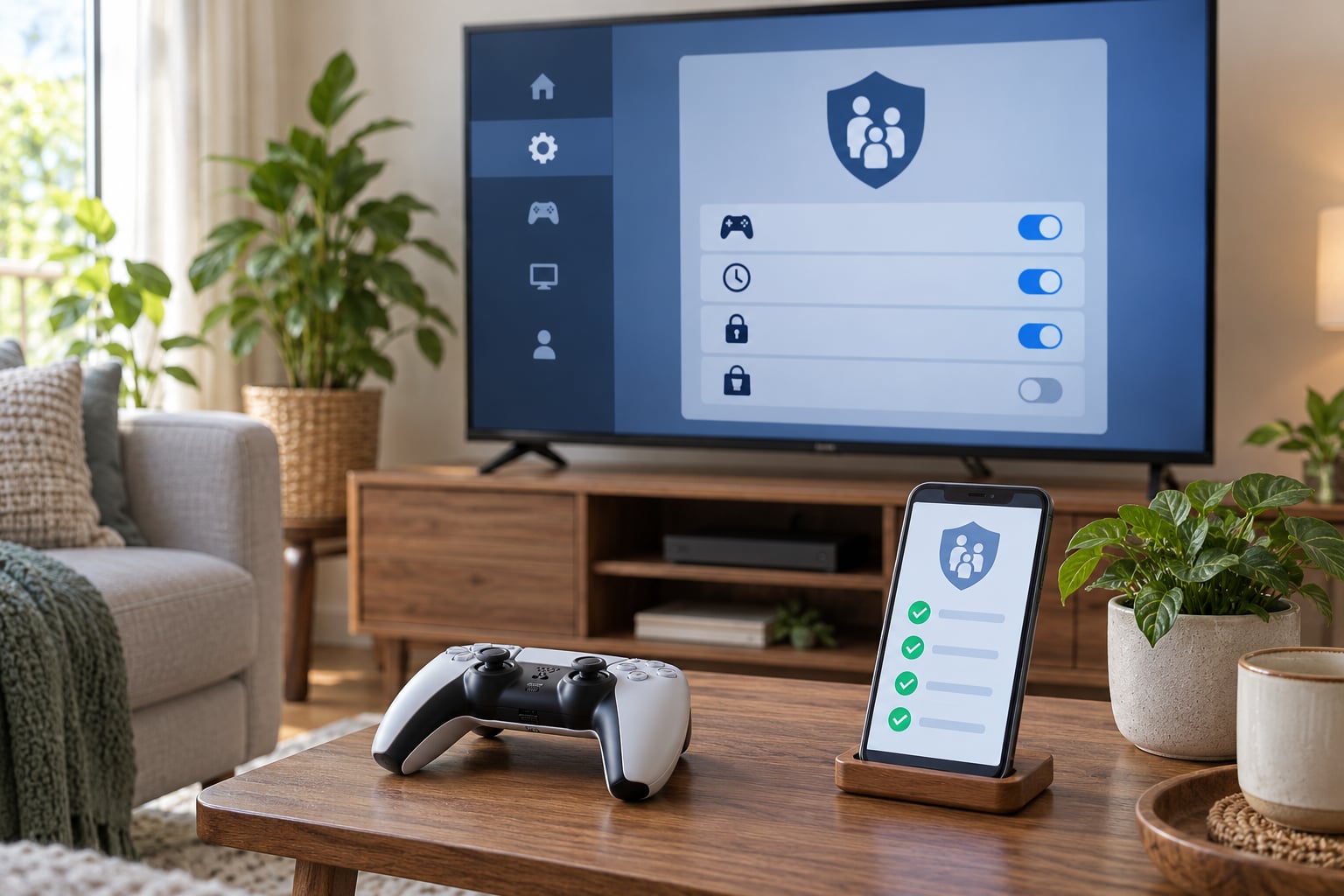
To set up a console for kids safely, you create a separate child account under your own, install the system updates, then switch on the built-in parental controls for time limits, purchases, content ratings and online contact. Budget about 45 minutes the first time, plus another 15 with your child for the test run at the end.
Menu names shift between console generations, models and software versions, so treat the paths below as the route rather than the exact wording. Where a setting lives under a different name on your system, the console’s own manual and account help pages are the tiebreaker.
I set these up for my own kids and for two friends’ households, and the pattern is always the same. The parents who have no arguments about it are the ones who did all eight of these before the console left the box.
Table of Contents
- What You Need
- Step-by-Step: How to Set Up a Console for Kids Safely
- 1. Create a Secure Family Account
- 2. Update the Console and Register It
- 3. Set Parental Controls by Age
- 4. Restrict Purchases and Downloads
- 5. Adjust Privacy, Chat and Sharing Settings
- 6. Set Play-Time and Bedtime Limits
- 7. Check Web, App and Voice Safety Features
- 8. Test the Setup and Review It Periodically
- Common Mistakes
- Frequently Asked Questions
- What is the safest console setup for a young child?
- Should parents let kids play online with friends?
- How do I stop accidental purchases on a game console?
- How much screen time is appropriate for children?
- Can parental controls block inappropriate games completely?
- When should I review or change console safety settings?
- Conclusion
What You Need
Almost nothing, which is the nice part. You need the console itself, the television or monitor it will run on, and the controller that came with it.
You also need:
- A reliable internet connection, ideally on a network you control rather than public Wi-Fi.
- Your phone, because every current console manages family settings through a companion app.
- An adult account with a strong, unique password and a recovery email or phone number attached.
- Your child’s birth year and an honest idea of when they usually play.
- A card or note with the account recovery details, filed somewhere your child cannot reach.
Sit down with your child while you do this. A kid who watched you set the limits treats them as a family rule; a kid handed a locked console treats them as a punishment.
Step-by-Step: How to Set Up a Console for Kids Safely
1. Create a Secure Family Account
Start with your adult account, then add a child profile from its family management screen. Give the child profile its own login, its own password and its own avatar, rather than letting them use yours.
On your own account, turn on two-step verification and attach a recovery phone number. If someone ever tries to change the password on the adult account, that second factor is what stops them.
Write the recovery details on paper and put them somewhere adults only can reach. This is the step most families skip and the one that causes the most panic later.
How to check it worked: your child can sign in with their own profile without typing anything of yours, and your adult profile asks for a second factor when account details change.
2. Update the Console and Register It
Install every pending system update before you configure anything. Console software updates patch security holes, and the parental control screens themselves get fixed and renamed in them.
Do it on your home network, not a café or airport connection. Restart when the console asks, then register the device to your adult account.
Install the games your child will actually play now too. Downloading a 60GB title later can mean an hour of waiting while the console sits unlocked on the sofa.
How to check it worked: the console reports no pending updates, and it appears in your account’s list of registered devices.
3. Set Parental Controls by Age
Open the family or parental controls menu, choose your child’s profile, and enter their birth year. The console uses it to pick a starting content filter level.
The filter blocks games rated above a certain age. Rating bodies like ESRB in North America and PEGI in Europe label games, but a rating is a guide about content, not a guarantee about difficulty, violence intensity or online behaviour.
Check individual titles rather than trusting the shelf. A game rated for your child’s age can still have open chat, and a lower-rated game can be more stressful than the number suggests.
How to check it worked: try to open a game rated above the filter level. It should ask for an adult password or refuse to launch.
4. Restrict Purchases and Downloads
Set the monthly spending limit to zero for younger children, and require your adult password for any purchase at all. Zero beats a small number because in-game stores are built to look cheap.
Turn off free trials, so a subscription cannot start itself and quietly begin billing. Nintendo, PlayStation and Xbox all let you require approval before a subscription starts.
Lock down downloadable content, in-game currency and any game that can be bought after install rather than bought from a store. Free trials of game passes and cosmetic currency are the most common surprise charges parents report.
How to check it worked: open the store from the child profile and attempt a nonessential purchase. It should demand your password and stop there.
5. Adjust Privacy, Chat and Sharing Settings
Start with the most private setting the console offers, then loosen it only when your child has a specific, supervised reason. Opening something up later is easy; closing it back down triggers a conversation.
Work through this list in your console’s privacy menu:
- Who can send friend requests or invites.
- Who can be heard on voice chat and who can send text or direct messages.
- Whether the profile can broadcast or stream publicly.
- Whether screenshots and recordings can be shared or viewed by others.
- Whether location or presence is visible.
- Whether the child can interact with other players’ user-generated content.
Set chat to friends-only. Some platforms treat voice and text permissions as a single switch, which means you either allow a whole group or none of it. If that limitation bothers you, tell your child which friends are approved and check in periodically instead.
How to check it worked: have your child try to add an adult they do not know. The request should be blocked or require your approval.
6. Set Play-Time and Bedtime Limits
Set a daily play time limit and a bedtime pause in the same settings screen. A plain limit is a countdown; a scheduled window is stricter, because it stops play at a set time whether or not the limit has been reached.
Pick something you can actually keep. Pediatric bodies such as the American Academy of Pediatrics describe gaming as one activity among school, sleep, physical activity and family time, rather than something that gets its own separate budget carved out of the day.
For a handheld that lives in a bedroom, the bedtime pause matters more than the daily total, because it works when the console is out of sight.
How to check it worked: set the limit to a few minutes away and let it expire in front of your child. They should see the console close or return to the home screen.
7. Check Web, App and Voice Safety Features
The console’s browser is a hole straight past your content filter, because most in-console web browsers are unfiltered. Block it entirely for younger children, or restrict it in your router.
Review which apps the profile can use and whether those apps can share data. Voice assistants and voice chat usually have their own filters, and reporting tools for harassment sit in the account or communication settings rather than in the parental menu.
Feature names and availability differ by model, region and software version, so check the console manufacturer’s current support documentation for the exact device in your living room rather than trusting a guide written for a different machine.
How to check it worked: ask your child to open the browser on their profile. It should be blocked or heavily restricted.
8. Test the Setup and Review It Periodically
Run the test with your child sitting next to you. Walk the five checks: signing in to the child profile, attempting a purchase, sending a friend request, opening a too-old game, and letting the play time limit expire.
Close the back doors while you are in there. Put a password on the adult profile. Remove any unused adult logins still saved on the console. Set a console-level PIN if your child is old enough to reach a factory reset, since a reset wipes your settings entirely.
Review again after every major system update, whenever a new game arrives, and any time your family rules change. Settings survive updates, but new features often arrive switched on.
How to check it worked: you can run all five checks in under ten minutes and nothing asks for a password you did not expect.
Common Mistakes
Using one shared login for everyone. This is the most common error and the root of most complaints. Fix it by giving every person their own profile, including adults, and locking yours with a password.
Leaving purchases unrestricted. A store balance or a free trial can become a real charge before you notice. Fix it by setting the spending limit to zero and requiring your password for every purchase and every subscription start.
Relying on game ratings alone. Ratings describe content, not chat, voice, spending or difficulty. Fix it by combining the rating filter with the privacy, chat and purchase settings.
Forgetting the browser. A restricted console with an open web browser is not restricted. Fix it by blocking browsing on the child profile or at the router.
Treating headphones as a safety control. A headset changes when other people can hear your child. It does not restrict who can talk to them, which is what parents usually mean.
Setting limits a child can walk around. A limit that ends in an argument every evening gets disabled entirely within a week. Fix it by starting with a limit you can hold without raising your voice, then raising it after a month of good behaviour.
Setting the rules without explaining them. Silent configuration produces rebellion at exactly the wrong moment. Fix it by telling your child what is limited and why, and by letting them earn adjustments rather than arguing for them.
One honest limitation is worth knowing before you start. On Nintendo’s home console, several restrictions apply to the whole device rather than to a single user profile, so a shared console means parents and children share the same time budget. If you have two children who need different limits, separate profiles on PlayStation or Xbox handle it more cleanly.
Frequently Asked Questions
What is the safest console setup for a young child?
The safest setup starts with a separate child account under your adult account, then switching on every built-in control: age rating filter, zero spending limit, password required for purchases, friends-only chat, blocked in-console browser, and a bedtime pause. Leave your adult profile password-protected so there is no escape route. Test all of it together before handing the controller over.
Should parents let kids play online with friends?
It can work well when settings start private. Allow friend requests from existing friends only, keep chat to friends rather than everyone, and turn off public broadcasting. Some platforms treat voice and text permissions as one switch, so you approve a whole group or none of it. Tell your child which friends are approved and check in every few weeks.
How do I stop accidental purchases on a game console?
Set the monthly spending limit to zero on the child profile, require your adult password for every purchase, and turn off free trials so subscriptions cannot start themselves. Also lock downloadable content and in-game currency purchases. Test it once by attempting a small purchase from their profile; it should stop at your password prompt.
How much screen time is appropriate for children?
There is no single number that fits every child, and pediatric guidance such as the American Academy of Pediatrics treats gaming as one activity alongside sleep, school, physical activity and family time. A practical approach is a daily limit plus a bedtime pause you can hold without argument, then adjust after a month based on how school, sleep and mood are going.
Can parental controls block inappropriate games completely?
Not completely. Rating filters block games above a set level, and many platforms let an approved exception be whitelisted, which can let a higher-rated game through when you have approved it for another reason. A rating also describes content only, not chat, voice chat or in-game purchases. Keep the rating filter, privacy settings and purchase limits switched on together.
When should I review or change console safety settings?
Review after every major system update, whenever a new game is added, and any time your family rules change. Settings normally survive updates, but new features often arrive enabled by default. A ten-minute check of purchases, chat permissions and play limits a couple of times a year catches most surprises early.
Conclusion
Start with the first four actions tonight: create the child profile, update the console, turn on the age-appropriate controls, and set the spending limit to zero with a password required for purchases.
Then review privacy and chat settings, add a daily limit and a bedtime pause, block the in-console browser, and run the five-minute test together before the first game starts.
Controls only do half the job. The other half is the conversation about why the limits exist, which games are worth loosening them for, and what your child can expect as they get older. Review the settings again after system updates, new games, and whenever your family rules change.