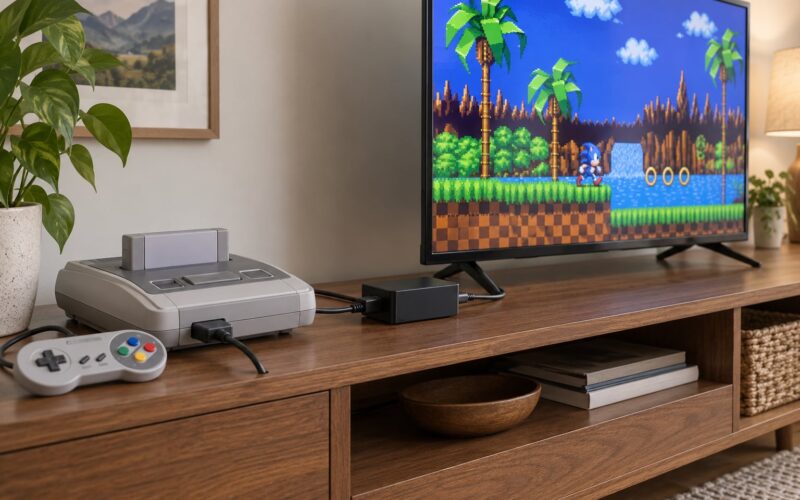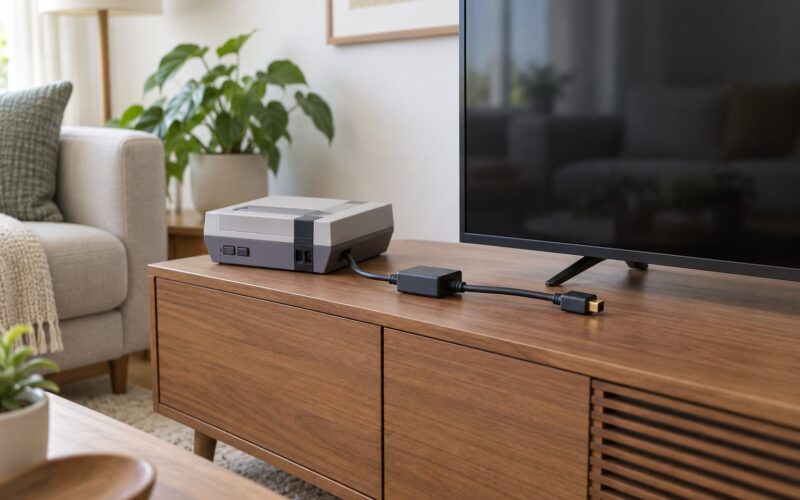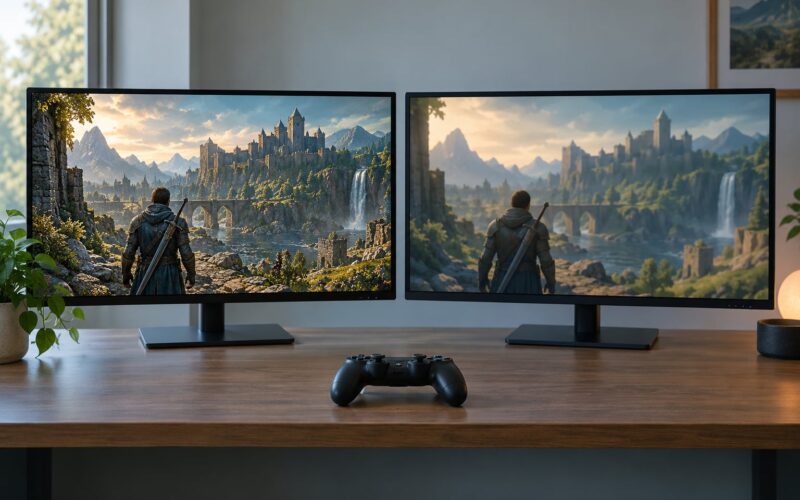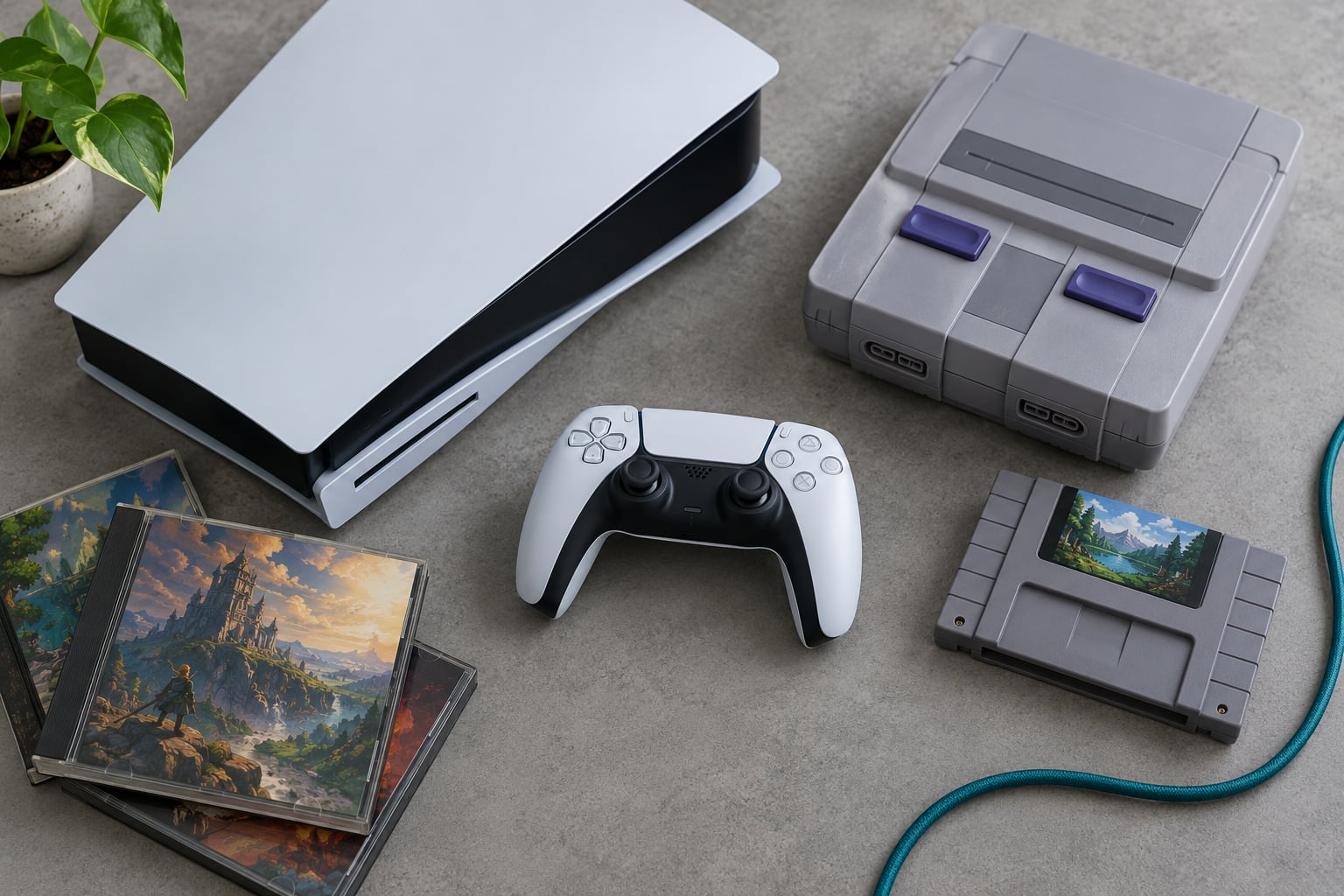
Yes, and most of the time you don’t need original hardware at all. The fastest path is to check whether the game has an official digital re-release on a storefront like GOG or Steam, then fall back to a free open-source emulator when it doesn’t. Budget about an hour for the first setup, and nothing beyond a modern PC, a controller, and a folder for your game files.
The reason old games refuse to launch on a new machine has almost nothing to do with your PC. Operating systems dropped legacy 32-bit support years ago, the DirectX versions these titles depended on are gone, and the drivers they used have not existed since the mid-2000s. Emulation sidesteps all of that by recreating the original hardware in software, which is exactly how to play older games on modern hardware without tracking down a CRT and a shelf of dead consoles.
Table of Contents
- How to Play Older Games on Modern Hardware: What You Need
- Step-by-Step
- 1. Identify the Original Platform and Game Format
- 2. Choose the Best Playback Method
- 3. Check Compatibility Before You Buy or Install
- 4. Set Up the Console, Emulator, or Game Library
- 5. Configure Display, Input, and Controller Settings
- 6. Test the Game and Troubleshoot Common Problems
- Common Mistakes
- Frequently Asked Questions
- Are emulators on PC illegal?
- What is the best emulator for beginners on PC?
- Do emulators come with games?
- Do I need a BIOS file to play games?
- Why does my old game run too fast with high-pitched audio?
- Can I play old games on a modern TV with a controller?
- Conclusion
How to Play Older Games on Modern Hardware: What You Need
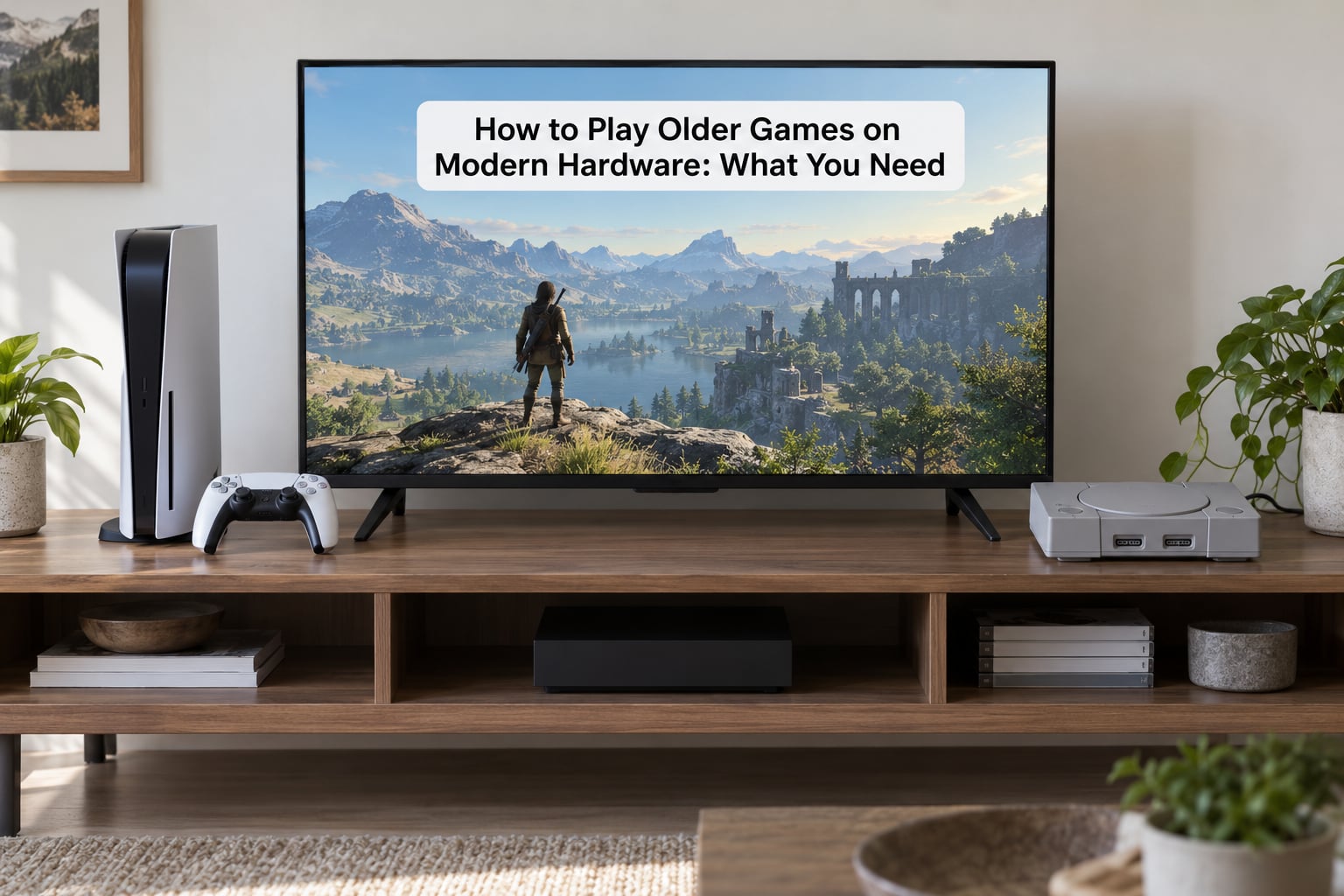
There are five routes to an older game, and knowing which one applies saves most of the guesswork. They differ in how authentic the result looks, how much hardware you own, and how much setup they ask of you.
- Official backward compatibility. Current consoles play a chunk of their own older catalogs natively. No emulator, no BIOS hunting, and the game runs on hardware the manufacturer still supports.
- Digital re-releases and remasters. Platforms like GOG, Steam, and the PlayStation and Xbox storefronts sell older titles rebuilt for modern operating systems. These are ordinary purchases and install like any other game.
- Source ports. For a subset of classic PC games, developers rebuilt the engine so the original runs natively on Windows, Linux, and macOS with modern controllers and higher resolutions. Doom, Quake, System Shock, Oddworld, and Tomb Raider all have official ones.
- Emulation. An emulator is software that recreates the original console’s CPU, graphics chip, sound hardware, and input handling. You supply the game file yourself, from media you own or a legal digital copy.
- Original or licensed hardware. A real console, an official mini console, or a handheld built around one specific system. Highest authenticity, most shelf space.
A ROM is the game file an emulator loads, whether it came from a cartridge, a disc, or a digital store. A disc image is the same idea for CD-based consoles. A BIOS file is different: it is the console’s own startup program, and some emulators refuse to run without one you extracted from a machine you own.
Whatever the route, you need a modern PC with a current graphics driver, a controller you can remap, and a plain folder on a drive outside any cloud-synced directory. Steam Deck, ROG Ally, and other handheld PCs run the same software as a desktop, so nothing changes there except screen size.
Step-by-Step
1. Identify the Original Platform and Game Format
Start by naming the system the game came from, because that decides everything else. The disc or cartridge in your hand tells you a lot: a CD-sized disc means PlayStation, Saturn, Dreamcast, GameCube, or a PC CD-ROM; a small cartridge means a Nintendo system; a rectangular card means an SNES or Mega Drive game; a metal cartridge with a notch means Game Boy.
Check the case art for a region marker. NTSC was the standard in North America and Japan at 60Hz, PAL in Europe and Australia at 50Hz. This matters more than it sounds, and I will come back to it in the troubleshooting section, because a PAL game running on a system set to NTSC is the single most common reason an old game looks wrong.
Then check whether the game already exists in a modern form. Search the storefronts by title before downloading anything, and search for a source port if it is a PC game. Plenty of titles from the 1990s and early 2000s were deliberately re-released as native modern builds, and playing one of those needs no emulator at all.
2. Choose the Best Playback Method
Once you know the platform, compare the options honestly. Authenticity, convenience, and cost rarely point to the same answer, so pick based on which one you care about.
| Method | Authenticity | Setup effort | Best for |
|---|---|---|---|
| Digital re-release | Remastered or rebuilt | None | PC titles with a modern store version |
| Source port | Original content, new engine | Low | Classic PC games where an official port exists |
| Backward-compatible console | Native hardware | Low | Carts and discs your current console reads |
| Standalone emulator | Closest software recreation | Medium | One system you want the best possible result on |
| RetroArch-style front end | Varies by core | Medium | Many systems in one library interface |
| Original or mini console | Exact | High | Collectors and anyone with shelf space |
Standalone emulators usually give you the best settings for a single system, and their project sites list the exact build you need. An all-in-one front end like RetroArch bundles many systems behind one interface, which is easier to maintain but means your result depends on whichever core that front end happens to ship.
If you only own a handful of titles from one era, start standalone. If you are building a library across several systems, or you are on a handheld where installing separate programs is annoying, go with the front end.
3. Check Compatibility Before You Buy or Install
Compatibility information saves more time than any other step. Most emulator projects maintain a public list of games that run correctly, often sorted by status, and a title marked broken there will waste an afternoon if you find out after setup.
Check three things specifically. First, whether the emulator needs a BIOS file for that system, and whether it ships one or expects you to supply it from your own hardware. Second, the region compatibility of the title. Third, whether the modern edition you found includes the original release rather than only a remaster or a bundle that assumes you own the previous game.
On handheld PCs, add a thermal check. x86 handhelds such as the Steam Deck and the ROG Ally run PlayStation 2 and GameCube titles at full speed, but sustained load on a small chassis can throttle, and a game that runs perfectly docked may stutter in handheld mode. Android devices are a different story: ARM hardware typically handles systems up to PlayStation-era content comfortably and struggles beyond it.
4. Set Up the Console, Emulator, or Game Library
Download emulators only from the project’s own site, its GitHub repository, or an official app store listing. Mystery all-in-one archives and repackaged BIOS packs are the most common source of malware in this whole hobby, and there is never a good reason to download one.
For a standalone emulator, the setup is: install it, point the games directory at one folder on your drive, and open the emulator. Then load a game file. Keep game files in something like D:RetroROMsNintendo 64 with one subfolder per system and the original filenames intact, because renaming files breaks the compatibility lists you will rely on later.
Keep that root folder out of OneDrive, Dropbox, or any other synced service. Sync tools lock files while uploading, emulators fail to write saves into locked folders, and half your library quietly disappears from the game list afterward. Program Files is a worse version of the same problem.
DOS games have their own tool, and the forum consensus on r/dosgaming is that DOSBox beats trying to emulate a specific 486 machine for most people. Make a folder for your DOS games, open DOSBox-X, and mount it as a drive with the command MOUNT C /path/to/games. You can then change into it with C: and run the installer exactly as you would have in 1994. If the sound card is silent, match the game’s expected Sound Blaster settings to the IRQ, DMA, and port the emulator is using.
For a front-end setup, RetroArch with the DOSBox-Pure core is the path most people in r/RetroArch and r/emulation recommend, and EmuDeck handles the boilerplate on a Steam Deck in an afternoon rather than several days. Front ends also let you plug in a library manager such as Pegasus or Attract-Mode so the whole collection shows up with box art instead of a folder tree.
If you own the physical game, imaging your own disc or cartridge is the clean route. Use a reputable drive imaging tool, verify the dump, and store it with your console. That copy is yours, and it is what you load into the emulator.
5. Configure Display, Input, and Controller Settings
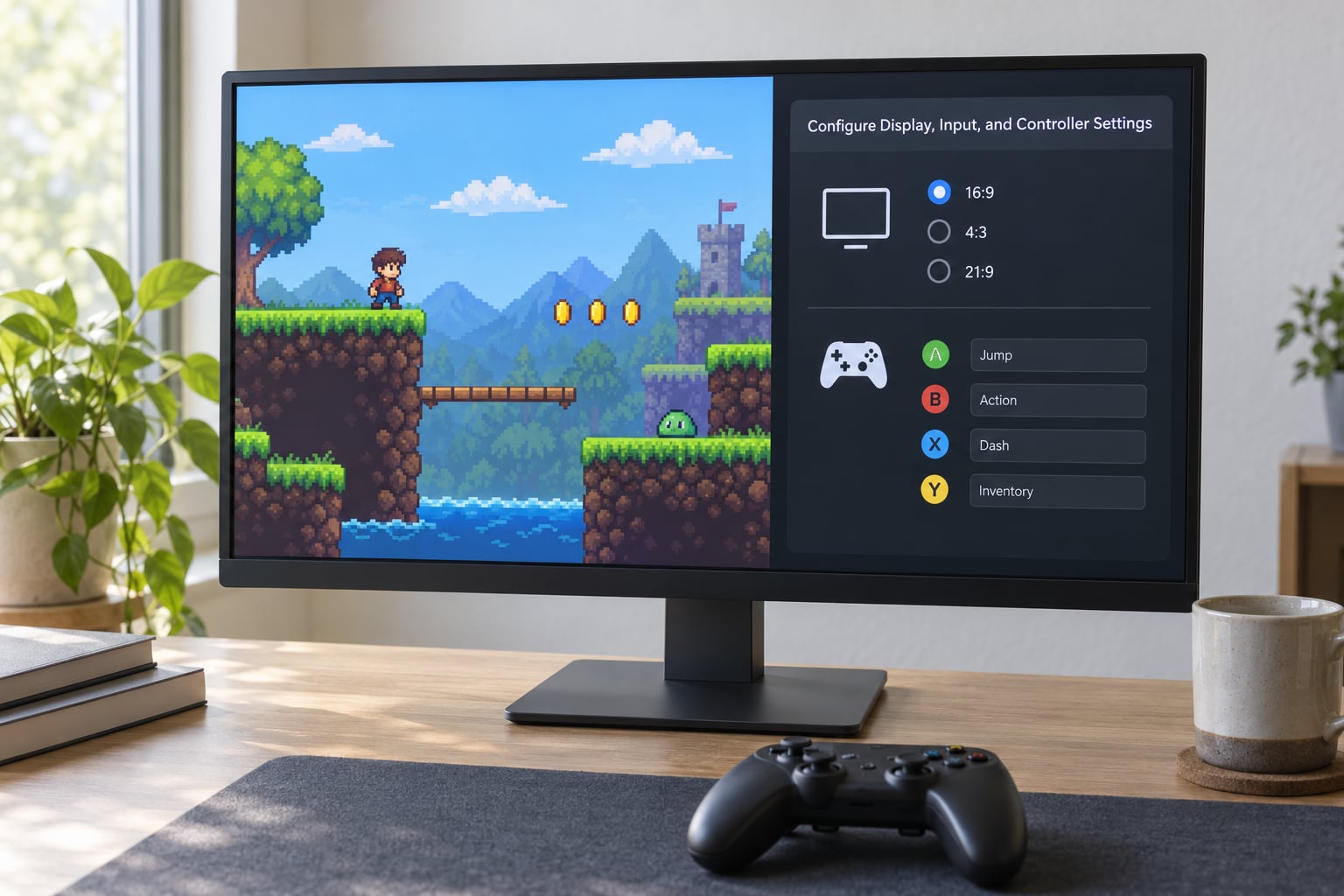
Out of the box, most emulators stretch 4:3 content across a 16:9 screen, which makes characters look wide and wrong. Set the aspect ratio to the original 4:3 and choose integer scaling so the pixels stay square. The picture will have black bars on the sides, and that is the correct result.
Next, decide on a look. Integer scaling is sharp and honest. A CRT shader adds scanlines, curvature, and phosphor glow that approximate a period display, and on modern panels people tend to keep the shader but drop the curvature and the heavy grain, because exaggerated settings on a flat screen look like a filter rather than a tube. For higher-end systems, raising internal resolution above the native output smooths polygons and sprites noticeably.
Controllers need one pass of mapping in every emulator. Bind each physical button, set the analog deadzone so a drifting stick does not move the character on its own, and confirm the emulator has detected the pad at all. Saved configuration files sometimes get wiped if the emulator is portable; keeping your emulator in a normal install folder avoids that entirely.
For input lag on a modern television, turn off any TV-side motion smoothing or “game mode” post-processing in the picture settings, and set the console or emulator to send video at the display’s refresh rate where possible.
6. Test the Game and Troubleshoot Common Problems
Run the game first with default settings and change exactly one thing at a time. That advice repeats across nearly every beginner thread on r/emulation and r/RetroArch, and it is right: changing a dozen options before the first boot leaves you unable to tell which one caused the problem.
Check that audio plays, video runs at the speed you remember, saves write and reload, and every button registers. Then confirm frame pacing, which matters more than raw frame rate on a modern display.
| Symptom | Likely cause | Fix |
|---|---|---|
| Black screen after launch | Missing BIOS file or wrong graphics backend | Dump the BIOS from your own console; try a different backend |
| Everything runs too fast, music is high-pitched | NTSC game running in PAL mode or vice versa | Match the region setting to the game’s original region |
| No sound | Wrong IRQ, DMA, or port settings | Match the emulator’s sound values to the game’s requirements |
| Controller ignored | Not detected or unmapped | Reconnect, choose the right device, remap each button |
| Stuttering, dips below full speed | Thermal throttling or over-aggressive internal resolution | Cool the device, lower internal resolution, check power profile |
| Saves missing or corrupted | Folder inside a synced or protected directory | Move the library to a plain local folder |
| Blurry or stretched picture | Wrong aspect ratio and scaling filter | Set 4:3 and integer scaling |
| Game missing from the library | Folder structure or filenames changed | Restore the original one-folder-per-system layout |
Common Mistakes
Buying the wrong edition of a re-release. Collections frequently assume you already own the original game, so the modern edition alone may not include it. Read what the store page says the package contains before buying.
Downloading from a ROM site or an all-in-one archive. This is the fastest route to a password stealer on your main PC. Use official storefronts, and image your own discs instead.
Believing abandonware is a legal category. It is not a legal defense in any jurisdiction. A game that is no longer sold still has an active copyright holder, and publishers do still pursue this.
Ignoring region differences. A PAL game in an NTSC setup runs fast with pitch-shifted audio. Set the region before you start tuning anything else.
Forcing an unsuitable display mode. Widescreen hacks and aggressive upscaling can break HUD layout and speed-mechanic timing. Turn them off first, confirm the game is stable, then add them back one at a time.
Expecting original accessories to work. Light guns, dial controllers, and four-player adapters rarely map cleanly. Modern controllers with remapping cover most games, and accessibility remaps help players who cannot use the original layout.
Changing ten settings before the first boot. Defaults usually work. Change one setting, test, and repeat.
Putting your library in a cloud-synced folder. Sync locks break save writes and make games vanish from lists.
Assuming you need a dedicated GPU. Integrated graphics handle everything up to and including most sixth-generation console content comfortably. Discrete graphics start to matter for demanding Wii and PlayStation 2 titles, particularly at raised internal resolutions.
Chasing features you do not have yet. Save states, rewind, RetroAchievements, and cheats all work on front ends, but they are not a reason to abandon a standalone emulator that simply runs the game well.
Frequently Asked Questions
Are emulators on PC illegal?
The emulator software itself is almost always legal, and most major projects are open source. What is not legal is downloading copyrighted game files you do not own. Play games you bought, image your own discs and cartridges, or use the official digital re-releases. Abandonware is not a legal category, and no reputable source will frame it as one.
What is the best emulator for beginners on PC?
For one system, the standalone emulator from that system’s project is usually the best starting point, because the default settings work and the compatibility list is public. For many systems at once, RetroArch with modern cores is the smoothest option, particularly on a Steam Deck or Android device. Start with defaults and change one setting at a time.
Do emulators come with games?
No. Emulators ship empty. You supply the game file yourself from a cartridge or disc you own, from a legal digital purchase, or from an official source port. Any service offering a full library bundled with an emulator for free is distributing copyrighted material and is a common malware vector.
Do I need a BIOS file to play games?
Only some systems. Consoles that relied on licensed BIOS chips, such as PlayStation 1, some Sega Saturn models, and Nintendo 64, require one extracted from hardware you own. Emulators for arcade boards, most 8-bit and 16-bit home consoles, and later systems generally do not need one. Check the emulator’s documentation before you hunt for files.
Why does my old game run too fast with high-pitched audio?
That is almost always a region mismatch. PAL games were designed for 50Hz televisions and NTSC games for 60Hz, so a PAL title running on an NTSC setup runs about 20 percent fast and drags the soundtrack pitch up with it. Set the emulator’s region to match the game’s original region and the speed and audio both correct themselves.
Can I play old games on a modern TV with a controller?
Yes, and it usually needs two adjustments. Set the aspect ratio to the original 4:3 and enable integer scaling so the image is not stretched. Then turn off motion smoothing and other picture post-processing in the TV settings, which add noticeable input lag. A modern controller works once you remap its buttons in the emulator’s controller settings.
Conclusion
Start by naming the platform the game came from, then check whether an official digital re-release or a source port already exists, because those need no emulator at all. If not, pick a standalone emulator for that one system, download it from the project’s own site, and point it at a plain folder on a drive outside your sync software. Load the game with default settings, fix the region and aspect ratio if it looks wrong, and only then start adjusting picture and controller options.
That is genuinely all it takes to play older games on modern hardware in 2026. The skills involved are small; the only real risks are legal ones, and those disappear the moment you play what you own.