If you want clean stream audio, fix things in this order: the room, the microphone position, the input gain, then a short OBS filter chain. Most noise complaints come from a mic sitting next to a PC fan or six inches too far from someone’s mouth, and no filter rescues a signal captured badly. Updated for October 2026.
The whole job takes maybe 20 minutes once you know where to click. Below is the order I work in, the exact filter values that ship as OBS defaults, and the symptoms that mean a filter is doing too much.
Table of Contents
- What You Need
- Step-by-Step: How to Reduce Microphone Background Noise While Streaming
- 1. Identify What Is Causing the Noise
- 2. Improve Microphone Placement
- 3. Choose the Right Input and Audio Settings
- 4. Enable Noise Suppression
- 5. Filter Out Persistent Hiss and Hum
- 6. Test the Stream and Record a Backup Track
- Common Mistakes
- Frequently Asked Questions
- What is the easiest way to reduce background noise while streaming?
- Should I use noise suppression in OBS Studio or my streaming app?
- Why does my microphone pick up keyboard and fan noise?
- Do I need an expensive microphone to get clean stream audio?
- How do I fix static or electrical buzzing on a microphone?
- Is a noise gate better than noise suppression?
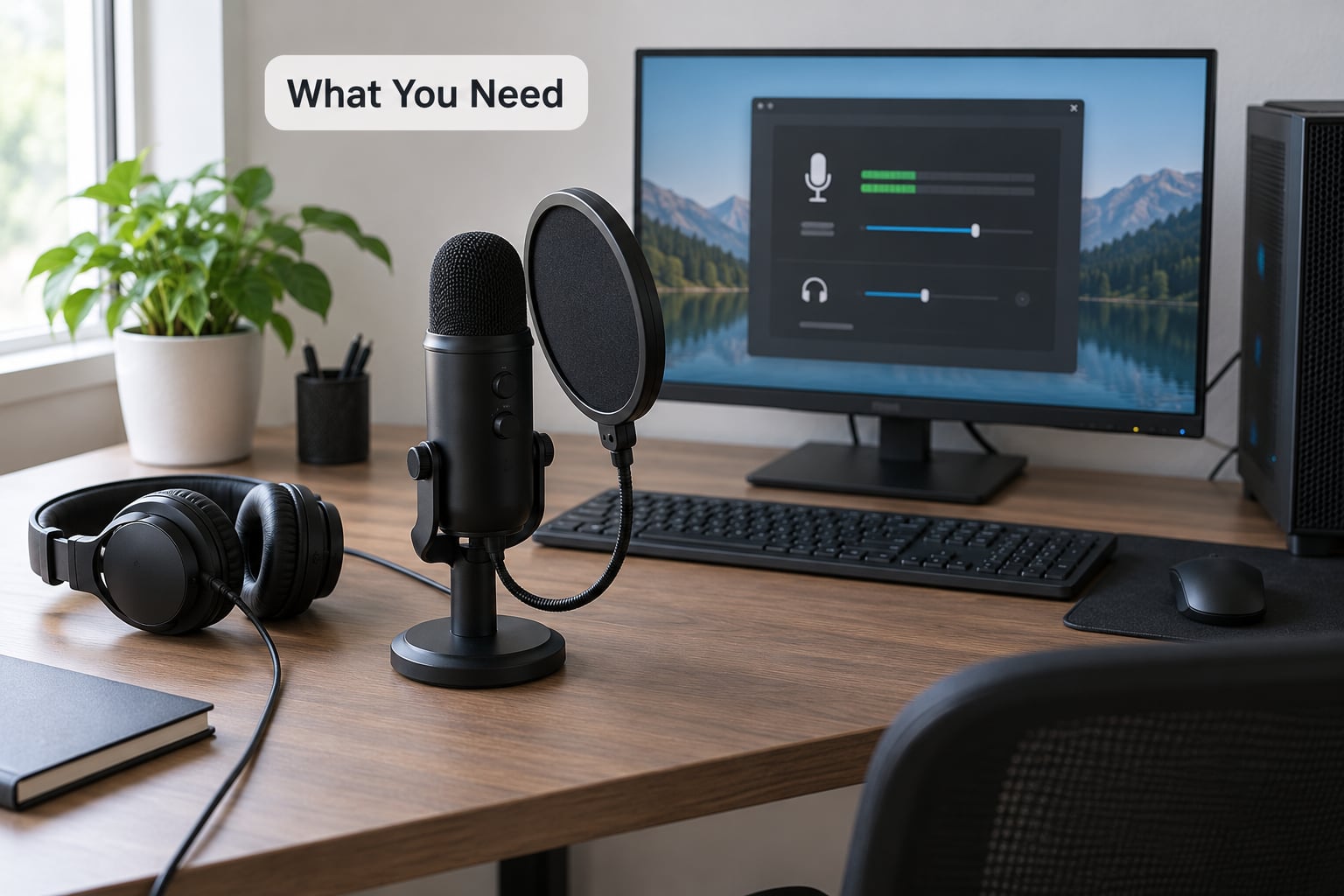
What You Need
Honestly? Not much. Everything below is optional, and the free version of this setup works for most streamers starting out.
- Any microphone that works. A USB mic plugged straight into the PC is fine. A dynamic mic rejects room noise better than a condenser, but neither fixes fan hum sitting on your desk.
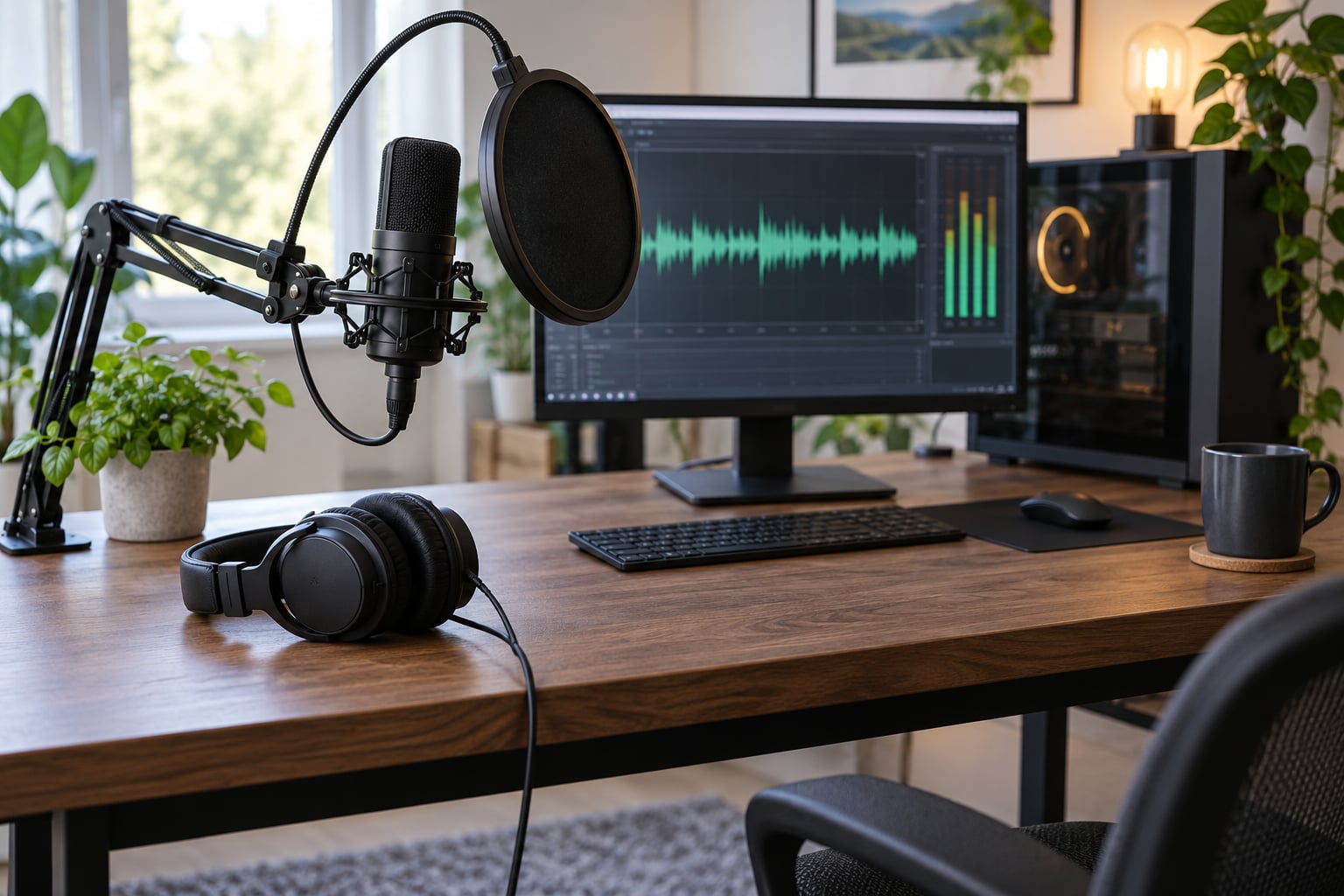
- A pop filter if you have a condenser or you speak close. It stops the p and b plosives that a noise filter will happily amplify. A foam windscreen is a different tool; it handles air moving across the mic, not consonants.
- A boom arm or shock mount to stop desk vibration and the scrape of a mic stand being nudged. A cheap boom arm does more here than any plugin.
- Headphones. Closed-back, so you can monitor your voice and spot problems without your speakers feeding noise straight back into the mic.
- Streaming software. OBS Studio is the reference here. Streamlabs Desktop is OBS under a different skin, so the filter panel works identically. Browser-based tools like StreamYard have their own noise removal toggle instead.
- Soft surfaces. A rug, a heavy curtain, a duvet over the door, a wardrobe you can leave open. These cut reflections that no software setting will touch.
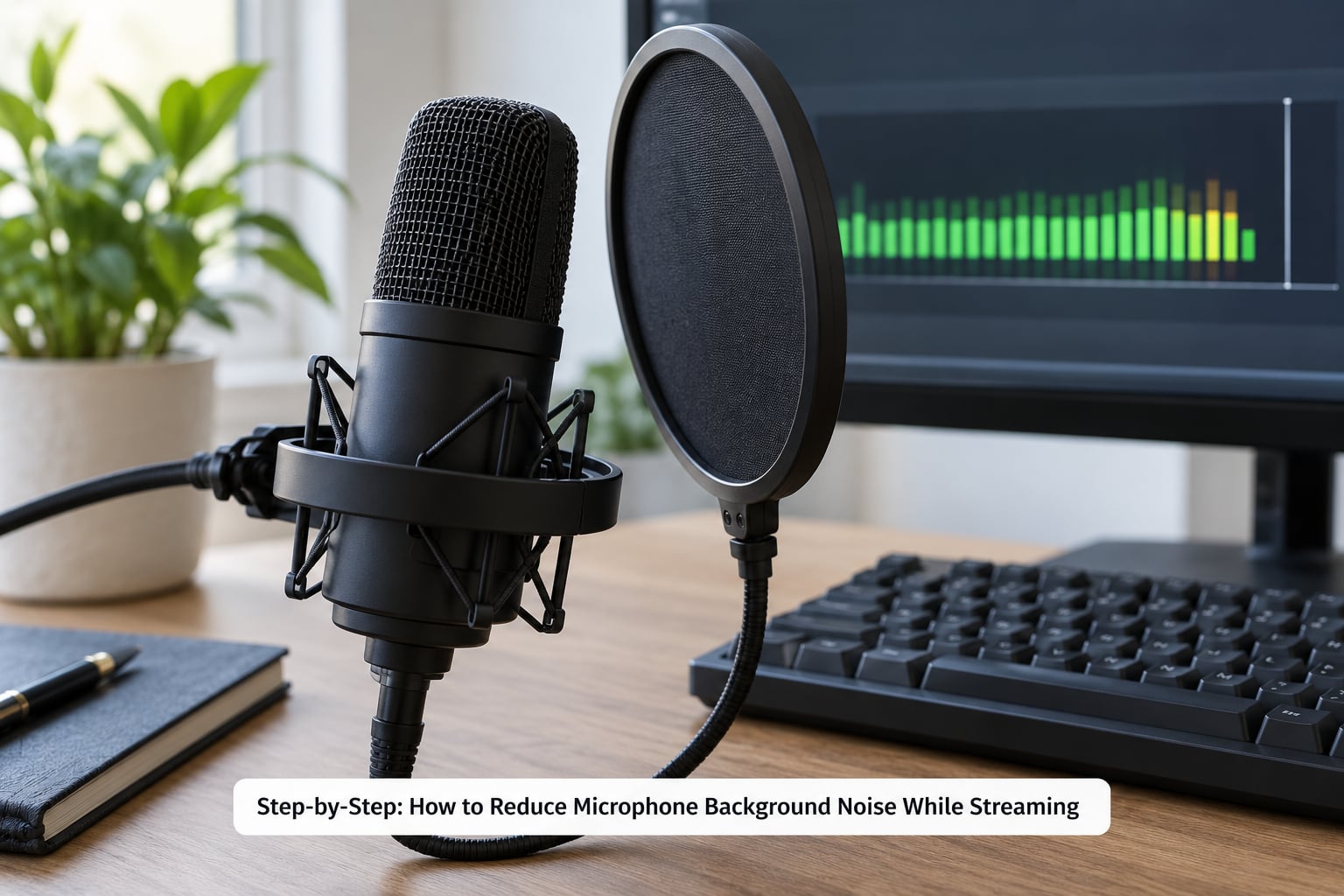
Step-by-Step: How to Reduce Microphone Background Noise While Streaming
Six steps, in the order that actually matters. Do them in sequence and skip to the next one only when the previous one stops helping.
1. Identify What Is Causing the Noise
Diagnose before you touch a setting, because each type of noise gets a different fix and the wrong filter makes the problem sound worse.
Sit in silence for ten seconds and listen. A steady hum that never changes is a fan, an air conditioner, a fridge or a power supply. Sharp clicks that come and go are your keyboard and mouse. A tail of sound that follows every word is echo off hard walls. A voice from another room is a person, and no filter removes a person without damaging you.
Then do the second test: speak normally for fifteen seconds and watch what stays underneath. Whatever remains while you talk is the part that matters most, because a noise gate only mutes you when you are silent and does nothing at all during speech. That misconception shows up constantly on the OBS forums, and it is why so many streamers give up on the gate entirely.
2. Improve Microphone Placement
Put the mic 4 to 6 inches (10 to 15 cm) from your mouth and speak slightly across it rather than straight into the grille. Close means louder voice and a better signal-to-noise ratio, and the angle handles plosives even without a filter.
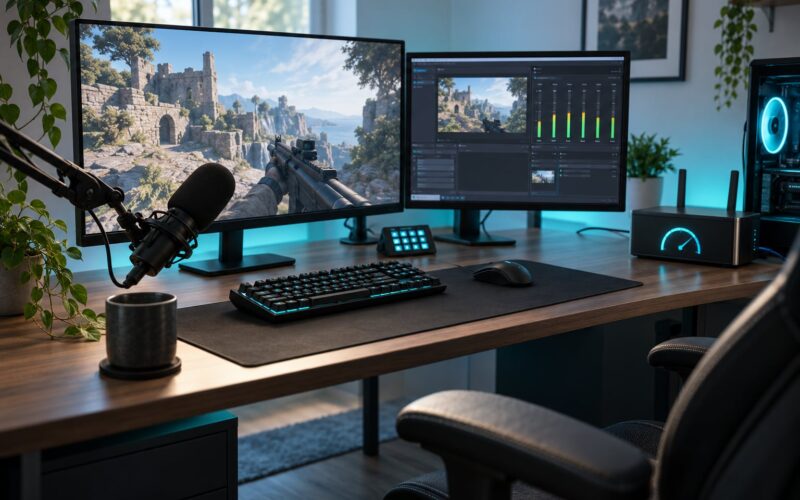
Point the back of the mic away from your PC. A cardioid mic rejects sound arriving from the sides and rear, but a fan an inch behind the grille sits in the sweet spot it hears best. Moving the tower to the floor or off to the side often removes more noise than any filter.
Add soft stuff around the room once you have the position right. A rug and a curtain cut reflections more cheaply than panels do, and they help because you are removing the noise source rather than hiding it afterward.
3. Choose the Right Input and Audio Settings
Set the gain so your loudest normal speech peaks near -6 dBFS on the OBS meter, then leave some headroom below zero so you never clip.
In OBS, open Settings, then Audio, and pick your microphone in the Mic/Auxiliary device dropdown. Watch the meter in the Audio Mixer at the bottom of the main window while you talk normally and then say something loud. If the bar pins at the right edge, turn the input down rather than turning music up later.
Turn off Automatic Gain Control wherever your system offers it. It hunts for a target level and reacts to clicks and pops, so it makes your volume jump around during a stream. On Windows 11, the path is Settings, then Privacy and security, then App permissions, then Microphone, and there is a Reduce background noise toggle there worth knowing about. Leave it off if OBS is already filtering the same microphone, otherwise you process the signal twice.
4. Enable Noise Suppression
Noise suppression is the filter that reduces continuous sound like hum, hiss and rumble while you talk. Add it by clicking the gear icon next to your mic in the Audio Mixer, opening Filters, clicking the plus, and choosing Noise Suppression.
Two methods are available. RNNoise is a neural network that handles steady noise well and costs more CPU. Speex is lighter, older, and more aggressive. Most people start with RNNoise.
The Suppression Level defaults to -30 dB. Step toward -50 dB only if you still hear noise underneath your voice, and go back the moment your voice starts sounding muffled. Excessive suppression is what produces the underwater, robotic sound that streamers describe as a broken microphone when the microphone is actually fine.
5. Filter Out Persistent Hiss and Hum
A noise gate mutes the input when your voice drops below a threshold, which is why it cannot remove noise from underneath you while you speak. If your noise floor is already low, you may not need one at all.
Filter order matters more than most guides admit. The chain I use is Noise Suppression, then Compressor, then Noise Gate or Expander, then Limiter. Denoising first gives the compressor a cleaner signal to work on; compressing first squeezes the dynamics, and the denoiser then has to work much harder on a squashed signal, which is where the robotic voice comes from. Guides disagree on this, and the disagreement is usually a symptom of each author tuning until their own chain stopped sounding bad.
The OBS default gate values are Close Threshold -32.00 dB and Open Threshold -26.00 dB, with Attack 25 ms, Hold 200 ms and Release 150 ms. The rule is simple: close threshold goes just above your noise floor, open threshold just below your quietest normal speaking level. When a gate cuts you off mid-word, you have set the close threshold too high or the release too short.
For constant hiss and hum rather than silence between words, a compressor or a 3-band equalizer often does more than the gate. Cut the lowest band gently for desk rumble and rumble-prone room noise, and never boost the high band to chase clarity, because that lifts your keyboard clicks along with your consonants.
6. Test the Stream and Record a Backup Track
Test properly, then save a copy. A 30-second recording reviewed on headphones catches things the meters do not show you.
- Record 30 seconds of normal speech, including a few laughs and one loud moment.
- Watch the meter while talking. Peaks should stay below zero with headroom, and the bar should not stop moving during pauses.
- Listen on headphones, not speakers. You are checking for echo, hum, cut-off words and whether suppression swallows your reactions.
- Compare against your pre-fix recording so you know the change actually helped.
- Keep the local recording. If your platform re-encodes audio badly, the clean track is a fallback for the parts that matter.
Common Mistakes
These seven mistakes account for most of the noise complaints I see. Each has a fast fix.
- Mic too far away or aimed at the PC. Four to six inches, angled, with the rear of the mic facing away from the fans. Highest impact of anything on this list.
- Suppression turned up to a war crime. If laughs and screams vanish, drop the suppression level several dB before you blame the microphone.
- Treating the noise gate as a noise remover. It only closes when you stop talking. For noise underneath you, use suppression.
- Speakers left open. Your monitor audio feeds straight back into the mic. Headphones, or unmute the stream if you must use speakers.
- Double processing. Windows noise reduction, Discord noise suppression and OBS suppression on the same mic compound the artifacts. Pick one place, usually OBS.
- Turning up music or desktop audio instead of fixing input gain. Every viewer has to hear your voice over it. Stage the gain first.
- Filters on the wrong source. Right-clicking the wrong device in the Audio Mixer, or filtering desktop audio instead of the mic. Confirm the filter is attached to the microphone source.
Two more worth knowing: keep a typed copy of your values, because rebuilding a chain from memory is how people end up with three noise gates, and remember that already-recorded streams can be cleaned afterwards with Audacity’s noise reduction, even though live viewers had to suffer the original.
Frequently Asked Questions
What is the easiest way to reduce background noise while streaming?
Move the microphone closer to your mouth and turn it away from your PC fans first. That single change usually does more than any plugin. After that, add Noise Suppression in OBS at around -30 dB using RNNoise. If you still hear hum underneath your voice while speaking, add a Compressor. Save the noise gate for last, because it only mutes you during silence.
Should I use noise suppression in OBS Studio or my streaming app?
Use OBS Studio when your streaming app is built on OBS, such as Streamlabs Desktop, since the filter panel works the same in both. Browser-based tools like StreamYard have their own reduce mic background noise toggle and echo cancellation instead, so use that rather than fighting the browser. Pick one place only. Running noise suppression in OBS and again in the app or in Windows stacks the processing and makes your voice sound underwater.
Why does my microphone pick up keyboard and fan noise?
Most USB microphones pick up sound from a cardioid pattern, which is most sensitive directly in front of the grille, but still hears from the sides and rear. A tower PC sitting beside or behind the mic puts its fans inside that pickup area. Move the PC to the floor, angle the mic away from it, use a dynamic mic if you already own one, then let Noise Suppression clean up whatever is left.
Do I need an expensive microphone to get clean stream audio?
No. A basic USB microphone positioned well, with a pop filter and a short OBS filter chain, sounds better than an expensive microphone crammed against a PC fan. Room treatment and mic placement contribute far more to how clean your stream sounds than the model of mic. Buy a boom arm and a rug before you consider upgrading the microphone itself.
How do I fix static or electrical buzzing on a microphone?
Buzzing that continues in silence is usually electrical interference or a ground loop, not a setting problem. Try a different USB port, use a different cable, and keep the mic away from power bricks and poorly shielded adapters. If it only appears when the PC is under load, suspect the power supply or a fan bearing. A noise gate hides hum in pauses but cannot remove a genuine electrical fault.
Is a noise gate better than noise suppression?
They do different jobs, so it is usually both. Noise suppression reduces continuous hum and hiss while you speak, which is what viewers actually hear. The noise gate closes the input in the gaps between words so viewers do not hear your room between sentences. If your noise floor is already low after suppression and placement, skip the gate entirely and avoid the chopped-off-word artifacts.
Start with placement: move the mic to four to six inches, turn its back toward the PC, and move the tower off the desk. Then add Noise Suppression at -30 dB and listen on headphones. Only once that is clean do you consider a gate, and if a laugh gets swallowed, the fix is almost always to back the suppression off rather than to buy a new microphone.