The short answer: for 1080p 60fps streaming, set 6,000 kbps CBR on Twitch, 9,000 to 12,000 kbps on YouTube Live, and 160 kbps for audio. Twitch’s 6,000 kbps number is the one every guide repeats, and it is also the reason so many 1080p60 streams look blocky, because 6,000 kbps only holds up when very little is moving on screen.
There is no single correct bitrate for 1080p60. Two things decide it: the ceiling your platform allows, and how much motion your game produces. This guide was updated for October 2026, and the platform caps below reflect the current published broadcast guidelines rather than the figures floating around in 2017 forum threads.
Table of Contents
- What You Need
- What Bitrate to Use for 1080p 60fps Streaming
- Step-by-Step: Set and Test Your Streaming Bitrate
- Calculate a Safe Bitrate From Upload Speed
- Configure the Encoder in OBS Studio
- Run a Short Bitrate Test
- Choose the Right Settings for Fast-Motion Games
- Common Mistakes
- Tips for Stable 1080p60 Streaming
- Frequently Asked Questions
- Is 6 Mbps enough for 1080p 60fps streaming?
- Should I use CBR or VBR for 1080p60 gameplay?
- How much upload speed do I need for 1080p60 streaming?
- Why does my stream look pixelated even at 1080p?
- Does bitrate affect dropped frames in OBS?
- What is the best bitrate for fast-paced games?
- Conclusion: Start With a Conservative Bitrate
What You Need
Before any bitrate number matters, you need four things in place.
- A machine that can encode 1080p60. Any modern six-core CPU handles it with x264 at a fast preset, and any discrete GPU from roughly the last decade has a hardware encoder. Integrated graphics usually can, but it takes CPU work away from the game.
- OBS Studio, or the streaming software your platform supplies. The menu paths below are OBS Studio on Windows; macOS and Linux use the same labels under Settings.
- A wired Ethernet connection. Wi-Fi is the most common reason a stream that should hold 6,000 kbps keeps dropping frames in a crowded house.
- Upload headroom. You need roughly 1.5 times your stream bitrate in measured upload speed, plus room for whatever else on the network is pushing data upstream.
That last point is where most troubleshooting goes wrong, so it gets its own step below.
What Bitrate to Use for 1080p 60fps Streaming
Here is the number to set, by what you are streaming. Video bitrate only; add 160 kbps of audio on top, and keep the total comfortably under your measured upload speed.
| Video bitrate | Twitch 1080p60 | YouTube Live 1080p60 | Fast-motion games | Limited upload speed |
|---|---|---|---|---|
| 4,000 kbps | Under the cap, but soft | Fine for static scenes, thin for gameplay | Not enough, motion smears badly | Only workable above 6 Mbps upload |
| 6,000 kbps | Standard ingest cap, safe choice | Below the recommended range | Borderline, consider dropping resolution | The practical floor for most homes |
| 8,000 kbps | Partner Enhanced Broadcasting tier | Strong mid-range setting | Good for competitive shooters | Needs 12 Mbps upload or better |
| 10,000 kbps | Over the cap for most channels | Very good for 1080p60 | Holds detail in races and bright scenes | Needs 15 Mbps upload or better |
| 12,000 kbps | Over the cap for most channels | Top of the useful range for 1080p60 | Comfortable for the most demanding scenes | Needs 18 Mbps upload or better |
Platform ceilings matter as much as your preference, because pushing past them produces dropped frames rather than a better picture. Current published limits for 1080p60 look like this.
| Platform | 1080p60 ceiling | Notes |
|---|---|---|
| Twitch (affiliate) | 6,000 kbps | Hard ingest cap. CBR, 2-second keyframe interval. |
| Twitch (Enhanced Broadcasting) | 8,000 kbps | Opt-in feature for eligible partners, not available on every account. |
| YouTube Live | 4,500 to 9,000 kbps recommended | Creators routinely run 10,000 to 12,000 kbps at this resolution without trouble. |
| Kick | Higher than Twitch | The exact number for your account appears in the creator dashboard. |
| Local recording to disk | No platform cap | 40,000 to 80,000 kbps is a sensible range for 1080p60 archives. |
These caps do move, so check your platform’s own broadcast guidelines before you go live rather than trusting a number from a thread that predates your account.
Now the part that resolves the argument you will find in every forum thread. At 6,000 kbps and 1080p60, your encoder gets roughly 0.05 bits per pixel per frame, which sounds fine until you realise how little that is for a scene full of grass, rain or a crowd. When the budget for a second runs out, the encoder has to choose: block up the moving parts, or smear them into the background. That is the macroblocking and motion smearing people describe as a bad stream.
Dropping to 720p60 with the same 6,000 kbps roughly doubles the bits available per pixel, and on a fast shooter the lower resolution usually looks better. OBS forum regulars have said this for years, and it holds up. Higher resolution at the same bitrate does not add detail, it splits the same detail into more pixels that each get less.
Step-by-Step: Set and Test Your Streaming Bitrate
Calculate a Safe Bitrate From Upload Speed
Run a speed test with nothing else downloading, and write down the upload figure rather than the download figure. Then take about half of it as your video budget, capped by the platform limit.
- 10 Mbps upload: a 6,000 kbps stream leaves roughly 4 Mbps for everything else. This works, but close calls during uploads or video calls. Cut to 4,500 kbps if you need reliability.
- 20 Mbps upload: 8,000 to 10,000 kbps is comfortable on YouTube Live, and 6,000 kbps on Twitch with plenty of slack.
- 50 Mbps upload: 12,000 kbps video plus 160 kbps audio is easy, and you have enough room to multistream a second platform from the same PC if the rest of your setup can take it.
Keep the headroom rule simple: your stream bitrate plus 160 kbps audio should sit at or below 50 to 75 percent of measured upload. Above that, ordinary household traffic becomes the reason your stream stutters.
Configure the Encoder in OBS Studio
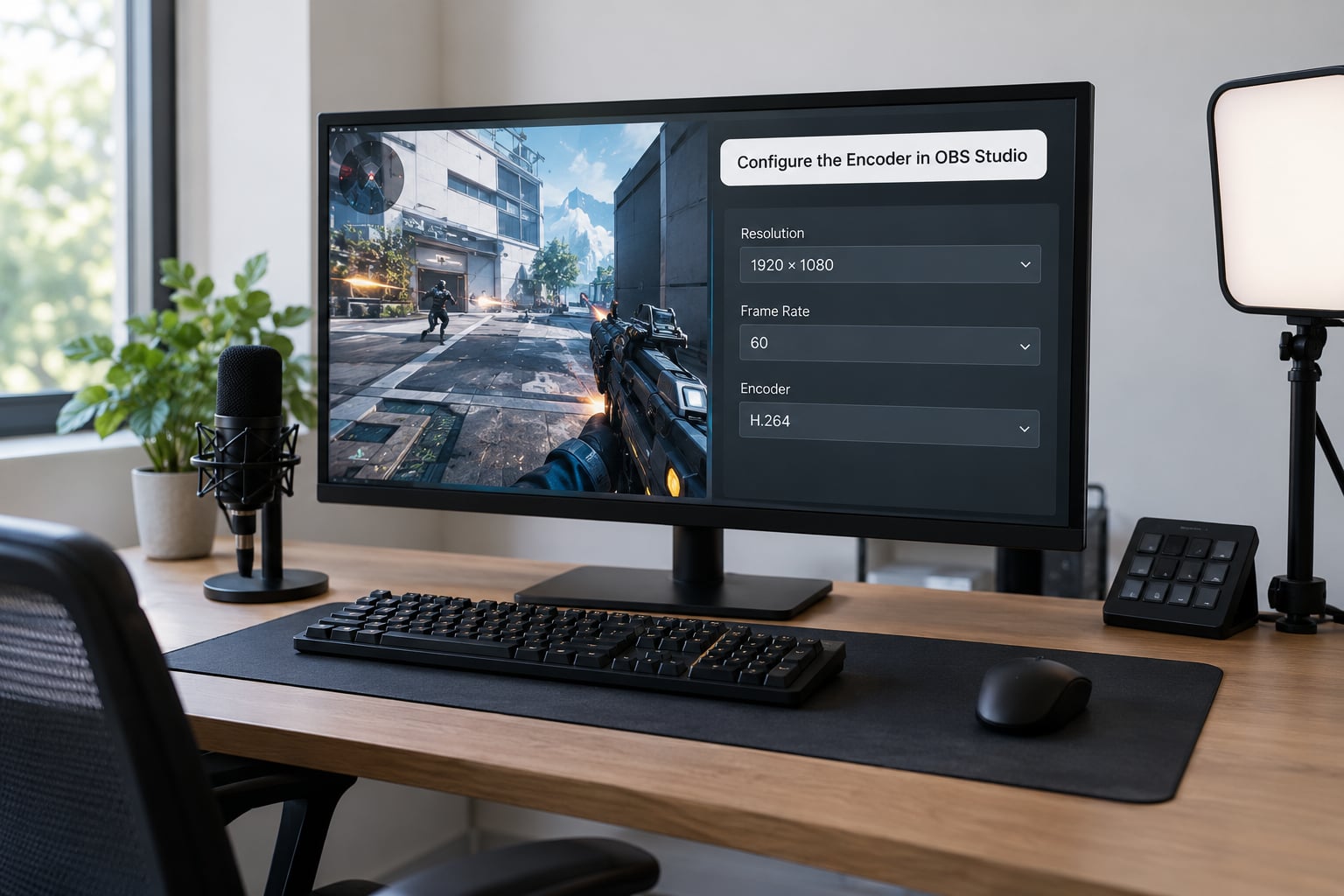
Open Settings, then Output, and switch Streaming mode to Advanced. That single change is what exposes the controls you need.
- Encoder: choose the hardware encoder your GPU provides, usually NVENC H.264 or AMF, unless your CPU has headroom and you want x264.
- Rate Control: CBR. Live platforms expect a constant rate, and variable output gets padded or discarded in transit.
- Bitrate: the number from the table above, in kbps.
- Keyframe Interval: 2 seconds. Twitch expects this exactly, and a mismatch causes buffering for viewers.
- Preset or Performance: in OBS 30 and later this is called Performance, older builds call it CPU Usage Preset. Moving it from Very Fast toward Medium or Slow costs CPU and buys real quality at the same bitrate if you have the headroom.
- Audio: 160 kbps is plenty for voice and game mix, and it is what most broadcast guidelines suggest.
Then confirm your canvas and output match: in Video settings, Base Canvas at 1920 by 1080, Output at 1920 by 1080, and FPS at 60. A mismatched output resolution is a common cause of a stream that looks soft no matter what bitrate you set.
Run a Short Bitrate Test
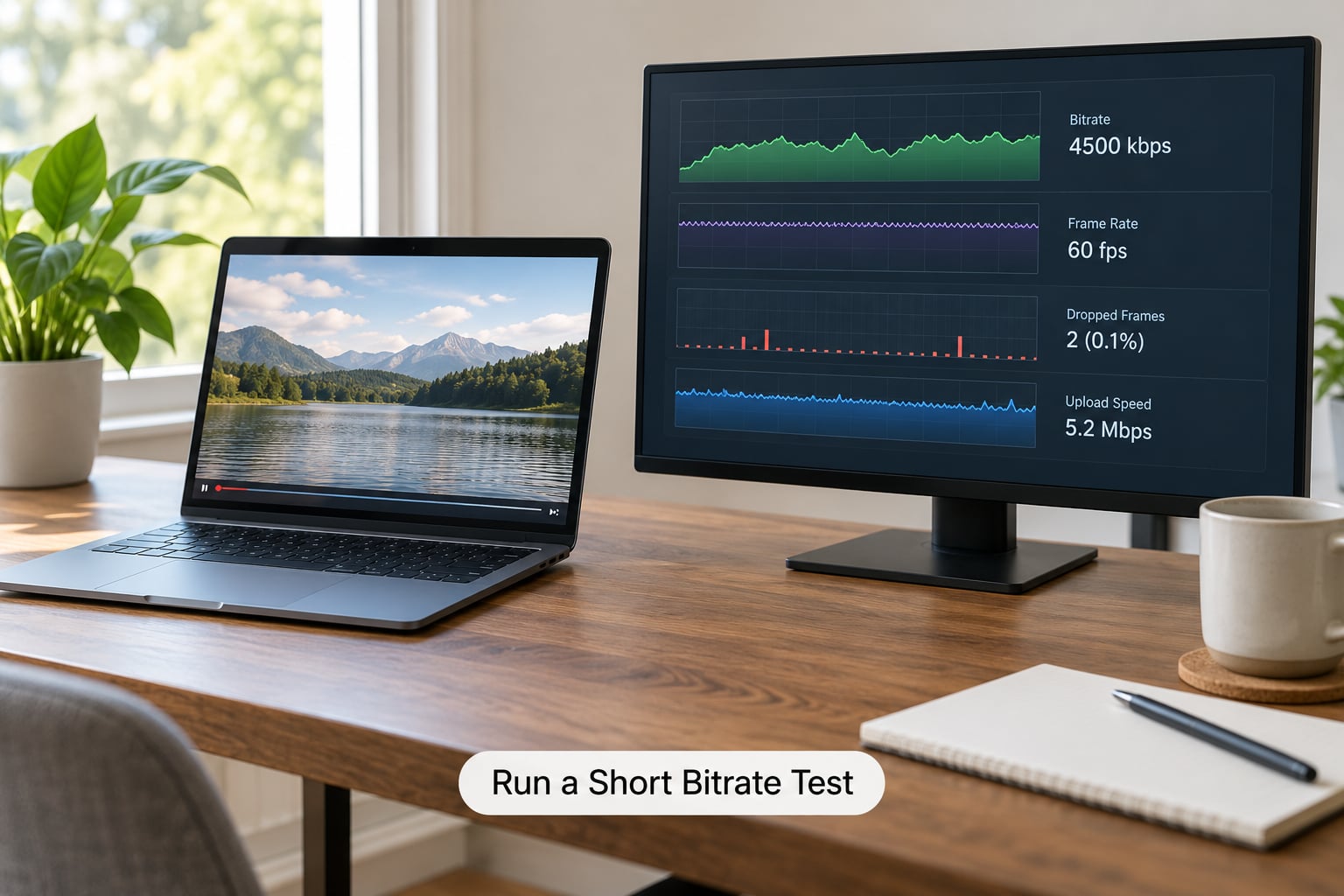
Stream or record for ten minutes while loading the game that usually causes trouble. Then open View, then Stats, and read three numbers.
- Configured bitrate should match what you set. If it does not, your settings did not save or a profile overrode them.
- Total dropped frames and dropped frames (network) should both stay at zero. Non-zero network drops mean your upload cannot carry the bitrate you chose.
- Missed frames due to encoding should also stay at zero. Non-zero there means the encoder or the preset is too heavy for your machine, and raising bitrate will not fix it.
Watch the actual video while it runs, not just the numbers. A clean stats panel with a blocky picture means the bitrate is too low for that game. A blocky picture on a still menu screen with clean stats means the encoder is dropping frames mid-motion. Those two problems have opposite fixes, and almost nobody tells beginners to separate them.
One more note: Twitch re-encodes what you send, and a low-bitrate source produces an even worse result after that step. There is no quality to be recovered downstream, so fix it at the source.
Choose the Right Settings for Fast-Motion Games
Match the bitrate to what is on screen rather than to a habit you picked up from a guide.
- 6,000 kbps at 1080p60 is enough for strategy games, card games, city builders, or a static desktop and webcam stream. Little changes, so the encoder has spare bits to spend on detail.
- 8,000 to 10,000 kbps at 1080p60 is the right range for competitive shooters and fighting games with constant camera movement, provided your platform and upload allow it.
- 720p60 or 900p60 at 6,000 kbps often beats 1080p60 at the same bitrate for shooters, racing games and anything with particle effects or fine texture streaming past the camera.
If you want 1080p60 specifically and your platform allows a higher bitrate, push toward 10,000 to 12,000 kbps rather than hoping the encoder stretches 6,000. Raise it in steps of 1,000 to 2,000 kbps and re-run the test each time, so you know which change fixed the picture and which one just added dropped frames.
Common Mistakes
These are the failures that show up over and over, and each has a quick fix.
Setting bitrate equal to your total upload speed. This leaves nothing for jitter, other devices or the encoder’s own overhead, and it guarantees trouble. Use the 50 to 75 percent rule instead.
Leaving rate control on VBR for live. Variable bitrate makes sense for a file you upload later, not for a live feed that expects a steady rate. CBR is the correct setting here.
Changing five settings at once. If you change bitrate, resolution, preset and encoder together, you cannot tell which one helped. Change one, test for ten minutes, write down the result.
Ignoring audio bitrate. Audio is a small share of the total budget, but a 320 kbps stream is still sending 320 kbps. Set it to 160 kbps and stop thinking about it.
Diagnosing dropped frames without separating encoder from network. The stats panel tells you which one it is. Network drops point at upload speed, missed frames from encoding point at your preset or your machine. Chasing the wrong one wastes weeks.
Assuming a high bitrate fixes everything. If your stream sits above the platform cap, you get dropped frames rather than extra clarity. More is only better up to the ceiling.
Tips for Stable 1080p60 Streaming
- Use Ethernet. If you must use Wi-Fi, a 5 GHz or 6 GHz band on a clear channel beats 2.4 GHz every time.
- Close anything that uploads in the background: cloud sync, backup tools, big file transfers, and video calling apps.
- Keep the keyframe interval at 2 seconds. Twitch expects it, and drift from that value is a common cause of viewer buffering.
- Record locally at the same time you stream, at 40,000 kbps or more. That gives you a clean archive to re-encode later, without spending more upload bandwidth.
- Make small, recorded adjustments. Move the preset one notch or the bitrate 2,000 kbps at a time, then test again.
- If quality is still poor at a clean, low dropped-frame count, the answer is usually a newer codec or a lower resolution, not a bigger number.
Frequently Asked Questions
Is 6 Mbps enough for 1080p 60fps streaming?
6,000 kbps is enough for 1080p60 when your platform caps you there and your content is not motion heavy, such as strategy games, card games or a webcam-focused stream. It is marginal for fast shooters and racing games, where motion smearing appears first. If you are limited to that ceiling, streaming 720p60 with the same 6,000 kbps usually looks noticeably better than 1080p60.
Should I use CBR or VBR for 1080p60 gameplay?
Use CBR for live streaming. Platforms expect a steady incoming rate, and variable output is padded or discarded in transit, which adds delay and can cause buffering. VBR belongs to recorded and uploaded video, where the encoder can look ahead and spend bits where they matter. If you record locally at the same time, use a quality-based mode for the file and CBR for the live feed.
How much upload speed do I need for 1080p60 streaming?
Keep your total stream bitrate, video plus 160 kbps audio, at 50 to 75 percent of your measured upload speed. A 6,000 kbps stream therefore wants at least 8 to 10 Mbps of stable upload, and a 12,000 kbps stream wants roughly 16 to 18 Mbps. Run the test with nothing else on the network, and re-check it during the evening hours when your connection is busiest.
Why does my stream look pixelated even at 1080p?
Resolution alone does not guarantee clarity. At 1080p60, 6,000 kbps leaves the encoder about 0.05 bits per pixel per frame, which runs out during fast motion and produces macroblocking and smearing. Other causes include an output resolution that does not match your canvas, a Very Fast encoder preset, a bitrate above the platform cap, and a noisy source scaled up. Check the stats panel for dropped frames before changing anything.
Does bitrate affect dropped frames in OBS?
It can, in two different ways. A bitrate that exceeds your upload speed or the platform ingest cap causes network dropped frames. A bitrate that is fine but paired with a Very Fast or SLOW preset can cause missed frames from encoding instead. Both appear in the stats panel under different labels, so read the dropped frames and missed frames counters separately before changing any setting.
What is the best bitrate for fast-paced games?
For shooters, racing and fighting games at 1080p60, aim for 8,000 to 12,000 kbps if your platform and upload speed allow it, and pair that with a two-second keyframe interval. If you are held to a 6,000 kbps ceiling, stream 720p60 or 900p60 instead, because the extra bits per pixel preserve motion detail far better than extra pixels do. Test during the specific game you stream most.
Conclusion: Start With a Conservative Bitrate
Start at 6,000 kbps CBR with 160 kbps of audio, keep your total stream under 75 percent of measured upload, and run a ten-minute test on the game that gives you the most trouble. If motion still smears, either raise the bitrate within your platform’s cap or drop to 720p60 rather than adding a thousand kbps at a time and hoping.