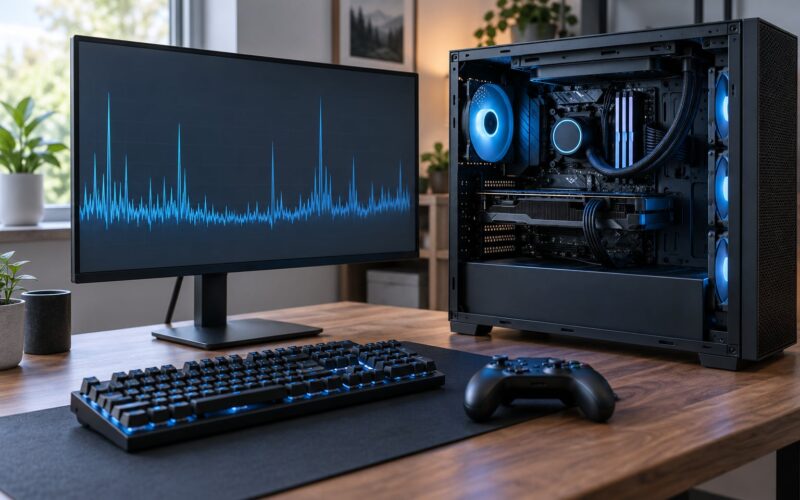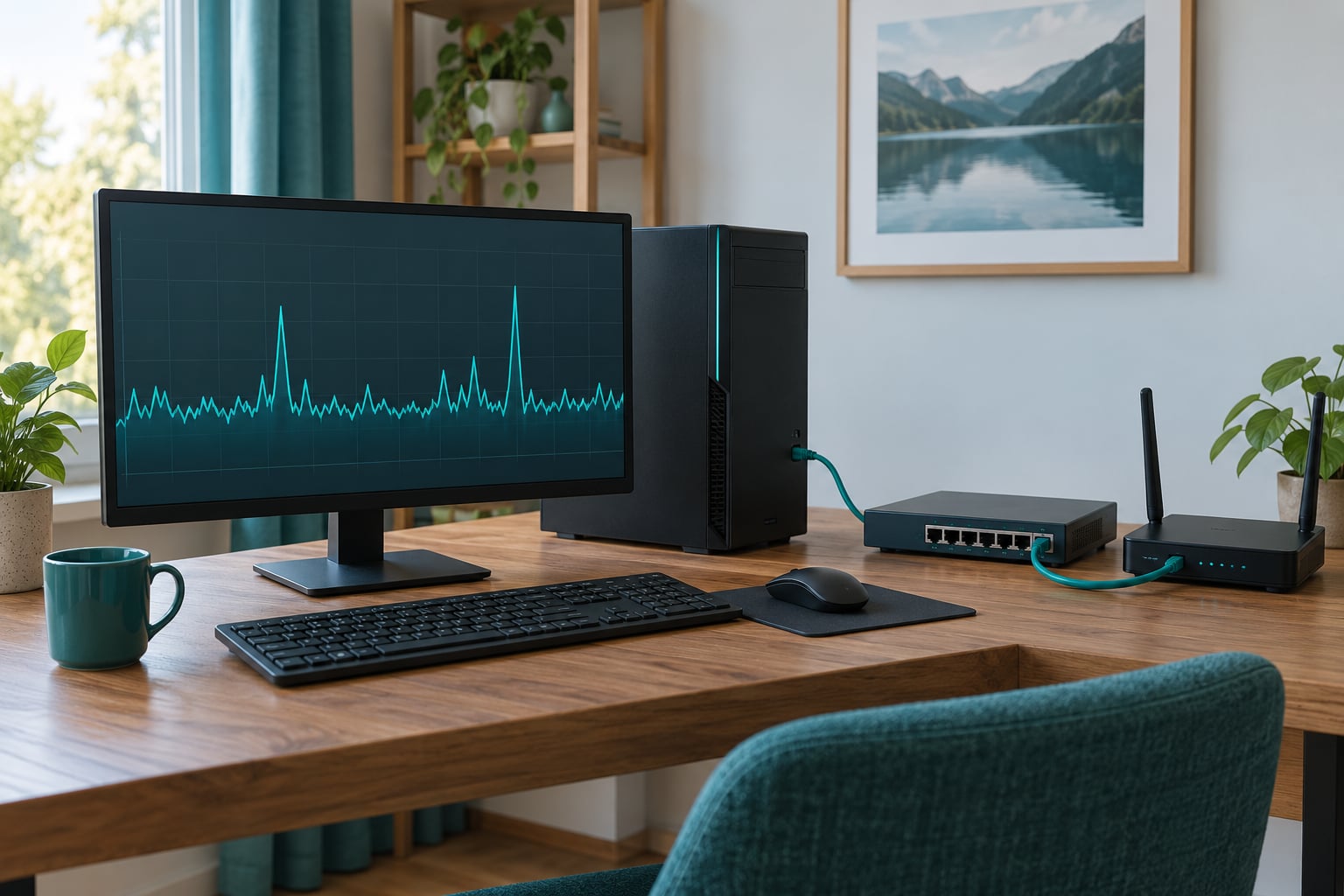
A ping spike is a sudden, temporary jump in your round-trip latency to the game server. Your ping sits steady at 30ms, then leaps to 300ms or more for a second or two, and that gap is what you feel as rubberbanding, delayed inputs and enemies teleporting across the map.
So why does my ping spike while gaming? In almost every case it is a queue forming somewhere along the path between your controller and the server: your Wi-Fi radio, your router’s send buffer, a backup running on the same uplink, or a congested hop on your ISP’s network. The fix depends entirely on which of those four it is, so the work is narrowing it down rather than randomly changing settings.
Here is the order I would work in. Most people finish inside fifteen minutes, and a few of the later steps cost nothing at all.
Table of Contents
- What You Need
- Step-by-Step: Diagnose and Fix the Ping Spikes
- 1. Establish When the Ping Spikes
- 2. Check Whether the Problem Is Wi-Fi or Ethernet
- 3. Test Bandwidth, Jitter, and Packet Loss
- 4. Check Local Device and Network Load
- 5. Adjust Game and Network Settings
- 6. Contact the Right Provider or Report the Problem
- Common Mistakes
- Frequently Asked Questions
- Why does my ping spike every few seconds on Wi-Fi?
- Is Wi-Fi or Ethernet better for stable ping?
- Why am I lagging even though my internet speed is fast?
- Does a gaming VPN fix ping spikes?
- Will a faster PC reduce my ping?
- Conclusion: Fix the First Bottleneck
What You Need
You do not need a new router to start. You need access to the information your network is already broadcasting.
- The device you play on and a second device on the same network, ideally a phone or laptop, so you can test whether the problem follows the device or the connection.
- Access to your router settings. Most sit at 192.168.1.1 or 192.168.0.1 from a browser on the same network, and the admin details are usually on a sticker on the router itself.
- An Ethernet cable, Cat5e or better, if you have one. Even a cheap cable settles the Wi-Fi question in about a minute.
- A latency test. On Windows, the Command Prompt already has everything you need, and a graph tool like PingPlotter or WinMTR helps if you want to see the pattern rather than a single number.
- About ten minutes of quiet during a normal evening, when your household traffic looks like it does on a regular night.
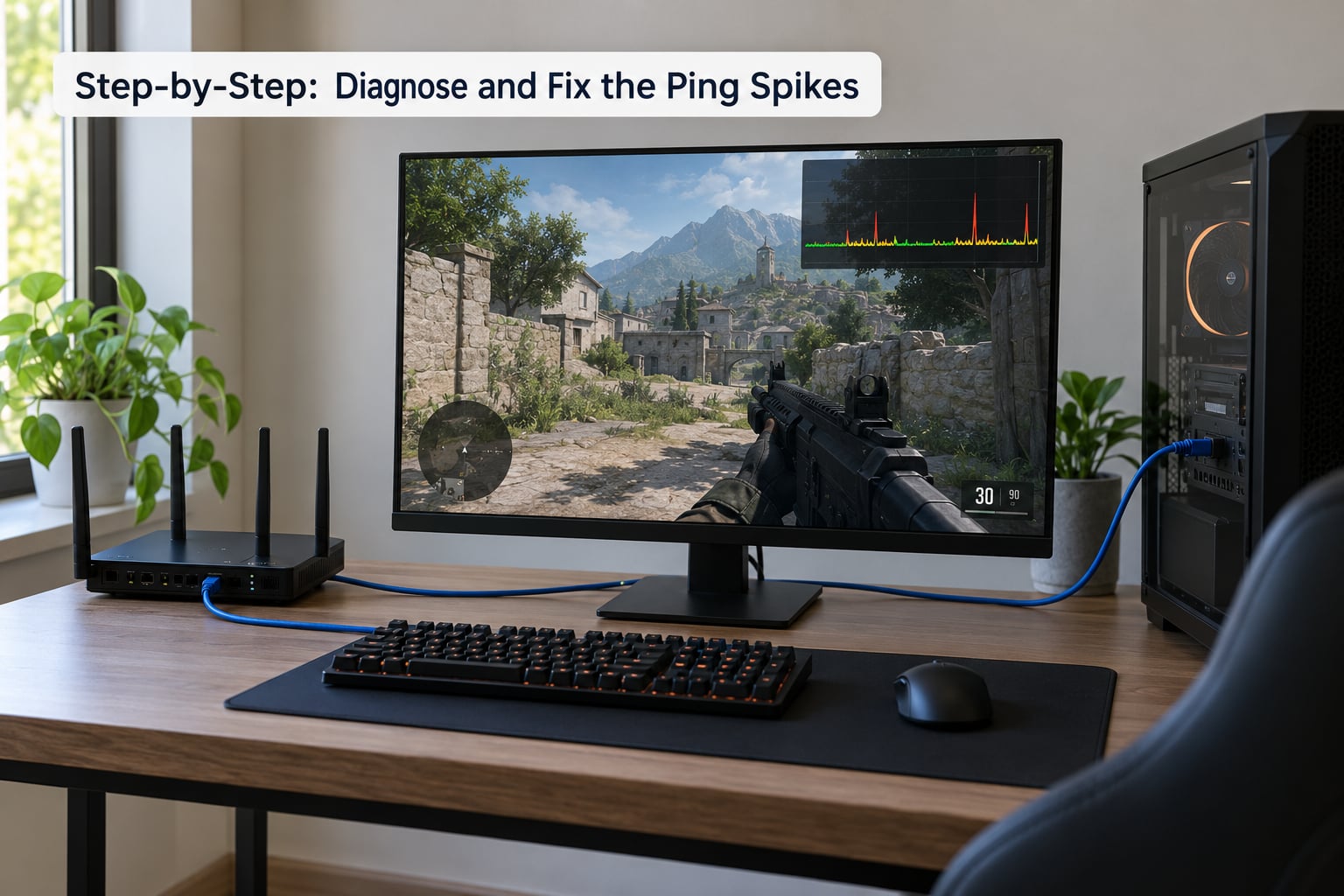
Step-by-Step: Diagnose and Fix the Ping Spikes
1. Establish When the Ping Spikes
Note the game, the time of day, the match type, how long each spike lasts, and whether the people you are playing with see it too. That pattern is the single most useful piece of evidence you will collect.
Spikes that fire every four or five seconds, like clockwork, almost never come from the game server. That rhythm usually belongs to something local: a cloud sync checking in, a console downloading an update, or a router that stalls whenever its buffer fills. Spikes that hit only during a particular game, while everything else is clean, point at that game’s servers or your route to them. Spikes at the same hour every evening are congestion, plain and simple.
If teammates are complaining at the same moment, the problem is upstream of your machine. If only you are lagging, the problem is at your end.
For a rough baseline, this is what steady latency means in practice:
| Activity | Comfortable range | Noticeably bad |
|---|---|---|
| Competitive shooters (Valorant, CS2, Apex) | Under 30ms | Over 50ms |
| Battle royale and co-op sessions | Under 50ms | Over 100ms |
| MMOs and RPGs | Under 80ms | Over 150ms |
| Turn-based or card games | Under 150ms | Over 250ms |
| Video calls | Under 100ms | Over 200ms |
A 120ms ping is genuinely fine for an MMO and genuinely painful in a tactical shooter. The genre sets the bar, not the number.
2. Check Whether the Problem Is Wi-Fi or Ethernet
Plug the Ethernet cable into the LAN port on the router and the other end into your PC or console, then play for ten minutes. If the spikes vanish or drop sharply in frequency, Wi-Fi was the cause and you can stop investigating.
On Windows, confirm the connection type in Settings, Network and Internet, Wi-Fi, and make sure the adapter is not quietly falling back to a slower speed. In-game network graphs usually label the link too, so check the connection type there before you blame the radio.
If you are staying on Wi-Fi, work through the usual suspects. 2.4GHz is crowded, and in an apartment building your neighbours are using the same few channels, so switch to the 5GHz or 6GHz band if your router offers it. Microwaves, Bluetooth headsets and wireless cameras all sit in that same 2.4GHz space and will produce exactly this pattern. Move the router off the floor, away from metal furniture and out from behind a television, and check the signal strength in the room you actually play in rather than where the router sits.
The practical verdict: frequent spikes on Wi-Fi usually improve dramatically on Ethernet, and no amount of router tinkering gets you the consistency of a cable.
3. Test Bandwidth, Jitter, and Packet Loss
Run three tests and read the results separately, because they point at different faults.
ping 192.168.1.1 -n 100
ping 8.8.8.8 -n 100
tracert your.game.server
The first command measures your own wireless link. If it spikes, the problem sits between your device and the router. The second measures the wider path out to a public DNS server, and spikes there mean your router, your ISP, or something flooding the uplink. The third walks the route hop by hop, which tells you where a bad hop lives. Run it a few times at different hours; the hop that consistently inflates is the one to argue about.
These three words get mixed up constantly, so it is worth being precise:
| Problem | What you see | Usual cause |
|---|---|---|
| Ping spike | Latency jumps and comes back | Congestion, Wi-Fi contention, bufferbloat |
| Jitter | Latency wobbles constantly by 10-40ms | Shared 2.4GHz band, weak signal, route quality |
| Packet loss | Packets never return, shown as request timed out | Weak Wi-Fi, faulty cable or connector, ISP issue |
Loss of even one to two percent causes constant rubberbanding even when ping looks healthy. If a test shows timeouts, stop and fix that first, because latency work on top of packet loss is wasted effort.
One more test worth running: while your PC is idle, upload something large and watch the ping. If latency doubles the moment the upload starts and settles when it stops, you have bufferbloat, which is the most repeated diagnosis in the communities I read for this problem. The fix is SQM or smart queue management on a supported router, or simply not saturating the uplink while you play.
4. Check Local Device and Network Load
Most periodic spikes come from a device on your own network. On Windows, sort Task Manager by the Network column during a spike and watch what moves. Cloud backup clients, Windows Update, Steam downloads, a syncing phone and an antivirus scan are the usual offenders, and several of them poll on a fixed interval that matches the four-to-five-second pattern people describe.
On PlayStation, check Settings, Network, then Network Status for downloads, and Settings, System, System Software for pending updates. On Xbox, run the Network Test from Network settings, and let any pending system update finish before you test again. Restarting a console clears a surprising share of phantom issues.
Then reboot the router itself, not just refresh it. Leave it off for about thirty seconds so the modem resyncs, and check for firmware updates on its admin page while you are there. A router that has been up for months is usually running old firmware, and cable users should also check that their coax is tight at both ends. Loose connectors are a recurring, oddly satisfying fix that people report finding themselves.
5. Adjust Game and Network Settings
Start with the server region, since it is the change with the biggest effect per minute of effort. Pick the closest region your game offers, even if the one you have played on has a better player base. Crossing an ocean costs you 100ms or more, and no graphics setting will recover that.
Close anything downloading or uploading before you queue. Then handle the PC side: update your network adapter driver from the manufacturer rather than letting Windows decide, and turn off the adapter’s power management in Device Manager, under Network Adapters, your adapter, Properties, Power Management, where the option to let the computer turn off the device is supposed to be unchecked. Disabling Large Send Offload and Flow Control is a common recommendation, though the improvement is inconsistent and it can make throughput slightly worse, so revert it if nothing changes.
For DNS, 1.1.1.1 and 8.8.8.8 resolve faster than most ISP defaults. That speeds up the moment you join a match, not the ping during play, so treat it as a small win rather than a cure. A private VPN or DNS client running in the background is a genuine known cause of spikes, and returning to automatic settings or a public resolver is the fix.
On your router, look for QoS or smart queue management under advanced settings and give gaming traffic priority. This genuinely helps during peak hours, and it does nothing at 2am on an empty network, which is why so many people assume it is not working.
There are also fixes that do not do what the video thumbnails claim. No amount of RAM, CPU or graphics power changes latency, because your inputs have already left the machine by the time the frame renders. A faster processor only helps if the game was dropping frames, which is a different problem that looks similar on screen.
6. Contact the Right Provider or Report the Problem
Escalate only once you have evidence, because first-line support has no way to see an intermittent fault in real time. The people on r/pchelp narrow this to four candidates, and you should be able to say which one you have ruled out: your provider, your router, the cabling and equipment between them, or the network interface on your PC.
Collect before you call: timestamps of at least three spikes, the two ping commands with their results during a spike and during calm, a tracert or two showing the offending hop, and a comparison of the same test on a second device. Ask whether the issue is present on the modem’s diagnostic page rather than just your PC, because that separates the ISP from your own equipment in one question.
If a single destination is affected while everything else is clean, the game publisher or server operator is the right contact, and the hop trace is exactly what they need to see. If every destination spikes at the same moment, it is your provider or your router, in that order.
Common Mistakes
Judging your connection by download speed. A 500 Mbps line with spiking ping still means late inputs. The speed test measures capacity; your game measures timing. Look at latency and loss instead.
Changing router settings without writing them down. Screenshot every page before you touch it. When a change makes things worse, and half the changes you try will, you will want the original values back.
Testing only when things are calm. You have to catch a spike to diagnose one. Test at the hour it actually happens, ideally with the household behaving normally.
Treating packet loss as high ping. They feel the same but they are not. Loss drops the connection; ping delays it. Fix timeouts first, because a lossy line will wreck any latency tuning you do afterward.
Running several optimization tools at once. Drivers, VPN clients, network fixers and packet-shaping utilities all write to the same network stack. Change one thing, test for ten minutes, then decide.
Buying a new router before testing a cable. A ten-dollar Ethernet cable and a reboot solve a surprising share of these cases, and it costs far less of your time to rule out than another box to unbox and configure.
Frequently Asked Questions
Why does my ping spike every few seconds on Wi-Fi?
A repeating spike on a fixed interval almost always comes from something on your own network polling or transferring data: cloud backup, console updates, security software, or a saturated uplink. The cause is bufferbloat, where the router queues your gaming packets behind that traffic. Test by uploading a large file and watching latency climb, then pause background syncs and enable smart queue management or QoS on the router.
Is Wi-Fi or Ethernet better for stable ping?
Ethernet, without much argument. A wired connection keeps latency steady because nothing shares the air with your neighbours, microwaves or Bluetooth devices. Wi-Fi is perfectly playable on a quiet band in an isolated house, but in apartment buildings the 2.4GHz band is crowded and you will see jitter and spikes that a cable never produces. If spikes are constant rather than occasional, switching to Ethernet is the single biggest improvement available.
Why am I lagging even though my internet speed is fast?
Because bandwidth and latency are different measurements. Download speed tells you how much data arrives per second; ping tells you how long one round trip takes. A gigabit line with jittery latency feels identical to a slow one in a shooter, since your input still reaches the server late. Check ping, jitter and packet loss instead of the speed number whenever the complaint is lag rather than slow loading.
Does a gaming VPN fix ping spikes?
It depends on the spike. A service that reroutes your traffic can help when your ISP’s path to a particular server is genuinely poor, since it gives the data a different route to travel. It cannot fix Wi-Fi contention, bufferbloat at your own router, or a congested local uplink, and it adds a hop of its own. A background VPN client with no such routing purpose is a common cause of spikes in the first place.
Will a faster PC reduce my ping?
No. Your input has already left the machine by the time the frame renders, so processing power and graphics performance sit outside the latency path entirely. A faster PC helps when the game is dropping frames or stuttering on load, which looks similar on screen but is measured in frame rate rather than milliseconds. Check whether you are losing frames before you conclude you need new hardware.
Conclusion: Fix the First Bottleneck
Start at the top and stop as soon as the spikes stop. Test a wired connection, because it eliminates the largest share of causes in one move. Record when the spikes fire, since the pattern names the culprit more reliably than any single test number.
Then check the local network load, because a device you own is behind a large share of these cases and the fix is free. If the evidence still points outward after that, take your timestamps, ping results and hop traces to your provider, or to the game publisher when only one destination is affected.
Sources for the community diagnostics referenced above: r/techsupport, r/HomeNetworking, r/Network, r/pchelp, r/Spectrum, Steam Community, and the Tom’s Hardware forums.