How much internet speed do you need to stream games? About 3-5 Mbps of upload for a 720p stream, 10-12 Mbps for 1080p at 60 fps, and 35 Mbps or more for 4K, while 25-50 Mbps of download covers the game itself. The number that actually decides your stream quality is your upload speed, and most households have far more download than upload.
That last detail catches nearly everyone out. Someone on a 500 Mbps plan with only 15 Mbps of upload can play anything they want and still produce a stream that stutters and drops frames. This guide walks through the numbers that matter, what each platform expects from you, and how to test the connection you have right now.
Table of Contents
- How Much Internet Speed Do You Need to Stream Games?
- What Internet Speed Is Needed for Common Streaming Resolutions?
- How to turn your upload speed into a stream bitrate
- How Do Streaming Platforms Affect Speed Requirements?
- Do You Need Faster Internet for Competitive Games?
- What Is the Difference Between Download and Upload Speed?
- How Can You Test and Improve Your Internet for Game Streaming?
- How Do You Choose the Right Streaming Internet Plan?
- Frequently Asked Questions
- Is 100 Mbps fast enough to stream games?
- What upload speed do I need for 1080p game streaming?
- Can I stream games on Wi-Fi instead of Ethernet?
- Why does my game stream buffer even when my download speed is fast?
- How much internet speed do I need to stream on Twitch and YouTube?
- Is 500 Mbps good for gaming and streaming?
- Conclusion
How Much Internet Speed Do You Need to Stream Games?
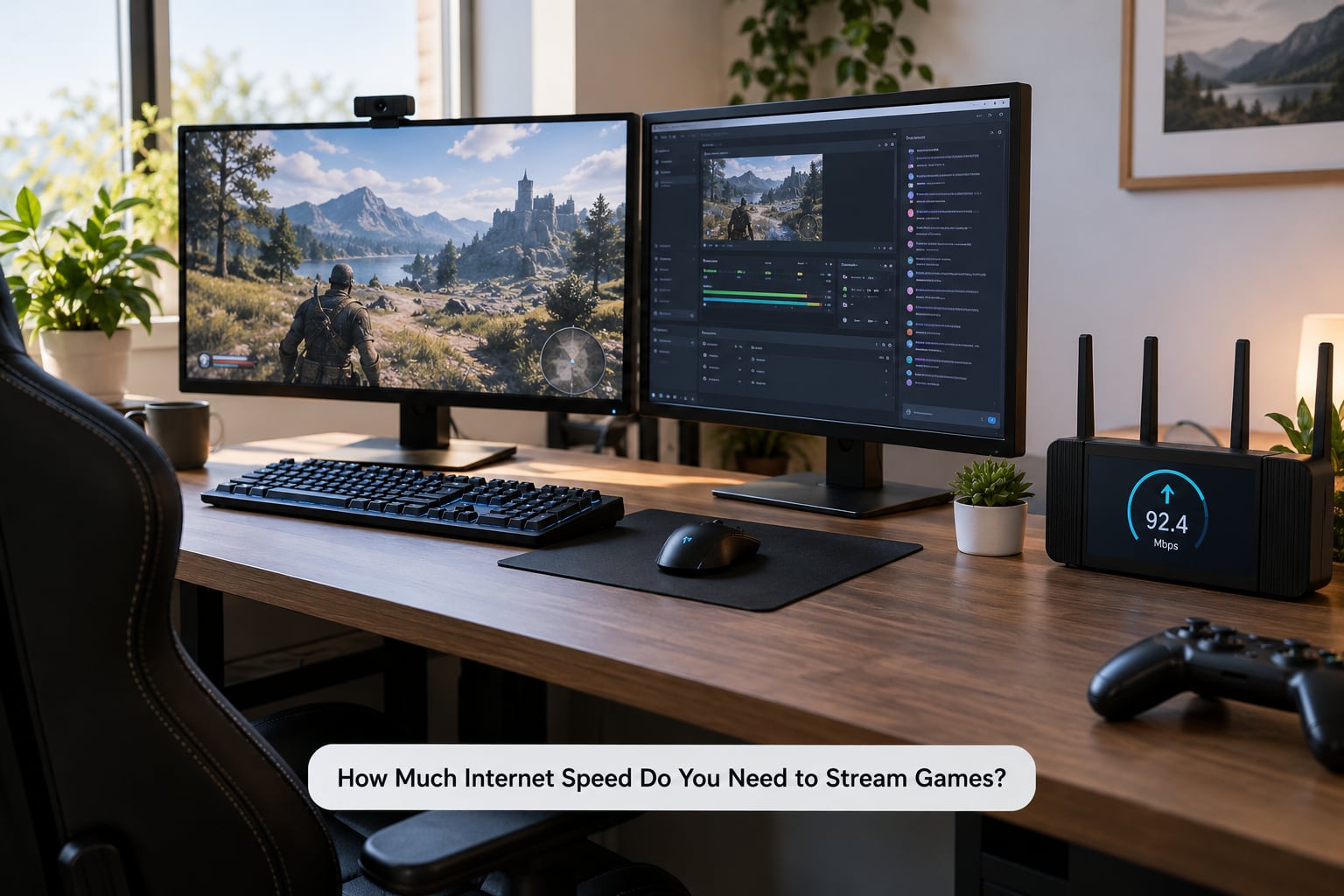
Short version: your upload speed sets the ceiling, and your stream bitrate needs to sit comfortably under it. Here are the working figures most streamers land on.
- 720p at 30 or 60 fps: 3-5 Mbps upload. Fine for a small audience and a low-key first stream.
- 1080p at 30 fps: 6-8 Mbps upload.
- 1080p at 60 fps: 10-12 Mbps upload. This is the current default for most new streamers.
- 1440p at 60 fps: 15-20 Mbps upload, and only worth it with a hardware encoder.
- 4K at 60 fps: 35 Mbps upload or more, plus a strong GPU that can encode it.
- Playing online while streaming: add 25-50 Mbps of download and about 1 Mbps of upload for the game itself.
The headroom rule is the part most guides skip. Set your stream bitrate to roughly 50-70% of your tested upload speed, not to the full number. The rest of your upload goes to the game, your mic, chat, cloud saves, and whatever else the household is doing at 9 p.m.
So a line that measures 30 Mbps upload supports a stream around 15-21 Mbps. The honest answer to how much internet speed do you need to stream games is really two numbers: your upload, and the bitrate you plan to send.
What Internet Speed Is Needed for Common Streaming Resolutions?
Resolution drives the bitrate, and bitrate drives the upload you need. The table below maps the stream settings people actually use to the upload speed each one requires, with a small buffer for a busy network.
| Stream setting | Typical bitrate | Upload speed needed | Notes |
|---|---|---|---|
| 720p30 | 2.5-3.5 Mbps | 3-5 Mbps | Cheapest to run, most forgiving of weak upload |
| 720p60 | 4-5 Mbps | 5-6 Mbps | Smooth motion matters more than pixels in shooters |
| 1080p30 | 5-6 Mbps | 6-8 Mbps | Where most console streams land |
| 1080p60 | 8-9 Mbps | 10-12 Mbps | The standard target for new streamers |
| 1440p60 | 12-16 Mbps | 15-20 Mbps | Needs a hardware encoder to stay smooth |
| 4K60 | 25-35 Mbps | 35+ Mbps | Small viewer gain, big upload bill |
Frame rate and encoder matter as much as resolution at the same bitrate. A hardware encoder such as NVENC or QuickSync gets noticeably more detail out of a given bitrate than software x264, so a 1080p60 stream on NVENC can look cleaner than a 1440p60 stream on x264 using the same upload. Community advice from the Linus Tech Tips forum puts it plainly: hardware encoders need less bandwidth for the same visual result.
There is one more nuance about resolution and audience size. Higher resolution is not automatically better for a stream with 12 viewers, many of whom are on phones or weak connections. A common thread in r/SmallStreamers is to settle on 720p and push the bitrate up, so people on slow connections still see a clean HD picture instead of a stalled 1080p feed.
How to turn your upload speed into a stream bitrate
Take your tested upload speed and multiply by 0.5, then by 0.7. The lower result is your safe starting bitrate, and the higher one is what you can try once the stream runs clean for a full session. A 30 Mbps upload line lands somewhere between 15 and 21 Mbps of stream. A 12 Mbps upload line gives you a 6-8 Mbps stream, which is a solid 1080p30 or a slightly soft 1080p60.
How Do Streaming Platforms Affect Speed Requirements?
The platform sets the ceiling on your bitrate, and it also decides what happens if you exceed it. Upload speed requirements are the same across services, but what you are allowed to send, and how forgiving the encoder is, is not.
| Platform | Bitrate ceiling for most creators | Upload needed at that ceiling |
|---|---|---|
| Twitch | 6 Mbps for non-partner streams, up to 12 Mbps for partners | 8-15 Mbps |
| YouTube Live | Adaptive start around 4.5-6 Mbps, 15 Mbps available at 1080p60 | 8-20 Mbps |
| Kick | Accepts substantially higher bitrates, often in the tens of Mbps | 25+ Mbps |
| Facebook Gaming | Lower and more conservative limits than Twitch or YouTube | 6-10 Mbps |
Platforms tune their numbers, so check the current help page before you lock a setting. The shape of the rule stays the same though: Twitch caps most non-partner streams at 6 Mbps, which is why a 10 Mbps upload line cannot fill a Twitch channel no matter how good the picture looks at home. YouTube Live is built around adaptive bitrate, starting conservative and stepping up as the connection proves itself.
Minimum requirements for streaming to Twitch are modest in writing. A 6 Mbps ceiling needs about 8 Mbps of upload to stay stable, and Twitch’s own guidance for receiving a stream is a fraction of that. The gap between what a platform will accept and what your line can reliably deliver is where dropped frames live.
Do You Need Faster Internet for Competitive Games?
Not as often as people assume. Competitive play cares about ping, jitter, and packet loss far more than raw throughput. A 40 Mbps line with steady 20 ms ping and no jitter will feel better in a shooter than a 300 Mbps line that swings between 60 and 200 ms.
Jitter is variation in your ping, and packet loss is data that never arrives. Both wreck a stream even when your average speed looks perfect on a speed test, which is why streamers watch the dropped-frames and delay-skipped-frames columns in OBS rather than trusting the megabit number. A user on r/SmallStreamers described a connection that looked excellent on paper and still produced constant artifacts, and the fix was a wired connection and a lower bitrate, not a faster plan.
Practical targets for play while streaming: under 50 ms ping, jitter under 10 ms, and as close to zero packet loss as your connection allows. Above that, lower your stream bitrate before you start blaming the game server.
What Is the Difference Between Download and Upload Speed?
Download is data coming toward you, such as the game itself, patches, and anyone else in the house watching video. Upload is data leaving you, and streaming is almost entirely upload. When your stream stutters while your download number looks enormous, this asymmetry is the usual reason.
Cable providers sell headline numbers based on download and often cap upload low, sometimes at 10-20 Mbps on a supposedly fast tier. Fiber is usually symmetrical, so a 300 Mbps fiber line gives you 300 Mbps up. One forum user asked whether 212 Mbps down and 22 Mbps up was any good, and the answer was that the upload figure is the only one that mattered for streaming. Another could play online games happily on 0.7 Mbps of upload but could not stream at all.
One more bit of housekeeping: Mbps is megabits per second, and MBps is megabytes. A 100 Mbps line transfers roughly 12.5 MB per second, so a 5 GB game downloads in about seven minutes at full speed. Confusing the two is a common reason people think they have more bandwidth than they do.
How Can You Test and Improve Your Internet for Game Streaming?
Run these steps in order. Most disappointing stream quality turns out to be a measurement problem or a Wi-Fi problem rather than a plan problem.
- Test over Ethernet first. Plug the streaming PC directly into the router. A Wi-Fi test tells you about your Wi-Fi, not your plan.
- Close everything else. Pause cloud backups, syncs, and downloads, and ask the household to stay off video calls. Then run the test.
- Read the upload number, not the download number. Note both, but plan your bitrate from upload.
- Test during your normal streaming hours. Evening congestion is the reality your stream will live in, and an 11 a.m. test hides it.
- Set your bitrate to 50-70% of that upload figure and run a real 20-minute stream to confirm.
Then look past speed. Open the network statistics window in OBS while you play. Dropped frames from network congestion point at your upload; rendering drops point at your PC or encoder. If Wi-Fi is your only option, move to the 5 GHz or 6 GHz band, get closer to the router, and remember that jitter on Wi-Fi is the single most common cause of a stream that stutters.
If you are already on Ethernet and the numbers hold up but the stream still breaks, look at your ISP. Some providers cap upload harder than they advertise, and a plan change to a higher upload tier does more than a bigger download number ever will.
How Do You Choose the Right Streaming Internet Plan?
Choose on upload speed and stability, in that order, then on what else the household needs for download. Here is how the common tiers stack up.
- 100 Mbps down / 10-20 Mbps up: enough for 1080p30 streaming and casual online play. Fine for a first channel.
- 300 Mbps down / 20-30 Mbps up: comfortable 1080p60 with headroom, plus normal household use.
- 500 Mbps down / 20-50 Mbps up: the sweet spot for 1440p60 on a hardware encoder and a shared house.
- Gigabit down / limited up: great for downloads, rarely better for streaming than the tier above it.
Watch for three things beyond the headline number: whether upload is symmetrical, whether there is a data cap, and whether latency is stable at peak hours. Streaming and gaming together uses a real amount of data, roughly 5-9 GB per hour of upload on YouTube, so a tight cap can shut a stream down mid-session.
Cloud gaming and remote play are the two cases where download jumps to the top of the list. Services like GeForce Now, Xbox Cloud Gaming, and PS Remote Play are download-bound because the picture arrives from a server rather than leaving your PC, so a low ping and a fast download matter more there than upload headroom. A 5G home internet or phone hotspot can work for streaming if its upload holds steady, but cellular jitter is the trade-off, and satellite plans are a tough sell for anything interactive.
The rule I keep coming back to: do not pay for gigabit download when your stream needs 20 Mbps of upload. Upgrade the direction your data travels.
Frequently Asked Questions
Is 100 Mbps fast enough to stream games?
Usually yes, as long as your upload is at least 10 Mbps. A 100 Mbps plan with only 10 Mbps of upload supports a comfortable 1080p30 stream and online play at the same time. The download figure mostly covers the game itself. If your provider caps upload below 10 Mbps, plan on 720p60 instead.
What upload speed do I need for 1080p game streaming?
Plan on 10-12 Mbps of upload for 1080p at 60 fps, and 6-8 Mbps for 1080p at 30 fps. Set your stream bitrate to about half to two-thirds of your measured upload so the game, your mic, and other devices still have room. Test during the hours you actually stream, since evening congestion can cut your available upload considerably.
Can I stream games on Wi-Fi instead of Ethernet?
You can, but Ethernet is strongly preferred. Wi-Fi introduces jitter and occasional dropouts that show up as stuttering video and dropped frames even when your speed numbers are fine. If you must use Wi-Fi, connect on the 5 GHz or 6 GHz band, sit close to the router, and keep the bitrate lower than you would on a wired connection.
Why does my game stream buffer even when my download speed is fast?
Because streaming uses upload, not download, and many providers sell impressive download speeds while capping upload at 10-20 Mbps. Your encoder also pushes more data than the line can send if your bitrate is set above your real upload. Check your upload speed, drop the bitrate to 50-70% of it, and watch for jitter and packet loss in your streaming software.
How much internet speed do I need to stream on Twitch and YouTube?
Both need roughly 10-12 Mbps of upload for a 1080p60 stream. The difference is the ceiling: Twitch caps most non-partner streams at 6 Mbps, so a faster line will not improve your picture there. YouTube Live starts around 4.5-6 Mbps adaptively and can reach 15 Mbps on a strong connection, so it rewards more upload headroom.
Is 500 Mbps good for gaming and streaming?
It is more than enough for 1080p60 streaming and online play at the same time, provided your upload is at least 20 Mbps. If the 500 Mbps figure is download only and your upload is 15 Mbps, you are capped at a fairly low stream bitrate no matter what. Judge any plan by its upload number and its stability during peak evening hours.
Conclusion
Most people asking how much internet speed do you need to stream games are really asking which number on the plan to care about. It is upload. 3-5 Mbps handles 720p, 10-12 Mbps handles 1080p60, and 35 Mbps or more opens up 4K.
Start by plugging in over Ethernet, pausing everything else, and running a speed test during the evening. Read the upload figure, set your bitrate to 50-70% of it, and run a full stream to see whether the frames hold. Only then consider a different plan, and if you do upgrade, buy more upload rather than more download.