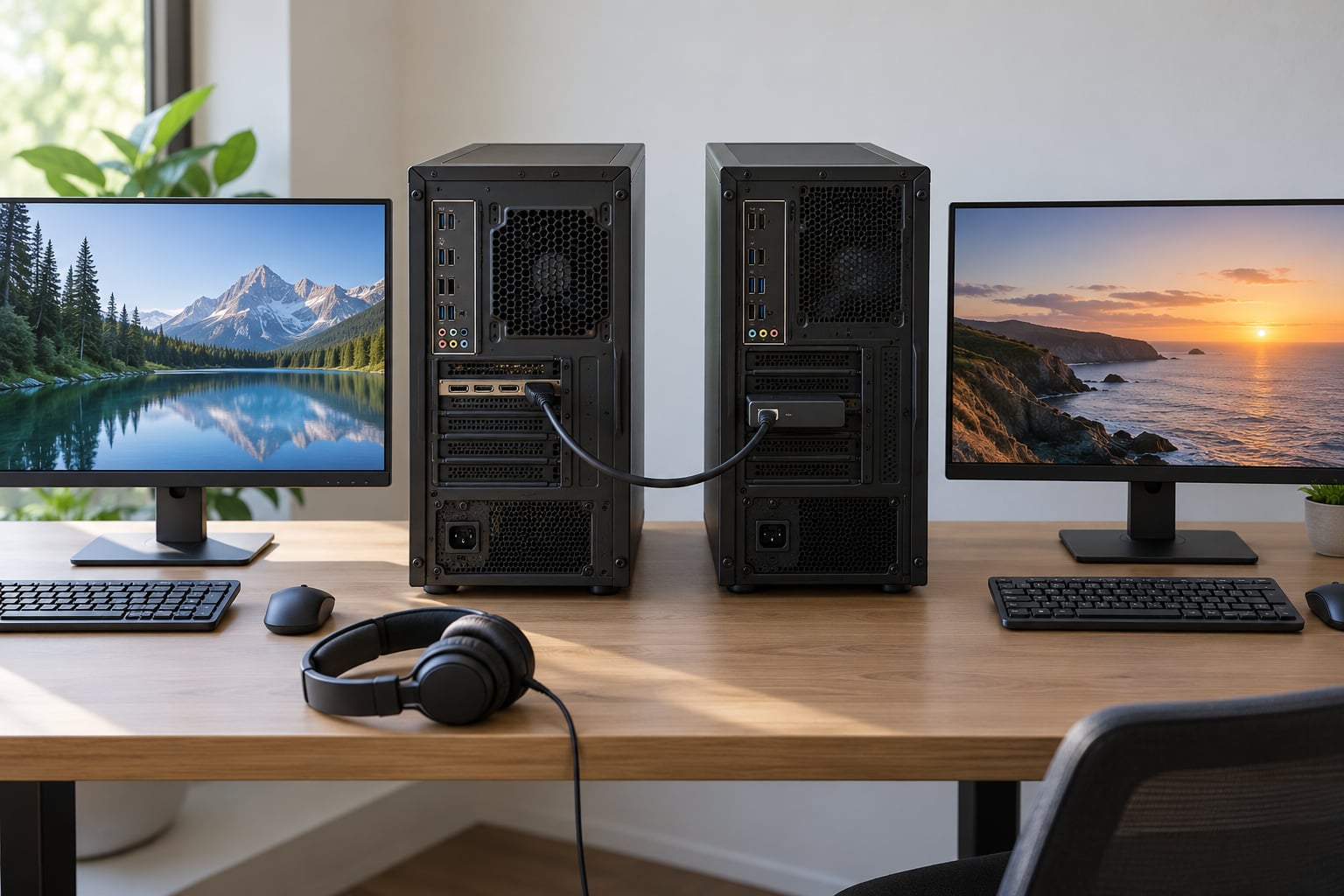
Dual PC streaming means your games run on one computer and a second computer handles capture, encoding, chat, and recording. You connect the gaming PC’s graphics card to a capture card on the streaming PC with HDMI, and OBS Studio on the streaming PC turns that signal into a broadcast. The whole build takes about two hours, most of it spent on audio.
This guide covers the wiring, the software, the audio routing that trips up most beginners, and the fixes for the problems that actually get reported. If you already know the parts and just want the cable order, jump to the step-by-step section.
Table of Contents
- What You Need
- How to Set Up Dual PC Streaming Step by Step
- How to Set Up Dual PC Streaming: Plan the Two-PC Layout
- How to Set Up Dual PC Streaming: Connect the Hardware
- Configure the Capture Card and Streaming Software
- Set Up Game, Desktop, Chat, and Alert Scenes
- Route Audio and Prevent Echo
- Test the Stream Before Going Live
- Common Mistakes
- Frequently Asked Questions
- Do I need a capture card for dual PC streaming?
- Do you need an audio mixer for dual PC streaming?
- Is dual PC streaming better?
- Why is there no audio in OBS on my streaming PC?
- Can I stream at 144Hz on the gaming monitor while capturing at 60fps?
- Conclusion
What You Need
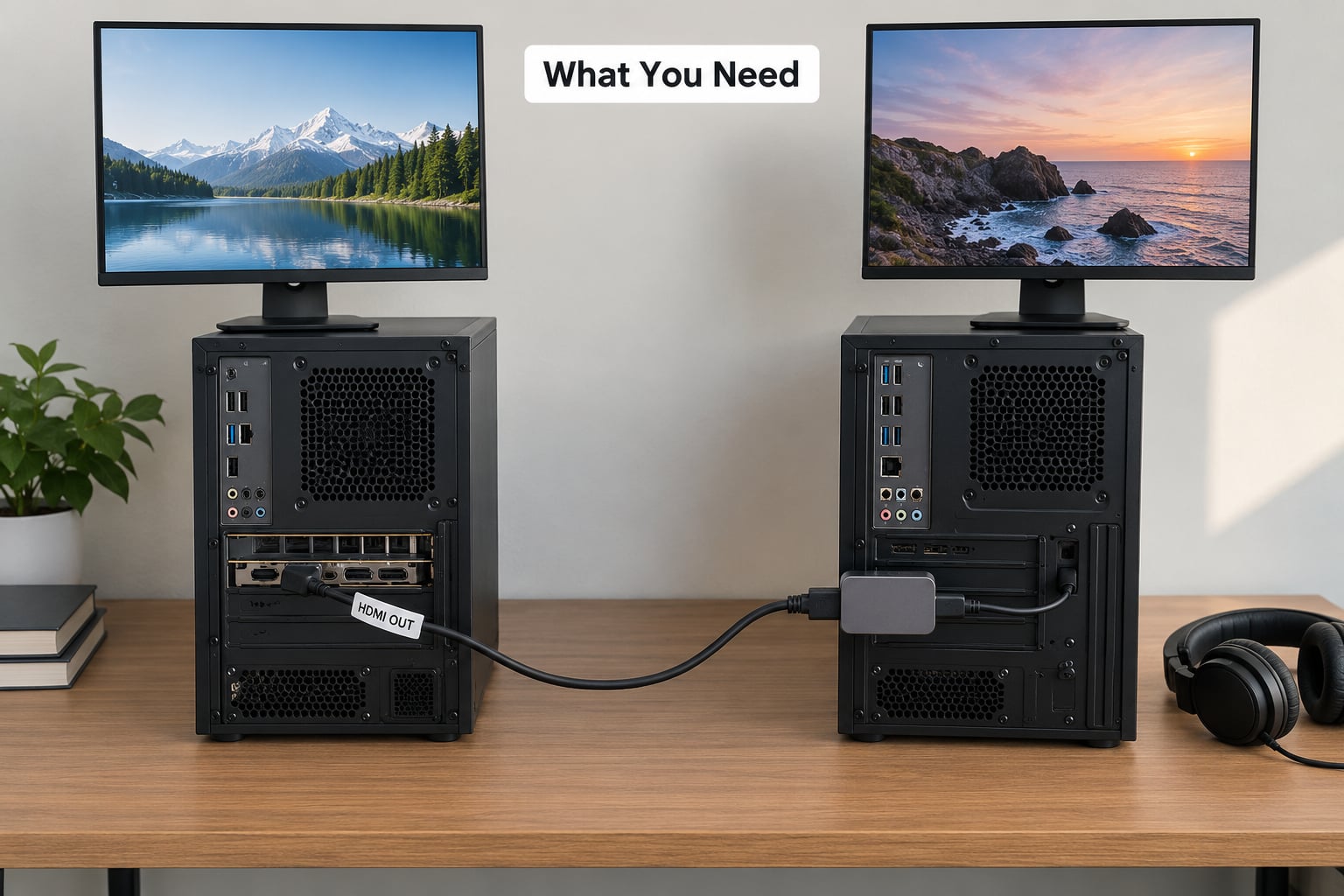
Two PCs are the core requirement. Everything else supports them.
- Gaming PC — runs the game and feeds a clean signal out of its graphics card.
- Streaming PC — captures, encodes, runs OBS Studio, and handles chat and alerts.
- Capture card — a PCIe card or USB 3.0 box that sits on the streaming PC. The Elgato HD60 X is the most commonly owned card in the communities that discuss this, though Elgato 4K60 Pro MK.2 handles 4K60 passthrough.
- Cables — one HDMI from the gaming GPU to the capture card input, one HDMI from the card’s HDMI out to the streaming PC, and a USB cable from the card to the streaming PC. A spare HDMI cable costs nothing to have lying around and saves an hour.
- Audio routing — usually nothing extra, because HDMI already carries game audio. See the audio step for when you do need a cable.
- Microphone — plug a USB mic straight into the streaming PC so OBS hears it without routing.
- Wired Ethernet — both PCs on cable. Wi-Fi upload on the streaming PC is the second most common cause of dropped frames in a stream.
A word on the streaming PC, because this is where people overspend. It does not need a discrete graphics card. What it needs is a CPU with a hardware encoder — NVENC on NVIDIA, AMF on AMD, QSV on Intel — plus 32GB of RAM if you can get it, since OBS Studio, a browser with chat and alerts open, and a recording application will eat memory fast.
How to Set Up Dual PC Streaming Step by Step
How to Set Up Dual PC Streaming: Plan the Two-PC Layout
Decide which machine does what before you plug anything in, because the HDMI output on most GPUs is usually assigned to a specific monitor.
Your gaming PC runs the game and sends video out. Its HDMI port is for the capture card only — you will not have it feeding your monitor directly anymore. Your monitor connects to the gaming PC through DisplayPort so it keeps its full refresh rate.
Your streaming PC runs OBS Studio, alerts, chat, a browser, and the recording. It does not need to be fast, only stable and wired in.
How to Set Up Dual PC Streaming: Connect the Hardware
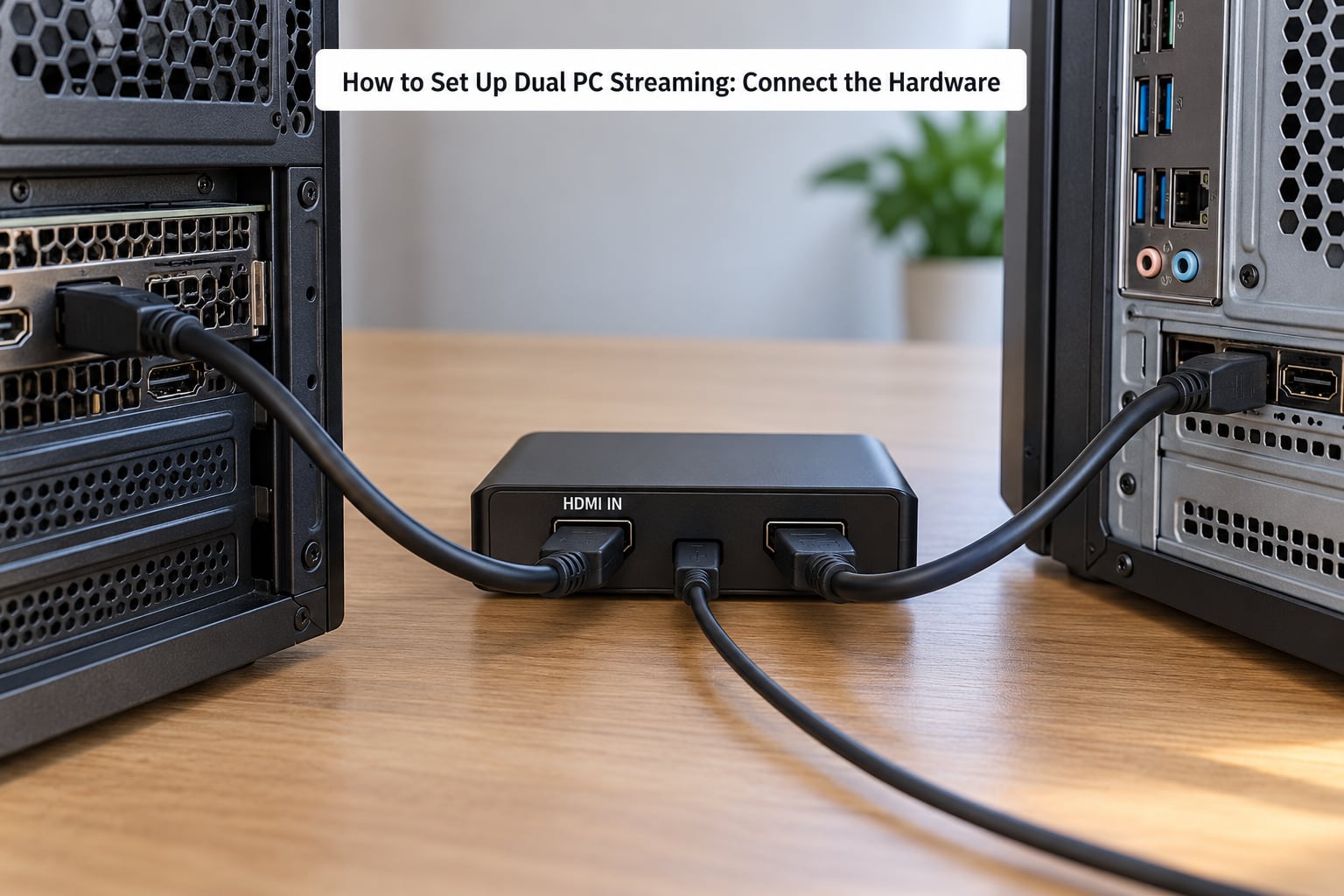
The signal path in full, in the order the cables go:
Gaming GPU HDMI out -> Capture card HDMI IN
Capture card HDMI OUT -> Streaming PC HDMI in
Capture card USB -> Streaming PC USB 3.0 port
Gaming PC DisplayPort -> Gaming monitor
Streaming PC DisplayPort -> Second monitor (optional)
Microphone USB -> Streaming PC
Both PCs -> Router via Ethernet
Two things catch people here. First, plug the card into the streaming PC before you power either machine on, so Windows installs the driver cleanly. Second, if you see a black screen with a small “no signal” message on the streaming PC, the card is receiving but OBS is not showing it yet — that is a software problem, not a cable problem.
Configure the Capture Card and Streaming Software
Install OBS Studio on the streaming PC and the capture card’s software if it ships with one. In OBS, go to Settings → Video → Video Capture Device and pick the capture card from the dropdown. Leave it at the default resolution and frame rate to test first.
Now match the source to what your game is sending. Most capture cards accept 1080p60 comfortably. Add a Video Capture Device source in your scene and you should see your desktop appear within a second or two.
If you see the desktop rather than the game, your game is running windowed instead of fullscreen. Set the game’s display mode to fullscreen or borderless windowed, and set the same resolution on the game as the capture source. This exact problem comes up constantly because borderless windowed games keep the taskbar in frame.
Set Up Game, Desktop, Chat, and Alert Scenes
Build four sources and four scenes rather than one scene with everything crammed in. You will thank yourself the first time an alert needs hiding.
Gameplay scene: a Video Capture Device source for the card, plus your microphone as an Audio Input Capture source. Add a second Video Capture Device if you use two cards for a duo stream.
Desktop scene: a Display Capture source on the streaming PC. This is where you show mods lists, music setup, or a browser tab for a wiki.
Chat scene: a Window Capture source pointed at your chat window, sized and cropped to fit the corner. Pair it with the Browser source alternative if your chat client does not render cleanly in window capture.
Starting screen scene: a simple “starting soon” card for the two minutes while you set up. Switching to it is just one hotkey.
Bind scene switches to hotkeys rather than clicking. Most of the time you will go gameplay to starting screen and back, and nobody should see you hunting for the right scene in front of your face.
Route Audio and Prevent Echo
Here is the part that breaks. Read it before you buy any cable.
The capture card carries the game audio inside the HDMI signal. OBS Studio on the streaming PC sees that audio automatically through the Video Capture Device source. In most cases that is your entire audio routing, and the advice repeated across every streaming forum is exactly that: do not buy a 3.5mm cable between the PCs, because the HDMI route already solved the problem.
So the standard wiring is:
- Game audio reaches OBS through the capture card’s HDMI.
- Your USB microphone plugs into the streaming PC, so OBS hears you directly.
- Your headphones plug into the gaming PC so you hear the game with no delay.
- Voice chat runs on the gaming PC through the same headphones.
That last pair is what kills echo. If you monitor audio on speakers, your microphone picks the speakers up and viewers hear you twice, delayed. Headphones on the gaming PC solve it. If you need to hear your own mic, plug the headphones into a mixer or interface with direct monitoring instead.
Analog routing still has its place. If your microphone is an XLR interface and you want it in Discord on the gaming PC too, run the interface’s line-out to the gaming PC’s line-in, and turn on Listen to this device in Windows sound settings. Add a ground loop isolator on that line or you will get a hum that comes and goes.
Wave Link is the tidy version if your mic is an Elgato Wave device. Run it on both machines and audio moves in either direction without extra patching.
Test the Stream Before Going Live
Run through this before you broadcast anything public.
- The capture card shows your game, not the desktop.
- Game audio meters move when something happens in-game.
- Your mic meter moves when you talk, and stays still when you do not.
- No echo, hum, or crackling.
- Bitrate is set for your upload, and OBS reports no dropped frames in a five-minute test.
- Chat, alerts, and scene hotkeys all fire.
- The recording path works, if you plan to save a local copy.
- Any browser tabs with personal accounts are closed or hidden.
Then run a private or unlisted test broadcast for five minutes and watch it on a phone, not in the OBS preview. The preview lies to you about latency. Watching your own stream from another device is the only test that tells you what a viewer will see.
Common Mistakes
| Symptom | Likely cause | Fix |
|---|---|---|
| Video works, no audio in OBS | Analog cable expected to carry audio it never carried | Delete the 3.5mm cable. Check the Video Capture Device source has its audio bars enabled in Audio Mixer. |
| Buzzing or humming | Ground loop between two connected PCs | Add a ground loop isolator on the analog line, or move to the HDMI audio route. |
| Echo for viewers | Microphone hears open speakers | Headphones on the gaming PC, or a mixer with direct monitoring. |
| Crackling or warbling | Mismatched sample rates between PCs | Set both PCs to the same rate in Windows sound settings, usually 48 kHz. Close other apps holding the device. |
| Audio lags behind video | Capture card delay and network buffering | Adjust the sync offset in Advanced OBS Settings, in milliseconds. Measure it with a stopwatch rather than guessing. |
| Black screen in OBS | Source set to wrong input, or game not in fullscreen | Re-select the capture device, then set the game to fullscreen and restart it. |
| Card shows the desktop | Game running windowed | Set the game to fullscreen or borderless windowed. |
| Dropped frames while streaming | Streaming PC encoder set to software, or Wi-Fi upload | Switch the encoder to NVENC, AMF or QSV. Move the streaming PC to Ethernet. |
| Frames drop in the game | GPU power headroom cut by capture output | Lower the captured resolution or frame rate so the card is not demanding 4K from the GPU. |
On the no-capture-card route: NDI works and costs nothing, and plenty of setups run it happily. The complaints that keep coming back are audio desync and stream freezes. If you go that way, test it on a real broadcast before you commit to it, and expect to troubleshoot more.
A laptop works fine as the streaming PC as long as it is wired in and does not sleep. Nothing about the streaming role needs a desktop tower.
Frequently Asked Questions
Do I need a capture card for dual PC streaming?
No, but it is the reliable path. The HDMI signal coming out of your graphics card has to land somewhere, and a capture card is that somewhere. Without one you need NDI, which sends video over the network and brings its own audio desync and freezing problems. If your streaming PC is close enough for a long HDMI cable, the card is cheaper than the hours you lose to NDI troubleshooting.
Do you need an audio mixer for dual PC streaming?
Usually not. HDMI from the gaming PC to the capture card already carries game audio into OBS, so a USB microphone on the streaming PC and headphones on the gaming PC are enough. You need a mixer only when you want to send audio both ways, share one microphone between Discord and OBS, or add music you control with hardware buttons.
Is dual PC streaming better?
It is better when frame rate stability matters, because the encoder never competes with your game for CPU and GPU. It is not better if you stream casually, since a modern single PC with hardware encoding handles 1080p60 easily. Two machines also mean two sets of updates, two power leads, and a second monitor to manage.
Why is there no audio in OBS on my streaming PC?
The most common cause is expecting a 3.5mm cable to carry audio that the HDMI signal was already carrying. Open the Audio Mixer in OBS and check the Video Capture Device source has its audio bars switched on. If you are routing analog audio, confirm the streaming PC’s line-in is enabled in Windows sound settings and that Listen to this device is on.
Can I stream at 144Hz on the gaming monitor while capturing at 60fps?
Yes, and this is one of the better reasons to split the machines. Connect your monitor with DisplayPort so it keeps its full refresh rate, and let the capture card receive a 1080p60 signal through HDMI. Most cards will not pass a 4K120 feed, so check the card’s maximum input resolution before assuming it can.
Conclusion
Start with four actions. Decide which PC runs the game and which encodes. Run the HDMI path from the gaming GPU to the capture card on the streaming PC and confirm OBS sees it. Route audio through HDMI with headphones on the gaming PC, buying nothing extra. Then run a private five-minute test broadcast and watch it on a phone.
Get those four right and how to set up dual PC streaming stops being a project and becomes background noise, which is the whole point. We revisit this guide each year as hardware changes, so the details here reflect 2026 setups rather than the first version of this guide.