Most packet loss in games is caused by Wi-Fi interference, a congested local network, or faulty hardware, not by your ISP. How you fix packet loss while playing online games comes down to testing first, then working outward: confirm it is packet loss, kill background traffic, power-cycle your gear, go wired if you can, and only then call your provider. The whole sequence takes about 30 minutes and most people find the cause by step four.
The symptoms are unmistakable once you know them. Your character rubber-bands backwards after you walk around a corner. Your shots land but do not register damage. Enemies teleport across the map. Or you get dropped from the match every few minutes with no warning. Each of those means data is going missing between your device and the game server.
What packet loss is: some of the small numbered packets carrying your inputs to the game server never arrive, so the game guesses what happened and your actions, hits, and positions fall out of sync with everyone else. High ping makes everything sluggish. Packet loss makes it wrong. We have kept this guide updated for 2026 as the network stacks change, but the order of operations has not.
Table of Contents
- What You Need
- Step-by-Step: How to Fix Packet Loss While Playing Online Games
- 1. Test Packet Loss Before Changing Anything
- 2. Close Downloads and Background Network Use
- 3. Restart the Game and Network Equipment
- 4. Check Cables, Wi-Fi Signal, and Network Placement
- 5. Reset Network Settings and Pick the Right Connection Option on Windows, PS5, and Xbox
- 6. Check for Server-Side and Game-Side Problems
- 7. Contact Your ISP With Evidence
- What About Boosters and VPNs?
- Common Mistakes
- Frequently Asked Questions
- Is packet loss the same as high ping?
- Does 1% packet loss affect online games?
- Will a VPN fix packet loss from my ISP?
- Should I use Ethernet instead of Wi-Fi for online games?
- How do I know whether packet loss is on my end or the server?
- Does changing DNS reduce packet loss in games?
- Conclusion
What You Need
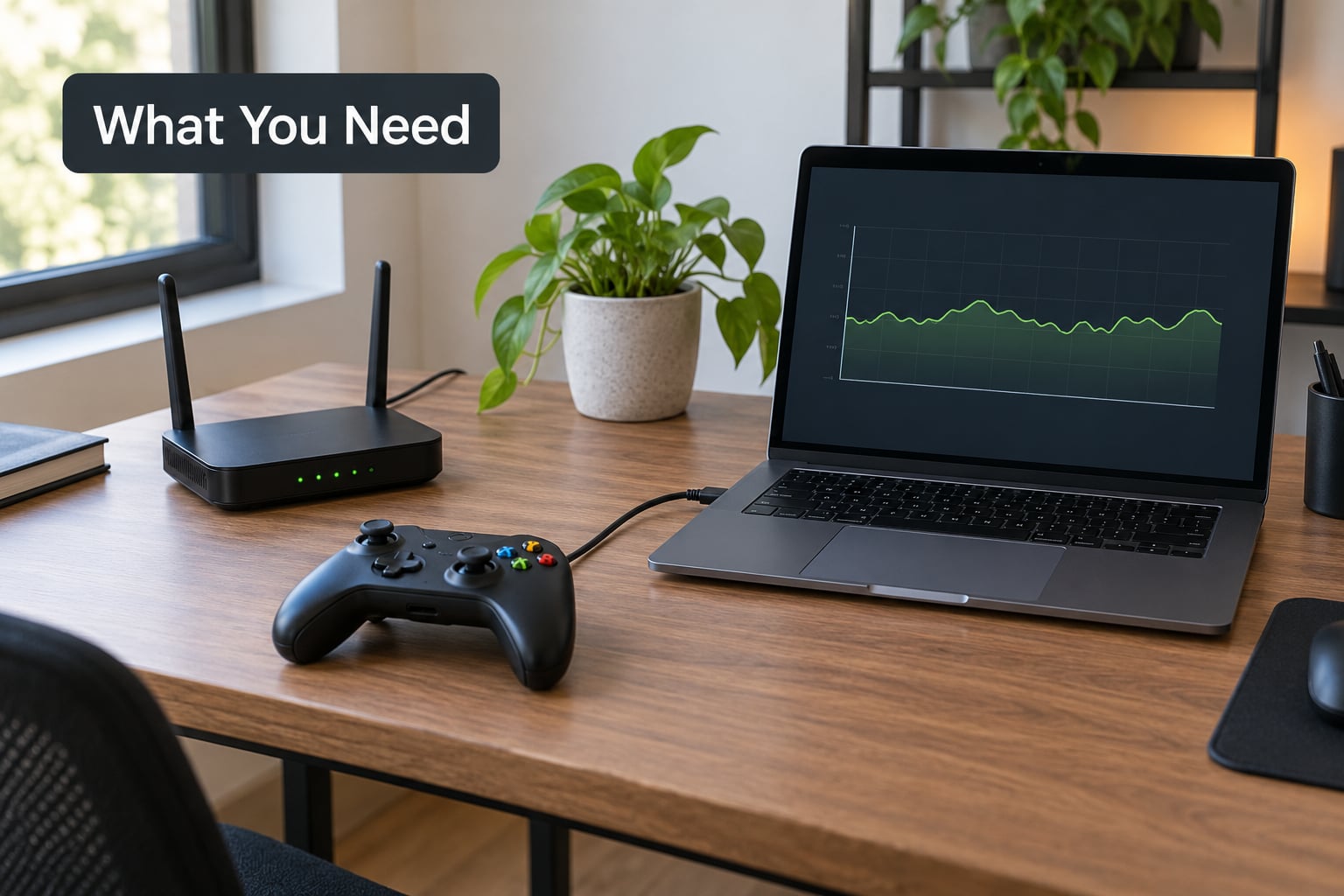
You do not need much. Having the right things to hand turns a two-hour guessing game into a 30-minute session.
- A stable connection, wired or Wi-Fi, that you have used long enough to know its normal behaviour.
- Access to your router and its admin page. The address is usually printed on the underside of the router, often something like 192.168.1.1 or 192.168.0.1.
- The game itself plus your console or PC.
- A phone or a second computer on the same network, so you can compare behaviour between devices.
- Your ISP account details, for the step where you need to open a ticket.
Menu paths differ across platforms, and I will call out the differences where they matter. Windows 11, PlayStation 5, Xbox Series X|S, and Android all expose some version of a network test, but the names and the depth of detail are not the same. Where I name a setting, I say which platform it belongs to.
Keep a notepad open. Write down the packet loss percentage, the time, and what else was running. Half of all misdiagnoses come from someone remembering a number from four steps ago.
Step-by-Step: How to Fix Packet Loss While Playing Online Games
Work through these in order and stop the moment the problem disappears. Each step below is designed to rule out one layer, so skipping ahead wastes the work you already did.
1. Test Packet Loss Before Changing Anything
Measure first. Changing five settings without a baseline number is how people end up convinced they fixed something that never broke.
On Windows, open Command Prompt and run ping -t 8.8.8.8. On macOS or Linux the same command runs in Terminal. Let it run for a couple of minutes and read the summary line at the end. Any number higher than zero in the packet loss field is a real reading.
Consoles give you the number too, just less detail. On PS5, go to Settings, then Network, then Network Status, then Test Internet Connection, and read the packet loss figure it prints. On Xbox Series X|S, the equivalent path is Settings, General, Network settings, and the connection test under Network Status.
Most games also have an in-game overlay you can pin up, usually toggled with a key combo listed in the game settings. In CS2 and Valorant it shows ping and packet loss side by side, which is the fastest way to catch loss during an actual match rather than an idle session.
Record three numbers, not one: your average ping, your peak ping, and your packet loss percentage. Those three together tell you which problem you have.
| Problem | What it feels like in game | Typical reading | Where it comes from | Fix that matches it |
|---|---|---|---|---|
| High ping | Everything is consistently sluggish, enemies have a delay before moving | 80 ms and up, but stable | Long physical route to the server | Move closer to the server region, or go wired to cut a wireless hop |
| Jitter | Rubber-banding in bursts, input feels uneven | Ping swings by 20 ms or more between seconds | Congestion, Wi-Fi contention, weak signal | Clear background traffic, stabilise Wi-Fi |
| Packet loss | Shots do not register, characters teleport, disconnects | 1% and up, or spikes to 100% for a few seconds | Dropped packets anywhere along the route | Diagnose the hop where the loss begins |
| Frame drops | Stutter that also happens offline, menus included | Packet loss stays at 0% | GPU, CPU, thermals, storage | Nothing in this guide applies. Check frame rate instead |
A note on why your speed test lies to you. A throughput test measures how much data moves per second. It does not measure packet loss, jitter, or route quality, so a perfect 940 Mbps result tells you nothing about a game that rubber-bands every fifteen minutes. Several users in the HomeNetworking community described exactly this dead end, and it is the single most common reason people post here still stuck.
One pattern matters more than any other. Loss that is constant and small points at congestion or a weak link. Loss that spikes to 100% every five to fifteen minutes for about five seconds points at something periodic: a background sync, an overloaded ISP node, or hardware that drops and renegotiates. A user on r/HomeNetworking saw an identical loss event every fifteen minutes lasting five seconds on two different USB Wi-Fi adapters, and never saw it on a laptop over a downstairs Ethernet port. That pattern was the clue, and the fix followed from it.
| Packet loss | Competitive shooter | MOBA or MMO | What to do |
|---|---|---|---|
| Under 0.5% | Imperceptible | Imperceptible | Leave it alone |
| 0.5% to 1% | Occasional missed hit registration | Rarely noticeable | Watch the pattern, fix if it spikes |
| 1% to 2% | Noticeable in every engagement | Minor desync in busy fights | Diagnose properly this week |
| 2% to 5% | Unplayable at times, hits do not count | Very frustrating in groups | Treat as a real fault and trace it |
| Above 5% | Unplayable | Unplayable | Stop testing games, fix the link first |
| 100% for a few seconds | Hard freeze, then rubber-band | Same | Total link failure, not congestion. Look for periodic causes |
The spike pattern matters as much as the average. Two percent spread evenly is bad; one percent that arrives as a five-second blackout every ten minutes is arguably worse, because you cannot predict it.
2. Close Downloads and Background Network Use
Pause everything else on the network before you do anything else. Open your router’s admin page and look at the connected devices list, or run a speed test right before a match and note the upload figure.
Usual culprits: cloud photo and video syncing, a console downloading a game in the background, a Windows or console system update, a torrent client, a video call, or someone streaming in the next room. Stop them all and rerun the ping test. If loss drops to zero, you have found it, and the fix is a scheduling habit rather than new hardware.
This solves congestion, not a faulty line. If you pause the downloads and the loss persists, congestion was never the cause, and you should move on rather than spend an evening tweaking QoS settings.
3. Restart the Game and Network Equipment
There are two different restarts here and people mix them up. A game restart closes the client and clears whatever it has cached. A full power cycle resets the actual network gear.
For the power cycle, unplug the modem and the router, wait about 30 seconds, then plug the modem in first. Wait for its sync lights to settle fully, which can take two or three minutes. Plug the router in after that and wait for it to come up. Then reconnect your console or PC.
The order matters. Most routers reboot fine before their modem finishes negotiating the line, and you end up with a router that reports an internet connection it does not actually have.
How to tell it worked: your ping test shows a stable reading with zero loss for at least a couple of minutes. If it did not, the fault is somewhere the power cycle cannot reach, and you keep going.
4. Check Cables, Wi-Fi Signal, and Network Placement
On wired setups, reseat both ends of the Ethernet cable, try a different port on the router, and try a different cable. Cat6 is the sensible standard now and cheap enough that there is no reason to keep a cable from eight years ago. A damaged or kinked cable produces exactly the periodic drop pattern people mistake for ISP trouble.
On Wi-Fi, walk to the router and run the test there. If loss disappears at two metres, you have a coverage or interference problem and Ethernet will fix it. If loss follows you, the problem is upstream of the Wi-Fi.
Reduce interference where you can. Thick walls, foil-backed insulation, mirrors, and microwaves all eat signal. Put the router on a shelf in an open spot rather than on the floor or inside a cabinet, keep it off the same surface as your PC case, and if you have a choice of band, use 5 GHz or 6 GHz for range over speed and accept a slightly shorter reach. In dense housing, neighbouring networks overlapping on the same channels is a common and underappreciated cause. Changing your Wi-Fi channel to something less crowded is free.
This is also where the USB Wi-Fi adapter conversation comes up. Users on this forum have reported identical loss patterns across two different USB adapters, which points at the shared USB bus, a weak internal antenna, or a driver quirk rather than the ISP. If that is your situation, an internal adapter or a wired connection is the change that actually moves the number.
Go wired when the match matters and you can. For most households, Ethernet removes interference and contention completely, and it will not fix ISP-side loss. Know which of those two situations you are in before you expect it to work.
5. Reset Network Settings and Pick the Right Connection Option on Windows, PS5, and Xbox
There are safe resets and destructive ones, so read what you are about to lose before you click. On Windows 11, Settings, Network and internet, Wi-Fi, then Hardware properties, opens the adapter options; Reset network settings clears all your saved networks, VPN profiles, and adapters and forces a restart. On PS5, a full console reset under System, System Software, Reset Console removes all data and takes far longer than the network-only test. On Xbox, Clear local network under Settings, General, Network settings keeps your games and saves but drops stored connections and requires a fresh sign-in.
Now pick the connection type deliberately. Ethernet if you have it. 5 GHz or 6 GHz Wi-Fi over 2.4 GHz if you must use wireless, since the 2.4 GHz band is crowded, short-range, and shared with Bluetooth devices.
On DNS, be honest about what it does. Changing to a faster resolver can improve the time between launching a game and reaching its servers, and it can fix problems caused by poor name resolution. It does not repair packets that vanish on the way there. If your loss is real and repeatable, DNS will not touch it.
On Windows specifically, there is one adapter setting worth knowing about. Players in the CS2 community reported smoother play and a possible frame-rate gain after reviewing advanced adapter properties, particularly UDP checksum offload and TCP checksum offload. Treat that as worth an experiment rather than a known fix, and run your test before and after so you know whether anything changed.
6. Check for Server-Side and Game-Side Problems
Packet loss does not always start in your house. Run the same ping test during a different game, or the same game at a different time of day. Then check the publisher’s service status page or official account for maintenance windows and degraded servers.
On mobile and Android, packet loss often comes from switching between Wi-Fi and mobile data mid-match, or from background app sync. Turn off background data and battery optimisation for the game and any cloud backup apps, and pin Wi-Fi if the phone keeps hopping between access points.
Worth noting that servers sometimes migrate a match between machines, which produces a one-off spike that has nothing to do with you. It is rare and it does not repeat.
How to tell it worked: loss in your ping test is zero, but the game server still shows loss or spikes. That is a server-side or regional route problem, and the local fixes are exhausted.
7. Contact Your ISP With Evidence
Open a ticket with a record, because support closes tickets with a passing speed test as a default. Have these ready: the times the loss happens, how long it lasts, whether it occurs on Wi-Fi and on Ethernet, on the console and on the PC, and during which hours. Include your ping test results, and if you have one, a WinMTR trace. Ask for a line test and a cabinet signal check, and write down the ticket reference number before you hang up.
Script that works: “I am seeing intermittent packet loss, not slow speeds. Speed tests pass but I get spikes to 100% lasting about five seconds every ten to fifteen minutes, during peak hours, on both Wi-Fi and Ethernet and across two devices. I have power-cycled my modem and router and run a continuous ping test showing the loss. I am asking for a line test on my connection.”
Ask for a line test on the connection and a signal check at the cabinet. Those two tests catch physical-layer faults that a throughput test never will.
What About Boosters and VPNs?
Worth knowing honestly, because the search results for this question are mostly sellers. A VPN adds a hop, so it can add loss rather than remove it. It is a reasonable diagnostic, though: turn one on, run the same ping test, and see whether your pattern changes. If the loss moves with you rather than staying put, it is upstream of the tunnel.
Paid route boosters work by sending your traffic through a different path to the server. They help with bad routing between regions. They do nothing about a faulty cable, a crowded Wi-Fi channel, or congested hardware on your own desk. A user whose ISP technician tested on their own gear, found nothing, and closed the ticket is a good example of a problem no booster can reach.
Common Mistakes
Changing six settings at once. You will not know which one helped, and you will not be able to undo the harmless ones. Change one thing, test, then move on.
Treating ping as the whole story. Ping tests that show 20 ms and zero loss still hide jitter and periodic drops. Watch a continuous test for two minutes, not a three-packet one.
Trying to game on Wi-Fi from a spot you already know is bad. If the test at the router is clean and the test at your desk is not, the desk is the problem. Move or wire in.
Updating everything mid-outage. Console updates and driver installs during a bad patch window mean you cannot tell what fixed what, and you have lost your settings as a diagnostic tool.
Treating a speed test as proof there is no problem. It measures throughput only. It will happily report a healthy number on a line dropping packets every fifteen minutes.
Factory-resetting the router three times without writing down what changed. Each reset wipes your log, and the log is often the only evidence you have for an ISP call.
A few habits keep play stable after the fix. Run your continuous ping test before a ranked session rather than after a bad one. Keep the router open and elevated. Prefer 5 GHz over 2.4 GHz when you must use Wi-Fi. Note the pattern when it appears, because a pattern identifies the cause faster than any amount of guessing. And keep one wired machine on the network if you can, so you always have a clean baseline to compare against.
Frequently Asked Questions
Is packet loss the same as high ping?
No. Ping is the round-trip time for a packet to travel to the server and back, so high ping means everything is consistently slow. Packet loss means some packets never arrive at all. High ping is predictable and uniform, packet loss is bursty and unpredictable, and the fixes differ too: routing and distance affect ping, while congestion, Wi-Fi interference, and hardware faults cause loss.
Does 1% packet loss affect online games?
It depends on the genre and the pattern. Under 0.5% is imperceptible. At 1% in a competitive shooter you will miss hit registration on the occasional shot, which compounds over a match. In an MMO the same figure is rarely noticeable. If that 1% arrives as a five-second blackout every ten minutes, it is far worse than a steady 2%, so the spike pattern matters as much as the average.
Will a VPN fix packet loss from my ISP?
Not usually. A VPN adds another hop, so it can add loss rather than remove it. If your ISP line is dropping packets physically, the tunnel carries those dropped packets along with everything else. A VPN is still useful as a one-off diagnostic: turn it on, rerun your continuous ping test, and see whether the loss pattern moves or disappears.
Should I use Ethernet instead of Wi-Fi for online games?
For most people, yes. Wired removes wireless interference, channel contention, signal strength problems, and the periodic renegotiation some access points perform. It will not fix ISP-side loss, a faulty modem, or a congested node outside your house, so treat it as eliminating one whole layer rather than a cure. If you cannot wire in, moving to 5 GHz or 6 GHz and getting closer to the router helps.
How do I know whether packet loss is on my end or the server?
Run a continuous ping test to a public address such as 8.8.8.8 while you play. If loss appears there, it is on your network or your ISP line, not the game. If that test is clean but the game overlay still shows loss, the loss is between your ISP and the game server, or on the server itself. Comparing two different games points the same way.
Does changing DNS reduce packet loss in games?
DNS affects how quickly your device resolves the game server’s address, so a faster resolver can shorten the time between opening the game and joining a match. It does not repair packets that vanish along the route. Changing DNS will not fix repeatable packet loss in an established session, and it is worth trying only after the local causes have been ruled out.
Conclusion
Start with a two-minute continuous ping test and write down the number. If it shows loss, pause every download and rerun it. If it persists, power-cycle the modem before the router, then reseat the cables or move closer to the router. Whatever is still left after that is either your line or the game server, and you now have the timestamps and readings to prove it either way.