If you’re searching for why does my pc shut down during games, the short answer is that the machine is tripping a hardware safety shutdown, not crashing on its own. The CPU or graphics card crossed a temperature limit, or the power supply detected a voltage or current fault and cut output instantly, which is why you usually get no blue screen and no error message.
That instant-off behaviour is the useful clue. A game that crashes produces a freeze, a black screen and often a Windows error. A hardware protection cut produces a clean, immediate blackout with the fans cutting out at the same moment. Work through the checks below in order, because swapping parts at random is the most expensive way to find this.
Table of Contents
- What You Need
- Step-by-Step: Diagnose the Shutdown
- 1. Watch CPU and GPU temperature while you play
- 2. Check Reliability Monitor and Event Viewer for the trigger
- 3. Test the power supply
- 4. Update the graphics driver, chipset driver and BIOS
- 5. Check storage and memory
- 6. Isolate the graphics card or a peripheral
- 7. Reset BIOS settings before you blame hardware
- Common Mistakes
- Frequently Asked Questions
- Can overheating make my PC shut down during a game?
- Why does my PC turn off suddenly with no warning?
- How can I tell if my power supply is causing the shutdown?
- Is it the graphics card, RAM, or power supply?
- Should I update my graphics driver before troubleshooting this?
- What should I do if my PC shuts down only in one game?
- What to Do First
What You Need
A few things make this diagnosis much faster, and all of them are free or already on the machine.
- A recent install of Windows 10 or Windows 11, since you’ll be reading its logs.
- A temperature monitor: HWMonitor, HWiNFO64 or MSI Afterburner. All three read the same motherboard sensors.
- A flashlight for looking inside a dark case.
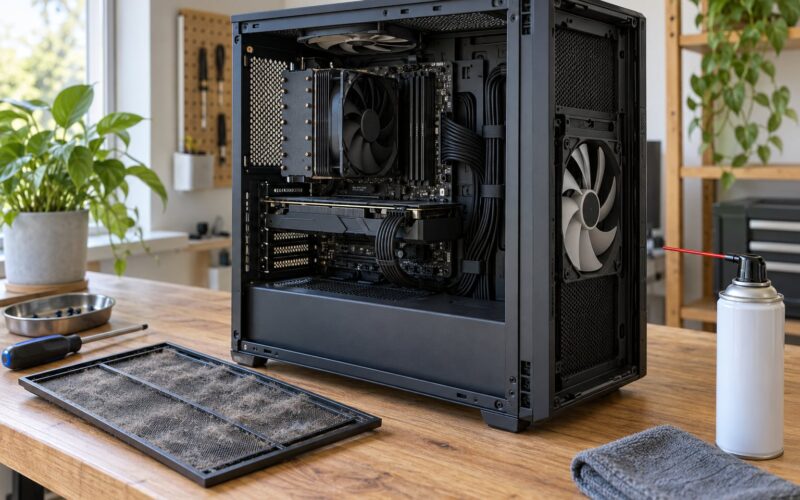
- Compressed air for a dust check.
- Access to your BIOS or UEFI setup screen.
- A known-good USB device, so you can tell a dead system from a dead drive.
Before you open anything, shut the machine down, switch off the PSU, and unplug the power cable. Hold the power button for about ten seconds to drain the capacitors. If you’re checking internal cables, do it with the machine cold and unplugged, not while it’s running.
One more thing worth doing first: back up your game saves. Some of the steps below involve driver reinstalls and BIOS changes, and you’d rather not lose a season of progress to a save that got corrupted along the way.
Step-by-Step: Diagnose the Shutdown
Work top to bottom. Each step eliminates one variable, and the cheapest ones come first.
1. Watch CPU and GPU temperature while you play
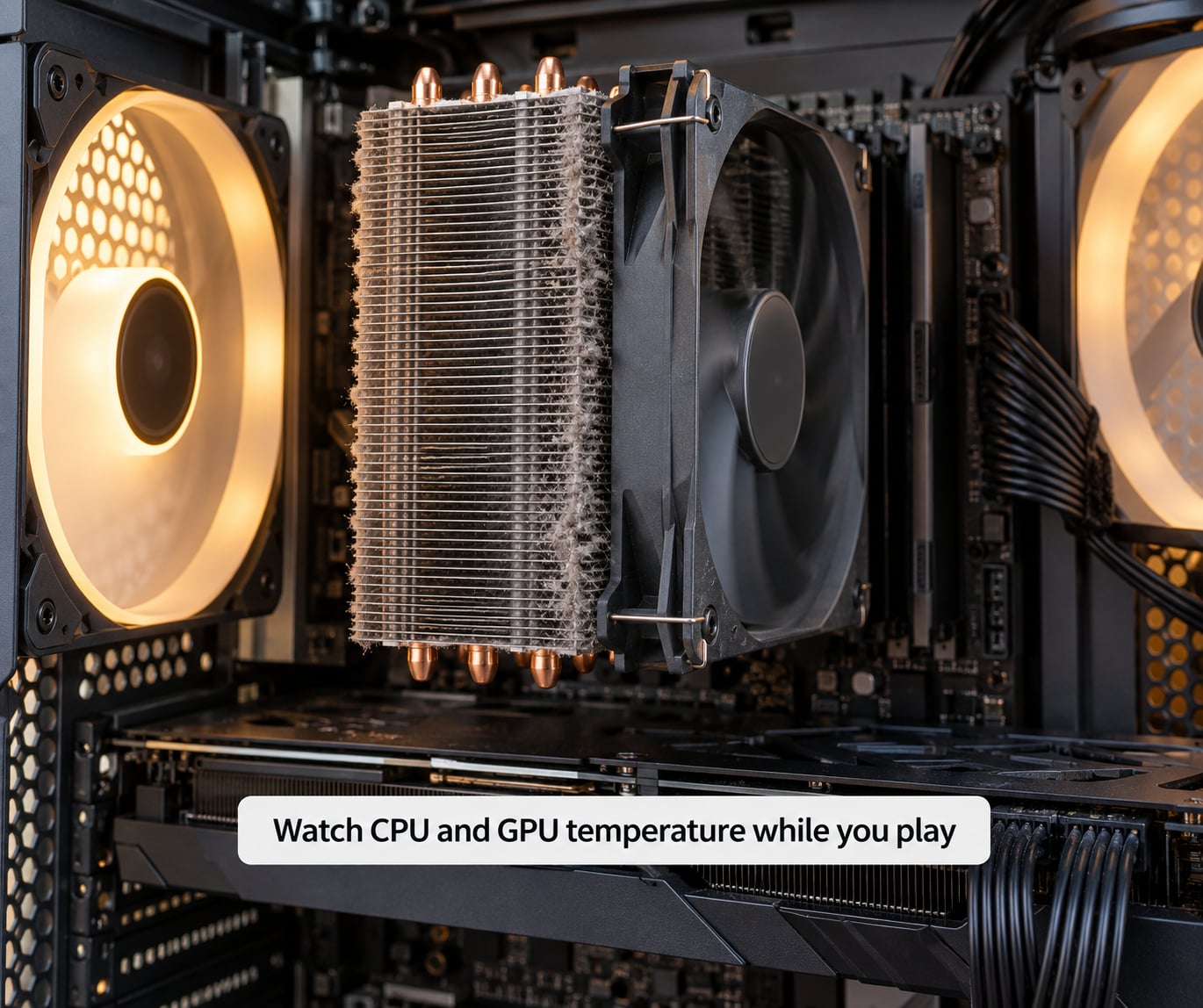
Open HWMonitor or HWiNFO64 and leave it running in the corner of the screen. Then start the game that triggers the shutdown and let it get to the point of failure.
Here are the bands that matter:
- CPU at idle or light desktop use: 45-60 °C is normal.
- CPU under sustained gaming load: under 85 °C is a good target.
- CPU at 80 °C: the first sign of trouble, usually heat already soaking into the socket area.
- CPU at 90-100 °C: thermal throttling is happening, and a thermal shutdown follows.
- GPU core under load: 65-85 °C is the healthy range.
- GPU hotspot or VRAM above 90 °C: this is the one that quietly kills cards, and it can run 10-25 °C above the core reading.
Watch the hotspot and VRAM sensors, not just the GPU core number. Plenty of cards hold a fine core temperature while a hotspot sensor climbs into the 100s, and the shutdown still happens. If the machine dies and the logged peak was 90 °C or higher, you have your answer.
If the logged peak was under 75 °C and the system still died instantly, thermals are not your problem. Move on.
2. Check Reliability Monitor and Event Viewer for the trigger
This is the step most guides skip, and it often settles the question in a minute. Press the Windows key, type reliability, and open Reliability Monitor. Look for the exact minute the PC died and see what it recorded: a hardware error, a stopped working application, or a blue screen.
Then open Event Viewer (eventvwr.msc), go to Windows Logs, and look at System in the hour before the shutdown. Two entries tell you a lot:
- Event ID 41, Kernel-Power: Windows recorded an unexpected power loss and restarted. It never says what cut the power, so treat it as a symptom rather than a cause.
- Event ID 6008: the system was not properly shut down before the last restart.
The absence of evidence matters as much as the presence of it. If you find no minidump file in C:WindowsMinidump and no blue screen event, that’s a strong signal you had an instant power loss rather than a crash, which points at the power supply or protection circuitry instead of Windows.
3. Test the power supply
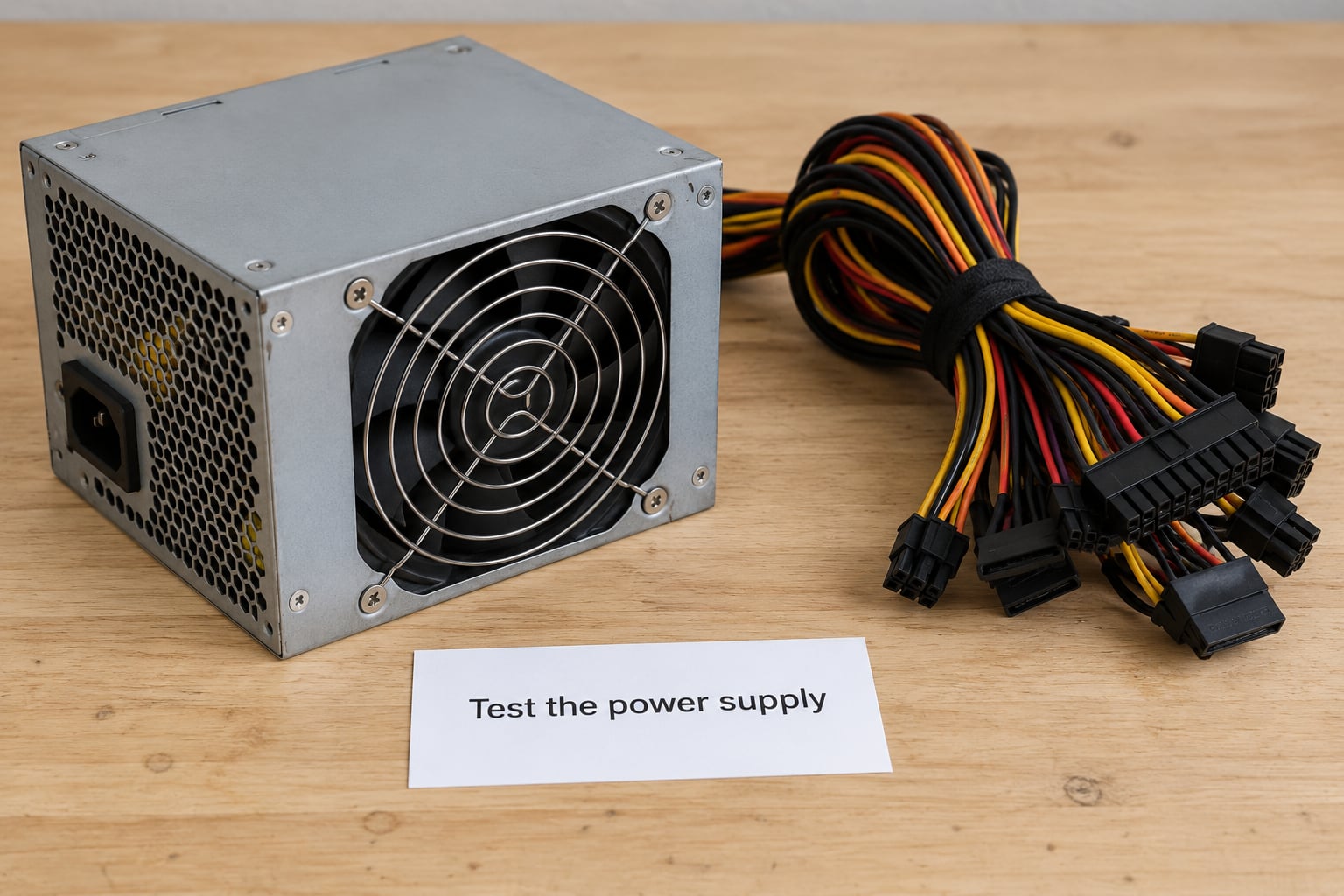
Modern graphics cards draw brief power spikes for a few milliseconds during load transitions. A power supply sized only for steady-state wattage can trip its own protection circuits during one of those spikes, and the result is exactly the instant blackout you’re seeing.
Check these in order:
- Recalculate your wattage. Add your CPU’s power draw and graphics card’s rated power, then leave headroom above the total. A supply that only just covers the sum is the problem even if every part works perfectly.
- Look inside. Dust caked on the intake fan, or a fan that rattles and drags, means the supply is on borrowed time. Bearing noise is not the same as insufficient wattage, and replacing a supply for a noisy fan often doesn’t fix the shutdown.
- Re-seat the PCIe power cables at both ends and confirm every modular connector is from the same power supply. Cables from a different unit have different pinouts and can destroy a board.
- Swap-test if you can. Borrow a known-good supply and see whether the shutdown follows the new unit. This is the only test that proves it.
If your machine dies at idle and also at full load, heat is unlikely to be the common factor, and the supply itself becomes the prime suspect. That split behaviour is one of the cleanest PSU signals there is.
4. Update the graphics driver, chipset driver and BIOS
Driver problems and power problems look similar from the chair, so rule drivers out. Get the graphics driver from your card maker’s site rather than Windows Update, which often installs a generic version.
For a clean slate, use Display Driver Uninstaller in safe mode, then install the driver fresh. That’s the step that clears out a half-installed or corrupted driver that a normal reinstall leaves behind.
Do the same for the chipset driver, which your motherboard maker supplies, and check for a BIOS update at the same time. The practical reason to bother is that a new graphics card sometimes needs a matching BIOS revision to negotiate power correctly.
5. Check storage and memory
Run the drive’s own test from File Explorer: right-click the drive, Properties, Tools, then Check drive. A drive that disappears under load can take the whole system with it.
For memory, run MemTest86 from a USB stick. Memory errors usually produce a BSOD with a stop code rather than a silent power-off, so if you’re seeing instant blackouts this is lower on the list, but it is cheap to rule out.
6. Isolate the graphics card or a peripheral
Shutting down as a game loads, rather than once it’s running, points somewhere specific. Loading screens trigger big power-state transitions and shader compilation, which is where a marginal power supply or a shaky driver connection gives up.
Re-seat the graphics card and its power connectors with the machine off. Then try one of these:
- Play a different game. If the shutdown follows you across titles, it’s the hardware. If it stays in one title, it’s the software.
- Drop graphics settings to low and cap the frame rate. If the problem disappears, it was a load or spike issue rather than a fault.
- Test with a second graphics card if you have access to one. Swapping the card settles the GPU argument faster than any log, and it’s worth borrowing one for an afternoon before you start ordering parts.
7. Reset BIOS settings before you blame hardware
Restart, enter BIOS setup, load optimised defaults, then turn off XMP or EXPO and any PBO or manual overclock. Save, boot into Windows and retest.
This is the single most recommended step in the gaming PC community. On the top-voted answers in the r/pcmasterrace threads, disabling XMP, disabling any overclock or PBO, and checking that every cable is fully seated is the routine that earns the most agreement. Memory running outside its rated speed is a genuine stability risk, and it fails quietly under load.
If the shutdown disappears with defaults loaded, you have an overclocking problem, not a hardware one.
Common Mistakes
Most of these send people in the wrong direction for weeks.
Assuming every shutdown is overheating. Overheating is the most common cause, not the only one, and it becomes the default answer long before anyone checks the power supply. Log a real temperature once and you’ll know which side of that line you’re on.
Reinstalling Windows first. A clean install is a multi-hour detour that fixes almost nothing here. Reserve it for a machine that misbehaves outside games too, or for a crash that logs a stop code.
Buying a bigger power supply before recalculating. Guessing at wattage is how people end up with a supply that’s still marginal. Add up the actual rated draws and leave headroom, and check the 80 PLUS rating while you’re there.
Ignoring BIOS updates and memory profiles. Drivers get attention, firmware doesn’t. Check for both at the same time.
Changing five things at once. Overclock down, driver updated, fans reversed, BIOS flashed, Windows reinstalled. Now you have no idea which change did it, and no way to isolate the fault if it comes back. One change, one test.
Applying a blanket fix without reproducing the trigger. The shutdown happened once in six months, or only in one game, or only after two hours. If you can’t make it happen on demand you can’t prove anything. Use a stress test: a 3DMark or FurMark run reproduces GPU load in minutes, OCCT or a Prime95 small-FFT test pushes the CPU and power supply hard. Run the same test for the same duration every time and compare.
Mixing modular cables between power supplies. Identical-looking connectors are not interchangeable. This is the fastest way to destroy a motherboard and the easiest serious mistake to make.
Ignoring laptops. A gaming laptop behaves differently. Suspect the charger wattage and a worn DC connector first, then the battery and its controller, and only then the cooling. Battery swelling is a physical hazard, so stop using the machine and get it looked at if the case or trackpad feels deformed.
Frequently Asked Questions
Can overheating make my PC shut down during a game?
Yes, and it is the single most common cause. Both the CPU and the graphics card watch their own sensors continuously. When a temperature crosses the safe limit the hardware sends a shutdown signal on its own, without asking Windows, which is why you see no blue screen and no message. Log your peak temperature in HWMonitor or HWiNFO64 during the same game that kills the machine. Sustained CPU readings above 85 °C, or a GPU hotspot or VRAM sensor above 90 °C, confirm it.
Why does my PC turn off suddenly with no warning?
Because the power was cut before software could react to anything. A clean, immediate blackout with the fans stopping at the same instant points to hardware protection rather than a crash. Crashes give you a freeze, a black screen or a blue screen with a stop code. Instant blackouts come from a thermal limit, or from the power supply’s over-current, over-voltage and over-power circuits opening up. An Event Viewer Kernel-Power event 41 with no matching minidump in C:u005cWindowsu005cMinidump confirms you had a power loss, not a crash.
How can I tell if my power supply is causing the shutdown?
Look for four things. First, recalculate the total wattage your CPU and graphics card draw and check the supply has real headroom above that. Second, note whether it dies at idle as well as under load, which points away from heat. Third, inspect the unit for a rattling fan and heavy intake dust. Fourth, re-seat the PCIe power cables at both ends and confirm every modular cable came from that same power supply. A swap test with a known-good unit is the only definitive proof.
Is it the graphics card, RAM, or power supply?
Work from the symptom. A sudden blackout with no logs points at the power supply or the graphics card’s power delivery. Memory problems almost always produce a blue screen with a stop code instead, so run MemTest86 from a USB stick to rule them out. For the graphics card, compare GPU core temperature with the hotspot and VRAM sensors, since a card can shut down while the core reading still looks acceptable. Loading-screen shutdowns usually mean driver or power-state trouble rather than memory.
Should I update my graphics driver before troubleshooting this?
Yes, and use Display Driver Uninstaller in safe mode first so you get a genuinely clean install rather than a layered one on top of a corrupted driver. Take the driver from your card maker’s site instead of Windows Update, which frequently serves a generic build. Do the same for the chipset driver from your motherboard maker, and check for a BIOS update at the same time. If the shutdown persists after all three, move to the BIOS defaults and power supply steps.
What should I do if my PC shuts down only in one game?
Treat it as a software problem first. Verify the files through the launcher or store, clear the shader cache, and run the game with graphics settings on low and a frame rate cap. If the shutdown stops, it was a load or power spike issue and lowering the ceiling is a valid long-term fix. If it persists, the game is exposing a hardware weakness: test a different title, and check whether the shutdown happens as the game loads, which points at the driver or power supply rather than heat.
What to Do First
Open HWiNFO64, start the game that kills your machine, and write down the peak CPU and GPU temperatures. That single number splits the whole problem in half, and everything after it is faster because of it.
If temperatures were high, deal with airflow and dust, then re-check. If they were fine, load your BIOS defaults with XMP and any overclock disabled, because that costs nothing and eliminates a whole class of instability. If the machine still dies, recalculate your power supply wattage and inspect it, and check Event Viewer for a Kernel-Power event with no minidump alongside it.
Change one thing per test, and back up your saves before you start.