The short version: on a PS5, an Xbox Series console or a Nintendo Switch, your save data lives in its own storage category, separate from the installed game files. Deleting, moving or archiving a game does not touch your progress. Progress only disappears when you delete it yourself from the save data settings, or reset a console that never synced. Most of the work takes about twenty minutes, and the tricky part is doing it in the right order.
That order matters. People who panic and start deleting whatever looks biggest usually free a little space, lose track of what was removed, and then discover the storage bar barely moved. Working through the steps below — check, back up, remove the largest unused games, clear caches, then verify — reclaims far more space with almost no risk to your hours of play.
Table of Contents
- What You Need
- Step-by-Step: Free Console Storage Safely
- 1. Check Free Space and Back Up Saves
- 2. Delete or Move Games You Do Not Use
- 3. Remove Unwanted Apps and Game Updates
- 4. Clear Temporary Files and Cached Data
- 5. Organize or Archive Large Installations
- 6. Optimize Future Storage Use
- 7. Verify Progress and Available Space
- Common Mistakes
- Frequently Asked Questions
- Will uninstalling a game delete my progress?
- Can I free up console storage without losing save data?
- Is it safe to delete cached files on a console?
- How do I move games to external storage?
- Should I factory-reset a console to free space?
- Why does my console still show low storage after deleting games?
- Conclusion
What You Need
Not much, which is good, because a storage cleanup usually goes wrong when somebody improvises with the wrong drive. Before you open any settings, gather these few things.
- Your account sign-in details. Cloud saves need the console online, and a PS5 backup to USB needs the console to ask for your password.
- A controller that is charged. Several cleanup steps run on the console itself and will not finish until you confirm on a DualSense, Xbox, or Switch controller.
- Storage figures for your exact model. A PS5 shows roughly 667GB usable from the advertised 825GB, a Switch starts with 32GB of internal memory, and a Series S can be as low as 512GB. Numbers in menus will not match a spec sheet.
- A verified cloud save or a fresh backup. Check this before deleting anything, not after.
- Optional external storage: a USB drive, an M.2 SSD, a microSD card, or an Xbox storage expansion card. See step 5 for which one your console actually accepts.
Menu names drift a little between console models and system software versions. Sony, Microsoft and Nintendo rename things now and then, so if a label is missing on your screen, look for the nearest equivalent rather than assuming the option is gone.
Step-by-Step: Free Console Storage Safely
1. Check Free Space and Back Up Saves
On a PS5, open Settings > System > Storage. The Games tab lists every installed title with its size, and you will also see categories for apps, media, and a pair of vague-sounding entries called Other and System Data. On Xbox, press the Quick Apps button and choose My games & apps, or go to Profile & system settings > System > Storage. On Switch, open System Settings > Data Management and you will see how much of the internal memory remains.
Write the free-space figure down before you change anything. You will compare it against the new number in step 7, and without a starting point you cannot tell whether the cleanup worked.
Then confirm the backup. On PS5, PS Plus gives every account 100GB of cloud storage and uploads saves automatically as long you are online. Without a subscription you can still make a full manual backup from Settings > System > System Software > Back Up PS5 to USB or to a networked drive. Xbox Live syncs save data to the cloud continuously, with no subscription needed. On Switch, Nintendo Switch Online cloud saves only cover the games that support it, so use System Settings > Data Management > Save Data Management to copy saves to a microSD card for the ones it does not cover.
Wait for any download or update in progress to finish before you start. Cleaning mid-transfer is the most common way to end up with a half-written file and a confusing storage report.
2. Delete or Move Games You Do Not Use
This is where the real gigabytes are. Modern titles run 50GB to 150GB, and one finished game usually buys more room than every cache-clearing trick combined.
On PS5, open the control center, select your user, and go to Game Hub > Library. Highlight a title, press the options button, and choose Delete. Games you bought digitally stay in your library, so redownloading is a download rather than a purchase. PlayStation games can only be moved between internal storage and an M.2 SSD — PlayStation 4 titles are the exception and can be transferred to a USB extended storage drive.
On Xbox, go to My games & apps > Manage game & add-ons for anything you want gone. For games you plan to finish eventually, Free up space is the better option: the console keeps the installed files and discards the parts it can re-download later, which usually recovers a large chunk without removing the game from your list. Uninstall removes it completely.
On Switch, go to System Settings > Nintendo Switch Software > Manage Software. Press a title to see both choices. Archive Software deletes the game files but keeps the save data on the console, so redownloading restores your progress. Delete Software removes the save data too. Players who want zero risk almost always pick archive.
3. Remove Unwanted Apps and Game Updates
Beyond games, streaming apps and abandoned trials quietly stack up. On PS5, filter Game Hub > Library by Apps to see what is installed, then use the options menu to delete anything you have not opened in months. Free trials of subscription games are worth checking specifically, since they often install a large chunk of the base game.
On Xbox, open Settings > Apps to uninstall unused system apps, and use the games list for games you already removed from your account but still have installed. Add-ons are listed separately from base games, and orphaned DLC is a common reason an Xbox shows more space used than the games account for.
On Switch, the browser inside the Nintendo Switch Online app caches a surprising amount. Open the app, go to its settings, and clear the browser data, then use Clear Download Data on individual software to remove install packages while keeping the game. Never delete system software from the same menu — there is no recovery for it.
4. Clear Temporary Files and Cached Data
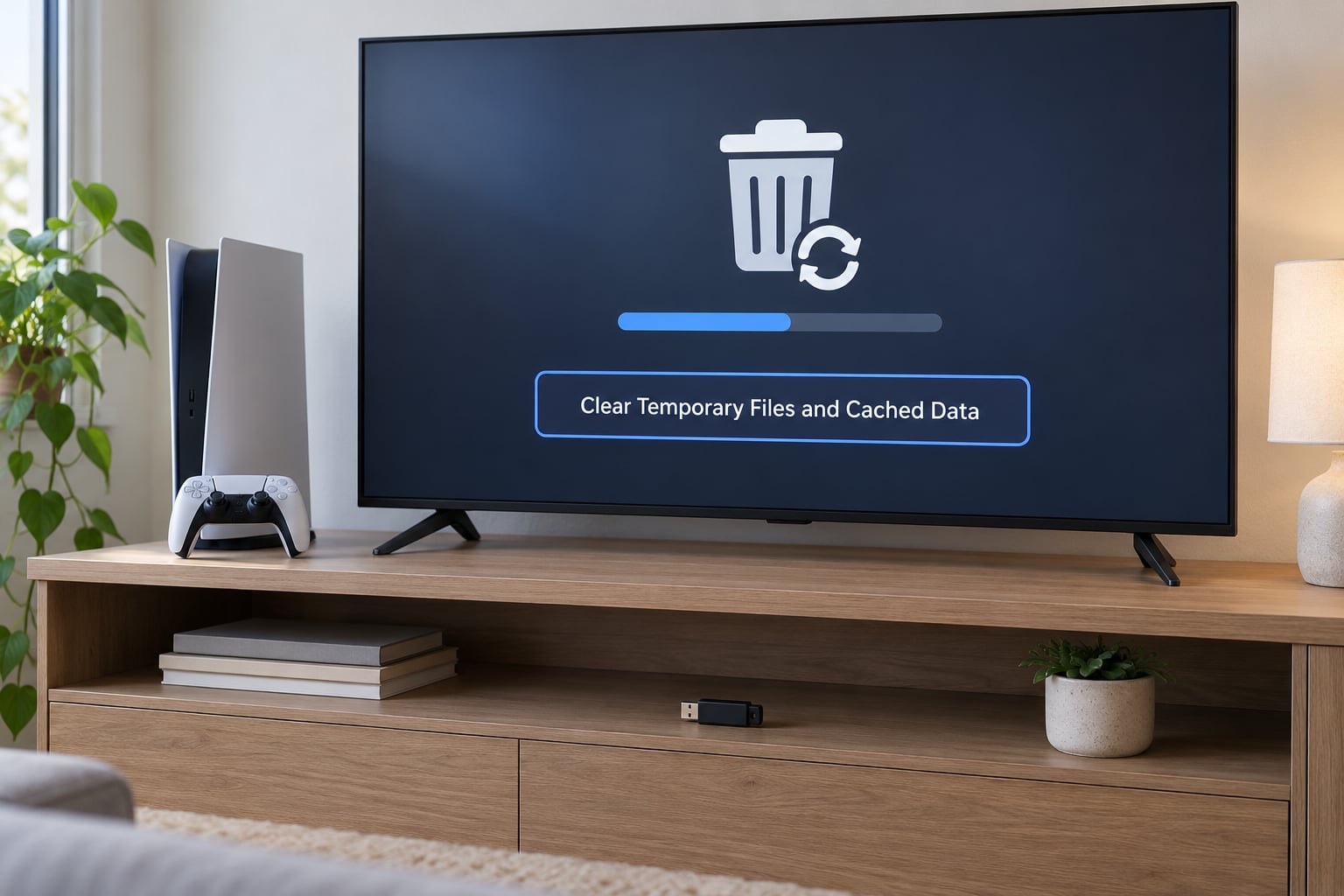
Caches are rebuildable data, so clearing them is safe for saves. The cost is time: the next launch of the affected game takes longer while the files are rebuilt, and some titles re-download small files.
On PS5, Settings > System > System Software > Clear Cache is the main lever, and it is often the fix for the Other category ballooning to a huge figure. On Xbox, the relevant option sits under storage management and removes saved data that already exists in the cloud, which makes it one of the safest free-space moves available. On Switch, System Settings > General > Clear Cache clears the system cache, and clearing download data on individual titles frees install packages.
Screenshots and captured clips are a quieter culprit. Both Xbox capture storage and PS5 saved media can fill tens of gigabytes, and neither sits next to your games in a way that makes the size obvious.
5. Organize or Archive Large Installations
Moving beats deleting whenever you still plan to play. On PS5, any game you will play again this year can be transferred from the internal SSD to a compatible M.2 NVMe SSD through Settings > System > Storage, and PlayStation 4 games can go to a USB extended storage drive and be played straight from it. Current PlayStation games cannot be launched from USB and must be copied back to internal storage or the M.2 drive to be played.
On Xbox, a storage expansion card or a USB drive set up under Storage & updates > Devices becomes a second library location, and games move to it through the same Manage menu. The console tells you the minimum size it accepts when you set up a new drive, so follow the on-screen requirement rather than guessing.
On Switch, insert a formatted microSD card and downloaded software can be moved to it from the same Manage Software screen, up to the card size the console supports.
Two warnings before you remove any installed copy. First, confirm the save is on the cloud or your backup, because a failed move leaves you reinstalling. Second, never format a drive that already holds anything you want to keep — formatting is permanent and erases everything on that drive, which is the one genuinely unrecoverable mistake in this whole guide.
6. Optimize Future Storage Use
Ten minutes here saves an afternoon later. On PS5, set a default install location in Settings > System > Storage so new games land where you have room, and check your captured media folder. On Xbox, set update preferences under Settings > General > Updates to install when ready rather than on a schedule, and turn off automatic background installs you never asked for. On Switch, keep save data backups current on your card and archive finished titles instead of leaving them installed.
Whatever the platform, keep roughly a fifth of your capacity free. System updates, background downloads and partial installs all need headroom, and a console with under 50GB free starts refusing downloads that would fit in that space.
7. Verify Progress and Available Space
Restart the console first. Cached files and leftover update packages are often released only after a full shutdown, and the storage screen is more accurate right after one.
Then open three or four games you play regularly and check that your most recent progress is there. Compare your free-space figure against the number you wrote down in step 1, and expect to see slightly less reclaimed than the size of the games you removed, because temporary files get recreated. If a save is missing but the cloud copy has a newer date, load the local save first and let it upload again — that resolves the conflict in the direction you want.
Finally, if you moved a game, redownload it to the internal drive and complete the required update before closing the console. Saves stay where they are during the reinstall.
Common Mistakes
Almost every storage horror story traces back to one of five mistakes, and all five have a simple fix.
Deleting save folders by hand. Some players dig into system folders looking for space. That is the fastest way to destroy progress, and it usually frees very little anyway. Fix: never touch save storage directly. Manage saves through the console settings, and use the backup or cloud features instead.
Assuming a deleted game takes the cloud save with it. It does not. Cloud saves only disappear when you explicitly delete them. Deleting a game removes software; that is all.
Using an unfamiliar USB drive. A drive the console does not recognise, or one formatted with the wrong file system, gets rejected or, worse, gets reformatted. Fix: set up the drive through the console’s own storage menu so it is prepared the way the hardware expects, and use a drive you can afford to lose.
Clearing the wrong category. Wiping the wrong data folder can remove settings or application data while leaving the actual space hog untouched. Fix: clear caches through the built-in options, and read the on-screen description before confirming.
Factory-resetting too soon. A reset returns the console to a clean state but also removes every downloaded game and any save that never synced. Fix: reset only when troubleshooting a problem that cleanup cannot solve, and only after verifying your backup.
For day-to-day upkeep, check storage once a month, archive finished games the same week you finish them, and keep captures and downloads from piling up. Small habits beat a long cleanup every time.
Frequently Asked Questions
Will uninstalling a game delete my progress?
No. On PS5, Xbox Series and Switch, save data is stored separately from the game files, so uninstalling removes the software and leaves your progress alone. You only lose saves if you delete them yourself in the save data settings. Download the game again and your save loads exactly where you left it.
Can I free up console storage without losing save data?
Yes, and the safest route is to work in order: check your free space, confirm your saves are backed up, then move or archive the largest game you are not playing. Archoring on Switch, Free up space on Xbox, and USB transfer for PlayStation 4 titles on PS5 all reclaim gigabytes while keeping progress intact.
Is it safe to delete cached files on a console?
Clearing a console cache removes temporary rebuild files, not saves. The trade-off is time: the next launch can be noticeably slower while data is rebuilt, and some games re-download small files. Never clear a save data folder to free space, and avoid cleaning while a download or update is still running.
How do I move games to external storage?
On PS5, PlayStation 4 titles move to a formatted USB extended storage drive, while PS5 games need internal space or an M.2 SSD. On Xbox, install an expansion card or set up a USB drive under Storage and updates, then use Free up space on the title. On Switch, downloaded software moves to a formatted microSD card.
Should I factory-reset a console to free space?
Rarely, and never for storage reasons alone. A factory reset clears every downloaded game and any save that never synced to the cloud, then takes hours to restore. If your goal is space, uninstalling or archiving the biggest games usually gets you most of the way, and it is fully reversible.
Why does my console still show low storage after deleting games?
Usually the space is going somewhere your game list does not show: Other and System Data on PS5, partially installed update files, leftover add-on data on Xbox, or screenshots and captured clips. These often release after a restart or once an update finishes in the background. If the numbers still do not match, restart before deleting anything else.
Conclusion
Start with the boring part, because it is the part that protects you. Open the storage screen on your console, note the free space, and confirm that your saves are on the cloud or on a fresh backup. Then take one safe action: uninstall, archive or move the largest game you have not touched in months.
That single step usually solves the storage warning on its own. Everything after it — clearing caches, trimming captures, setting an install location — is housekeeping that keeps the warning from coming back. There is no reason to learn how to free up storage on a console without losing progress the hard way when the saves were never the problem.