Most gaming lag is not a speed problem, so testing your download rate tells you almost nothing. To test your network for gaming problems, you need four numbers: latency (how long a packet takes to reach the game server), jitter (how much that latency wobbles), packet loss (how many packets never arrive at all) and loaded latency (how much your ping climbs when someone else in the house starts downloading). A gigabit line with 2% packet loss feels worse than a 50 Mbps line that is rock steady.
The whole sequence takes about 20 minutes, and every test in it runs on tools Windows, macOS and consoles already ship with. Start at the router end and work outwards, because the fix changes completely depending on which segment breaks.
One thing to clear up early, since it confuses almost everyone: ping 8.8.8.8 measures the round-trip time to Google’s public DNS resolver and nothing else. It says your connection can reach Google’s edge quickly. It does not test the route to your game server, and it does not measure jitter, loaded latency or loss under traffic. That is why people run a clean ping test and then rubber-band through an entire match. You need a test pointed at the server the game actually uses, plus a test taken while the link is busy.
Table of Contents
- What You Need
- How to Test Your Network for Gaming Problems: Step-by-Step
- How to Test Your Network for Gaming Problems on Windows
- Check Internet Speed Without Confusing Mbps With Ping
- Test Wi-Fi Signal Strength and Stability
- Check Packet Loss With a Continuous Ping Test
- Read Console and In-Game Network Diagnostics
- Isolate the Router, ISP, or Game Server
- Fix the Network Problem Your Test Identified
- What Good Numbers Look Like
- Common Mistakes
- Frequently Asked Questions
- What is a good ping for online gaming?
- How much internet speed do I need for gaming?
- How can I tell whether Wi-Fi or Ethernet is causing lag?
- Can I fix packet loss caused by my internet provider?
- When should I contact my ISP or a game publisher?
- Conclusion
What You Need
A test is only useful if you know what was plugged in, so write down four things before you start: the device you tested, whether it was wired or wireless, the time of day, and which server you measured. Ten minutes of setup saves an hour of arguing with an ISP later.
You need very little. On Windows 10 or 11, Command Prompt and PowerShell ship with the system and carry every command in this guide. On macOS, open Terminal from Applications, Utilities. On Linux, the same tools are usually already installed, and WinMTR or mtr gives you a per-hop loss graph if you want a visual one.
For a console, the built-in connection test is enough to get started, though it prints fewer details than a PC test. You also need the game itself, because the in-game network graph is the only readout that measures the route your character is on.
An Ethernet cable is the single most useful tool here, even a spare one. Clipping a console or PC to the router with wire removes Wi-Fi from the equation entirely, which turns guesswork into an A/B comparison. If you have a laptop, put it within a few metres of the router for the first pass; running a speed test on congested Wi-Fi from the far end of a house produces numbers that describe the walls more than your connection.
Finally, use a browser-based speed test you can trust. Run one on-net test from a large speed-test provider, then a second one from a different network operator. Comparing the two matters, because a provider that hosts servers inside your ISP’s network can flatter your result in ways that hide a congested upstream.
How to Test Your Network for Gaming Problems: Step-by-Step
Work through these in order. Each test tells you which segment to suspect next, so skipping ahead usually sends you replacing a router that was never the problem.
How to Test Your Network for Gaming Problems on Windows
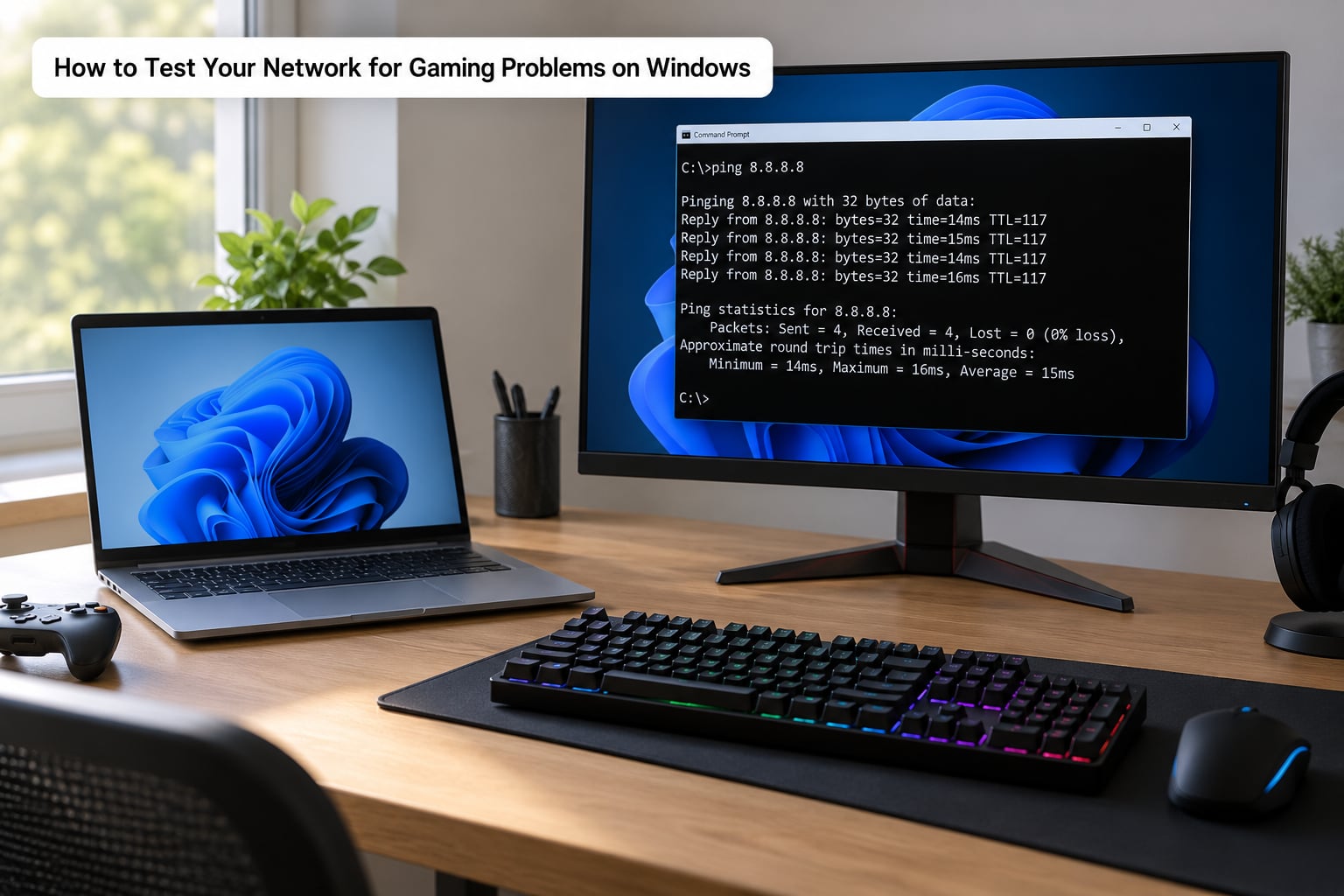
Open Command Prompt as a normal user; nothing here needs administrator rights. Press Win, type cmd, hit Enter, and you are in the window every command in this guide runs in.
Start with a long ping to your own router, which is the only segment completely under your control. Type ping 192.168.1.1 -n 100 and press Enter, adjusting the address if your router uses a different subnet such as 192.168.0.1. A healthy local result returns 100 replies in under a second or two, with a minimum, maximum and average all within a millisecond or two of each other.
If that local test is already showing loss or wild spikes, stop here. Nothing beyond the router can be the cause, and the problem is your router, the cable, or the Wi-Fi link. Players in r/cs2 and r/networking pick up on this constantly, and one of the most popular techniques there is a never-ending ping google.com -t left running in a second window while they play, so they can read the spike the exact second it happens.
Next, measure the internet path with ping 8.8.8.8 -n 100. Read the last four lines rather than the individual replies. The average tells you baseline latency, and the difference between the minimum and the maximum is your rough jitter. A 14 ms average with a 15 ms maximum is a clean line. A 14 ms average with a 240 ms maximum is a line that will ruin a match even though the average looks great.
Now run tracert 8.8.8.8 to map the hops. Each line is one router on the path with three probe times. What matters is where the times grow, not how many hops there are. A jump from 2 ms to 40 ms at hop six is normal; that hop is handing your traffic to a long-distance backbone link.
One warning that trips people up: a single hop showing asterisks means that router did not answer ICMP, not that data is being dropped. Plenty of carriers and cloud providers rate-limit or block ping entirely. Judge the path by the hops that do reply and by whether loss persists on the final destination.
For a per-hop loss percentage, pathping 8.8.8.8 is the better tool. It sends far more probes per hop and prints a summary of which hops actually drop packets. It takes about two minutes to finish, which is fine. WinMTR and mtr do the same job with a live graph if you would rather watch it happen.
PowerShell has equivalents worth knowing. Test-Connection -ComputerName 8.8.8.8 -Count 100 returns a table where the Latency and Status columns make loss and spikes easy to spot, and Test-NetConnection -Port 443 -InformationLevel Detailed tells you whether a specific port is reachable rather than just whether ICMP gets through.
Check Internet Speed Without Confusing Mbps With Ping
Run a speed test on the device you game on, ideally over Ethernet, with nothing else downloading. Record five values: download speed, upload speed, idle latency, loaded latency and jitter.
Upload speed deserves more attention than most players give it. A lot of routers send more data downstream than upstream, and if your upload is close to saturation the queue on your connection grows and latency climbs even while your ping display looks acceptable. Voice chat in a group call is a good real-world check: if teammates cut out while you talk, look at upload before anything else.
The numbers that matter sit next to each other. Idle latency of 12 ms and loaded latency of 95 ms is bufferbloat, and it explains an evening where you are fine alone and terrible once someone starts a 4K stream. The Waveform bufferbloat test grades this with a letter, and anything below an A is worth fixing regardless of your raw speed.
As for raw throughput, gaming needs remarkably little of it. Around 25 Mbps down and 5 Mbps up covers a modern game, voice chat and one HD stream side by side. Someone in r/HomeNetworking put it plainly: online gaming does not need much bandwidth to play, only to download. Upgrading from 300 Mbps to gigabit will not touch latency, which is why that upgrade so often changes nothing.
Test Wi-Fi Signal Strength and Stability
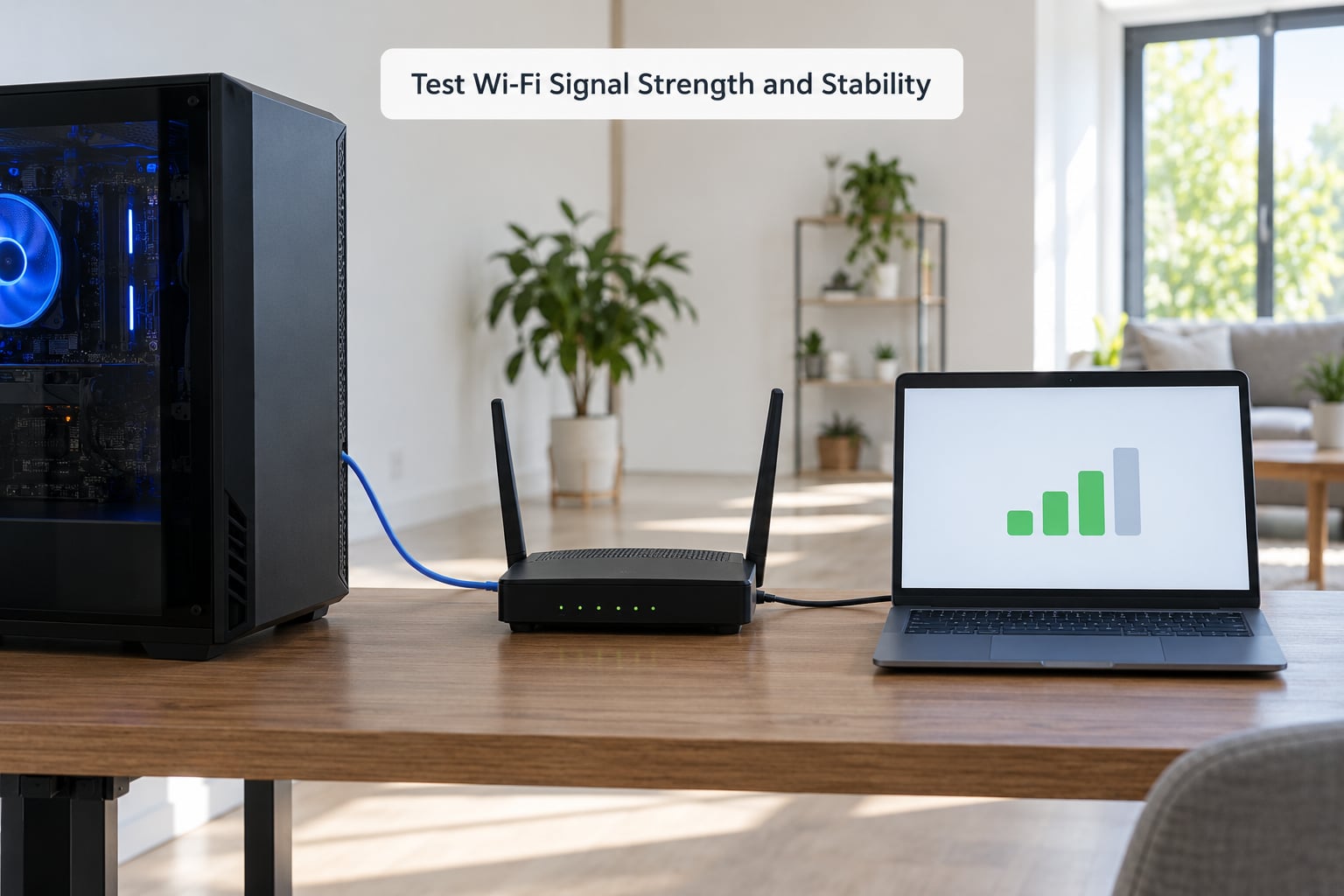
On Windows, click the network icon in the taskbar, hover it, and open Network and Internet settings, then Wi-Fi, then Show Wi-Fi status. You get three lines that matter: signal strength, signal quality, and connection speed. Signal strength in the 70 to 100 percent range with a receive rate above 200 Mbps is a good place to be.
The connection quality line is more revealing than the bars. Windows shows Excellent, Good, Fair or Poor, and Fair or Poor tells you the link is struggling with interference or congestion even when the bars look full.
Compare bands deliberately. The 2.4 GHz band reaches further but is crowded with neighbours, microwaves and Bluetooth devices. The 5 GHz band is much cleaner and shorter-range, and 6 GHz where your hardware supports it is cleaner still. On 2.4 GHz, stay on channels 1, 6 or 11, and on 5 GHz pick a channel your router’s scan tool reports as least busy. A manual channel usually beats a so-called auto setting that drifts onto a busy one.
Then run the same continuous ping test on Wi-Fi and again on Ethernet, ideally at the same time of day. If Ethernet is clean and Wi-Fi is not, you have your answer without touching a single setting. If both are poor, the problem is upstream and Wi-Fi is a red herring. If the router sits in a dead zone, a second access point or a mesh system usually beats fighting interference with settings.
Check Packet Loss With a Continuous Ping Test
Packet loss is what turns a smooth game into a teleport, and it is measured as the percentage of probes that never come back. On Windows, type ping 8.8.8.8 -n 100 and leave it alone for the full 100 replies. Press Ctrl+C to stop it early. On macOS and Linux, the equivalent is ping -c 100 8.8.8.8, and a continuous version is ping 8.8.8.8 with Ctrl+C to exit.
One hundred probes give you a loss figure precise enough to act on. Zero percent means nothing was dropped on that path. Between 0.1 and 0.5 percent is usually unnoticeable. Between 0.5 and 1 percent you will start seeing occasional hits fail to register. Above 2 percent, expect visible stutter, and above 5 percent the connection is genuinely broken.
Run the test three times: to your router gateway, to a public endpoint, and to your game server. Comparing them isolates the segment immediately. Loss to the gateway only means the Wi-Fi or the router. Loss to the gateway and the public endpoint means the router or the local cable. Loss to the public endpoint but not the gateway points outward, to the ISP or beyond.
There is one nuance worth knowing. Steady 0.5 percent loss and bursty 2 percent loss feel completely different. A continuous ping with PingPlotter groups responses into 2.5 second columns, which makes bursts obvious, and bursts are what cause hit registration to fail rather than average loss. Players on the Tom’s Hardware forums describe the classic version of this: perfect test numbers alongside a match that is basically unplayable, which usually points at a bad route rather than a bad line.
Read Console and In-Game Network Diagnostics
Consoles ship with a basic connection test, and the label moves between system updates, so look for Network Test, Test Internet Connection or Connection Status in the system settings rather than expecting an exact path. On PlayStation, the network status screen also shows a measured download and upload throughput plus a latency figure. On Xbox, network settings report the same three values with a status line. Switch shows its own connection test in the same area.
These readings are useful mainly as a second opinion. They rarely expose jitter or loss over time, so treat a clean console test as a baseline rather than a clearance. Pair it with the PC tests: if your PC test shows 1.5 percent loss toward the game server and the console test says everything is fine, the console test simply is not measuring the same thing.
The in-game network graph is the most informative readout available, because it measures your actual session. Source and Valve titles (CS2, Team Fortress 2, Left 4 Dead) accept cl_showfps 2 and network commands in the developer console, Riot titles show ping and packet loss on the scoreboard, and Unreal Engine games generally expose a net graph overlay. What you are looking for is a flat ping line and a packet loss figure that stays at zero.
Also check your NAT type. Strict NAT blocks you from connecting to some players and matchmaking simply refuses, which players routinely report as lag because the game is stalling while it waits. Open NAT with port forwarding on the console or PC fixes that, and it is a completely different problem from latency.
Isolate the Router, ISP, or Game Server
Use the results as a decision tree rather than guessing. If the local gateway test is bad, the router or Wi-Fi is the problem, full stop, and no amount of ISP contact will help.
If the local test is clean and the public test is bad, power-cycle the modem: unplug it, leave it 30 seconds, plug it back, and wait for every light to settle. Then retest. If the numbers recover, your router was holding stale state. Many routers benefit from a weekly reboot for exactly this reason.
If the local and public tests are both clean but the game server test is poor, run a second online service. Another game or a video call that runs smoothly points away from your connection and toward the game publisher’s routing or servers. When only one title misbehaves, change the server region in the game’s settings and retest; players on the EA and Blurbusters forums frequently identify prime-time loss alongside elevated latency as regional server congestion rather than anything at home.
If the public test is bad at 9 p.m. and fine at 11 a.m., that is ISP congestion, and you now have the one piece of evidence that makes a support call productive. Before calling, capture a screenshot of the times, the loss percentage and the tracert output. Support will run their own test and usually close the ticket; a timestamped, repeated failure at peak hours is far harder to wave away than a single reading.
Fix the Network Problem Your Test Identified
Every fix needs a verification step, otherwise you have changed a setting and learned nothing. Run the same continuous ping test after each change and compare against the numbers you recorded before.
Wi-Fi congestion: move to the 5 GHz or 6 GHz band, pick a clean channel manually, and turn off any smart QoS or auto-switching feature the router app enables by default. If a neighbour is saturating their own link on the same channel, moving yours to a less busy one is the whole fix. Verify by rerunning the continuous ping on Wi-Fi and checking whether the spike column empties.
Router bufferbloat: if your router offers smart queue management, CAKE or fq_codel, turn it on. This holds latency steady under load at the cost of a little raw throughput, which is a trade every gamer should take. On routers without it, a manual bandwidth setting well under your real speed produces a similar effect. Verify with a loaded-latency test rather than a speed test.
Ethernet negotiation: a cable or port stuck at 100 Mbps full duplex, or a duplex mismatch, produces stutter and timeouts. Swap the cable, try a different port, and confirm the negotiated rate in the adapter status. Gaming over a stable 100 Mbps link still beats congested Wi-Fi, so this is worth ruling out.
Stale console or PC settings: restart the console fully, clear its local network data, and rebuild the connection from scratch. Set your DNS to a public resolver such as 1.1.1.1 or 8.8.8.8 only if you have evidence of slow name resolution, since changing DNS without a reason will not touch latency. Verify with a fresh in-game match and a new net graph reading.
ISP congestion and game-server trouble: the first is proven by peak-hour testing and belongs to your provider, so send them the log. The second shows up only on one title or one region, and the fix is a different region, a different session, or a status-page check. In-game netcode also corrects its own state, so a quick restart of the game is a legitimate step before anything else.
What Good Numbers Look Like
This is the reference worth keeping open. The bandwidth row exists mostly to be dismissed, which is the point.
| Metric | Good | Acceptable | Bad |
|---|---|---|---|
| Latency to game server | Under 40 ms | 40 to 80 ms | Over 80 ms or rising |
| Jitter (max minus min) | Under 10 ms | 10 to 30 ms | Over 30 ms |
| Packet loss | 0 percent | Under 0.5 percent | Over 1 percent |
| Loaded latency rise | Under 20 ms | 20 to 50 ms | Over 50 ms (bufferbloat) |
| Upload speed | 5 Mbps or more | 2 to 5 Mbps | Under 2 Mbps |
| Download speed | 25 Mbps or more | 10 to 25 Mbps | Under 10 Mbps |
Per genre, the tolerance changes. Fighting games and competitive shooters punish anything above 60 ms, and 20 ms is where players start calling matches unfair. MMOs, battle royales and sandbox games are far more forgiving, and 80 ms is genuinely unremarkable.
| Game type | Comfortable | Noticeable lag |
|---|---|---|
| Competitive shooters, fighting games | Under 30 ms | Over 50 ms |
| MOBA, battle royale, team shooters | Under 50 ms | Over 80 ms |
| MMO, open world, sandbox | Under 80 ms | Over 120 ms |
| Local or peer-hosted co-op | Under 20 ms | Over 40 ms |
Symptoms map to causes fairly reliably, which makes your next test obvious.
| Symptom | Likely cause | Test that confirms it |
|---|---|---|
| Rubber-banding, teleport | Packet loss | Continuous ping with loss above 0.5 percent |
| Hits not registering | Latency spikes or server-side netcode | In-game net graph with high maximum |
| Voice chat cutting out | Upload saturation or packet loss | Upload figure plus loaded-latency test |
| Fine alone, terrible in the evening | ISP congestion or bufferbloat | Same test repeated at 9 p.m. |
| Smooth ping, stuttery framerate | CPU or GPU, not the network | Frame-time overlay in front of any network test |
| Matchmaking failures | NAT type or ports | NAT type reading in console or PC settings |
That last row deserves emphasis. Users in r/pcgamingtechsupport often report problems that hit online games and nothing else, and plenty of frame drops that feel like lag are actually a CPU or GPU running out of headroom. Checking your frame times before you blame the router saves hours.
Common Mistakes
Judging health by download speed alone. This is the big one, and it is why so many players upgrade and see nothing change. Mbps tells you how fast a big transfer completes. It says nothing about whether small packets arrive on time, in order, and without gaps. Check latency, jitter and loss first and treat the speed figure as a supporting detail.
Testing on busy Wi-Fi from across the house. A speed test run on a weak wireless link measures the walls, the neighbours and the distance, not your plan. Test within a few metres of the router, then test again in the real gaming position to see how much the wireless link itself costs you.
Rebooting everything at once. Unplugging the router, modem, console and PC together destroys the evidence. Change one thing, retest, record the result, then move to the next. Otherwise you never learn which step worked.
Reading traceroute too literally. One or two silent hops are normal, because many routers simply ignore ping. Judge the path by the hops that reply, by where the latency grows, and by whether the final destination shows loss. Intermediate loss that disappears at the destination is usually ICMP filtering.
Changing DNS without evidence. DNS affects how fast a hostname resolves, which is worth a fraction of a second on a match start. It does nothing for mid-game latency. Change it only if you have measured slow resolution.
Testing once and moving on. A single run catches persistent problems and misses everything intermittent. Keep a continuous test running in a second window while you play, and run a scheduled check at the hours you actually notice trouble.
Assuming every spike is the ISP. The spike might be a neighbour saturating the same Wi-Fi channel, or a household member starting a game download, or your own driver. Test at the same time of day as the problem, on the same wired setup, and compare several days. Without a pattern you have an anecdote rather than a diagnosis.
Two habits make the rest easy. Log every test with its conditions, and retest at the hour your problems occur. Ten minutes of quiet record-keeping regularly settles arguments that weeks of guessing cannot.
Frequently Asked Questions
What is a good ping for online gaming?
Under 30 ms is competitive, under 50 ms is comfortable for most shooters and MOBAs, and under 80 ms is fine for MMOs and sandbox games. What matters more is stability: a steady 45 ms beats a 15 ms average with spikes to 200 ms. Check the maximum in your continuous ping results, not only the average, because that is the number you feel in a match.
How much internet speed do I need for gaming?
Around 25 Mbps down and 5 Mbps up covers a modern game, voice chat and one HD stream running at the same time. Speed does not fix lag though. A gigabit connection with packet loss or bufferbloat plays worse than a slow steady line, so measure latency, jitter and loss before upgrading anything. Upload speed deserves the most attention of the three.
How can I tell whether Wi-Fi or Ethernet is causing lag?
Run the same continuous ping test twice, once on Wi-Fi and once on a wired connection, at the same time of day. If the wired result is clean and the wireless one spikes, Wi-Fi is the cause and you can fix it with a band change, a cleaner channel or a second access point. If both are poor, the problem is upstream and wireless is not to blame.
Can I fix packet loss caused by my internet provider?
Sometimes. Loss inside your home comes from Wi-Fi interference, a bad cable or a router problem, all of which you can change. Loss on the path beyond your router is the provider’s, and the fix is smart queue management on your router to reduce its effect, a different server region, or escalating with timestamped evidence from repeated peak-hour tests.
When should I contact my ISP or a game publisher?
Contact your ISP when the public endpoint test shows loss or high latency, when the problem appears at peak hours but not off-peak, and when a modem power cycle changes nothing. Contact the publisher when only one game or one server region is affected while everything else runs smoothly. In both cases, send screenshots with times, loss percentages and tracert output rather than a description.
Conclusion
Start with a cable. Plug the machine in, run ping 8.8.8.8 -n 100 to your router first and then out to the internet, and read the average, the maximum and the loss line. Then check what latency does under load, since loaded latency is where evening problems hide, and finish inside the game with the network graph open on the server you actually play on. Fix the first confirmed bottleneck, then test again. Knowing how to test your network for gaming problems is mostly about resisting the urge to buy something before you have the numbers.