Ray tracing, shadow quality and anti-aliasing hurt performance the most. They add real work to every pixel, so they cost the most frames on almost every GPU. Below they sit in a ranked table with the frame cost, what you actually lose by lowering them, and whether they load the GPU or the CPU.
I’ll be honest about something up front: there is no single universal answer, and anyone who gives you one without asking what game and what GPU you’re running is guessing. A setting that costs 40% of your frame rate on one card can cost 4% on a faster one. What follows is a ranked guide built to be applied, plus a way to check the numbers for your own machine in about 15 minutes.
Updated for 2026. Percentages below are typical averages across modern PC games, not lab measurements from your exact setup.
Table of Contents
- Which Graphics Settings Hurt Performance the Most
- How to Read the Performance Cost
- The Graphics Settings That Usually Cost the Most
- 1. Ray tracing
- 2. Shadow quality and shadow resolution
- 3. Anti-aliasing
- 4. Volumetric lighting and fog
- 5. Hair and fur rendering
- The Cheapest Settings to Lower First
- Resolution and Upscaling
- How Your Game and Hardware Change the Answer
- A Fast Method for Finding the Best Settings
- The Order I’d Work In
- Frequently Asked Questions
- Is ray tracing always the graphics setting that hurts performance the most?
- Does lowering the resolution reduce VRAM use as well as GPU load?
- Why does lowering texture quality not always fix stuttering?
- What is the best way to benchmark graphics settings?
- Is frame generation better than lowering the graphics quality?
- Conclusion
Which Graphics Settings Hurt Performance the Most
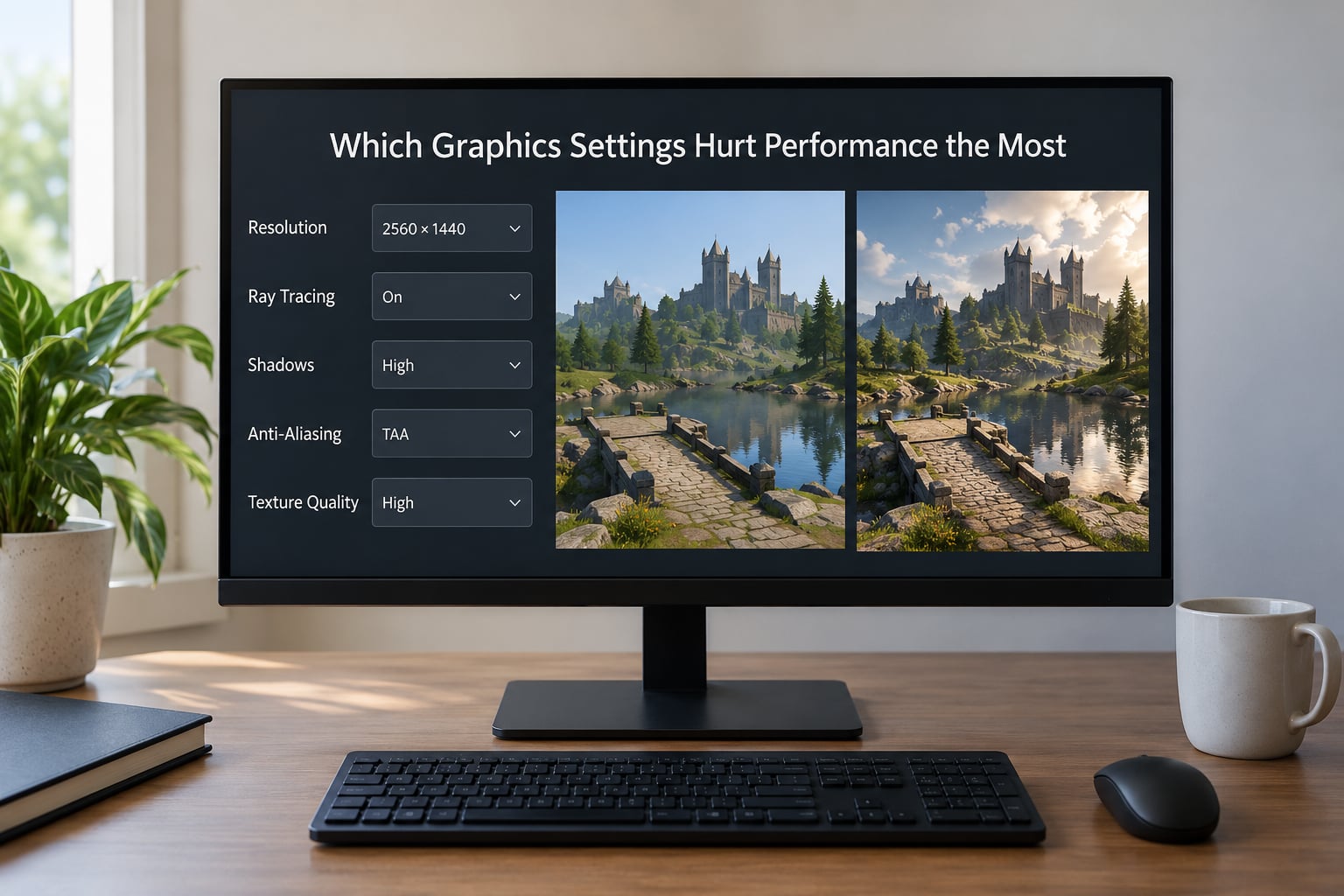
Here is the short version. The most expensive graphics settings are ray-traced lighting and reflections, high-resolution shadows, anti-aliasing, volumetric lighting, and resolution scale. The cheapest ones to change are view distance, ambient occlusion, reflection quality and shadow detail. A few settings that look frightening on the menu cost nothing at all.
| Setting | Typical frame cost | What you lose by lowering it | GPU or CPU | Tier to use |
|---|---|---|---|---|
| Ray tracing (reflections + global illumination) | 20-60% | Contact shadows, accurate bounce light | GPU | Off or Medium |
| Ray-traced reflections | 10-35% | Wavy, correct reflections on floors and puddles | GPU | Off, or Screen Space |
| Shadow quality / shadow resolution | 10-30% | Soft, detailed contact shadows | GPU | Low or Medium |
| Anti-aliasing (MSAA, TAA, DLAA) | 10-25% | Clean edges, less shimmer and ghosting | GPU | TAA or FXAA |
| Volumetric lighting and fog | 10-25% | Light shafts through trees and buildings | GPU | Low |
| Resolution and render scale | 10-100% | Sharpness and UI legibility | GPU | Native or Quality upscaling |
| Hair and fur rendering | 5-20% | Fur detail and soft edges on hair | GPU | Low |
| Ambient occlusion (SSAO) | 3-8% | Creases where objects meet | GPU | Medium |
| Reflection quality (screen space) | 2-6% | Mirror detail and off-screen reflections | GPU | Medium |
| View distance, draw distance, foliage density | 2-15% | How far you can see, and pop-in | CPU | Medium-High |
| Crowd and physics density | 1-10% | How many NPCs and objects simulate | CPU | Medium |
| Texture quality | 0-3%, up to 30% on low VRAM | Surface detail on floors and walls | VRAM | Medium |
| Anisotropic filtering, V-Sync, motion blur, post-processing | 0-1% | Nothing measurable | Minimal | Leave as you like |
Read that table as an ordering, not a promise. The engine matters enormously, and TechSpot’s March 2026 Crimson Desert testing found texture, water, simulation and post-processing settings all moved the frame rate by roughly 0-1% in that game, while lighting quality and model quality were the two settings that genuinely hurt.
How to Read the Performance Cost
Frame rate and frame time are not the same thing, and confusing them causes most of the bad advice online. Frame rate is frames per second. Frame time is how long one frame takes in milliseconds. A steady 40 FPS sits at 25 milliseconds per frame; a range that bounces between 30 and 55 FPS feels far worse than the average suggests, because the slow frames arrive in bursts.
So when I say a setting costs 20%, I mean it raises your frame time by roughly a quarter. That matters because a game that feels smooth at a locked 60 FPS does not care that the raw number is higher.
Second, GPU load and CPU load behave differently. If your GPU sits at 99% while the frame rate sits at 60, the GPU is the limiter and lower graphics settings will pay off. If the GPU is at 45% and one CPU core is pegged, no graphics setting you touch will help, and this is exactly the misdiagnosis that shows up over and over on PC gaming forums.
Third, VRAM is its own ceiling. When a card with limited memory runs out, textures spill or get downgraded mid-frame and the frame rate collapses in stuttering spikes. That looks like a CPU problem and gets misdiagnosed constantly.
The Graphics Settings That Usually Cost the Most
1. Ray tracing
Ray tracing is expensive because it changes how light is calculated. Rasterized lighting approximates; ray-traced global illumination traces actual paths and bounces light off surfaces. On many titles that costs 30-60% of your frame rate, and on an older GPU the hit can be far worse.
The trade-off is real, but it is not uniform. Ray-traced reflections on a wet floor are the most visible part, so if you want one compromise, keep reflections off and try ray-traced global illumination at Medium. Note the counterexample: TechSpot found that in Crimson Desert, turning ray tracing off was slower than leaving it on, because that engine’s fallback path is worse than its RT path. Assume nothing here.
2. Shadow quality and shadow resolution
Shadows are consistently near the top of every measured list, and the setting to move is the resolution tier, not the shadow distance. Dropping from Ultra to Medium often returns 10-25% of your frames. The shadows get harder-edged and contact shadows lose detail, which matters mostly when the sun is low.
Keep the shadow distance slider high. It has almost no frame cost and it is what stops pop-in at the edge of the world.
3. Anti-aliasing
Multi-sample anti-aliasing and temporal anti-aliasing can cost 10-25%, and the cost scales with resolution because more pixels means more samples. At 4K the same MSAA level that cost 8% at 1080p can cost 20%.
| Anti-aliasing method | Frame cost | Edge quality | Recommendation |
|---|---|---|---|
| Off | Baseline | Jagged and crawling | Only with TAA or an upscaler active |
| FXAA | 1-3% | Slightly soft | Best choice for pure frame-rate chasing |
| TAA / TSR | 3-8% | Clean, some ghosting in motion | Best default on almost every modern GPU |
| MSAA 2x-4x | 10-25% | Clean, no ghosting | Still the sharpest option if you have frames to spare |
| DLAA / FSR 1.0 in AA mode | 5-15% | Very clean | Worth it on a fast card |
4. Volumetric lighting and fog
Volumetric effects render light shafts in 3D space, which means far more math per pixel than standard fog. In forest and dungeon scenes this can cost 15-25% on its own, and almost nobody notices it once it is Low. It is one of the cheapest real sacrifices available.
5. Hair and fur rendering
Hair and fur use many thin strands and expensive alpha work per pixel. Characters close to the camera are the expensive case, so the cost spikes in cutscenes and dialogue scenes. Old titles with a Hairworks-style option showed this as a 20% frame cost with no warning. Low or Medium looks fine in normal play.
The Cheapest Settings to Lower First
Some settings cost a lot of image quality for very few frames, and those are the ones to move first. Ambient occlusion adds 3-8% and you will not notice unless you compare screenshots. Reflection quality on the screen-space setting adds 2-6% and mostly changes distant mirrors. Screen-space effects as a whole are cheap precisely because the game only estimates what is already on screen.
Is SSAO good for performance? It is cheap enough to leave on Medium in almost every game, and turning it off to chase frames is usually the wrong trade.
Now the settings that cost essentially nothing. Anisotropic filtering on a modern GPU is nearly free; it was a real cost on cards from around 2012 and earlier, and forum advice from that era still misleads people today. Texture quality on any card with spare VRAM moves the frame rate 0-3%. Motion blur, film grain, depth of field, V-Sync and post-processing each land at 0-1%. Changing any of them will not make your game faster.
One exception on texture quality: on a card with low VRAM, dropping textures from High to Medium can return 20-30% because it stops memory thrashing. If your frame rate spikes and stalls rather than holding steady, check VRAM usage before you touch anything else.
A note on presets. Presets do not cost frames on their own. Ultra is not automatically slower than High because of the label, only because of the individual settings inside it. A preset that turns up view distance and foliage can be slower on the CPU side even when its GPU settings look reasonable.
Resolution and Upscaling
Resolution multiplies almost everything else. A pixel is shaded, lit, shadowed and anti-aliased, so 4K renders roughly four times the work of 1080p before any setting is considered. Dropping from 4K to 1440p is often the single largest frame gain available, and it is the reason 720p still shows up in search results asking whether it beats 1080p. It does, and by a lot.
Dynamic resolution scaling adjusts the internal render resolution on the fly to hold a target frame rate. It is a good fit for 4K and a poor fit for 1080p competitive play, because the sharpness swings are visible.
| Upscaling mode | Internal resolution | Frame gain | Use it when |
|---|---|---|---|
| Native | 100% | Baseline | Your GPU already hits the target |
| Quality | about 75% | 20-40% | 4K on a mid-range card, or 1440p high refresh |
| Balanced | about 60% | 40-70% | You need more than Quality gives you |
| Performance | about 50% | 70-100% | 4K on hardware that cannot hold 60 FPS |
| Ultra Performance | about 40% | 100%+ | Last resort before lowering resolution |
Quality or Performance? Quality, unless you are stuck. The gap between Quality and Performance is where most of the visible softness lives, and players who jump straight to Performance usually end up at Low settings instead, which is a worse-looking result by far.
Two traps worth naming. Some upscalers reconstruct from a lower internal render resolution, which means your ray-traced and shadowed lighting is being computed on fewer samples and degrades faster than the upscaling label suggests. And frame generation adds frames rather than making existing frames cheaper, which is why average FPS can rise while 1% lows stay flat or get worse.
How Your Game and Hardware Change the Answer
Which graphics settings are CPU-intensive? View distance, draw distance, foliage density, crowd density, physics quality and level-of-detail transitions. Each one adds work per object rather than per pixel, so they scale with how busy the scene is and barely respond to a resolution change. If your GPU is under 60% while one CPU core is at 100%, this is your list.
That case is common and it is why Elite Dangerous players report that dropping from High to Low changes nothing at all. Nothing in the menu touches the CPU limiter. The fix is a CPU upgrade, a cap on the frame rate that matches what you have, or turning down background work.
Low VRAM cards behave differently again. Texture quality, model quality and shadow resolution all compete for the same limited pool, and crossing the line produces stutter rather than a smooth slowdown. If your frame rate holds steady in a menu and collapses in dense areas, that is VRAM, and texture quality is the first thing to move.
Refresh rate sets the ceiling. On a 60 Hz monitor, going from 70 to 95 FPS changes nothing you can see. Competitive players on high refresh displays are the opposite case: they cap below the panel’s limit so the frame pacing stays flat, and for them frame time and 1% lows matter far more than the average number.
Engine outliers are real, too. Unreal Engine 5 titles with Lumen lighting and Nanite geometry can behave very differently from older Frostbite titles, and per-game guides from a reputable benchmark outlet beat any generic ranking. Games also vary in whether they reward you for leaving ray tracing on. That Crimson Desert example where RT off is slower is worth remembering before you assume anything.
A Fast Method for Finding the Best Settings
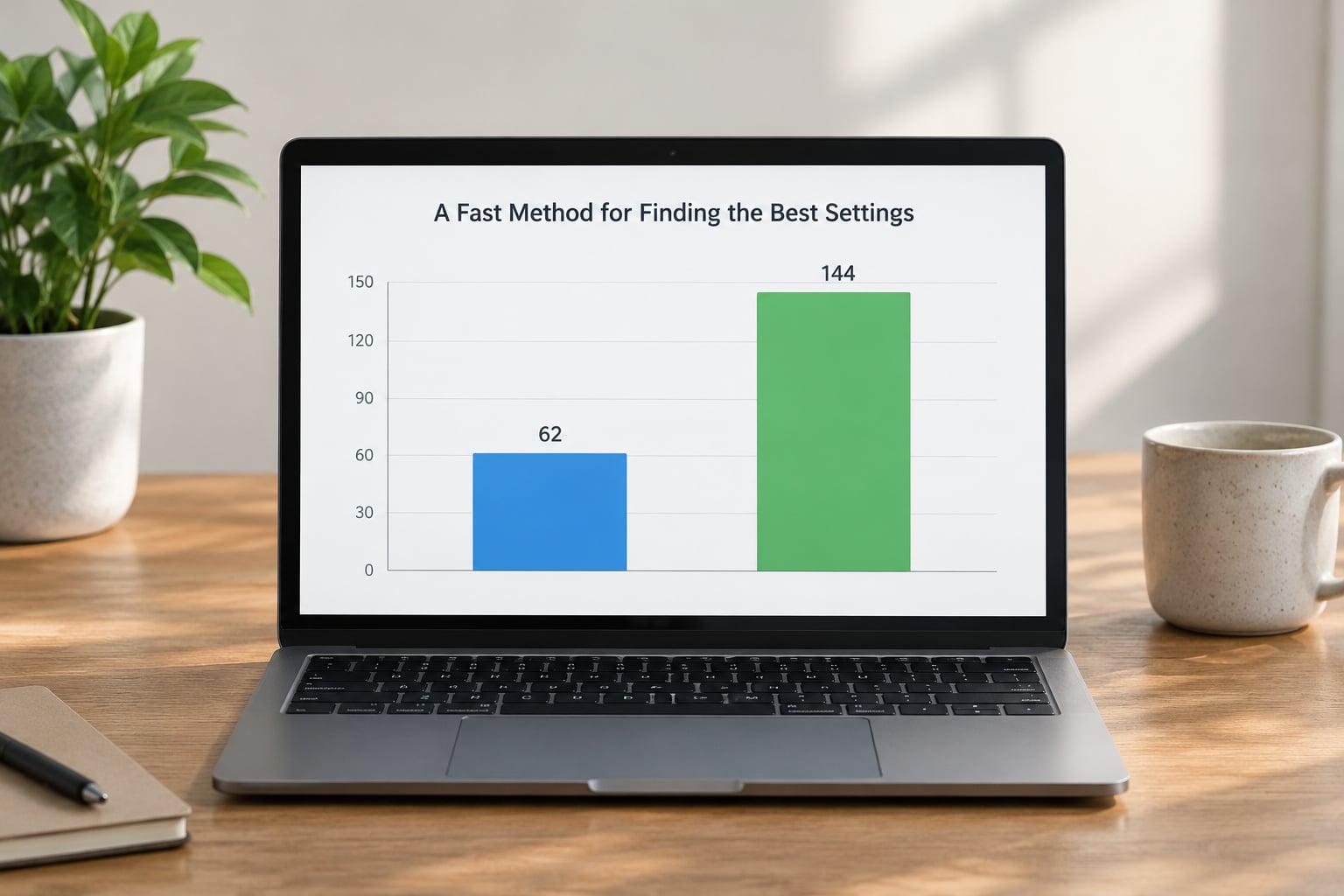
If you want to know which graphics settings hurt performance the most on your own machine, there is a repeatable method and it takes about 15 minutes. First, set a baseline. Stand in the same scene, walk a fixed route, and record the average frame rate and the 1% low.
How to test which graphics settings hurt performance the most: change one setting at a time, never two. Lower it one tier, repeat the identical route for 60 to 90 seconds, then write down the new average and 1% low. Two settings changed together tell you nothing about which one did the work.
Watch GPU and CPU load while you measure. MSI Afterburner and CapFrameX both show frame time and load; HWMonitor also works, though a common complaint there is that its GPU reading sits at 99% whether or not the GPU is actually the limiter. Trust the load pattern across several hardware sensors rather than one number.
Use the game’s built-in benchmark when it exists and when it uses a scene you enjoy. Synthetic benchmarks are good for comparing cards and poor at telling you what your settings will feel like. For a competitive shooter, a repeatable aim-and-move drill in the practice range beats any benchmark.
Then keep the sharpest setting that reaches your target. If you need 90 FPS for a 165 Hz panel, and turning shadows to Medium gets you there, stop. You do not need to reach Ultra.
The Order I’d Work In
This list is built so the biggest frame gain arrives first and the visual cost stays recoverable.
- Set resolution to native, or to your display’s exact mode, and use exclusive fullscreen for competitive play.
- Drop shadow quality one tier, keep shadow distance high.
- Switch anti-aliasing from MSAA to TAA or FXAA.
- Set volumetric lighting and fog to Low.
- Set ray tracing to Off, then raise it to Medium if you have frames spare.
- Switch texture quality to Medium only if VRAM usage is high.
- Enable Quality-mode upscaling and add frame generation if you still need more.
- Drop view distance, foliage density and crowd density last, and only if the CPU is the limiter.
What is the best anti-aliasing setting for FPS? FXAA or TAA. If your game offers both, TAA looks better for almost the same cost, and if you only want maximum frames, FXAA is close to free.
Should I turn texture filtering off? No. Anisotropic filtering is effectively free on any GPU from the last decade and it stops textures from looking blurry at grazing angles. Leaving it on costs you nothing measurable.
Finally, watch for the drivers and background processes that look exactly like a settings problem. Overlay software, a browser with 40 tabs, and a background video encode can cost more than most of the list above, and none of them live in the graphics menu.
Frequently Asked Questions
Is ray tracing always the graphics setting that hurts performance the most?
No. Ray tracing is usually the most expensive single option, commonly costing 20-60% of your frame rate, but shadows and anti-aliasing often cost nearly as much and some engines behave in reverse. TechSpot’s March 2026 Crimson Desert testing found that turning ray tracing off made the game slower, because that engine’s non-RT path is less efficient. Measure it in your own game rather than assuming, and start with a Medium tier if you want to keep it on.
Does lowering the resolution reduce VRAM use as well as GPU load?
It reduces VRAM pressure for framebuffers and full-screen render targets, and that reduction scales with pixel count. Textures and geometry usually stay at the same size no matter what resolution you pick, so on a card with plenty of memory, dropping resolution frees very little VRAM. On a low VRAM card, the render target savings can be enough to stop thrashing. Texture quality, model quality and shadow resolution are what actually cut texture memory.
Why does lowering texture quality not always fix stuttering?
Usually because the stutter is not a texture problem. Hitches in dense areas, shader compilation after a setting change, and level-of-detail streaming are the usual causes, and none of them move when you drop textures. Texture quality only helps when the card is short on memory and is swapping or downscaling assets mid-frame. Confirm VRAM pressure first with a monitor that reports it, then change textures if the numbers are tight.
What is the best way to benchmark graphics settings?
Use the same route or scene every time, change one setting per run, and hold each test for 60 to 90 seconds so you capture both the average frame rate and the 1% low. Record numbers as you go rather than from memory. A repeatable in-game drill beats a synthetic benchmark for measuring your own settings. CapFrameX and MSI Afterburner both log frame time, which tells you far more than an average alone.
Is frame generation better than lowering the graphics quality?
For average frame rate, often yes. Frame generation synthesises extra frames between rendered ones, which is why Quality and Performance upscaling plus frame generation can double the number on screen quickly. For smoothness and 1% lows, no. Generated frames carry latency and do nothing for the stutter and slow frames you actually feel. Competitive players usually prefer a lower quality tier with a stable frame time over a high average built on generated frames.
Conclusion
If your GPU is the limiter, lower ray tracing, shadow quality, anti-aliasing and volumetrics in that order, then stop and check your frame rate. Each step should be measured on its own, and most players never need to go past that list.
If the CPU is the limiter, graphics settings will not move the number. Cap the frame rate, close background software, and spend your effort on view distance and crowd density instead.
And ignore the settings that look expensive but measure free. Texture quality, anisotropic filtering, motion blur and V-Sync have almost never been the reason your game felt slow. Benchmarks taken in the same scene, with one change at a time, give a more trustworthy answer than any list, including this one.