To speed up game downloads, start with the three moves that fix most slow transfers: use a wired Ethernet connection or the 5 GHz band, pause every other app and device taking bandwidth, and set your launcher’s download region to the nearest content server. Then rule out storage and client problems before touching anything else.
The reason this guide exists is that almost nobody has a bad connection. In most cases the broadband line is delivering fine and the bottleneck is a competing background process, a wrong content server, a slow drive, or a queue that is quietly sharing the pipe.
Everything below runs in about fifteen minutes for a basic pass, and none of it needs paid software. Menu paths change between client versions, so I name the platform each step applies to and flag where the screens differ.
Updated for October 2026. Paths written against current desktop clients on Windows 11, macOS, PlayStation 5, Xbox Series X/S and Nintendo Switch.
Table of Contents
- What You Need Before You Start
- Step-by-Step: Eight Fixes in the Order That Actually Works
- 1. Confirm whether your internet is the real bottleneck
- 2. Restart the download and the device itself
- 3. Close the apps and devices eating your bandwidth
- 4. Use the right network connection
- 5. Fix download and network settings inside each platform
- 6. Free up storage and stop the drive from choking
- 7. Control how many downloads run at once
- 8. Reset network and client settings as a last resort
- What Your Speed Test Result Actually Means
- How Long a Game Download Should Take
- Common Mistakes That Make Downloads Worse
- Frequently Asked Questions
- Why are my game downloads slower than my internet speed?
- Can I download a game while my PlayStation or Xbox is turned off?
- Will pausing and resuming a game download damage the files?
- Does a VPN make game downloads faster?
- What should I do if the download speed is fast but the game will not install?
- Conclusion: Start With the Easiest Check
What You Need Before You Start
You need a few things in place before the steps below will tell you anything useful. Without them you are guessing, and guessing is how people end up reinstalling a whole game twice for nothing.
- A speed test you can run on the downloading device. A number from your phone does not describe your console.
- The account signed into the platform that owns the game, since cache and region changes require you to be signed in.
- Administrator access on PC for the DNS flush and network reset steps in the last section.
- Free disk space beyond the download size. Installing needs room for the compressed download and the unpacked files at the same time.
- Access to your router settings, usually through a web address like 192.168.1.1 with the password printed on the router.
- Ten minutes of quiet time so you can change one thing at a time and watch the result.
Step-by-Step: Eight Fixes in the Order That Actually Works
Work down this list in order. Each step assumes the ones above it did not change anything, which is exactly how you find out what was wrong instead of changing twelve settings and never learning which one mattered.
1. Confirm whether your internet is the real bottleneck
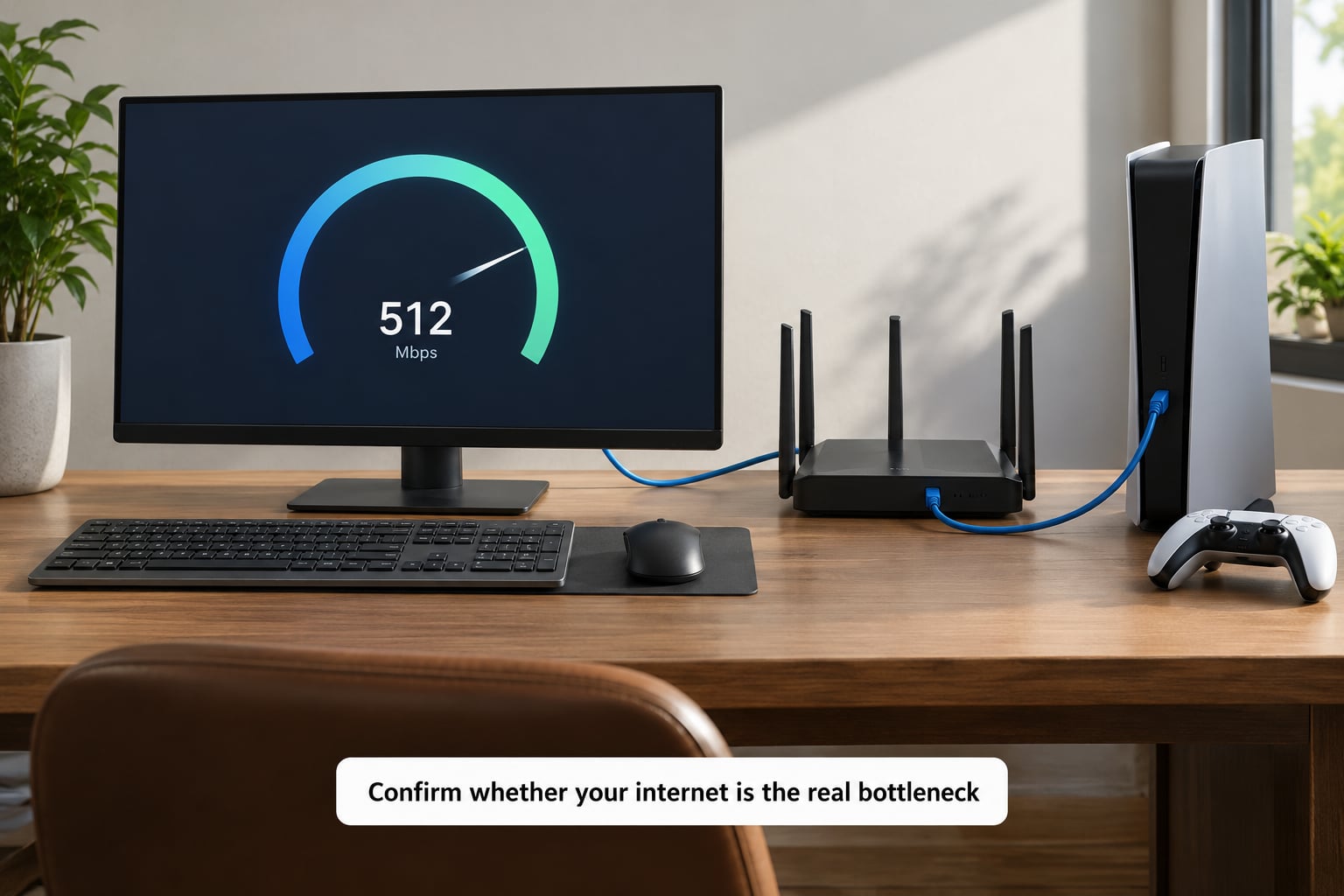
A download is only slow if the connection carrying it is slow. Run a speed test on the exact device doing the downloading — the console, not the laptop sitting next to it — and note the download figure in Mbps rather than the ping or upload number.
Then compare that measurement with what the launcher actually reports. If the speed test shows 480 Mbps and the game is moving at 6 Mbps, the connection is fine and the problem is elsewhere. If the speed test also shows single digits, you have found your answer before reading another word of this guide.
Pause streaming, video calls and cloud backups during the test, because a speed test running on a busy network reports what is left over rather than what the line can carry. Repeat it once on a wired Ethernet connection where one is available; a large gap between the wired and wireless results points straight at Wi-Fi interference or distance.
Finally, ask whether the server or the connection is responsible. Check your platform’s service status page and the game’s own forums for a reported outage, and try again during a quiet hour. When a publisher’s content servers are saturated after a big release or a patch day, nothing on your side moves the number.
2. Restart the download and the device itself
A stalled transfer often resumes at a fraction of its earlier rate because of a leaked or throttled connection. Pause the download in your client, close every app that is not needed, and fully restart the device rather than closing the window.
On PC, that means Restart from the power menu, not Sleep. On PlayStation, use Power Options, then Power Off. On Xbox, use Power, then Full Restart. Each platform keeps its downloads queued in rest or sleep mode, but a genuine restart clears the session state that a soft close leaves behind.
On the router, the power cycle people mention is real: unplug it, wait thirty seconds, plug it back in, and wait until every status light stops blinking. Then start the download again and watch the rate for two or three minutes. A steady number that sits near your measured speed means this step worked.
3. Close the apps and devices eating your bandwidth
Competing traffic is the single most common culprit in the forum threads on this problem. A 4K stream running in the next room can take more of the line than the console you are trying to serve.
On Windows, open Task Manager, switch to the Network column sorted by the heaviest user, and close anything streaming video or running a sync. Then check Windows Update and Delivery Optimization, which downloads updates in the background using your full connection without asking. Open Settings, choose Network and Internet, then Wi-Fi, click your network, and turn off Metered connection if it is on.
On consoles, the equivalent traffic comes from suspended games. An Xbox with Quick Resume apps left in the background, or a PlayStation holding open applications, keeps downloading and installing in the background. Close them, or clear the queue, before you judge the speed of anything.
Household-wide checks count too. Disconnect or pause phones streaming video, and ask whether anyone else started a system update. Then pause all but one download in your own client and confirm the active game takes most of the available bandwidth.
4. Use the right network connection
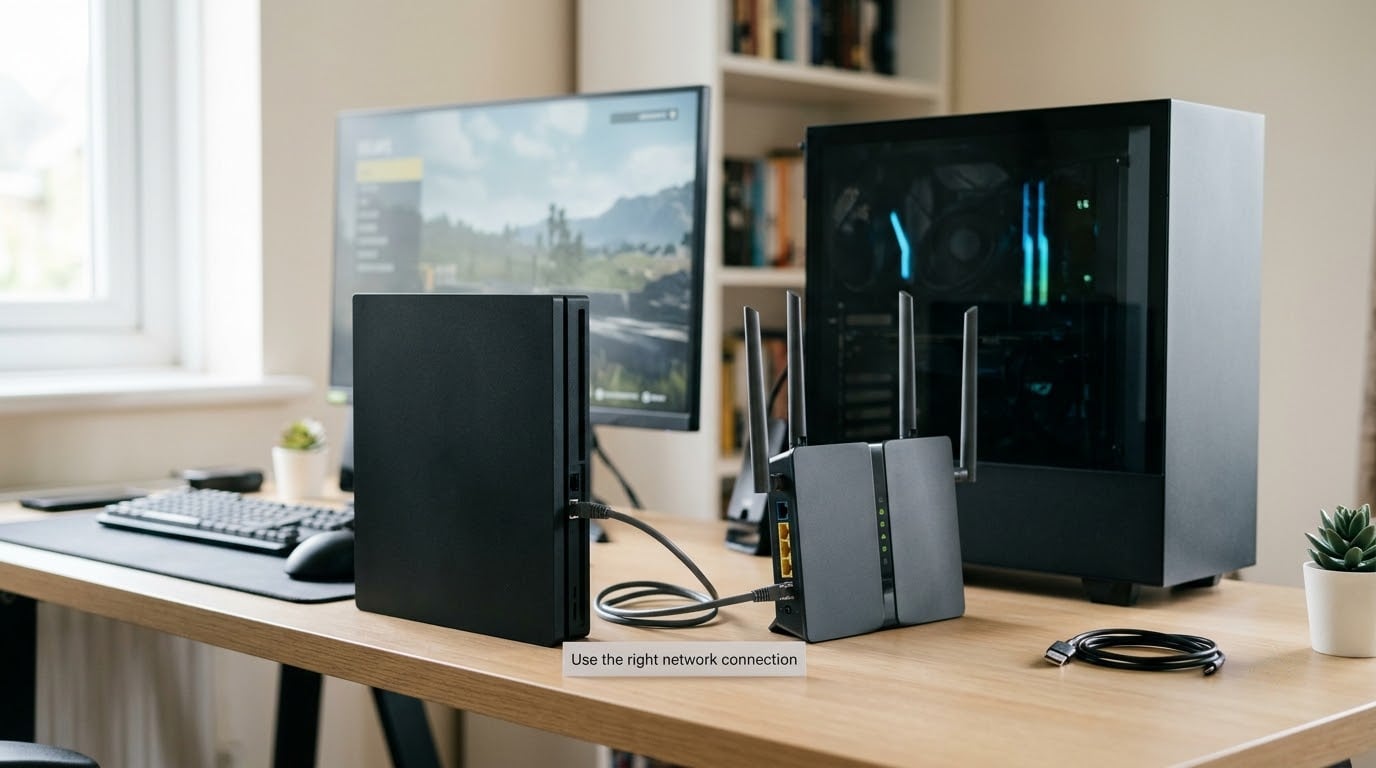
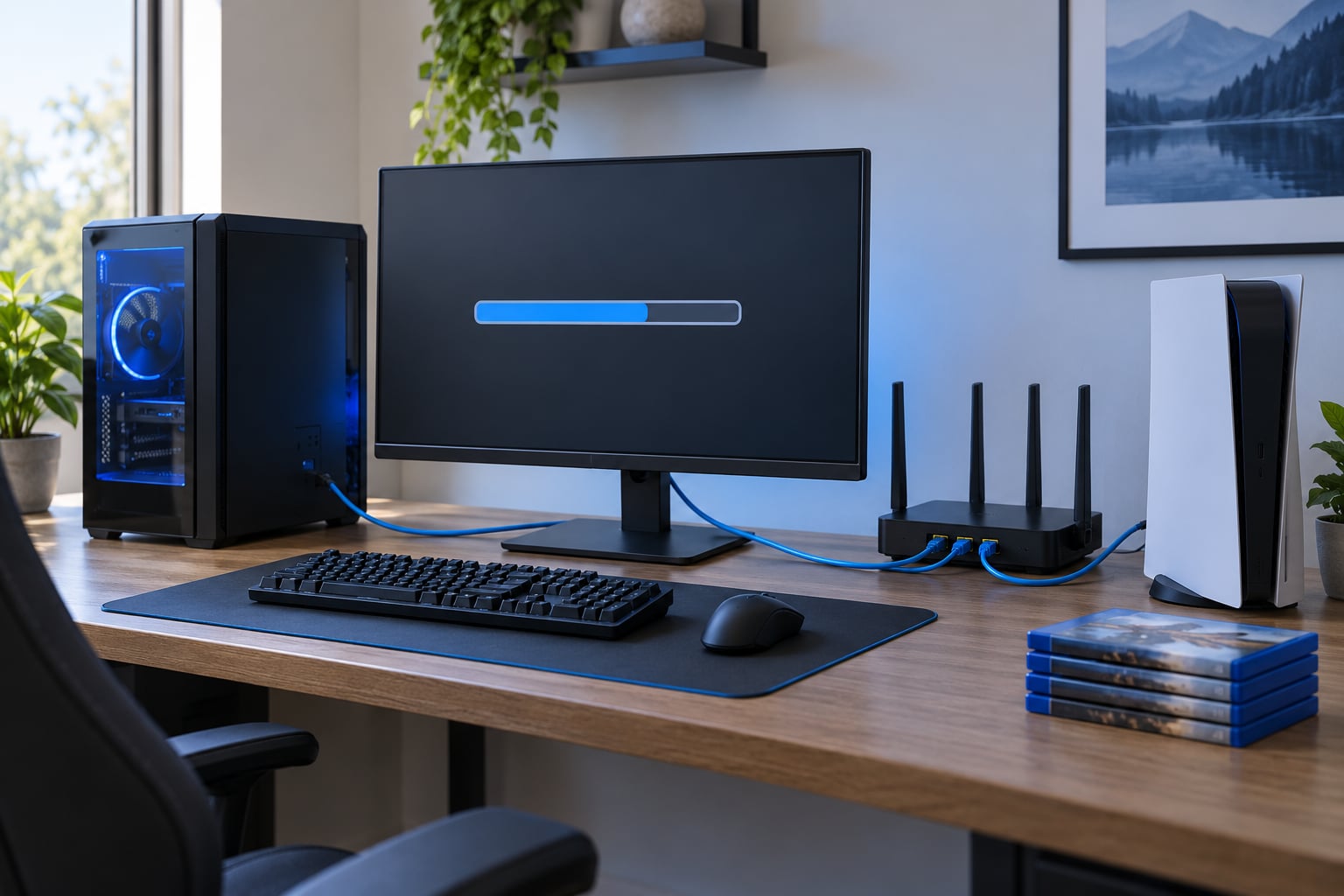
A wired Ethernet connection removes Wi-Fi entirely from the equation, and it is the single most reliable fix when you can reach it. Any current cable will do for gigabit speeds, though newer Cat6 or Cat7 cabling gives you headroom on faster plans.
When cabling is not possible, the Wi-Fi band matters more than the router’s advertised number. The 5 GHz band carries more speed over shorter distances and with far less interference, which makes it the right choice in the same room as the router. The 2.4 GHz band reaches further but shares spectrum with neighbouring networks, cordless phones and Bluetooth devices, so it is the cause of most inconsistent evening speeds.
Physical placement is the other half. Walls, floors and closed doors cut 5 GHz badly, so a console in a hallway or a bedroom behind two walls will never reach a sticker number on the box. Moving it closer to the router, or adding a mesh node in the weak room, fixes this without any settings changes at all.
If your router has a Quality of Service or device priority feature, put the console or gaming PC at the top of the priority list so its traffic is served before streaming devices. The setting lives in your router’s admin interface, not in the console, and it is worth ten minutes for a shared household connection.
5. Fix download and network settings inside each platform
Every launcher and console has its own path to the settings that throttle, reroute or stall a download. These are not identical screens, and none of them exist in the same place.
Steam: open Settings, then Downloads. Choose a download region that matches your physical location, check that Limit download bandwidth is off, and use Clear Download Cache if a transfer stalls or restarts repeatedly. Steam supports automatic region selection if you would rather not manage it.
Epic Games Launcher: open Settings, then Downloads, and unthrottle bandwidth. If downloads stall, sign out, clear the launcher’s webcache folder, and sign back in.
Battle.net and GOG Galaxy: Battle.net exposes download preferences and a bandwidth slider in its settings; GOG Galaxy handles installs in its own queue with no hard throttle by default.
PlayStation 5: run Settings, then Network, then Test Internet Connection to see what the console reports, and follow the prompts if a DNS failure appears. Download settings themselves live under Settings, then System and System Software.
Xbox: use Settings, then Network and Internet, then Test network connection. For manual DNS, go to Advanced options, choose Manual, and enter your provider’s or a public resolver’s addresses.
Nintendo Switch: downloads depend on the strength of the dock connection or your home Wi-Fi, and the console shows a download estimate on the library card. Ethernet through a dock with an adapter behaves far better than 5 GHz in a crowded house.
Whichever platform you are on, check for a maintenance notice and confirm your account is in good standing before you blame the network. Some platforms refuse downloads until an account issue is resolved, and the download simply sits at zero.
6. Free up storage and stop the drive from choking
A slow download is not always a slow network. Once the bytes arrive, the drive has to decompress and write gigabytes of files, and a full or fragmented drive makes that phase look like a stalled download.
Install games to an SSD whenever you can, and prefer a fast NVMe drive over a SATA one. Your speed test number will not change when you move a game to an SSD, but the install and unpack phase gets dramatically shorter, which is usually the phase people actually mean when they complain.
Clear temporary files through Settings, then System, then Storage, and remove leftovers from interrupted downloads in your launcher, not by deleting folders from the game library by hand. Deleting required game files by hand can force a full re-download later, which costs you the entire progress you made.
On consoles, check free space in the storage menu and remove titles you have finished. On Windows, run the built-in drive optimisation tool on a mechanical drive and make sure TRIM is enabled on an SSD. Both are free, both are safe, and neither changes download speed directly.
7. Control how many downloads run at once
Parallel downloads only help when your connection has headroom. On a shared line, or on Wi-Fi, four simultaneous transfers divide the same pipe and each one looks slow.
Most clients let you pause everything else and leave one item active. On Steam and Battle.net, limit simultaneous downloads to one. On Xbox, the queue shows everything pending, so pause or reorder it so the game you want sits at the front. On PlayStation, use the download queue in Settings and remove items you are not waiting on.
Quality of service settings on streaming devices matter for the same reason. Dropping a smart TV’s video quality from 4K to 1080p, or stopping it from downloading anything while you are installing, can free a surprising slice of your bandwidth without you touching the game settings at all.
8. Reset network and client settings as a last resort
Resetting only makes sense after steps one through seven, because it changes several things at once and hides the original cause. When you reach here, accept that you are resetting rather than diagnosing.
On Windows, open a Command Prompt as administrator and run ipconfig /flushdns to clear cached name lookups, then run ipconfig /release followed by ipconfig /renew to rebuild the connection. Resetting the network stack from Settings, Network and Internet, then Advanced network settings, goes further and usually requires a reboot.
On consoles, a full power off with the cable pulled for thirty seconds clears the network session. If the problem follows you to another game on the same account, clear the launcher’s download cache and download the client again.
You will need to sign in again afterwards. Your games, purchases and save data stay attached to your account rather than the console, so a reinstall or a factory reset does not cost you anything you paid for — it only costs time.
What Your Speed Test Result Actually Means
The gap between your speed test and your launcher is the most useful clue you have. Here is how to read the combination.
| What you see | Likely cause | Where to fix it |
|---|---|---|
| Speed test fast, launcher slow on every game | Background bandwidth use or a saturated content server | Step 3, then step 5 |
| Speed test fast, launcher slow on one game only | Download region, stalled cache or local file error | Step 5, then step 8 |
| Speed test fast on Ethernet, slow on Wi-Fi | Band, distance or interference | Step 4 |
| Speed test fast, download finishes then install crawls | Slow drive or fragmented storage | Step 6 |
| Fast mornings, slow evenings | Peak-hour congestion on a shared cable line | Download off-peak, ask your ISP about caps |
| Console reports a headline Mbps far above real throughput | Console network test measures a burst, not sustained transfer | Compare against the launcher figure, not the test |
Two quick notes on the numbers. Mbps is megabits per second, and a launcher shows megabytes per second, so 100 Mbps is roughly 12.5 MB/s before overhead. Second, a console network test often reports the best burst it achieved, not the rate a 100 GB download will actually sustain.
How Long a Game Download Should Take
Modern titles run large, so it helps to know whether your wait is normal. These are realistic figures at roughly 85 percent of your connection’s rated speed, which is what a healthy transfer usually achieves.
| Game size | 10 Mbps | 25 Mbps | 50 Mbps | 100 Mbps | 300 Mbps | 500 Mbps |
|---|---|---|---|---|---|---|
| 20 GB | 5 to 6 hours | about 2 hours | about 1 hour | 30 to 35 minutes | 10 to 12 minutes | 6 to 8 minutes |
| 50 GB | 13 to 14 hours | 5 to 6 hours | 2.5 to 3 hours | 80 to 90 minutes | 25 to 30 minutes | 15 to 18 minutes |
| 100 GB | 26 to 28 hours | 10 to 11 hours | 5 to 6 hours | 2.5 to 3 hours | 50 to 60 minutes | 30 to 35 minutes |
Read those rows carefully. If a 100 GB game on a 100 Mbps line takes four hours, the network is delivering roughly half of what the line promises, and that is where steps one through four earn their keep. If it takes three hours, your connection is fine and the problem lives on the disk side.
Cable internet shares capacity across a neighbourhood and slows noticeably in the evening. Fiber does not, because capacity is not shared in the same way. That difference explains why two neighbours on different providers can see completely different speeds at nine in the evening.
Common Mistakes That Make Downloads Worse
Most people lose an evening to the same handful of mistakes. Each one feels productive and costs you time.
Cancelling and restarting the install over and over. Some progress is preserved between attempts, but repeatedly interrupting a download forces the client to re-verify files and can leave you behind where you started. Let a transfer run unless it has sat at zero for several minutes.
Confusing download progress with installed size. A download can finish in twenty minutes and then sit at “Installing” for another hour, especially on a mechanical drive. Judge the two phases separately.
Changing five settings at once. If speed improves you will not know which change did it, and if it worsens you cannot tell which one caused it. One change, one observation, then move on.
Installing unknown speed booster software. These utilities rarely help a game launcher and often add background services competing for the very bandwidth you are trying to free. Everything in this guide uses settings your platform already ships with.
Assuming every slowdown is Wi-Fi. Plenty of slow downloads are a background update, a wrong content server or a full drive. Ethernet helps only when the wireless link was genuinely the limit.
One last habit worth keeping: download off-peak, when you can. Starting a 100 GB install before bed on a quiet evening often beats an evening download, because nothing competes with it and the line is not congested.
Frequently Asked Questions
Why are my game downloads slower than my internet speed?
Your speed test measures the best burst your line can deliver, while a launcher reports sustained transfer from one specific content server. A wrong download region, background bandwidth use, Wi-Fi interference or a busy publisher CDN all lower the second number without touching the first. Compare your measured Mbps with the launcher’s rate, then work through the fixes in order.
Can I download a game while my PlayStation or Xbox is turned off?
You can download in rest mode, and consoles are designed for it, but the download runs at a reduced rate because power saving features stay active. A quick resume or standby download will never match a full-on transfer. If you want maximum speed, leave the console powered on with the screen off and let the download run to completion.
Will pausing and resuming a game download damage the files?
No. Pausing and resuming is a supported action in every major launcher and console, and clients verify file integrity before installing. What it does cost is time, because some clients re-check partially written files after a long pause. Pausing once to let a large transfer finish overnight is sensible; pausing every few minutes out of impatience is what wastes your time.
Does a VPN make game downloads faster?
Usually no. A VPN adds an encrypted hop between you and the content servers, which often reduces throughput and increases the time to negotiate the connection. It helps in narrow cases, such as a network that blocks or throttles the publisher’s domain, or poor routing to a distant region. Try every built-in fix first, and only test a VPN to prove a routing problem exists.
What should I do if the download speed is fast but the game will not install?
That points at storage, not the network. Install to an SSD, free up space beyond the download size so the client can hold both the compressed and unpacked files, and clear out interrupted downloads from your queue. Do not delete game files from the library folder by hand, because the client will treat them as missing and re-download the whole thing.
Conclusion: Start With the Easiest Check
Run a speed test on the device that is actually downloading, pause everything else competing for bandwidth, restart the download and the device, and only then move on to region settings, DNS and network resets. Most slow downloads are fixed in the first fifteen minutes, and the rest are fixed by an honest look at storage or by waiting out a busy server.