Learning how to moderate Twitch chat as a new streamer comes down to three layers: settings you configure once before you go live, commands you type in chat while streaming, and a small number of human moderators you trust to handle judgement calls. Get those three working and most problems solve themselves, even at 20 viewers.
The honest part is that moderation is not a settings problem. It is a division-of-attention problem. You are playing a game, reading chat at the edge of your vision, and deciding in about two seconds whether a message is banter or a rule break. The workflow below is built so those decisions get easier every stream instead of harder.
Here is the setup I would hand a streamer on their first month, written for the Creator Dashboard as it looks in 2026.
Table of Contents
- What You Need
- Step-by-Step: How to Moderate Twitch Chat as a New Streamer
- 1. Set Your Channel and Chat Rules
- 2. Review Twitch’s Moderation Tools
- 3. Configure AutoMod Before the Stream
- 4. Watch for Context, Not Just Keywords
- 5. Use Timeouts and Bans Proportionately
- 6. Handle Raids, Spam, and Sudden Backups
- 7. Review the Chat After the Stream
- Common Mistakes
- Frequently Asked Questions
- How do I moderate my Twitch chat?
- What are the best settings for Twitch AutoMod?
- What are the commands for timeouts on Twitch?
- How do I add Nightbot to my Twitch channel as a moderator?
- How do I make someone a mod on Twitch, and how do I remove them?
- Do Twitch streamers pay their moderators?
- Conclusion
What You Need
None of this is expensive or complicated, and you can set it all up in one sitting before your next stream.
- Broadcaster access to your channel. You cannot change moderation settings from a regular viewer account. The channel owner is the one who opens Creator Dashboard, adds moderators, and invites bots.
- Creator Dashboard access. Sign in at creator.dashboard.twitch.tv and open the Creator Dashboard. Every built-in moderation tool lives under Settings, then Stream, then Moderation.
- Written rules, even short ones. Four to eight lines you can post in chat, pin as a panel, and read out loud once. Rules that exist only in your head cannot be enforced consistently.
- A way to watch chat while you play. A second monitor is ideal. Failing that, a small chat window in a corner of your stream layout, or the Twitch mobile app on a phone beside your keyboard.
- One or two trusted humans. A friend who is reliable is worth more than five strangers who applied to your Discord. Two calm moderators are plenty under a few thousand followers.
- An optional chatbot. Nightbot, Moobot, and StreamElements all have free tiers. A brand-new channel usually does not need one yet, but spam arrives earlier than most streamers expect.
Step-by-Step: How to Moderate Twitch Chat as a New Streamer
1. Set Your Channel and Chat Rules
Start with short, specific rules and a stated consequence for breaking them.
Vague rules fail. “Be nice” gives you nothing to enforce. A rule like “no backseat gaming advice during boss fights” tells a viewer exactly what you want and tells a moderator exactly what to act on.
A starter list you can copy and edit:
- Be decent. Harassment, slurs, and targeted bullying get an instant ban.
- No backseat gaming unless I ask for it.
- No self-promotion, advertising, or posting invite links.
- No spoilers for anything I have not finished yet.
- No arguing with other viewers. Disagree, then move on.
- Keep it light. Jokes at my expense are fine. Jokes at another viewer’s expense are not.
- One account per person, no spam, no emote walls.
Post the rules in chat when you start, pin them in your panels, and let a chatbot answer !rules so the list is always one message away. Say the consequences once during your first ten minutes and then stop referring to them. A stream that keeps reminding everyone it has rules is a stream where the rules have already failed.
2. Review Twitch’s Moderation Tools
Everything Twitch ships built in lives in one place: Creator Dashboard, then Settings, then Stream, then Moderation.
Get familiar with the panel because you will return to it every month. The sections that matter for a new streamer are AutoMod, chat delay, emote and link restrictions, and the chat modes. Separately, the moderation log under Community, then Moderation, records every timeout and ban you make, which is what you will need if someone appeals.
You type moderation actions in chat as slash commands, and moderators get the same commands you do.
| Command | What it does | Use it when |
|---|---|---|
| /timeout username 600 | Silences a user for a set number of seconds | Backseat gaming, mild spam, a repeat offender getting a warning |
| /ban username | Permanently removes a user from the channel | Slurs, harassment, threats, ban evasion, repeated timeouts |
| /unban username | Reverses a permanent ban | An appeal was genuine and you got it wrong |
| /clear | Removes every message currently in chat | The chat is unreadable after a spam wave |
| /slow 30 | Requires 30 seconds between messages from each viewer | Chat is moving so fast nobody reads it |
| /followersonly 5m | Only accounts following for 5 minutes or more can chat | A raid of brand-new spam accounts is arriving |
| /subscribers | Restricts chat to subscribers | You are mid-event and want a calmer room |
| /emoteonly | Blocks text, allows only emotes | Nothing dangerous, just a wall of text to read around |
| /mod username | Gives a user moderator permissions | Someone you trust has proved themselves |
| /unmod username | Removes moderator permissions | A mod has become part of the problem |
Timeouts and bans both create a permanent record of the message that triggered them, so you never have to screenshot before you act. Several streamers swear by taking a screenshot anyway, because appeals can involve a message that scrolled off weeks later.
Read the commands for timeouts on Twitch the way you would a reference card rather than a manual. You need six of them cold: /timeout, /ban, /unban, /clear, /slow, and /mod.
3. Configure AutoMod Before the Stream
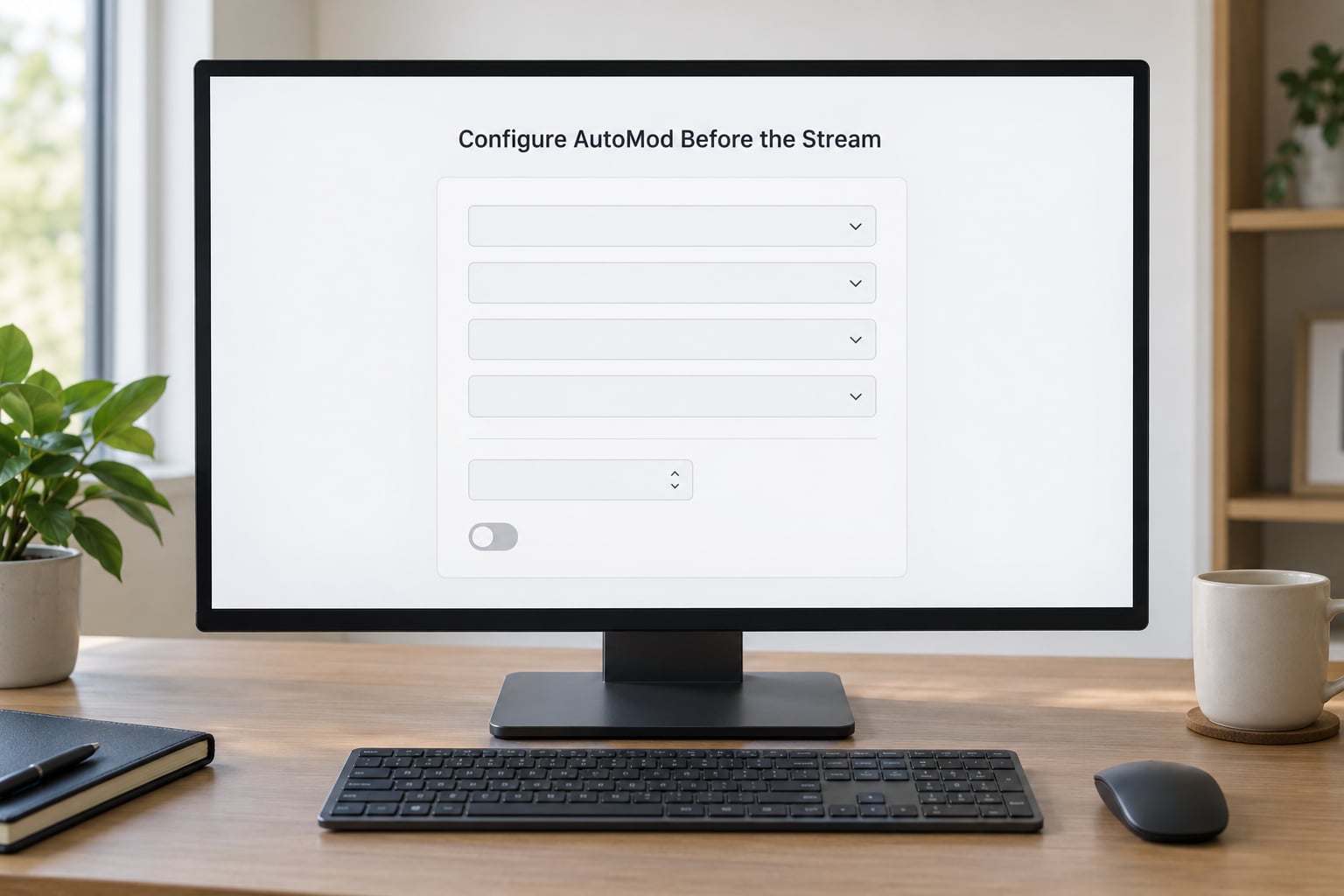
AutoMod is Twitch’s built-in filter. It holds messages that look like discriminatory or harassing language, and it has four categories, each set to one of four levels: Off, Less filtering, Medium, and Strong.
For a new channel, this is the preset I start from:
- Discrimination: Medium. Strong catches real slurs and also catches a lot of ordinary conversation that involves identity, which on a brand-new channel can be most of chat.
- Sexually Explicit: Less filtering.
- Swearing: Less filtering. If your channel is not a swearing channel, move this to Medium instead.
- Hostility and Abuse: Medium.
Set it before you go live, not during a chaotic moment. AutoMod does not ban anyone. It holds messages in the channel, where you approve or reject them from the Creator Dashboard or your mod view, and a held message never appears in chat for anyone else. Some streamers expect AutoMod to punish people; it does not, and that misunderstanding causes a lot of confusion on stream.
Review the held messages queue after the first few streams. If AutoMod is holding legitimate chat, loosen that one category by one level instead of turning it off. If obvious spam is getting through, tighten the category it belongs to. AutoMod is a dial, not a switch, and it needs retuning as your chat changes.
4. Watch for Context, Not Just Keywords
Most over-moderation comes from reading chat as a filter would instead of reading it as a person wrote it.
Two regulars arguing about whether a boss can be skipped is not harassment, even when it looks blunt. A new viewer asking an obvious question is not spam, even when the same question appeared earlier. A single profanity in a frustrated message is usually not worth a ban on a small channel, and banning for it teaches regulars that you cannot be questioned.
The test I use is simple: would a reasonable first-time viewer understand why this was removed? If the answer is no, the message probably did not need removing.
Where you genuinely cannot tell, use a timeout instead of a ban. Timeouts are reversible in the sense that matters: the person comes back later, the community sees you handled it calmly, and you did not permanently exile someone over a bad read.
5. Use Timeouts and Bans Proportionately
Escalation only works if the same behavior always gets the same response, and consistency is what viewers notice first.
A ladder most small channels can live with:
- First offence, low severity (backseat gaming, repeated emotes, a mild slur caught by AutoMod): 10-minute timeout, and say why in chat if it was ambiguous.
- Second offence (ignoring a timeout, arguing with a mod): one hour, sometimes 24 hours if they were hostile to your mods specifically.
- Slurs, threats, sexual content, or ban evasion: permanent ban, no warning, no negotiation.
- Severity that cannot change with repetition (a slur is a slur the first time): straight to ban, skipping the ladder.
Warn in chat the first time when the offence is small and the person is probably not used to your channel. Do not announce bans in a long speech. A calm one-liner, or nothing at all, keeps the stream moving.
Ban-then-unban as a “warning” is a bad habit. It leaves a trail in the moderation log, it teaches the banned user that rules are negotiable, and it invites a second attempt. If you want a public warning, say it in chat and time them.
Do not read slurs aloud while you enforce a rule. You have two options and both are fine: silently remove and move on, or say something short like “that is a ban, next message” without repeating the word. A streamer who repeats the slur to show why they banned it has just put it in the highlight reel.
6. Handle Raids, Spam, and Sudden Backups
A raid from a friendly channel is a good problem. A raid of spam accounts, sometimes called a hate raid when it turns abusive, is a different job entirely and it needs a different order of actions.
For a sudden, unreadable backup of messages, work in this order:
- Type
/slow 30in chat. Slower chat is readable chat, and it costs nothing. - Watch for ten seconds. The pattern tells you what it is: friendly, chaotic, or coordinated.
- For spam accounts,
/followersonly 5mor longer. Anyone joining mid-raid cannot chat until they have followed for the required time. - For coordinated abuse, turn on Suspicious User Controls and restrict users Twitch flags as likely, or set chat to followers-only and enable verified email chat in the dashboard.
- Ban the accounts you can identify and let AutoMod and the spam filter hold the rest.
- If chat is still unreadable,
/clearand/emoteonlyfor a few minutes.
Do not ban in a frenzy during a raid. Ten banned spam accounts leave the same visible trace as one, and it costs you the attention you need for the game. Turn the settings on and let the filters do the work.
AutoMod level tuning is a per-stream decision for many streamers: stiffer while raiding, normal during your own content.
Here is the second-monitor reality nobody mentions. If you are not reading chat while playing, a bad message can sit visible for several minutes and the whole room sees it. The fix is layout, not willpower: shrink chat to a readable strip on a second screen, drop the font size so more lines fit, and accept that you will miss some messages. Missing one is fine. Running a stream where chat goes silent because you are mid-fight is not.
7. Review the Chat After the Stream
Ten minutes of review after each stream is what turns moderation into a system.
Open the held messages queue and approve or reject what is left. Skim the moderation log for patterns: the same account banned three times, one phrase AutoMod keeps catching, the same rule broken every stream. Each pattern is a settings fix rather than a reaction you have to make live.
Write down one thing to change for next time. That is enough. Over weeks this becomes a short, private list of channel rules that actually match your community instead of a generic list you copied and never adjusted.
As your channel grows, promote one person to lead moderator. A lead mod can add and remove other moderators, which means you no longer have to be online to fix a staffing problem. When that person is a liability, /unmod them and the change takes effect immediately, no awkward conversation required.
Common Mistakes
Over-moderating early. A fragile new chat punishes harshness harder than it punishes mild chaos. One banned regular can cost you every viewer that person was friends with. Start with timeouts and short rules.
Recruiting strangers who applied to your Discord. Someone who asks to moderate your channel in week one is usually after a platform, not a community. Pick people who have been in your chat for weeks and who stayed polite when they had no power.
Letting one mod speak for the channel. Mods are an extension of you and viewers judge the stream by their behavior. Clique-y, unwelcoming mods are one of the most cited reasons people try a channel once and never come back. Give two or three people the role, not eight, and hold the same standard you hold yourself to.
Setting strict AutoMod and calling it done. Maximum strictness on a small channel holds ordinary conversation and still lets link spam through. Tune per category and re-check the held queue.
Treating slow mode as a punishment. /slow 30 applied for a whole stream feels like being benished. Use it in short bursts when chat is unreadable, then turn it off.
Installing a bot because every tutorial says to. A channel with 5 viewers does not need a chatbot, and a bot that posts every follow in a quiet room makes the room quieter. Add one when spam becomes a repeated problem or when you want custom commands like !commands, !discord, and !socials.
Modding and not telling anyone. Your first moderator will not know how to time someone out. Send them the command list, tell them which rules are absolute bans, and give them permission to message you when they are unsure.
Frequently Asked Questions
How do I moderate my Twitch chat?
Use three layers. Configure AutoMod levels, chat delay and verified chat in Creator Dashboard before you stream. Type slash commands like /timeout and /ban live when something needs handling. Then give one or two trusted people moderator permissions so decisions do not all depend on you reading chat while you play.
What are the best settings for Twitch AutoMod?
For a new channel start Discrimination and Hostility and Abuse at Medium, Sexually Explicit and Swearing at Less filtering, then adjust. AutoMod holds messages for approval rather than banning anyone, so check the held queue after early streams and loosen any category that keeps catching ordinary conversation.
What are the commands for timeouts on Twitch?
Type /timeout followed by the username and a duration in seconds, so /timeout username 600 removes someone for ten minutes. Add a reason with /timeout username 600 reason if you want the moderation log to explain itself. /ban and /unban handle permanent removals, and moderators can run every one of these.
How do I add Nightbot to my Twitch channel as a moderator?
Create a free Nightbot account, go to the Nightbot dashboard and choose Join Channel, then authorize your Twitch account. On Twitch, open Creator Dashboard, go to Settings, then Stream, then Moderation, and add Nightbot as a moderator from the Moderators section. Nightbot then handles spam filters, timed messages and custom commands automatically.
How do I make someone a mod on Twitch, and how do I remove them?
Type /mod followed by their username in your chat, or add them in Creator Dashboard under Settings, Stream, Moderation. Only you and existing moderators can do this. To take the role away, type /unmod followed by their username; the change is instant and takes effect the next time they try to moderate.
Do Twitch streamers pay their moderators?
Almost never, and that is normal. Volunteer moderation is the standard on Twitch and on small channels it is what keeps costs near zero. Some larger channels offer gift subs, access to a private Discord, or occasionally money, but paying mods is not an expectation anyone should bring to a volunteer team in their first month.
Conclusion
Four actions, in order, and your chat problem is mostly solved: post a short rules list viewers can read, set AutoMod to Medium on Discrimination and Hostility and Abuse, add one trusted person as a moderator, and keep /timeout and /ban in your fingers. Then tighten one thing per stream instead of reacting to everything live. That loop is how to moderate Twitch chat as a new streamer without it taking over the stream.