Learning how to choose monitor resolution for gaming comes down to three numbers: how big your screen is, how fast your graphics card runs, and how many frames per second you actually want. Most people land on 1920×1080 at 24 inches for pure competitive play, 2560×1440 at 27 inches for a balanced setup, or 3840×2160 at 32 inches when a capable GPU is already in the case. Pick outside that range and something has to give, usually frame rate.
Here is the honest version: there is no single best resolution, only the best match for your hardware and the games you play. Ignore a monitor’s marketing and start with your own setup instead.
Table of Contents
- What You Need
- Step-by-Step: How to Choose Monitor Resolution for Gaming
- Set Your Resolution by Screen Size
- Check Your Graphics Card
- Match Resolution to Refresh Rate
- Consider Panel Type and Gaming Features
- How to Choose Monitor Resolution for Gaming on a Console
- Compare the Main Gaming Resolutions
- Common Mistakes
- Frequently Asked Questions
- Is 1080p still good enough for gaming?
- Is 1440p worth it for gaming compared with 1080p?
- Is 4K better than 1440p for gaming?
- Does monitor resolution affect FPS?
- What resolution is best for competitive gaming?
- What monitor resolution should I choose for a PS5 or Xbox Series X?
What You Need
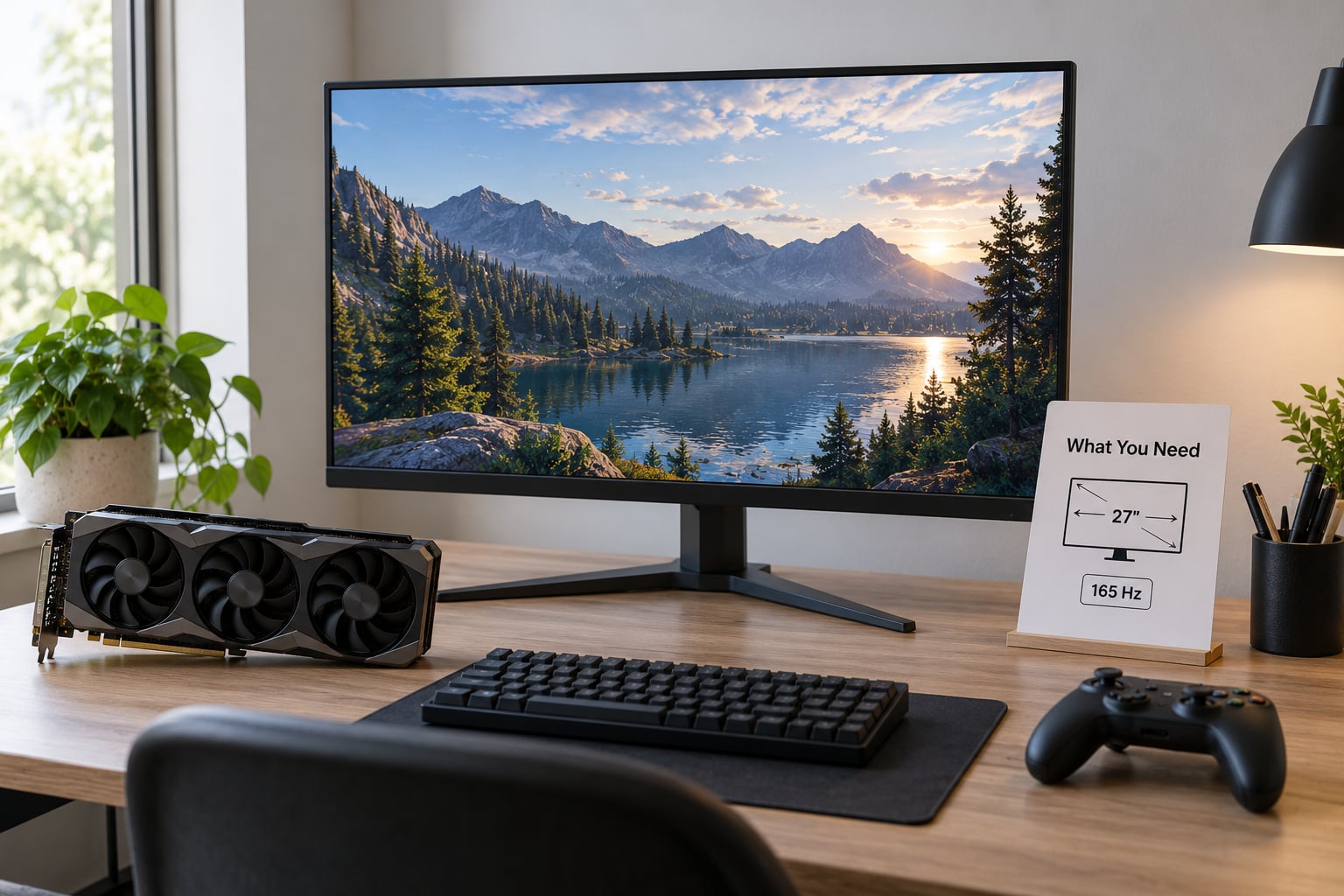
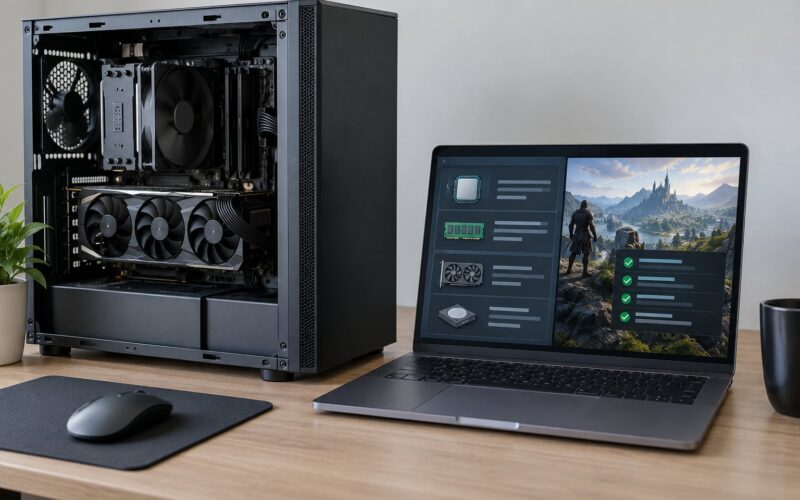
Before you open a shopping tab, gather six pieces of information. Knowing them turns a two-hour scroll into a two-minute decision.
- Monitor size you want to sit at. Measure the desk first. A 32-inch panel needs about 70 cm of depth, and most desks under 120 cm cannot hold one properly.
- Your graphics card model, or the one you plan to buy. The full model name matters, not the tier label a shop puts on it.
- PC or console. A console has a fixed ceiling on output, and that ceiling changes what resolution is worth paying for.
- Your target frame rate. Competitive players want 144 FPS or more. Single-player players are often happier with a locked 60.
- Viewing distance. Arm’s length for competitive play, roughly 70-90 cm for immersive single-player.
- Budget for the whole build, not just the panel. Moving up a resolution tier often means moving up a graphics card tier too.
One clarification worth making now: resolution is the monitor’s native pixel count, the fixed grid it is built from. Changing the resolution setting in Windows does not add detail to that grid. It either fills it exactly or makes the image stretch, blur or add black bars.
Step-by-Step: How to Choose Monitor Resolution for Gaming
Set Your Resolution by Screen Size
Start with the size you want, then pick the pixel count that keeps the picture sharp from where you’ll sit. Pixel density, measured in pixels per inch, does this work. Roughly 90 to 110 PPI reads as sharp at arm’s length, and below about 80 PPI you start to see individual pixels on text and HUD elements.
At 24 inches, 1920×1080 gives you about 92 PPI, which is why that pairing still works so well. At 27 inches, 2560×1440 lands near 109 PPI and stays comfortably sharp. At 32 inches, 1440p drops to roughly 92 PPI, which several people find a little soft for desktop work even when gaming looks fine. A 32-inch 3840×2160 panel reaches about 138 PPI, which is sharp enough to make text editing comfortable.
So the common pairings, based on what the forums actually converge on, are 24-inch 1080p, 27-inch 1440p and 32-inch 4K. If someone tells you 32-inch 1440p feels low-density, that is a real report from people who switched down from 4K, and it comes down to desktop text rather than gaming.
Check Your Graphics Card
Your GPU renders every pixel separately, so render cost scales with pixel count. 1080p is 2.07 million pixels per frame. 1440p is 3.69 million, roughly 78 percent more. 4K is 8.29 million, about four times 1080p. That multiplier is the whole reason 4K frame rates fall off a cliff without help.
Confirm three things on your specific card. First, the actual model, since the same name covers several chips. Second, the outputs it carries, typically a mix of DisplayPort and HDMI, because a 4K monitor at 144Hz or above usually needs DisplayPort 1.4 with compression enabled. Third, how it behaves above native resolution: almost no card renders above its native panel grid, so anything higher is a non-native mode that adds input lag without adding pixels.
Running a resolution lower than native is the opposite case, and it is legitimate on purpose. Some players deliberately use a lower internal resolution and upscale, trading sharpness for frame rate. It is a valid preference, not a mistake.
Match Resolution to Refresh Rate
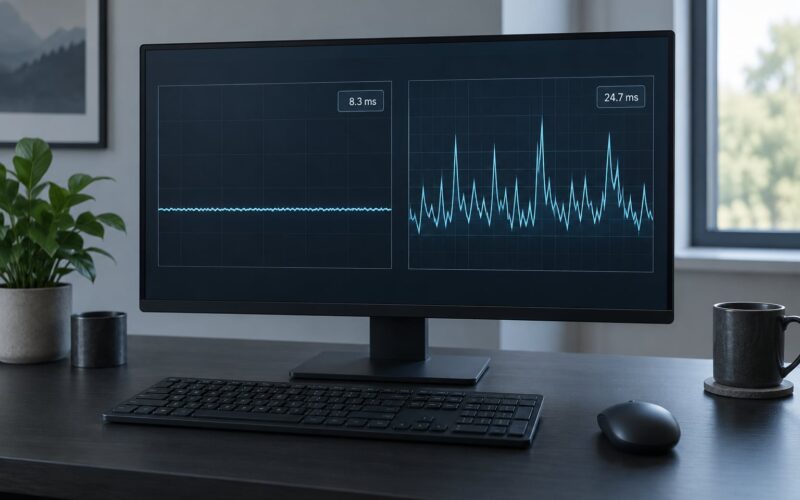
Frame time at 60Hz is 16.67 milliseconds, at 144Hz it is 6.94 milliseconds, at 240Hz it is 4.17 milliseconds. A frame that takes longer than that budget never reaches the screen on time, which is why a 4K monitor running 45 FPS feels worse than a 1080p monitor running 150 even though the 4K picture looks better in a still.
Match the pair to your game type. For competitive shooters like Valorant, Overwatch 2 or Counter-Strike, push refresh rate and accept lower resolution. For story-driven open worlds, hold a native, high-resolution image and let adaptive sync smooth out the frame pacing. For mixed libraries, 1440p at 144Hz or 180Hz is the compromise most people describe as the sweet spot.
Turn on variable refresh rate wherever you can. G-Sync on NVIDIA cards and FreeSync on AMD cards both let the display match your frame rate, which removes stutter without locking you to a fixed cap.
Consider Panel Type and Gaming Features
Resolution alone does not decide how a monitor feels in a match. Panel technology sets contrast and response, and those change how much the resolution actually helps you. IPS panels give accurate colours and low input lag. VA panels give deeper blacks but slower transitions, which shows up as smearing during fast turns. OLED gives near-perfect blacks and effectively instant response, at the cost of a real risk of burn-in over years.
Check response time and input lag figures before you commit. A listed 1 ms GtG response means nothing if the measured input lag at your chosen resolution is high. Then confirm the ports: DisplayPort 1.4 with DSC for high refresh rates above 4K or at 4K 120Hz and beyond, and HDMI 2.1 if you plan to use a console or a PC with a gaming GPU that outputs through HDMI.
How to Choose Monitor Resolution for Gaming on a Console
Consoles have fixed output targets, and this is the simplest decision of all. The PS5 and Xbox Series X render and output 4K, and both support 120Hz output on compatible displays. So a 4K monitor at 120Hz gives you native 4K plus high refresh, while a 1440p or 1080p monitor still works fine because the console scales down for you.
You do not need a 4K monitor to use a 4K console, but you do lose sharpness by running at 1080p. For a console-only setup on a desk at arm’s length, 27-inch 1440p or a 32-inch 4K panel both serve well.
Compare the Main Gaming Resolutions
| Resolution | Pixels per frame | Typical screen size | GPU demand | Refresh rate potential | Best suited to |
|---|---|---|---|---|---|
| 1080p (1920×1080) | 2.07 million | 22 to 25 inch | Entry to mid-range | 240Hz and beyond | Competitive and esports play, budget builds |
| 1440p (2560×1440) | 3.69 million, 78 percent more than 1080p | 27 inch, some at 32 | Mid-range | 144Hz to 180Hz typical | Mixed competitive and single-player, streaming |
| 4K (3840×2160) | 8.29 million, about 4x 1080p | 27 to 32 inch | High-end, upscaling helps a lot | 120Hz typical | Cinematic single-player, consoles, content creation |
Add ultrawide to the picture if your games reward horizontal space. A 3440×1440 panel at 34 inches renders 4.93 million pixels, sits between 1440p and 4K in cost, and shows more of the world in racing, flight and simulation titles. Many older titles simply do not support the wider layout, so check the games you care about first.
Common Mistakes
Buying 4K on a small screen. At 24 inches, 4K gives you roughly 184 PPI, far denser than anyone can resolve at arm’s length, and it costs you frame rate for sharpness you cannot see. Fix: 24 inch means 1080p, and move up only if you sit closer than 50 cm.
Buying beyond what your GPU can push. A 4K monitor does not make the GPU faster. Fix: pick the highest resolution at which you can hold your target frame rate in the games you actually play, not in a benchmark.
Ignoring the connection. A capable graphics card with the wrong port or an old cable will cap your refresh rate or resolution. Fix: check the monitor’s port list and the card’s outputs before buying, and use DisplayPort 1.4 with compression for 4K at 120Hz or higher.
Running a non-native resolution by default. Anything other than native gives you a softer image and, on many monitors, added input lag. Fix: set the display to its native resolution and its maximum refresh rate first, then upscale deliberately if you want more frames.
Expecting higher resolution to fix dull contrast. 4K on a washed-out TN panel still looks washed out. Fix: judge the panel first, then the resolution. Contrast and response come from the panel, not the pixel count.
Chasing refresh rate at the expense of image quality. A 500Hz 1080p panel still renders a 1080p image. Fix: decide whether your priority is frames or fidelity, then let that choice set the resolution.
A few final tips. Go into a store and stand at the distance you will actually use, because desk depth changes everything. Set the monitor to maximum resolution and maximum refresh rate out of the box, then use in-game upscaling for extra frames. And remember that most competitive players deliberately choose fewer pixels for more frames; the frame rate wins the round, not the pixel count.
Frequently Asked Questions
Is 1080p still good enough for gaming?
Yes, and for competitive play it is often the correct answer rather than a compromise. At 24 inches, 1080p delivers roughly 92 PPI, which stays sharp at arm’s length, and it lets budget and mid-range graphics cards hold 144 FPS or more. Where it stops being ideal is a large screen, where the same pixel count spread across 32 inches looks soft and text edges visibly pixelate.
Is 1440p worth it for gaming compared with 1080p?
For most mixed libraries, yes. Moving from 1920×1080 to 2560×1440 adds 78 percent more pixels, which sharpens text, HUD elements and distant detail noticeably on a 27-inch screen. The cost is frame rate, so a 1440p setup usually pairs better with a 144Hz or 180Hz panel than with a 240Hz one. Players who want maximum frames often prefer 1080p on a smaller screen instead.
Is 4K better than 1440p for gaming?
4K looks better in motion and at a distance, but it costs about four times the pixel work of 1080p and roughly 2.2 times 1440p. Without upscaling, older or mid-range cards can fall well below their monitor’s refresh rate, and a smooth 45 FPS feels worse than a sharp 1440p frame at 150. If your GPU can hold your target frame rate at 4K, take it. If not, stay at 1440p.
Does monitor resolution affect FPS?
It affects it directly, because your GPU renders each pixel separately. Moving from 1080p to 1440p raises the render load by 78 percent, and moving from 1440p to 4K more than doubles it again. That is why the same card produces very different frame rates at different resolutions. Upscaling lets you cut the internal render resolution to claw frames back, at the cost of some fine detail.
What resolution is best for competitive gaming?
1920×1080 at 24 or 25 inches with a 144Hz to 240Hz panel, and the highest frame rate your card can sustain. Competitive play rewards response and information clarity over texture detail, and 1080p keeps the frame budget low enough to hold a steady rate with variable refresh on. Some players still prefer 2560×1440 at a lower refresh rate when they want a sharper image for non-competitive titles.
What monitor resolution should I choose for a PS5 or Xbox Series X?
A 4K monitor at 120Hz if your desk space allows, because both consoles support 4K output and 120Hz on compatible displays. A 1440p or 1080p monitor also works, since the console scales down and you still get high refresh rates. Make sure the monitor supports HDMI 2.1 and variable refresh rate, and avoid pairing an older console with a high-refresh panel you cannot drive.
Start with the size that fits your desk, then pick the highest resolution your graphics card can hold at the frame rate you want. Competitive first means 1080p at high refresh. Mixed libraries mean 1440p at 27 inches. Cinematic single-player and console play mean 4K with a GPU that can push it. As of 2026, that logic has not changed much, and it will not next year either.