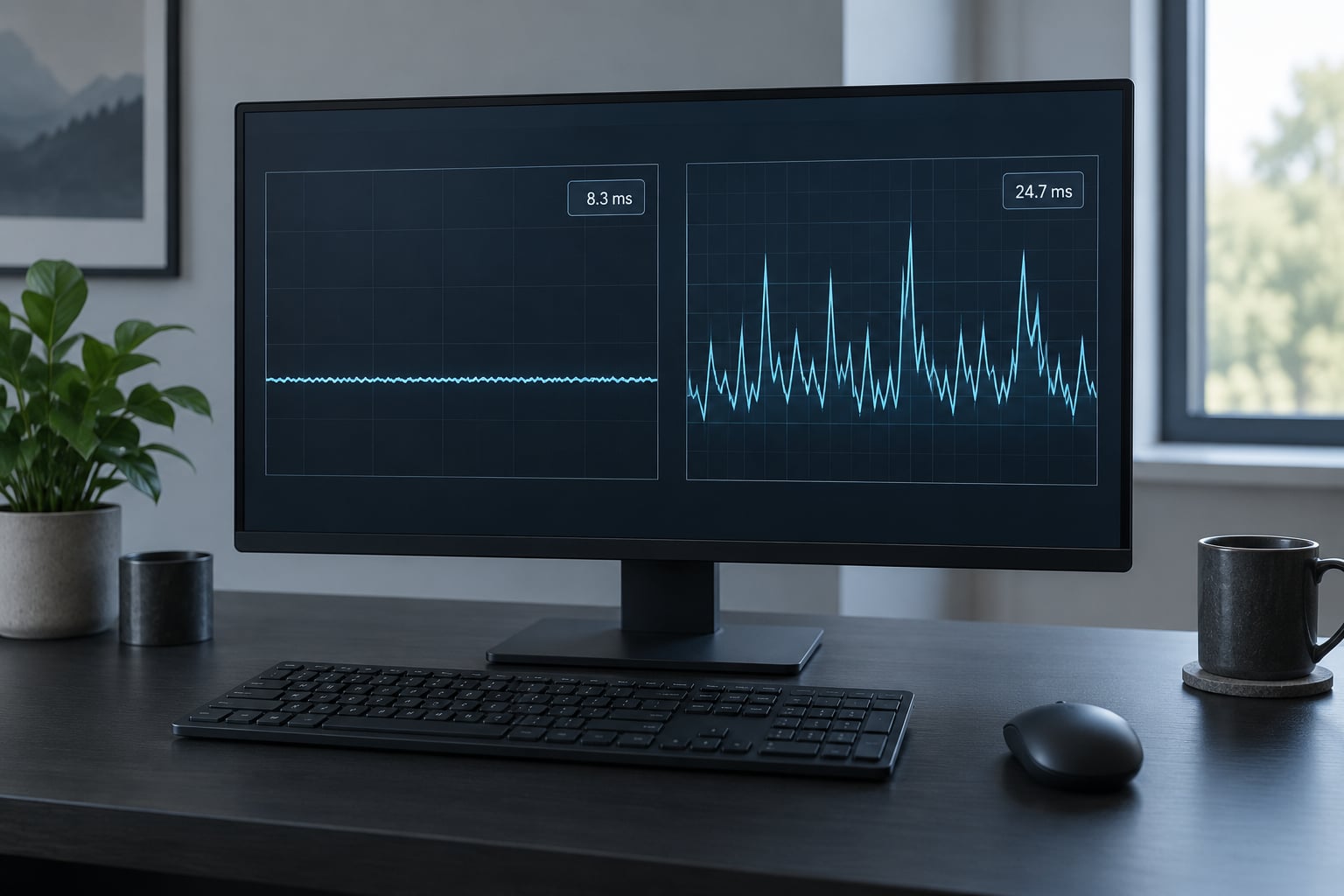
Short version: players feel the spacing between frames, not the average. Two PCs can both print 100 FPS on the counter and feel completely different, because one delivers frames at a steady 10 ms and the other stumbles through 6 ms, 25 ms, 7 ms. That gap is frame time, and it is the number that decides whether motion looks smooth.
I have spent more evenings than I want to admit staring at RTSS overlays instead of playing, and the pattern holds every time. A headline number tells you what your hardware can do for one second. A frame time graph tells you what it will feel like in the ten seconds after a firefight starts, when your 1% low collapses.
This guide walks through what frame time actually measures, how to read a frame time graph, what 1% lows and 99th-percentile frame times mean, and which settings move the needle. Updated for 2026, the numbers and tool menus still hold on current Windows builds.
Table of Contents
- What Is the Difference Between FPS and Frame Time?
- Why Average FPS Is Less Important Than Frame Time
- What Frame Time Really Measures
- How Frame-Time Consistency Affects Motion Clarity
- Why Frame Time Is Important for Input Feel and Responsiveness
- How Upscalers and Frame Generation Change Frame Time
- How to Read a Frame-Time Graph
- What Are 1% Low FPS and 99th-Percentile Frame Time?
- When Average FPS Is Still Useful
- What Causes Frame Time Variance in Games?
- CPU-side causes
- GPU-side causes
- Everything else
- How Frame Time Relates to Your Monitor Refresh Rate
- Windows and Driver Settings That Affect Frame Pacing
- Game Mode
- Hardware-Accelerated GPU Scheduling
- Power plan
- Driver-level options
- What to leave alone
- How to Improve Frame Time Without Chasing FPS
- Establish a repeatable baseline first
- Close what runs behind the game
- Check whether you are CPU or GPU bound
- Adjust the settings that actually cost frames
- Match your cap to your display
- Deal with the engine-level spikes
- Then check the system-level suspects
- Why Average FPS Is Less Important Than Frame Time in Daily Testing
- Frequently Asked Questions
- Is a higher average FPS always better for gaming?
- Is frame time measured in FPS or milliseconds?
- Why can my game stutter even when the average FPS is high?
- What is a good frame time for 60 FPS and 120 FPS?
- Does frame time affect input lag?
- Should I use average FPS or 1% lows when judging performance?
- Conclusion
What Is the Difference Between FPS and Frame Time?
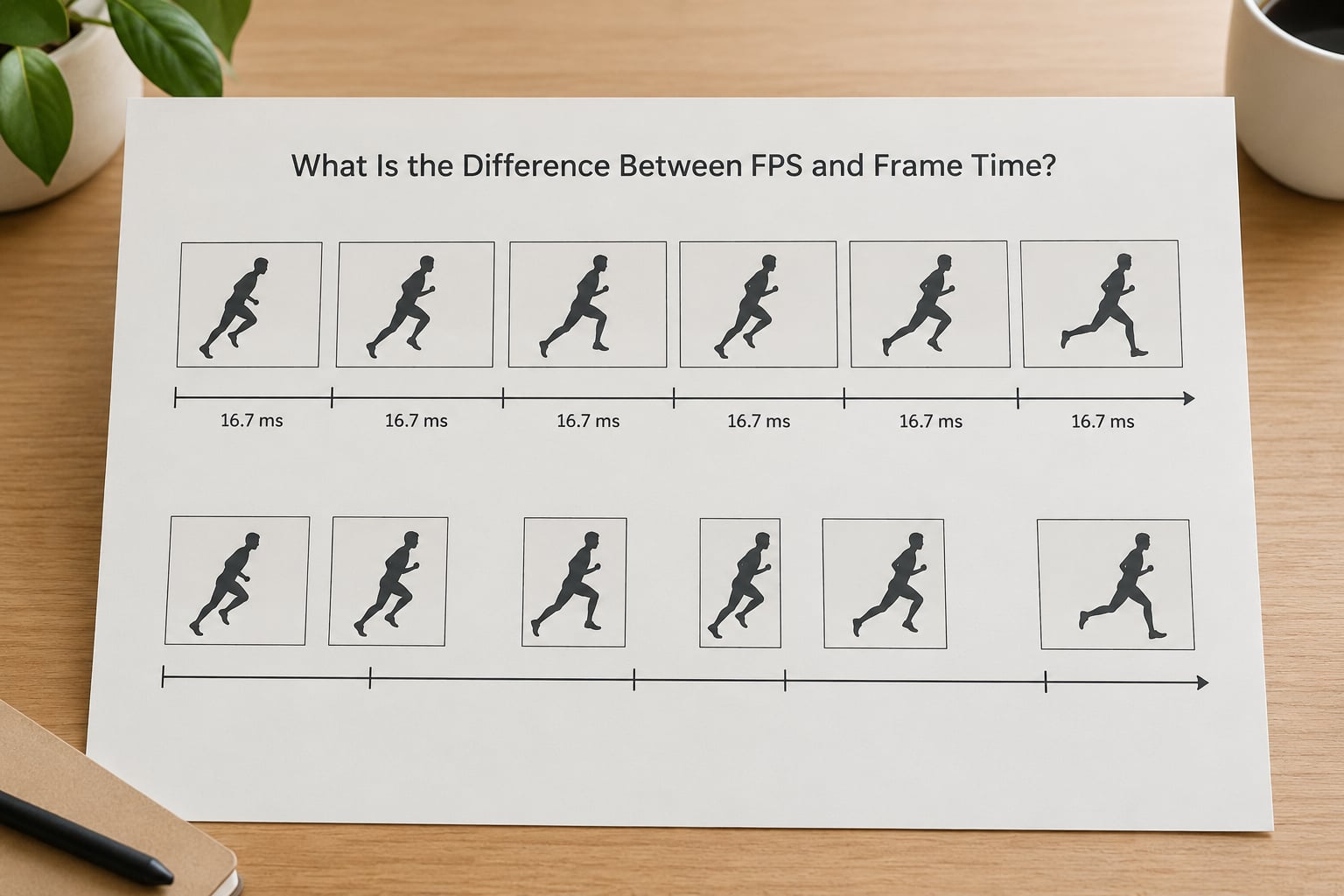
FPS and frame time are the same measurement wearing different clothes. Frame rate counts how many complete images your PC produced in a second. Frame time measures how long one of those images took, in milliseconds.
The conversion is simple: frame time (ms) = 1000 ÷ FPS. That means a steady 60 FPS is a steady 16.7 ms per frame, a steady 120 FPS is 8.3 ms, and a steady 240 FPS is 4.2 ms. Everything else in this guide falls out of that one equation.
The catch is that the average FPS counter divides total time by total frames, so it treats a 4 ms frame and a 30 ms frame as the same thing. Averaging throws away the order and the spacing, which are exactly what your eyes pick up during movement.
| Frame rate | Ideal frame time | How it feels in motion |
|---|---|---|
| 30 FPS | 33.3 ms | Visible slides on camera turns, input feels detached |
| 60 FPS | 16.7 ms | The old baseline; still slips on anything above 60 Hz |
| 90 FPS | 11.1 ms | Noticeably smoother aiming than 60 |
| 120 FPS | 8.3 ms | Comfortable sweet spot on most 120 Hz and 144 Hz panels |
| 144 FPS | 6.9 ms | Full use of a 144 Hz display |
| 240 FPS | 4.2 ms | Diminishing visual returns, real benefit for competitive aim |
| 360 FPS | 2.8 ms | Mostly a latency advantage on 360 Hz panels |
That table is the ideal, perfectly flat case. Real hardware rarely manages it, which is the whole argument of this piece.
Why Average FPS Is Less Important Than Frame Time
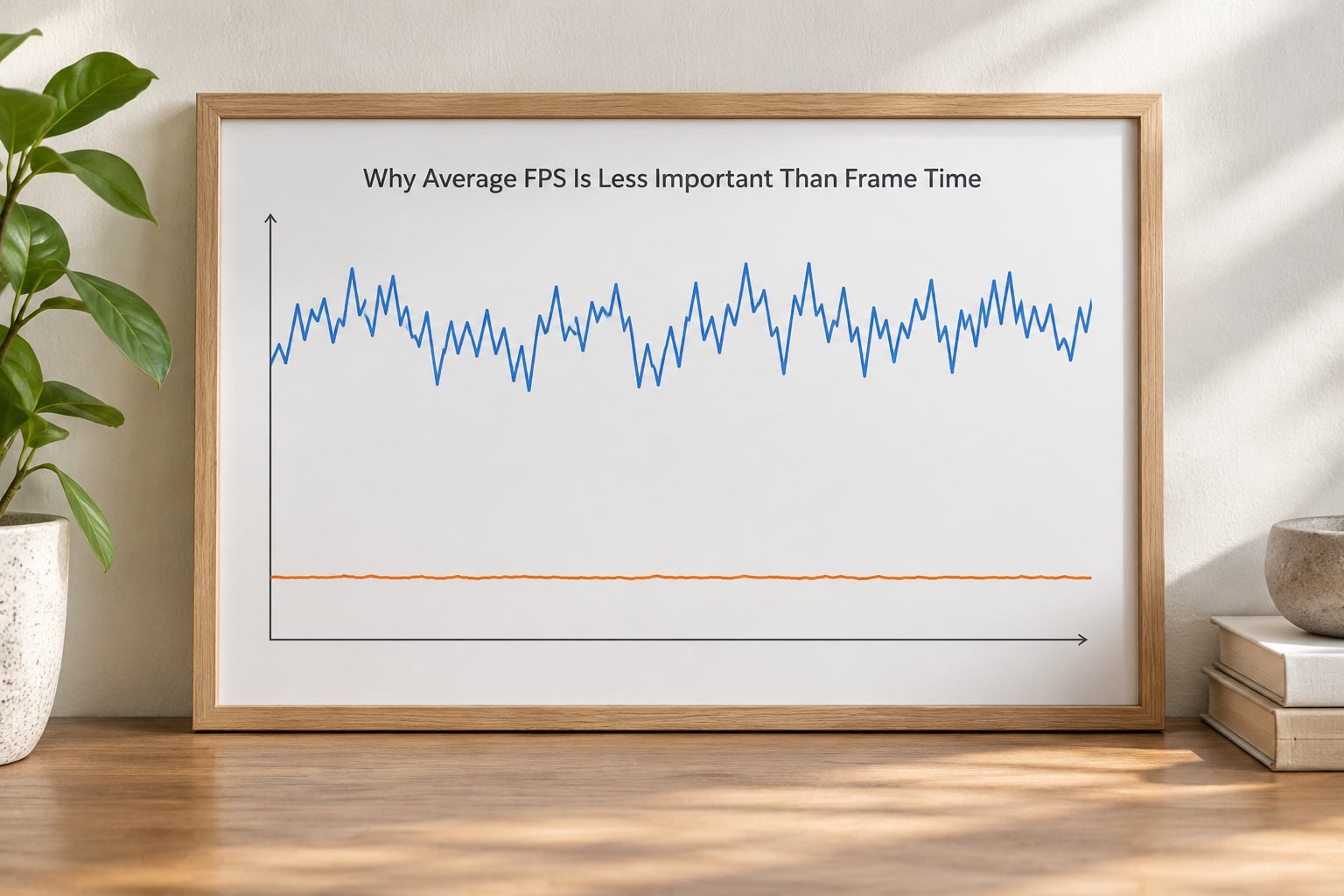
Because an average hides exactly the thing you are trying to measure. One second of play can contain 400 frames: 380 of them quick and 20 of them slow. The counter divides and reports a healthy 100 FPS, and the 20 slow frames are gone from the report. Yet those 20 frames are the hitch you remember, the shot where the crosshair stuttered across a doorway.
Frame time keeps all 400 measurements, in order, with their real durations. A steady 10 ms line and a line that alternates between 5 ms and 26 ms can both average 10 ms, but only one of them is smooth to play.
What Frame Time Really Measures
Frame time is the elapsed duration of a single rendered frame, measured from one completed frame to the next. It includes the CPU work for game logic and physics, the GPU work for rendering, the time the display waits to present it, and every hitch along the way.
That last part matters. A frame that takes 50 ms because the game was compiling a shader is still 50 ms in your log, and it still shows up as a freeze. Frame time does not care whether the delay was planned.
Here is the useful way to think about it. At 60 FPS you have a budget of 16.7 ms per frame. At 120 FPS the budget shrinks to 8.3 ms. A stutter is any frame that blows through its budget, and on a 120 FPS budget a 24 ms frame is three times over in the space of a single tick.
How Frame-Time Consistency Affects Motion Clarity
Uneven frame delivery makes motion judder, and judder is most obvious when things move at a steady rate on screen. Walk forward and the world bounces in small jerks. Whip a camera 180 degrees during a smoke flash and the sweep stutters in steps instead of sweeping. Track a target with a scope and it drifts in tiny jumps rather than gliding.
The reason is human vision is very good at detecting changes in speed, and very bad at detecting constant slowness. A constant 30 FPS looks consistently slow, which your brain adapts to. A frame time bouncing between 8 ms and 30 ms produces an ever-changing speed, and that inconsistency is what reads as ugly.
Forum discussion on r/buildapc makes the same point from the player side: users report averaging 120 to 150 FPS and still feeling choppy, and they consistently describe tight consistency, where 1% lows sit close to the average, as what makes competitive shooters feel good. That is frame time consistency being described in ordinary language.
One nuance is worth adding. Beyond roughly 200 FPS the visual improvement drops off sharply for most players, because the difference between 200 and 300 FPS is a 1.7 ms change per frame that the eye barely resolves. Stability, however, never stops mattering. There is no frame rate high enough that hitchy frame times become acceptable.
Why Frame Time Is Important for Input Feel and Responsiveness
Frame pacing is the delivery half of this. When frames arrive at even intervals, your inputs land on screen at a predictable offset, which is what players mean when they say a game feels tight. When delivery is ragged, the same input sometimes resolves in 10 ms and sometimes in 40 ms, and aiming becomes guesswork even though the average never moved.
Here is the distinction that gets blurred constantly. Frame time is not input latency. Your total input latency is the sum of everything between pressing the button and seeing the result: USB polling, the engine sampling your input, simulation, rendering, driver queuing, and the display holding the frame until the next refresh.
Raising the average frame rate shortens part of that chain, which is why high FPS genuinely helps in competitive shooters. NVIDIA Reflex and AMD Radeon Anti-Lag work on the queuing problem specifically, cutting the wait between simulation and render rather than making frames faster. They make a 200 FPS machine feel closer to what you would expect from a 240 FPS machine.
So the honest answer to whether higher FPS reduces input lag is yes, but not linearly, and not when the frames are uneven. A machine delivering a ragged 180 FPS can respond worse in practice than one holding a clean 144 FPS with Reflex enabled, because the jitter in the second case is predictable and the first case is not.
How Upscalers and Frame Generation Change Frame Time
Any feature that changes how many frames reach your display changes what your graph means, so it deserves its own section. DLSS, FSR and XeSS render internally at a lower resolution and reconstruct the final image, which raises the frame rate and lightens GPU load. Frame generation goes further and synthesises frames between the ones actually rendered.
The part that confuses people is that neither one improves consistency the way you might hope. Upscaling usually helps a lot: a lighter GPU workload means smaller frame times and a flatter line. Frame generation is different. The extra frames are constructed after the fact, so the base frame time underneath stays exactly where it was, and the smoothness of the synthesised frames depends entirely on how well the game integrates them.
When you read a graph with frame generation active, find the line for the base frames and judge that one. Judge latency separately too, because generated frames add pipeline work, and turning on a latency reduction feature such as Reflex or Anti-Lag at the same time can shift both numbers. Turn features on one at a time and capture a fresh log each time, otherwise you will not know what did what.
Practically, frame generation is a good way to turn a GPU-limited 45 FPS scene into something playable on a high refresh display, and a poor substitute for fixing a game that stutters. If your base frames hitch, generated frames inherit those hitches and add their own.
How to Read a Frame-Time Graph
A frame time graph plots one dot per frame. The vertical axis is milliseconds per frame and the horizontal axis is time. Lower dots are faster frames, and the shape of the line is the entire story. A flat line means consistency. A line that looks like a mountain range means stutter.
Five things to check, in this order:
- Average frame time. The centre of the band. Divide by 1000 for the equivalent FPS.
- The top of the band. The worst frames. If the band is 6 to 30 ms, your worst frames are five times slower than your best ones and you will see it.
- Spike frequency. Count how many times the line jumps. One spike during a three-minute run is a loading moment. Sixty evenly spaced spikes are a background task.
- Repeating dips. A regular downward pattern usually means a cap, a power state change, or another program waking on a timer.
- Refresh rate alignment. If your panel is 144 Hz, the ideal line sits at 6.9 ms. A machine hovering at 8.4 ms is running below what the display can show.
Target frame times worth memorising:
| Refresh rate | Frame time budget | Realistic cap to try |
|---|---|---|
| 60 Hz | 16.7 ms | 60 or uncapped with sync enabled |
| 120 Hz | 8.3 ms | 120, or 117 with VRR |
| 144 Hz | 6.9 ms | 141 |
| 165 Hz | 6.1 ms | 160 |
| 240 Hz | 4.2 ms | 237 |
| 360 Hz | 2.8 ms | 357 |
To capture the graph itself, MSI Afterburner with RivaTuner Statistics Server is the standard route. Open Afterburner, go to the Monitoring tab, add Frame Time, tick “Show in On-Screen Display”, and set a hotkey. For deeper analysis, CapFrameX records the raw frame data so you can compute percentiles yourself rather than trusting a single summary line.
Microsoft’s PresentMon and the newer built-in frame rate counters in recent driver overlays also work fine if you would rather not install anything heavy.
What Are 1% Low FPS and 99th-Percentile Frame Time?
These are the two numbers that expose a bad average. The 1% low is the average frame rate during the slowest 1% of frames in the run, and the 0.1% low is the same idea over a hundredth of the frames. They are calculated from a captured frame log, not from the live counter.
The 99th-percentile frame time answers the same question from the other direction. Instead of converting slow frames to a frame rate, it converts the slowest 1% of frame durations to milliseconds. A 99th-percentile frame time of 33 ms means one frame in a hundred took 33 ms.
Note that 99th-percentile FPS and 1% low FPS are not the same measurement expressed two ways, which is a common confusion. One is a percentile of durations, the other is an average rate over the worst slice. They correlate closely and the gap between them tells you how bad the worst frames actually are.
Here is the comparison that makes the argument better than any sentence:
| Scenario | Average FPS | Average frame time | 1% low FPS | 99th-percentile frame time | What you feel |
|---|---|---|---|---|---|
| Steady 60 FPS | 60 | 16.7 ms | 59 | 17.5 ms | Smooth and predictable |
| Unsteady 100 FPS | 100 | 10.0 ms | 42 | 39 ms | Choppy in bursts, hitchy in fights |
| Steady 100 FPS | 100 | 10.0 ms | 97 | 11 ms | Clean, noticeably better than steady 60 |
Rows one and two have the same shape of average. The second feels broken and the first does not, and the only columns that reveal it are the percentile ones.
Forum users ask constantly what counts as a good 1% low, and the honest answer is that it depends on the target. A practical rule I use: your 1% low should sit within about 25 to 30 percent of your average. An average of 120 with a 1% low of 110 is healthy; an average of 120 with a 1% low of 40 is a machine with a problem wearing a good average.
When Average FPS Is Still Useful
Average FPS is a fine quick check, just not a smoothness verdict. It answers one question well: can this hardware run this game at these settings on this machine. For settings comparisons, upgrade decisions and sanity checks, the number is fast and honest.
It also matters when the workload is genuinely uniform. In a benchmark scene with no asset streaming, no cutscenes and no garbage collection, an average of 145 FPS versus 190 FPS is a real difference and you will feel it in fast aiming.
Where it fails is anywhere delivery is uneven. Open worlds with streaming, shooters with anticheat scans, and any PC with background services running all produce averages that flatter the machine. Judge those cases on frame time and percentiles.
What Causes Frame Time Variance in Games?
Nine culprits cover most of what people run into, and they fall into three groups: the CPU, the GPU, and everything in between.
CPU-side causes
A pinned main thread is the classic one. Game logic, physics and draw calls all queue behind a single core, so if that core stalls, the whole frame waits. This is why an average of 200 FPS can stutter in a crowded open world while a VR-heavy scene holds 60 flat. Large draw call counts and high entity counts both make it worse.
Background work shares the same cores. A browser with dozens of tabs, a launcher checking for updates, or a recording app all compete for the scheduler, and each interruption shows up as a long frame.
Memory bandwidth limits show up as CPU-bound frame time even when the CPU itself is not saturated. Memory running in single channel instead of dual, or an XMP or EXPO profile that was never enabled in BIOS, leaves the CPU waiting on memory. Nothing in your graphics settings will touch this.
GPU-side causes
Running out of VRAM is the big one. When a game cannot fit its textures it starts evicting and reloading, which produces frame time spikes several times worse than just rendering slowly. Check VRAM usage during your heaviest scene, and if it is at or above the card’s capacity, lower texture and environment detail first.
Ray tracing and volumetrics add per-frame cost that varies with what is on screen, so they produce uneven frame times rather than a uniformly lower one. Heavy shadow rendering at high quality does the same thing, since the cost tracks where shadows land.
Thermal throttling is worth ruling out if a machine degrades after twenty minutes. Watch GPU clocks during a long session; a steady drop into lower boost states shows up as a slow drift downward on the frame time line.
Everything else
Storage speed causes hitches rather than low frame rates. When a scene streams assets from a slower drive, frames stall while the game waits for data, which is why first-time traversal of an area stutters and the second pass does not. DirectStorage and a fast NVMe drive reduce how often that happens.
Anticheat software is an uncomfortable one, because it runs periodic scans at unpredictable moments. Players on Steam community forums have reported visible microstutter traceable to VAC scans, and there is nothing in your control panel that changes it.
Multithreaded CPU utilisation that drops well below full load is a related warning sign. If threads are finishing early and then waiting, the frame is being held by something else, usually a frame rate cap or a synchronisation point the game imposes.
How Frame Time Relates to Your Monitor Refresh Rate
Your display redraws on a fixed schedule: every 16.7 ms at 60 Hz, every 6.9 ms at 144 Hz, every 4.2 ms at 240 Hz. Frame time only matters to you if it lines up with that schedule.
At 144 Hz, a machine that varies between 5 ms and 20 ms is not really running at 144 Hz most of the time. It is running fast for a moment, then missing refresh windows. This is the practical reason a stable 90 FPS machine on a 144 Hz panel can feel smoother than a fluctuating 140 FPS one: the first produces even motion, the second produces judder.
VSync and adaptive sync exist to line the two up. VSync holds frames until the display’s next refresh, which removes tearing but adds input lag. G-Sync and FreeSync instead let the display adjust its refresh timing inside a range, which removes tearing while keeping frame times nearly flat. Adaptive sync only works inside the monitor’s supported range, usually from a low refresh up to the panel’s maximum, so your frames need to stay within that window.
This is also why an uncapped game on an adaptive-sync monitor often looks worse than a capped one. Sitting above the ceiling means waiting for sync to re-acquire after every dropped frame, and the graph fills with the resulting gaps. Capping a few frames below the refresh rate keeps you inside the range permanently.
Consoles make a useful contrast. Fixed hardware means developers tune to a predictable frame time target on every machine, so a console version holding its cap is usually flat by design. On PC the same title runs across an enormous spread of hardware, which is why an average is so easy to over-trust there.
Windows and Driver Settings That Affect Frame Pacing
Some frame time problems are not in the game. These are the Windows and driver settings worth checking, with the exact paths for current Windows 11 builds.
Game Mode
Open Settings, go to Gaming, then Game Mode. It is enabled by default on most installations. Game Mode throttles background tasks and prioritises the foreground game, which on a busy desktop helps a little and on a clean one does nothing measurable. If your frame time spikes follow a pattern that matches a timer, switch it off and re-record your route. That test costs five minutes and settles the question for your machine.
Hardware-Accelerated GPU Scheduling
Same section of Settings, under the Graphics tab. It lets the GPU schedule its own work rather than going through the CPU. On most modern systems it helps or is neutral, but on some older CPU and GPU combinations it adds a small amount of jitter. Again, the only reliable test is your own graph: toggle it, run the same route three times, and compare.
Power plan
On a desktop this rarely matters. On a laptop set Settings, System, Power, to Best performance, and check your vendor control app as well, since it can override the Windows setting. A CPU that boosts after the first few seconds of a match produces a short cluster of slow frames right when the match starts.
Driver-level options
In the NVIDIA Control Panel, set Power Management Mode to Prefer Maximum Performance under Manage 3D Settings. The Low Latency Mode setting there is a global version of Reflex and is best left on Ultra only if the game already exposes Reflex properly, since the two can conflict. Avoid the old 3DVSync option; it is a legacy path that adds tearing at the wrong moments rather than cleaning it up.
In AMD Adrenalin, the equivalent setting is under Gaming, Global Settings, where Radeon Chill should be set to Off so the driver is not managing frame pacing underneath you. Anti-Lag lives there too and, like Reflex, addresses queuing latency rather than frame time.
What to leave alone
Tweaking HPET mode, disabling services you read about on a forum, or running Process Lasso affinity rules are last resorts. HPET in particular is frequently blamed for problems it does not cause, and forcing CPU affinity usually makes frame time worse by cutting off cores the game wanted to use. LatencyMon first, then one change at a time.
How to Improve Frame Time Without Chasing FPS
Work down this list and change one thing at a time. Chasing a bigger counter is how people end up with a higher average and a worse graph.
Reading the spikes first tells you where to start. Spikes at regular one-second intervals usually point at a background service. Spikes that land exactly when you fire or take damage usually point at shader compilation. Long single hitches the first time you enter an area usually point at asset streaming from storage.
Establish a repeatable baseline first
Pick one route, one scene or one repeatable drill in your main game, and run it three times before you touch anything. Save each log. A single run tells you almost nothing because CPU boost behaviour and background noise vary every time you load in.
Without a baseline you cannot tell a fix from a good day. This matters more than people expect, because plenty of “fixes” online produce a change smaller than the run-to-run variance.
Close what runs behind the game
This is the cheapest fix and the most commonly missed. Background services are the classic cause of evenly spaced frame time spikes. The r/buildapc example that comes up repeatedly is a Windows Update pass dragging 1% lows from 91 down to 17 on a machine holding a 100 FPS average.
Close browsers, launchers, cloud sync clients, screen recorders and chat overlays before you benchmark. Pause Windows Update during a session if you must, and check for an antivirus scan that kicked off at the worst possible moment.
Check whether you are CPU or GPU bound
Watch both core clocks in the overlay while you play. If GPU usage sits at 99 percent, you are GPU bound and frame time follows your graphics settings. If GPU usage swings between 60 and 90 percent while a single CPU core is pinned, you are CPU bound, and no amount of lower textures will fix the pacing.
CPU-bound stutter is where RAM configuration shows up. Memory running in single channel, or a kit with XMP or EXPO not enabled in BIOS, can stretch main thread and draw call latency visibly on a graph even when the average looks fine. Enabling the profile takes one reboot and is free.
Adjust the settings that actually cost frames
Lower in this order, and re-run your route after each change:
- Volumetric effects and ray tracing quality, which cost the most per frame
- Shadow quality, often the largest single spike source when shadows are dynamically generated
- View distance and crowd density, both common CPU bottlenecks in open worlds
- Anti-aliasing, if you run a frame rate far above your refresh rate and do not need the headroom
- Resolution scale, which is the cleanest lever when you are GPU bound
Texture quality is the one people lower first and it is usually the worst choice for frame time. VRAM overflow produces enormous spikes, so if you are over budget, reduce texture and environment detail rather than assuming you need a bigger card.
Match your cap to your display
Set a hard frame rate cap slightly below your refresh rate, or just below it with VRR enabled. On a 144 Hz panel that usually means 141. With an adaptive-sync monitor, letting the engine run free often produces worse pacing than a cap just under the ceiling, because you sit above and below the sync window instead of inside it.
If you are on a fixed-refresh display and want the lowest input lag, uncapped with VSync off is the conventional choice, at the cost of tearing. Players on r/pchelp and similar communities consistently report that turning sync off minimises input lag and accept the tearing as the trade.
Deal with the engine-level spikes
Shader compilation causes one-off freezes of several hundred milliseconds the first time an effect appears. Most engines build a cache on disk after the first run, so repeated visits to the same area should be clean. If it keeps happening, verify the shader cache directory is on an SSD and is not being cleared by a cleaning utility.
Frame generation raises the frame rate number considerably but synthesises frames rather than rendering them. Check the base frame time underneath before deciding whether it helped, and give the engine a full session to warm its shader cache before you record anything.
Unreal Engine 5 games such as Cyberpunk 2077 and The Witcher 3 lean heavily on asset streaming and dynamic resolution, so both can shift your effective frame time mid-scene. Microsoft Flight Simulator is CPU-limited almost everywhere, which makes it a brutal test of single-core and memory performance.
Then check the system-level suspects
DPC latency spikes show up as rare, sharp frame time hits. LatencyMon will confirm whether a driver is the cause. Memory standby list issues produce periodic hangs on older Windows builds and are cleaned with Intelligent Standby List Cleaner.
Power plan matters on laptops and hybrid systems more than desktops. Set the scheme to High performance so the CPU does not spend the opening seconds of a firefight in a lower clock state, which reads as a few slow frames at the start of every match.
Resizable BAR is worth enabling on supported AMD and Intel platforms. It is a small, free change and it helps CPU-bound frame time in several recent titles, though it is not a substitute for fixing a genuine bottleneck.
Why Average FPS Is Less Important Than Frame Time in Daily Testing
Re-run the same route three times and compare the saved graphs against your baseline, not the counter. What you are looking for is a narrower band: the top of the spikes should come down, and the gap between your average and your 1% low should shrink.
If the average rose but the band got wider, you made things worse. That is the whole argument of this article in one sentence, and it is why the heading question keeps coming back: why average fps is less important than frame time, because the average is the one number on your screen that will happily hide a regression.
Frequently Asked Questions
Is a higher average FPS always better for gaming?
No, not once you are past your display’s refresh rate. A higher average shortens real input latency and adds responsiveness, but it says nothing about whether frames arrive evenly. A machine holding a flat 144 FPS can feel better than one bouncing between 90 and 200, because the second one stutters through the exact moments you are aiming.
Is frame time measured in FPS or milliseconds?
Frame time is measured in milliseconds per frame, and frame rate is derived from it: frame time = 1000 divided by FPS. So 60 FPS equals 16.7 ms per frame, 120 FPS equals 8.3 ms, and 240 FPS equals 4.2 ms. Frame time is the underlying measurement, which is why it exposes variation an average frame rate hides.
Why can my game stutter even when the average FPS is high?
Because the average compresses a whole second of frames into a single number, so a few very slow frames disappear into it. Common causes include background services running on a timer, shader compilation the first time an effect appears, asset streaming from storage, VRAM overflow, and CPU-bound scenes where one core is pinned. A frame time graph shows all of them instantly.
What is a good frame time for 60 FPS and 120 FPS?
60 FPS needs 16.7 ms per frame and 120 FPS needs 8.3 ms. Those are the targets, but what matters is holding them flat rather than bouncing above them. A graph that averages 16.7 ms with spikes to 40 ms will not feel like a clean 60 FPS. Aim for a band where your worst frames stay close to the target.
Does frame time affect input lag?
Not directly, and the distinction is worth keeping straight. Frame time measures how long a frame took; input latency is the total delay from your input to the pixels changing. Uneven frame time still hurts how a game feels, because your inputs resolve at unpredictable offsets. For actual latency, look at total system latency and features like NVIDIA Reflex or Radeon Anti-Lag.
Should I use average FPS or 1% lows when judging performance?
Use the 1% low as the deciding number and the average as context. The average tells you what your hardware can sustain, while the 1% low shows what happens in the worst moments. A practical rule: your 1% low should land within about 25 to 30 percent of your average. Below that, expect visible hitching no matter how high the average reads.
Conclusion
Average FPS tells you what your machine did. Frame time tells you what you felt. Keep using the average as a quick capability check, but judge smoothness on how flat the frame time line stays and how close your 1% low sits to your average.
Start with three things. Capture a frame time graph with RTSS or CapFrameX, look for regularly spaced spikes and for the worst frames at the top of the band, then set a cap just under your refresh rate. If the average climbs while the band gets wider, you have traded a number for a worse experience.