If you want to know how to tell if a game is CPU or GPU bound, watch both parts of the machine while you play. A graphics card sitting at 95-100% while processor cores keep spare capacity means the GPU is the limit; one or more CPU cores pinned at 100% with the GPU idling around 50-70% means the processor is. The whole diagnosis takes about ten minutes with Task Manager and any frame-time overlay.
Average FPS will not tell you on its own. A game can hold a comfortable 90 FPS and still stutter badly, and the counter rarely says which component is holding the frame back.
Below is the five-check process, then the fixes for each result. Menu names follow Windows 10 and 11 with MSI Afterburner; the Mac equivalent is the Steam overlay or iStat Menus, and the readings work the same way.
Table of Contents
- What You Need
- Step-by-Step: How to Tell If a Game Is CPU or GPU Bound
- 1. Establish a repeatable test
- 2. Check CPU and GPU usage
- 3. Read frame-time graphs, not just FPS
- 4. Change one setting and compare the result
- 5. Confirm the bottleneck with a second test
- Common Mistakes When Identifying CPU or GPU Bottlenecks
- What to Change After You Identify the Bottleneck
- Frequently Asked Questions
- What is GPU bound vs CPU-bound?
- Is 95% GPU usage a good thing?
- Is 80% CPU usage a bottleneck?
- Is it better to be GPU bound or CPU-bound?
- Why is my GPU only at 60% while gaming?
- Does raising resolution make a game GPU bound?
- Conclusion
What You Need
Nothing here needs paid software or specialist hardware. All of it runs on stock Windows.
- The game, at the settings you actually play. Changing presets mid-test is the fastest way to get a wrong answer.
- A repeatable scene. A route you know, or an area with dense crowds, foliage and traffic.
- Windows Task Manager. Press Ctrl+Shift+Esc, then open the Performance tab. It shows CPU and GPU usage side by side with no install.
- One on-screen overlay. MSI Afterburner with RivaTuner Statistics Server, the NVIDIA App overlay (Alt+R by default), or the Steam overlay (Shift+Tab). Any of the three puts GPU percentage, per-core CPU load and frame rate on top of the game.
- Optional, but useful: CapFrameX or PresentMon for real frame-time data, HWInfo64 or HWMonitor in sensors-only mode for clock speeds and temperature.
Turn off V-Sync and any frame cap before you start measuring. A capped frame rate is the most common reason a GPU-bound game reports a misleadingly low GPU percentage.
Step-by-Step: How to Tell If a Game Is CPU or GPU Bound
1. Establish a repeatable test
Pick a scene you can replay identically: the same spawn point, the same route, roughly 60 seconds of continuous movement. Menus, loading screens and cutscenes tell you nothing because no rendering work is happening.
Stay away from parts of the map with no enemies or geometry. An empty courtyard is usually GPU-bound in one direction and CPU-bound in another, and you get a different verdict depending on where you stand.
2. Check CPU and GPU usage
In Task Manager, Performance tab, read the two big graphs: CPU at the top, GPU below it. Then click the CPU graph and switch to the 8-core view (right-click the graph, Change graph to, Logical processors) to see each core separately.
That per-core view matters more than most people expect. A 16-core processor sitting at 40% total can still have its game thread at 100%, because games use a handful of cores heavily and leave the rest idle. Aggregate CPU percentage is a poor stand-in for gaming load, and it is the single biggest source of wrong verdicts.
Here is how to read the numbers:
| GPU usage | Total CPU | Busiest CPU core | Verdict |
|---|---|---|---|
| 95-100% | Any | Below about 90% | GPU-bound. Lowering graphics or raising resolution moves the number. |
| 95-100% | Any | Pinned at 100% | Balanced at this resolution. Both parts are near their limit. |
| 60-90% | 30-60% | One core at 95-100% | CPU-bound. Single-thread limit on the game thread. |
| 60-90% | 30-60% | All cores under 80% | Usually a frame cap or V-Sync holding the GPU back, not a real limit. |
| Under 60% | Under 40% | Under 80% | Something else is the limit: storage hitching, memory, or a thermal and power cap. |
Check the clock speeds while you are there. If the CPU sits at its base clock instead of its boost clock, or the GPU clock is well below its rated boost, you have a power or thermal limit rather than a hardware mismatch.
3. Read frame-time graphs, not just FPS
FPS is an average, and averages hide exactly what players complain about. Frame time is the real number: 16.7 ms is 60 FPS, 8.3 ms is 120 FPS. Two scenes can both read 90 FPS while one feels smooth and the other feels like a slideshow.
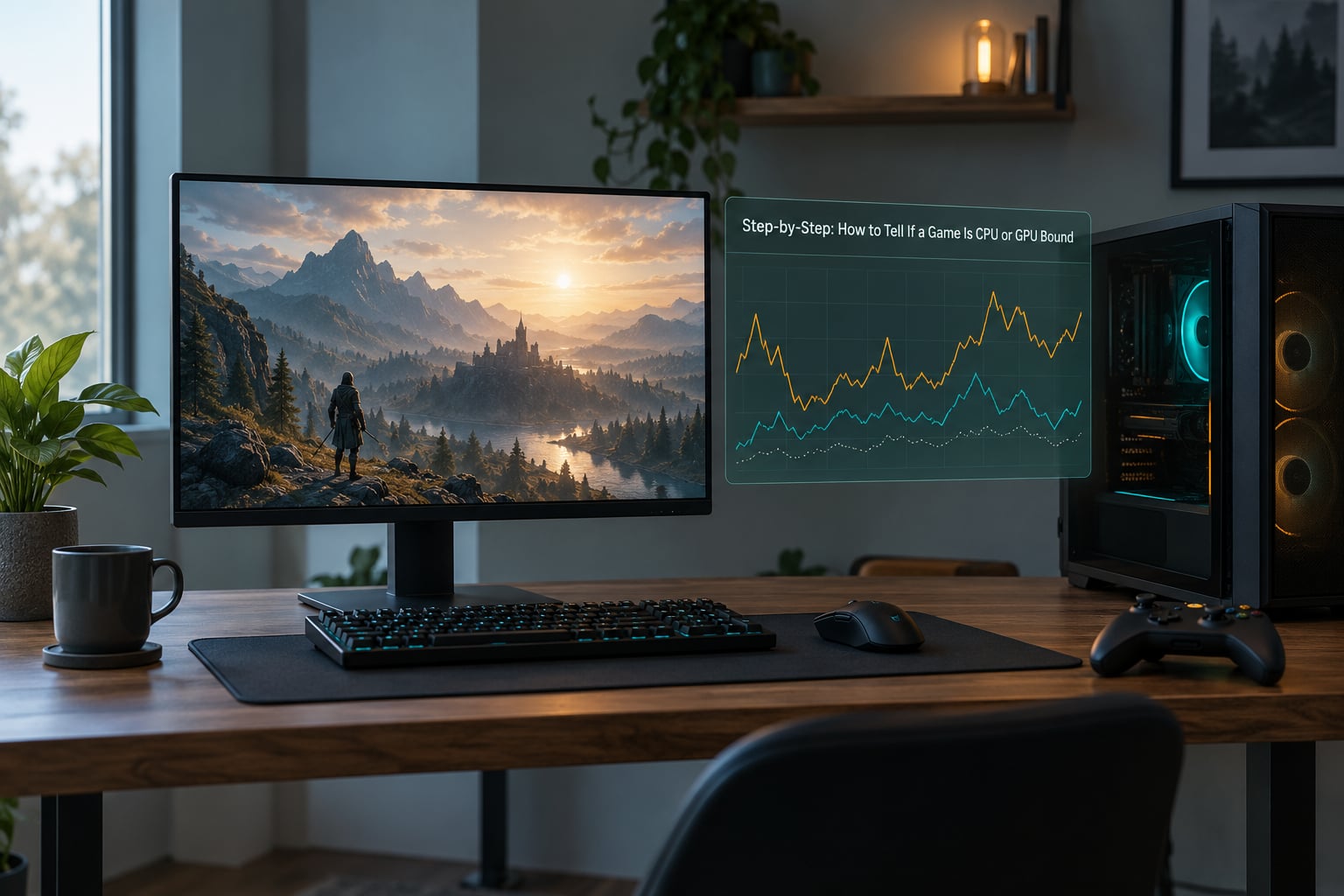
On a GPU-bound game, the frame-time graph looks like a flat line with small dips. On a CPU-bound game you see spikes that coincide with camera turns, taking damage, opening a menu or entering a crowded area, because those are the moments when the game thread has to do more work than it can finish.
Compare your average to your 1% lows at the same time. A gap of more than about 30 percent between them is normal on a well-tuned setup and much larger on a CPU-limited one. CapFrameX captures both in one pass and shows the graph; the NVIDIA App overlay shows an FPS, GPU and VRAM readout plus a simple frametime graph if you enable it in Settings.
4. Change one setting and compare the result
Make exactly one change, then run the same scene for the same length of time. Changing four settings at once tells you the game got faster, not which part of it responded.
Two changes do most of the diagnostic work:
- Drop graphics one notch (shadow quality, or one step down on a ray-tracing slider). If frame rate climbs sharply, the GPU was the limit. If it barely moves, the GPU had headroom.
- Raise resolution from 1080p to 1440p, or enable a higher quality upscaler mode. If frame rate barely drops, the CPU was the limit. If it falls apart, you were GPU-bound all along.
Settings that lean on the processor are worth testing separately: view distance, crowd or population density, foliage density, simulation quality and the number of physics objects. Big swings there point to the CPU.
5. Confirm the bottleneck with a second test
Run the original settings again for 30 to 60 seconds and record three things: GPU percentage, busiest CPU core, and frame time or 1% lows. If the first reading was a fluke, the second one usually tells you so.
Then confirm in the direction that matters: if the diagnosis says GPU-bound, improving graphics quality or resolution should visibly reduce frame time. If it says CPU-bound, turning up graphics settings should cost you almost nothing. A bottleneck that does not respond to the change you make is not a bottleneck, it is a different problem wearing the same mask.
Common Mistakes When Identifying CPU or GPU Bottlenecks
Judging from one average FPS number. Averages hide stutter. Watch frame times and 1% lows alongside the FPS counter before you conclude anything.
Reading total CPU percentage. Task Manager shows a machine-wide average across every core. Open the per-core view; the game thread is the number that matters, and it is regularly at 100% while the total reads 45%.
Changing several settings at once. The frame rate went up, but you learned nothing about which component moved. One change per run.
Testing in an empty scene. An empty room can read GPU-bound while the same game reads CPU-bound in a busy city street. Test where the game actually gets hard.
Treating low GPU usage as proof there is no limit. Check for V-Sync, an in-game frame limiter, the driver frame cap, or your monitor refresh rate sitting just above what the game can push. A GPU held at a steady 60% by a limiter is not idle.
Upgrading before the diagnosis is done. This is the expensive one. A faster GPU in a CPU-bound game typically adds a handful of frames and does nothing for stutter.
What to Change After You Identify the Bottleneck
If the game is CPU-bound: turn off background launchers, overlays and capture software, close browser tabs you left running during the match, and drop simulation-heavy settings such as view distance, crowd density and foliage. Raising resolution to shift load toward the GPU also works, at the cost of sharpness. In games that use upscalers, a Quality mode rather than Performance mode puts load back on the GPU and usually recovers a chunk of lost frames.
If the game is GPU-bound: lower resolution or turn on DLSS, FSR or XeSS, drop ray tracing before you drop texture quality, reduce shadow resolution and anti-aliasing first, and consider frame generation only if your base frame rate is already high enough to hide its added input latency. The GPU is where upgrade money goes in this case; a new graphics card is the fix, the processor can stay.
If VRAM is the limit: texture-heavy games at 4K can run out of video memory even when utilization looks healthy. Watch VRAM usage in the overlay. Lower texture quality and resolution, close other GPU-heavy applications such as a browser with hardware video decoding running, and expect a card with more memory to matter more here than a card with faster shaders.
If frame time is the limit but neither component is pegged: you are seeing micro-stutter from storage hitches, memory paging or background software rather than a CPU or GPU ceiling. Check drive activity during the hitch, close everything that indexes folders, and confirm your page file and memory are not the constraint.
On a laptop or a pre-built: the CPU and GPU share a power budget, so fixing one can throttle the other, and results move between battery and plug. Test plugged in with the performance mode selected, and treat a single test run as one data point rather than a verdict. Most thin-and-light laptops are CPU-limited far more often than their spec sheet suggests.
Before buying anything: a rule of thumb that holds up well is to upgrade whichever component was at 100% in your test, and only if the test was clean. At 1080p on a high-refresh display, upgrading the processor usually helps more than people expect; at 1440p and 4K the graphics card is almost always the better buy.
Frequently Asked Questions
What is GPU bound vs CPU-bound?
A CPU-bound game is limited by processor speed: the game logic, physics and AI cannot be finished in time, so the graphics card waits. A GPU-bound game is limited by graphics card speed, with the CPU finishing its work early and the GPU running at 95-100%. Both still show a usable frame rate, but only one of them responds to changing the matching setting.
Is 95% GPU usage a good thing?
Yes, if your frame rate meets your target. High GPU usage means the graphics card is working hard, not that something is wrong, and it is the normal state for a GPU-bound game. If you are unhappy with the frame rate you are getting at 95%, lower graphics settings or resolution. The number to worry about is low usage on both parts at once.
Is 80% CPU usage a bottleneck?
Not on its own. The total figure in Task Manager is an average across every core, so 80% can mean one core at 100% with fifteen sitting idle, which is a real bottleneck, or every core busy with no single thread saturated, which is not. Switch the CPU graph to the per-core view and check whether any single core is pinned near 100%.
Is it better to be GPU bound or CPU-bound?
Being GPU-bound is generally the better place to be. It means frame rate responds predictably to graphics settings and resolution, stutter tends to come from frame pacing rather than gameplay logic, and upgrading the graphics card gives the biggest gain. CPU-bound games are also the ones where upgrade value drops off fastest once you already own a recent processor.
Why is my GPU only at 60% while gaming?
Check the limits before you blame the hardware. V-Sync, an in-game frame limiter, the driver’s frame cap and your monitor refresh rate can all hold the GPU below full load. Background overlays and a paused or alt-tabbed window also distort the reading. Turn those off, run a 60 second test in a busy scene, and check whether the CPU is pegged at the same time.
Does raising resolution make a game GPU bound?
Usually, yes. Raising resolution adds pixels for the graphics card to fill without asking the processor for more work, so GPU usage climbs and the CPU has more room. If frame rate barely changes when you move from 1080p to 1440p, that is strong evidence the game was CPU-bound at the lower resolution. Upscalers blur this signal, so test with them off first.
One last thing worth doing: write down your game, your resolution, your average and your 1% lows, then post them with your hardware. Getting a second opinion on real numbers is how most misdiagnoses get caught.
Conclusion
The fastest honest diagnosis takes one repeatable scene and one overlay. Watch GPU percentage and per-core CPU load together, compare frame time against the average, change a single setting, then repeat the test before you spend anything.
Upgrade the part that was pinned at 100%, ignore the part with headroom, and if you are still stuck, post your readings with the game and your specs. That is how to tell if a game is CPU or GPU bound for your setup specifically, rather than guessing from a general rule. This guide is current as of 2026.